Chapters
Guide › Get started
How Sofrito works
Sofrito runs a restaurant from the front door to the kitchen and the office: the till, the servers' phones, the kitchen display, the screens guests see, the receipts and the back office. This chapter explains the pieces and how they fit together, so you can plan your setup and train your team. It is for everyone: owners, managers, staff and the partners who install Sofrito.
Know the screens
Sofrito is one app. Each device you connect to your restaurant is paired as one kind of screen and shows only what that screen needs. A manager can change what a device is used for at any time.
| Screen | Where it goes | What it is for |
|---|---|---|
| The till | At the counter or the bar | Tables, orders, payments, the cash drawer and bookings |
| Handheld | In a server's pocket | Orders and payments at the table |
| Kitchen display | In the kitchen or behind the bar | The tickets each station has to make |
| Customer display | On the counter, facing the guest | The order open on the till it faces, and the total to pay |
| Pickup board | Where takeaway guests wait | Order numbers being prepared and ready |
| Back office | Any computer, tablet or phone | Menu, team, devices, settings and reports |
Sofrito works in English, Portuguese, Spanish and French. You choose the language on the first screen, and each person can change it on a till under More.
The till
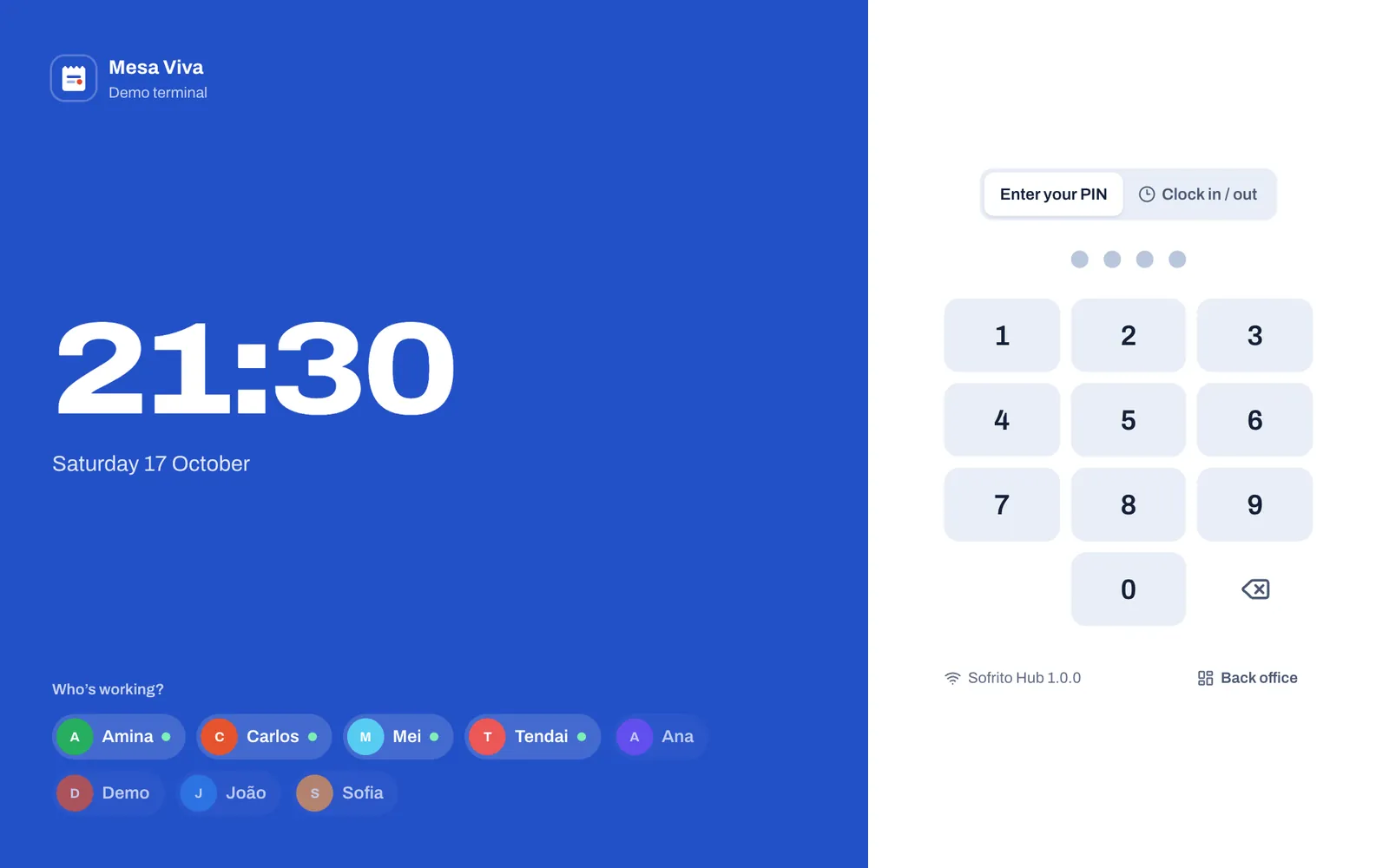
The till is a POS terminal: a tablet or a touch screen computer at the counter or the bar. It starts on the lock screen. Each person unlocks it with their own PIN, so Sofrito knows who took every order and payment. The same screen has Clock in / out for the time clock, and Back office, which asks for the PIN of someone allowed into the back office.
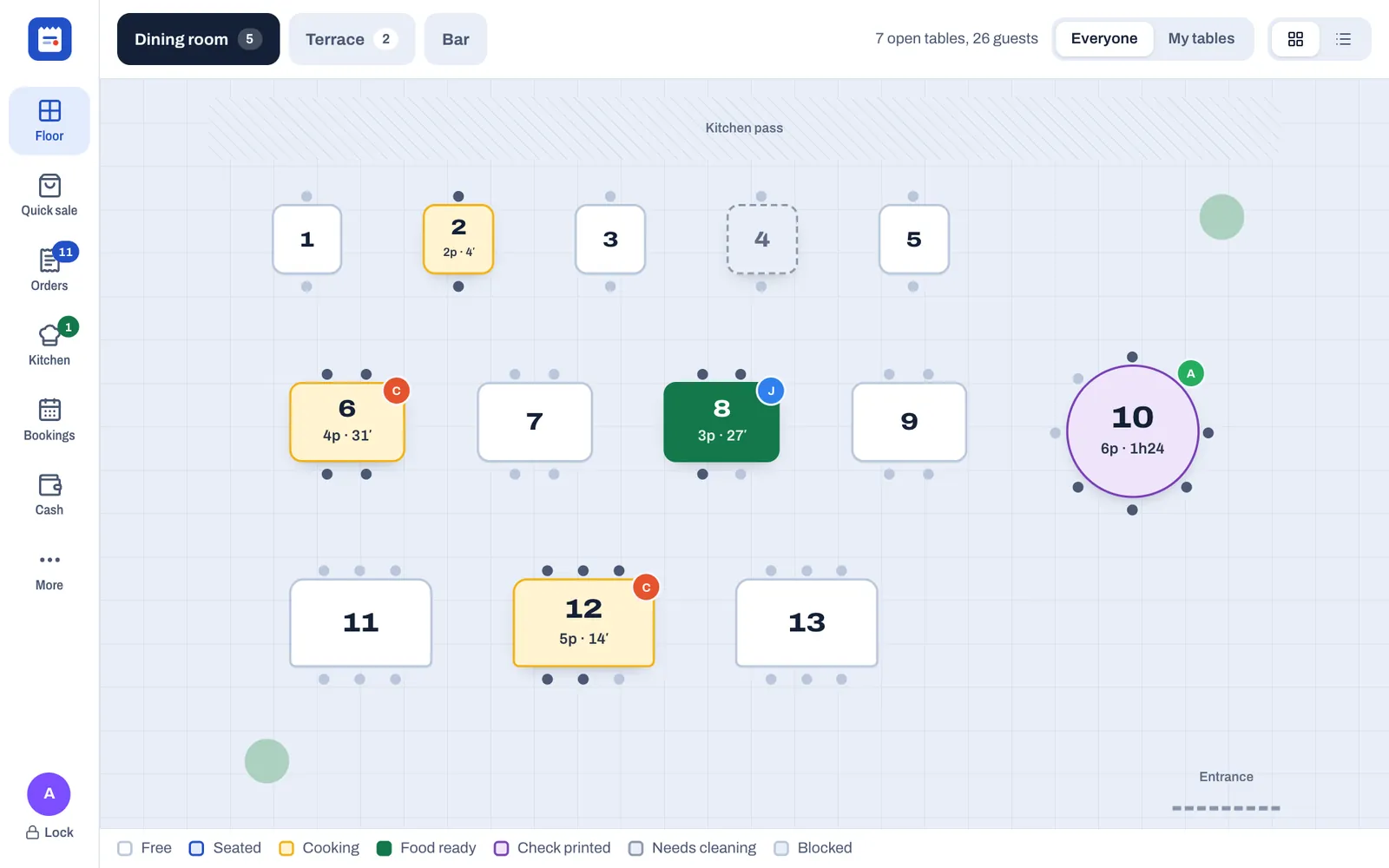
Once unlocked, the till opens on the floor plan. Each table shows its state: Free, Seated, Cooking, Food ready, Check printed, Needs cleaning or Blocked, with the number of guests and how long they have been there. The bar on the side has:
- Floor: your tables and areas.
- Quick sale: an order without a table, for the counter or takeaway.
- Orders: every open order.
- Kitchen: what the kitchen is making and what is ready.
- Bookings: today's bookings and the waitlist.
- Cash: the cash drawer, the shift report and the close of the day.
- More: your shift, breaks and cash tips, gift cards, language, printers, the back office and, for managers, what this screen is used for.
By default the till locks itself after 90 seconds without a touch, so the next person signs in with their own PIN.
Handhelds
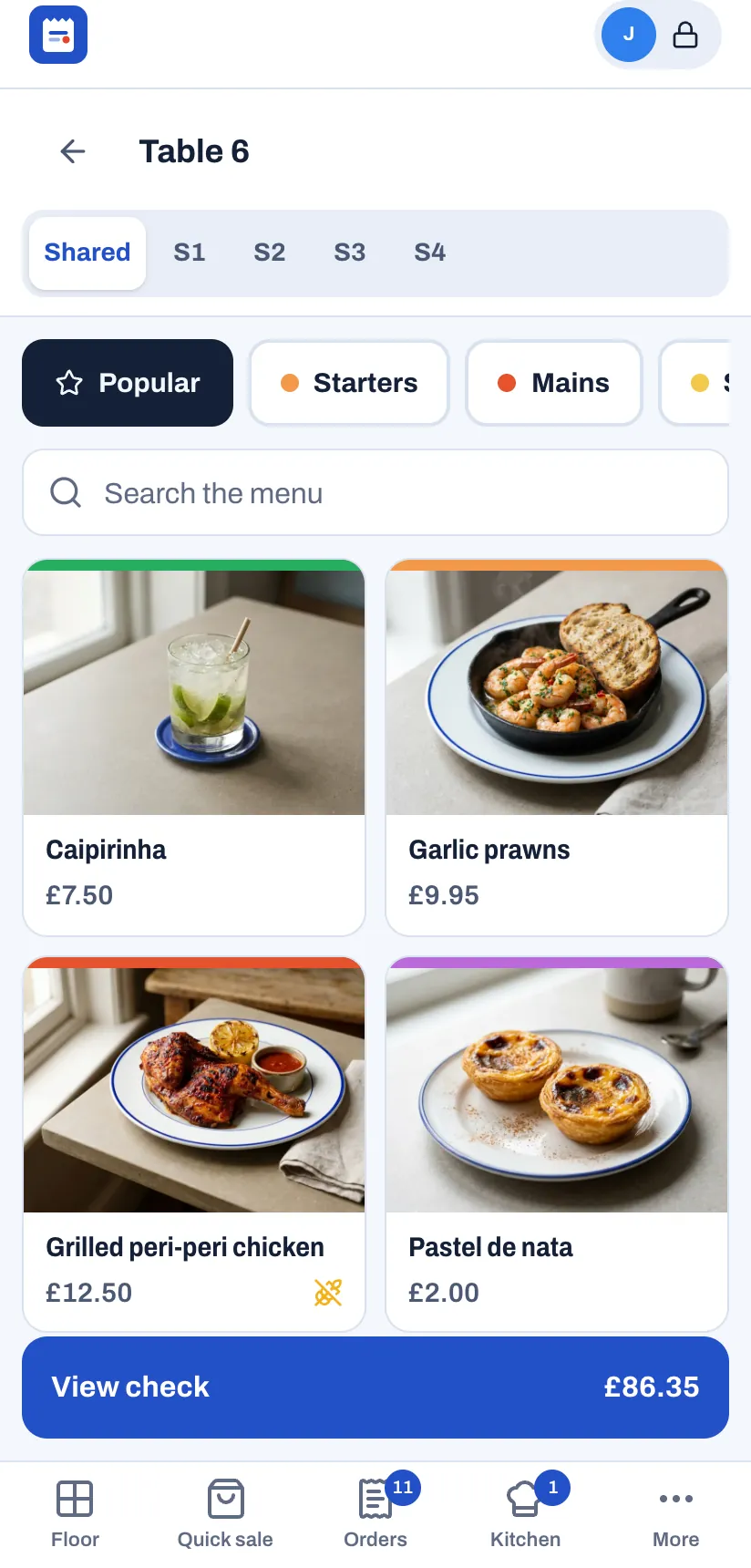
A handheld is a server's phone or small tablet, or a rugged handheld terminal. It runs the same app as the till. Servers open a table, take the order by seat and course, send it to the kitchen and take payment without walking back to the counter. When the kitchen marks a dish ready, the server's phone chimes and shows which table it is for. On a phone, the bar at the bottom shows the first four sections, such as Floor, Quick sale, Orders and Kitchen, and More, which is always there. More lists the other sections, such as Bookings and Cash, as buttons at the top.
The kitchen display
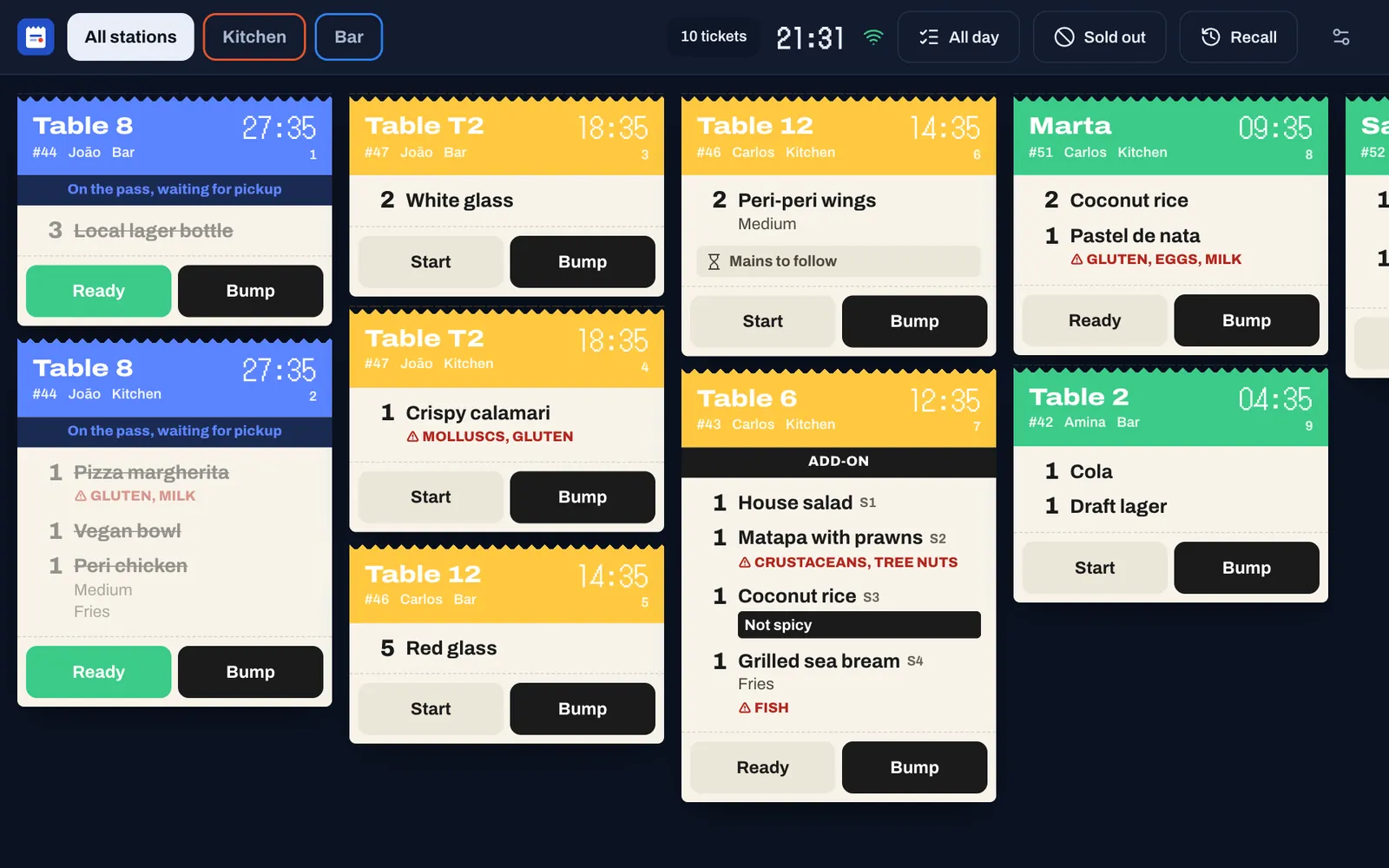
The kitchen display shows the tickets for each station, such as the kitchen and the bar, the moment a server sends them. Each ticket shows the table, the server, the dishes with their options and allergens, and a timer, with the guest's allergies in a red band when they are on the guest's profile. The ticket turns yellow, then red, as it gets late. Cooks tap Start when they begin and Ready when the food is on the pass, then Bump to clear it. All day totals how many of each dish are on order, Sold out lists the dishes to take off or put back on sale, and Recall brings back a ticket bumped by mistake.
A kitchen printer can print the same tickets on paper. A station that no kitchen display shows only prints its tickets, and they close as they print, so a restaurant without kitchen screens has nothing to bump.
The customer display
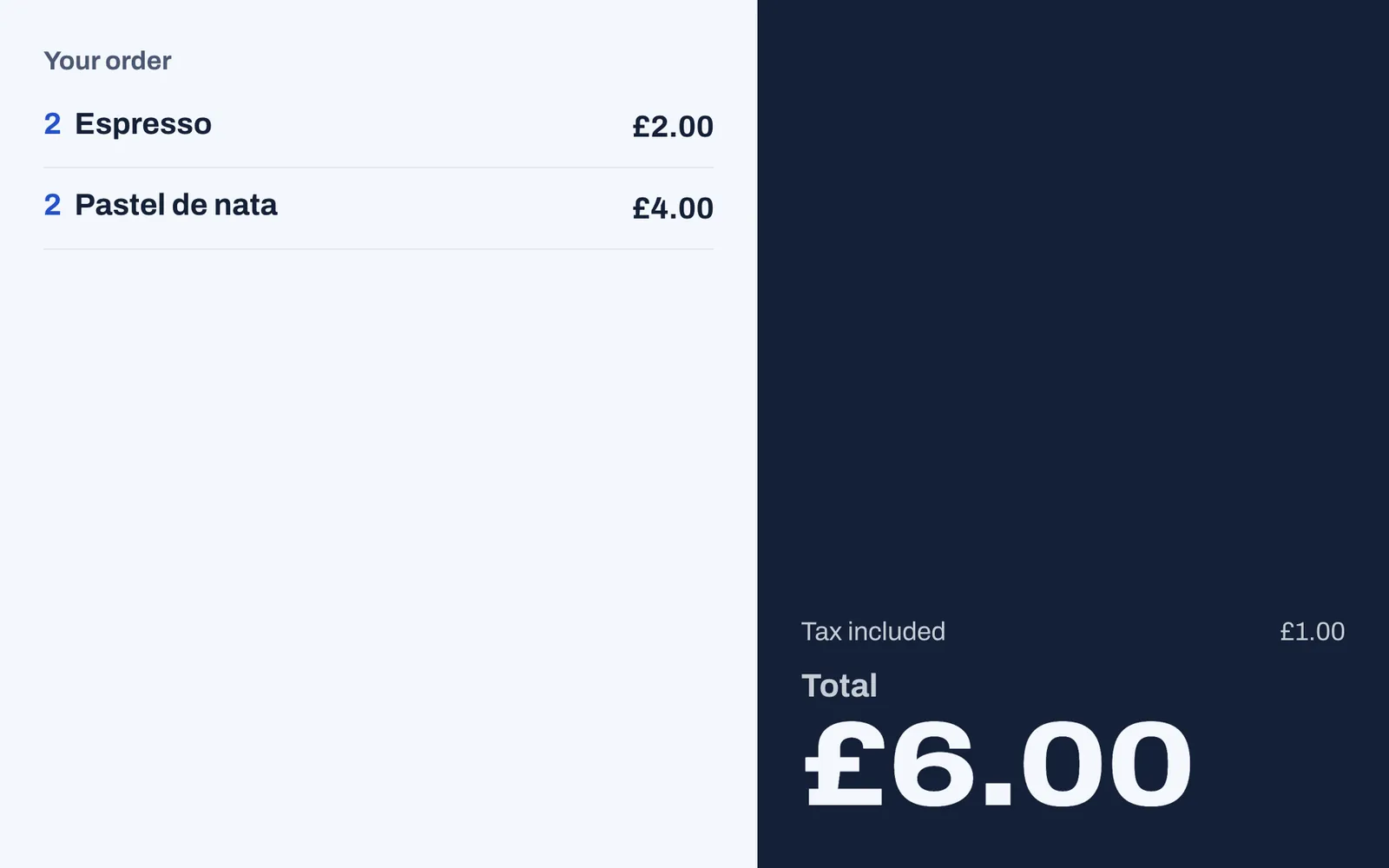
The customer display faces the guest at the counter. Each one faces one till or handheld, chosen in the back office or on the display itself, and shows the order open on that till: the dishes as they are rung up, the tax included and the total to pay, then Thank you! once it is paid. Dishes appear once the till saves the order, for example when the cashier taps Send or Pay. Between orders it shows the restaurant's logo, or the first letter of its name, with a welcome message and the restaurant's name.
The pickup board
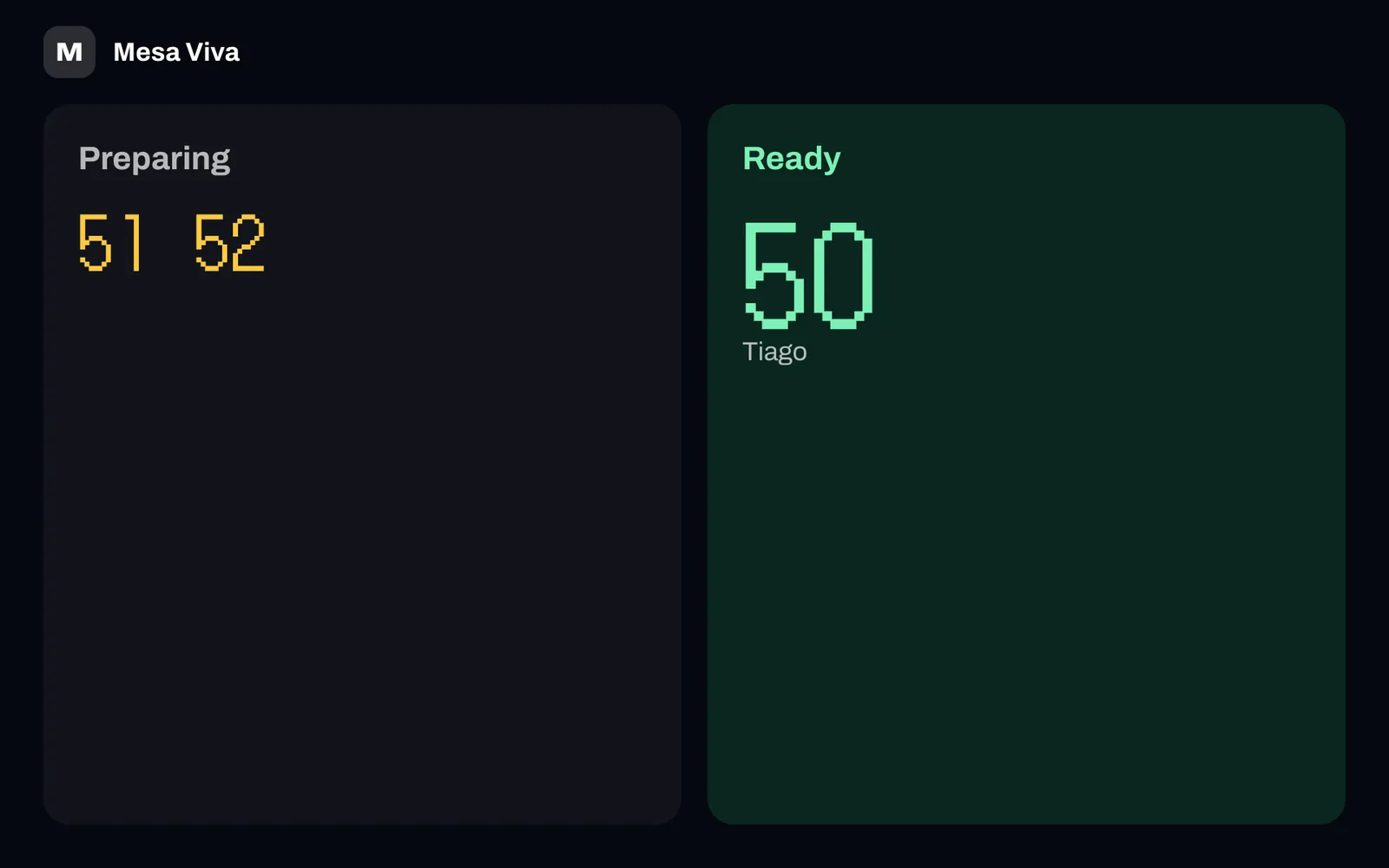
The pickup board is a television or large screen where takeaway and counter guests wait. Under the restaurant's logo and name, it shows order numbers in two columns, Preparing and Ready, with the guest's name when the order has one. Table orders do not appear.
The back office
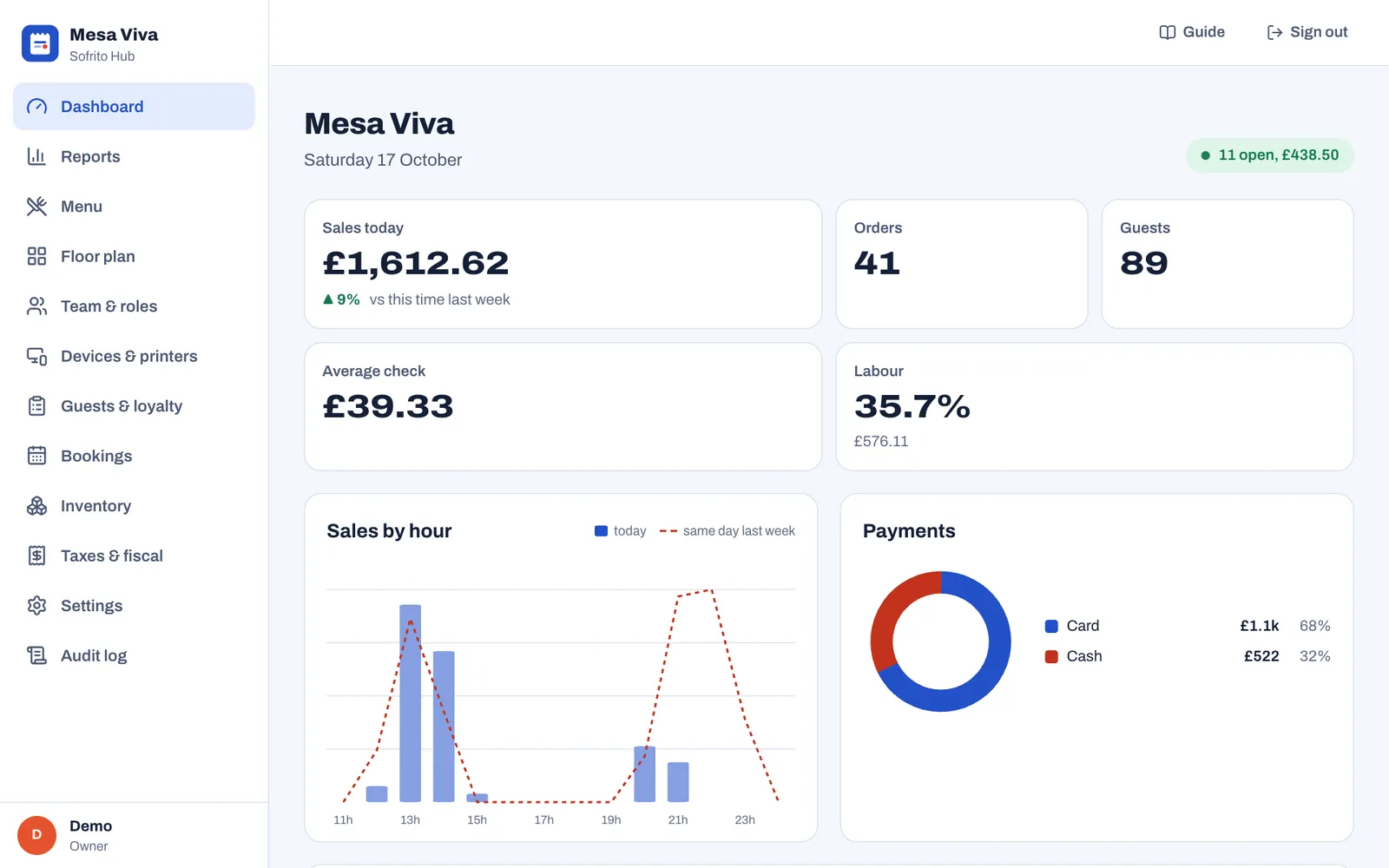
The back office is where owners and managers set up and run the restaurant: Dashboard, Reports, Menu, Floor plan, Team & roles, Devices & printers, Guests & loyalty, Bookings, Inventory, Taxes & fiscal, Settings and Audit log. On a computer, open it in a browser and sign in with your email and password. On a till, tap Back office on the lock screen, or More › Back office once you have unlocked it: only someone whose role can open the back office gets in, and the back office locks again with the till. The Guide button at the top of every page opens the chapter of this guide about that page.
Printers
Sofrito prints receipts and checks at the till, tickets at each kitchen station, and sticky labels for takeaway bags. A new restaurant starts with three virtual printers that show tickets on screen only, so you can try everything before the real printers arrive. With Sofrito Cloud, network printers print through a print bridge: a computer in the restaurant that runs the Sofrito desktop app and sends each ticket to its printer. See Devices, printers and stations.
Choose Sofrito Cloud or Sofrito Hub
Sofrito runs in two places. The screens and the way you work are the same in both. What changes is where your restaurant's data lives and what happens when the internet stops.
- Sofrito Cloud runs on the internet. You open go.sofritopos.app in a browser, or the Sofrito app, and every device connects to it over the internet. There is no server to install or look after. To print on network printers, one computer in the restaurant runs the Sofrito desktop app as a print bridge.
- Sofrito Hub runs on a computer in your restaurant: the main till, or a small computer in the office. Every device connects to it over the restaurant's own network, so service carries on when the internet is down.
| Sofrito Cloud | Sofrito Hub | |
|---|---|---|
| Where it runs | On the internet, at go.sofritopos.app | On one computer in your restaurant |
| What you install | Nothing, or the Sofrito app on each device. For network printers, the Sofrito desktop app on one computer, as a print bridge | Sofrito on that computer |
| How devices connect | Over the internet | Over the restaurant's Wi-Fi or network cables |
| When the internet stops | Devices cannot send orders, take payments or print until it is back | Service carries on as normal |
| Back office from home | Yes, from any browser | No, only on the restaurant's network |
| Printers | Network printers (cable or Wi-Fi) through a print bridge, Star CloudPRNT printers, printers built into handhelds, a computer's print dialog | Network printers (cable or Wi-Fi), printers built into handhelds, a computer's print dialog |
| Backups | Sofrito Cloud stores your data for you | The hub saves a copy every day at 04:00 on its computer |
| Updates | Automatic | You install each new version |
Choose before you start trading: Sofrito has no tool to move a restaurant, its orders and its receipts from one to the other later. Plan your setup helps you decide, and Sofrito Hub and working offline explains what keeps working when the internet drops.
Know who uses what
Everyone has their own PIN and a role. The role decides what they can do on the till and whether they can open the back office. Sofrito creates these roles with every restaurant, and you can change them or add your own (see Your team, roles and PINs).
| Role | What they do | Where they work |
|---|---|---|
| Owner | Everything, including roles and the account | Back office, any till |
| Manager | Everything except roles and billing: menu, team, devices, reports, voids, refunds, closing the day | Back office, the till |
| Server | Tables, orders, payments, discounts, bookings and guests | A handheld or the till |
| Bartender | The same as a server, at the bar | The till at the bar |
| Cashier | Orders, payments, gift cards and the cash drawer | The till at the counter |
| Host | Bookings, the waitlist, seating guests and looking up guests | The till or a tablet at the door |
| Kitchen | Works on the kitchen display, which needs no PIN, and marks dishes sold out there; uses their PIN to clock in on a till | The kitchen display |
When someone needs to do something their role does not allow, such as voiding a dish already sent to the kitchen, the till asks a manager to approve it with their PIN. Sofrito records who asked and who approved. See Voids, discounts, refunds and approvals.
Follow a day of service
- Before opening. The manager switches on the till, the printers and the kitchen display, and the hub computer if you use Sofrito Hub, or the print bridge computer if you print through one. They check that every device shows Online in Back office › Devices & printers, and open the cash drawer with the starting cash. See Open for service.
- Staff arrive. Each person taps Clock in / out on the till's lock screen and enters their PIN.
- Guests arrive. The host seats them from Bookings, the waitlist or a free table on the floor plan. See Bookings and the waitlist.
- Orders. Servers open the table on their handheld, add dishes by seat and course, and tap Send. Counter and takeaway orders start from Quick sale. See Table service and Counter, takeaway and pickup.
- The kitchen. Tickets appear on the kitchen display for the stations it shows, and print at the station's printer. Cooks start, finish and bump them, and the server's phone chimes when a table's food is ready. See The kitchen display.
- Payment. The server taps Print check, then Pay: they can split the bill, add a tip and take cash, card or another method. Sofrito issues the receipt your country requires. See Taking payment.
- Closing. The manager counts and closes the cash drawer, prints the shift report and closes the day. Staff clock out, and declare their cash tips when Sofrito asks. See Close the day.
- Next morning. The owner reads the dashboard and the reports. See Dashboard and reports.