Chapters
Guide › Set up
Payment methods, tips and service charge
Payment methods are the buttons staff tap on the payment screen: cash, card, mobile money, vouchers, gift cards and house accounts. This chapter sets them up, together with the money rules around them: whether guests are asked for a tip, how tips reach the team, how cash is rounded, and when a service charge is added. The owner or a manager does this once in the back office, under Settings. Taking a payment during service is in Taking payment.
Before you start
- Create your restaurant. Your country gives you a first set of payment methods, tips and rounding. See Create your restaurant.
- To change payment methods, your role needs Manage payment methods. Service charges need Edit the menu. Tips and cash rounding need Restaurant settings.
See your payment methods
- In the back office, select Settings.
- Under Money, select Payment methods.
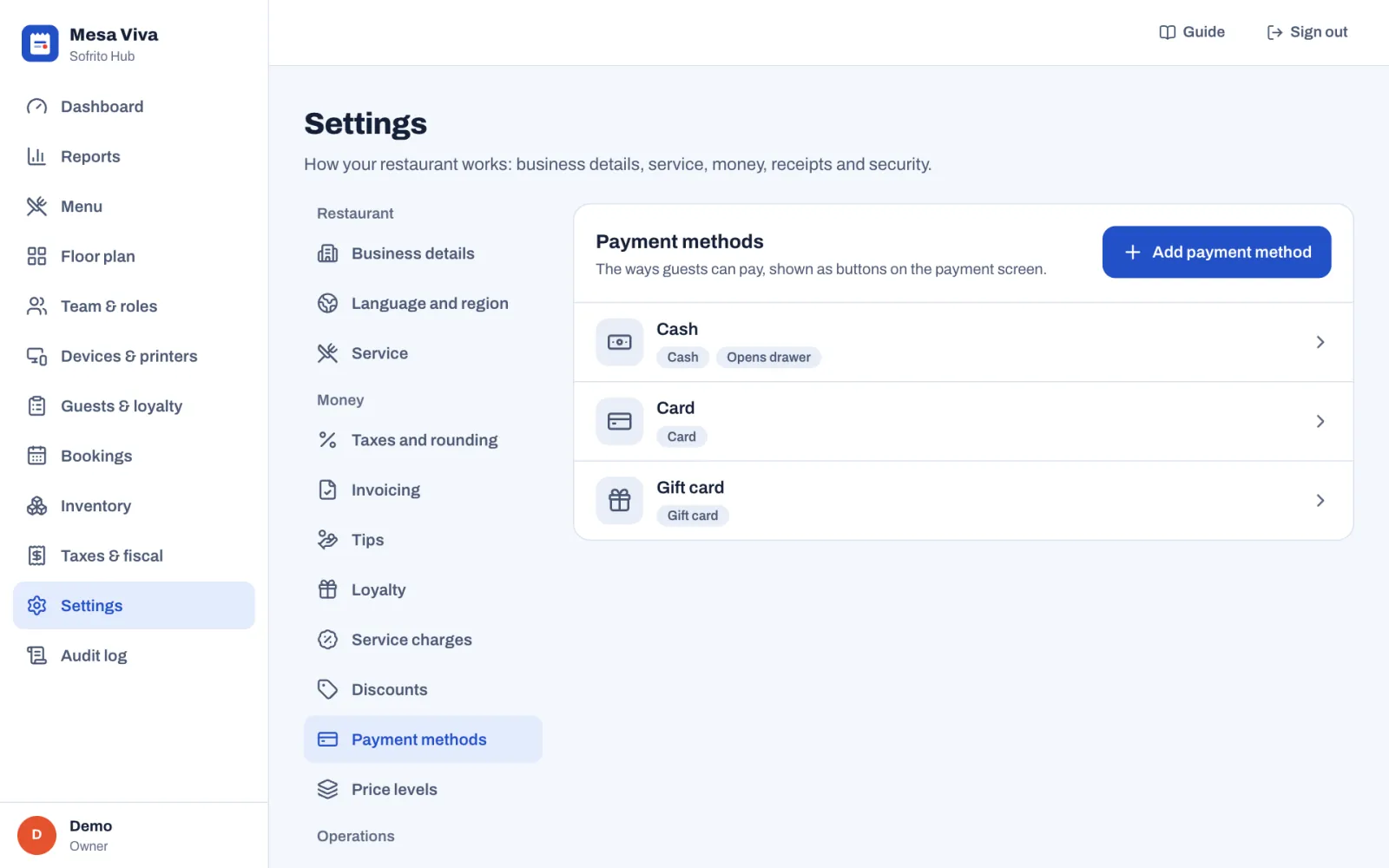
Each method shows its type, and badges for what it does: Opens drawer, Reference when staff must type a transaction number, and Off when it is hidden from the payment screen. A new restaurant in the United Kingdom starts with Cash, Card and Gift card. Other countries start with their own methods, for example M-Pesa, e-Mola and mKesh in Mozambique, or MB WAY in Portugal, and every country gets a Gift card method. No restaurant starts with a house account method: add one if you need it (see Charge orders to a house account).
Add a payment method
- In Settings › Payment methods, select Add payment method.
- Under Type, choose what kind of payment it is (see the table below). Sofrito fills in the usual settings for that type.
- Type the Name staff will see on the button, for example "Amex" or "Meal voucher".
- Pick an Icon and a Colour for the button.
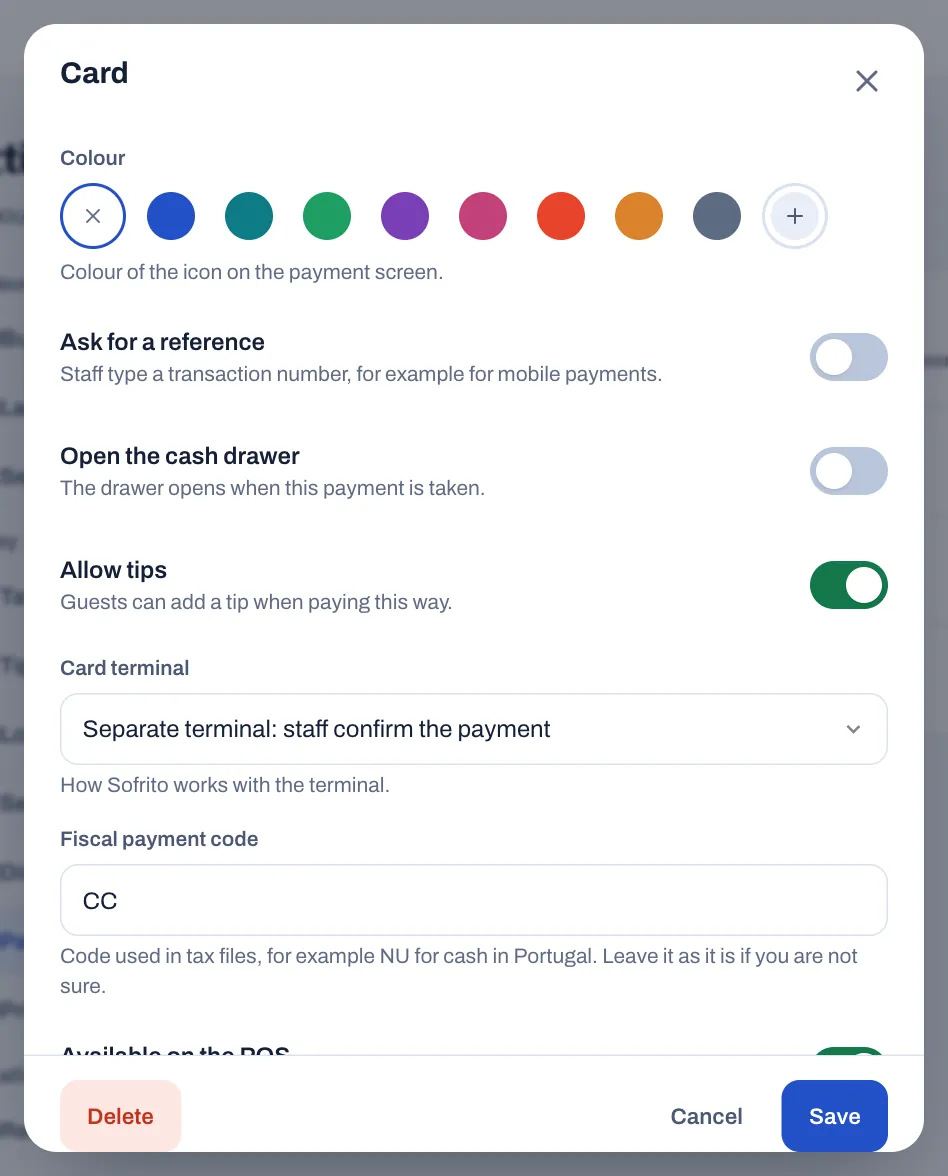
- Check the switches: Ask for a reference, Open the cash drawer, Allow tips, and for cash Give change.
- For a card or mobile payment, choose the Card terminal setting (see Take card payments).
- Leave Fiscal payment code as it is unless your accountant tells you otherwise.
- Select Add payment method.
The new button appears on every payment screen straight away.
| Type | Use it for | What Sofrito does |
|---|---|---|
| Cash | Notes and coins. | Opens the cash drawer, works out the change and counts the money in the end-of-day cash count. |
| Card | Debit and credit cards on a card terminal. | Records the payment once staff confirm the terminal approved it. |
| Mobile money | Payments by phone, like M-Pesa, MB WAY or Pix. | Asks for the transaction reference. |
| Voucher | Meal vouchers and paper tickets. | Records the payment. No tips. |
| Gift card | Gift cards sold by your restaurant. | Checks the card's balance and takes the amount off it. No tips, no change. |
| House account | Charging a guest's account, to be paid later. | Adds the amount to what the guest on the order owes, up to their credit limit. |
| Other | Bank transfers and anything else. | Records the payment. |
What the switches do:
- Ask for a reference: staff must type a transaction number, for example the ID a phone shows after a mobile payment. It is printed on the receipt.
- Open the cash drawer: the drawer opens when this payment is taken.
- Allow tips: guests can add a tip when paying this way.
- Give change (cash only): staff can take more than the bill and hand back the difference.
- Fiscal payment code: the code this method has in your tax files, for example NU for cash in Portugal.
Take card payments
Sofrito works with the card terminal you already have, from any bank or provider. The terminal is not connected to Sofrito: staff type the amount into the terminal, and confirm in Sofrito when it is approved. Under Card terminal, choose:
- Separate terminal: staff confirm the payment. On the payment screen, staff tap Charge and type the amount into the card terminal. The till says "Waiting for the card terminal…". When the terminal shows that the payment is approved, they tap Approved.
- Demo: payments are approved automatically. For demos and training only. Sofrito approves the payment by itself, without any card.
Choose Separate terminal for mobile money too. With Ask for a reference on, the payment screen asks for the Reference, the transaction ID from the guest's phone, before staff can charge.
Change or turn off a payment method
- In Settings › Payment methods, select the method.
- Change what you need.
- To hide it from the payment screen, turn off Available on the POS. The method stays in your reports.
- Select Save.
To remove a method for good, select Delete, then Tap again to delete. If you only want to stop using it for a while, turn it off instead.
Accept gift cards
Every restaurant has a Gift card payment method, and Sofrito keeps the balance of each card. There is nothing to set up: staff sell gift cards on the till, under More › Gift cards, and take payments with them on the payment screen. The money taken for a gift card is not a sale: tax is charged on the order the card pays for. The till steps are in Sell a gift card or check its balance and Take a gift card. Gift cards given away and corrected in the back office are in Guests, loyalty and gift cards.
Gift card payments take no tips and give no change. If one was a mistake, it can be voided under Payments taken on the payment screen before the order is paid in full: the amount goes back on the card. After the order is closed, a refund with the gift card method puts the money back on the card that paid. A gift card can't pay for another gift card.
If you don't sell gift cards, turn the Gift card method off (see Change or turn off a payment method).
Charge orders to a house account
A house account lets a regular guest, or a company, charge orders and pay later, up to a credit limit you set. To use house accounts:
- In Settings › Payment methods, select Add payment method.
- Under Type, choose House account, and type a Name, for example "House account".
- Select Add payment method.
- Open a house account for each guest who may use one, with a Credit limit: see Run a house account.
On the till, staff add the guest to the order, then choose the house account method on the payment screen: see Charge a guest's house account. Sofrito refuses when the guest has no house account ("This guest has no house account.") or when the amount would take them over their limit. When a guest pays off their account, record the payment in the back office, on the guest's House account tab.
Ask guests for a tip
- In the back office, select Settings › Tips.
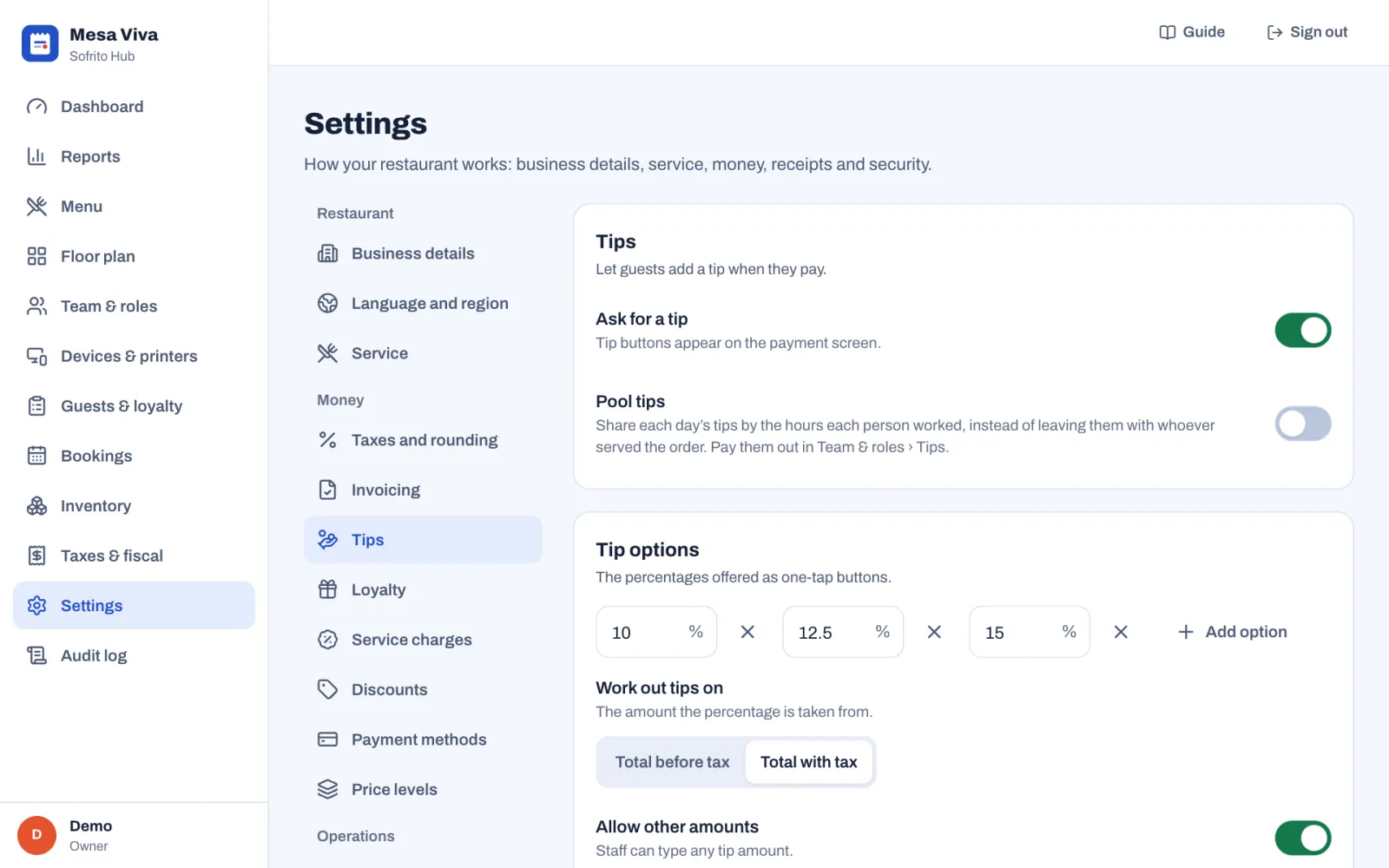
- Turn on Ask for a tip. Tip buttons appear on the payment screen.
- Under Tip options, type up to four percentages. Select Add option to add one, or the cross next to a percentage to remove it.
- Under Work out tips on, choose Total before tax or Total with tax.
- Turn on Allow other amounts to let staff type any tip.
- Select Save changes.
On the payment screen, staff then tap No tip, one of your percentages, or Custom to type an amount. Tips only appear for payment methods with Allow tips on.
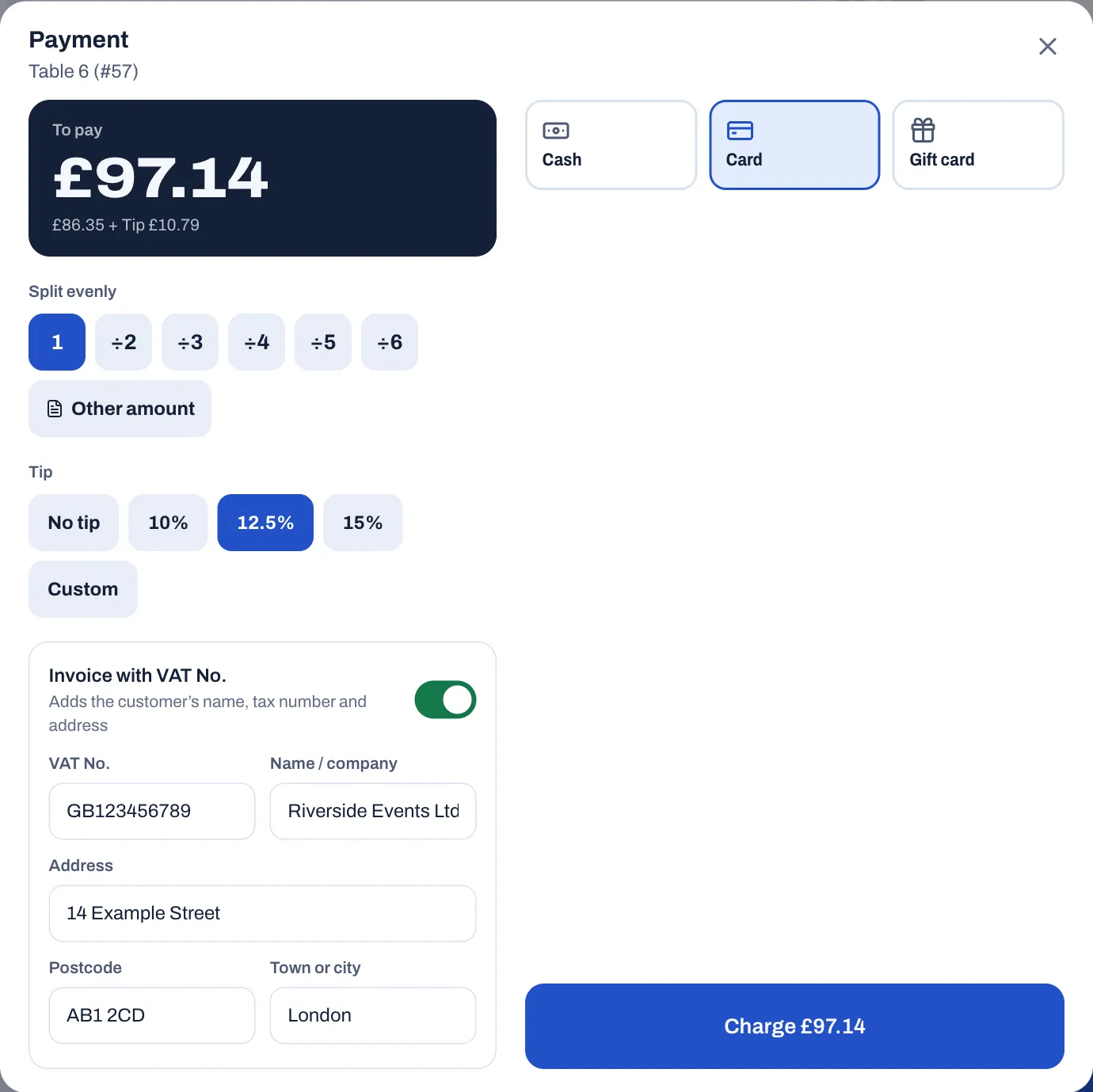
The tip is added to the payment and printed on the receipt. In reports, tips are shown apart from sales, because they belong to the team. In most countries, when tipping is on, a printed check also shows a Suggested gratuity for each tip option, so guests can see the amounts before they pay.
With Ask for a tip on, staff are also asked for their cash tips when they clock out. See Share and pay out tips.
Share and pay out tips
Sofrito keeps track of who is owed which tips. They are the tips added to payments, plus any service charge marked Counts as a tip, on the orders each person served.
- With Pool tips off, each person is owed the tips on the orders they served.
- To share tips, turn on Pool tips in Settings › Tips and select Save changes. Each day's tips are then shared by the hours each person worked that day, from their clock-ins and clock-outs. On a day nobody clocked in, the tips stay with the servers. Pooling works even with Ask for a tip off, for example to share a service charge that counts as a tip.
- Cash that guests leave on the table, outside a payment, stays with the person who got it. When Ask for a tip is on, clocking out opens Cash tips for this shift: staff type the amount and tap Declare, for example Declare £12.00, or tap No cash tips. They can also declare it during the shift: on the till, under More, they tap Declare cash tips on the card with their name. Declared cash tips are listed, but they are not shared or paid out.
To see and pay what each person is owed, select Team & roles › Tips in the back office, then Pay out next to a person. See Pay out tips.
Round cash payments
In countries where the smallest coins are no longer used, you can round cash totals.
- In the back office, select Settings › Taxes and rounding.
- Under Cash rounding, choose how to Round cash payments to, for example The nearest £0.05, or No rounding.
- Select Save changes.
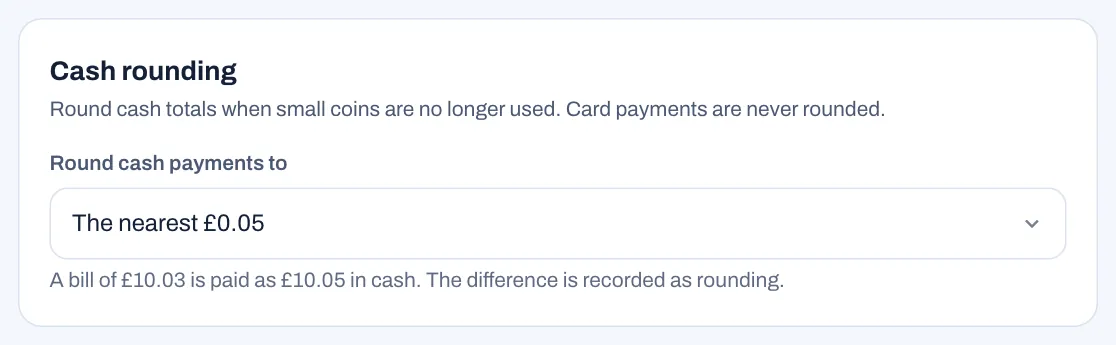
Rounding applies when a guest pays the whole amount left in cash. Card payments are never rounded. The payment screen shows the rounding next to the amount, the receipt prints it on its own line, and the difference is recorded as rounding.
Add a service charge
A service charge is an extra charge on the bill, like 10% for large groups. A new restaurant starts with one, Service 10%, added by itself to orders of eight guests or more. Change it, turn it off or add others:
- In the back office, select Settings › Service charges.
- Select Add service charge, or select a charge to change it.
- Type a Name, such as "Service 12.5%". It is printed on the bill.
- Choose Percentage or Fixed amount, and type the Value.
- Under Tax, choose the tax category the charge is taxed with, or No tax.
- To add it without anyone tapping it, turn on Add automatically, then fill in For groups of at least (a number of guests), Only for (order types), or both. Leave the order types off to use it for every order type.
- Leave Available on the POS on.
- Select Add service charge or Save.
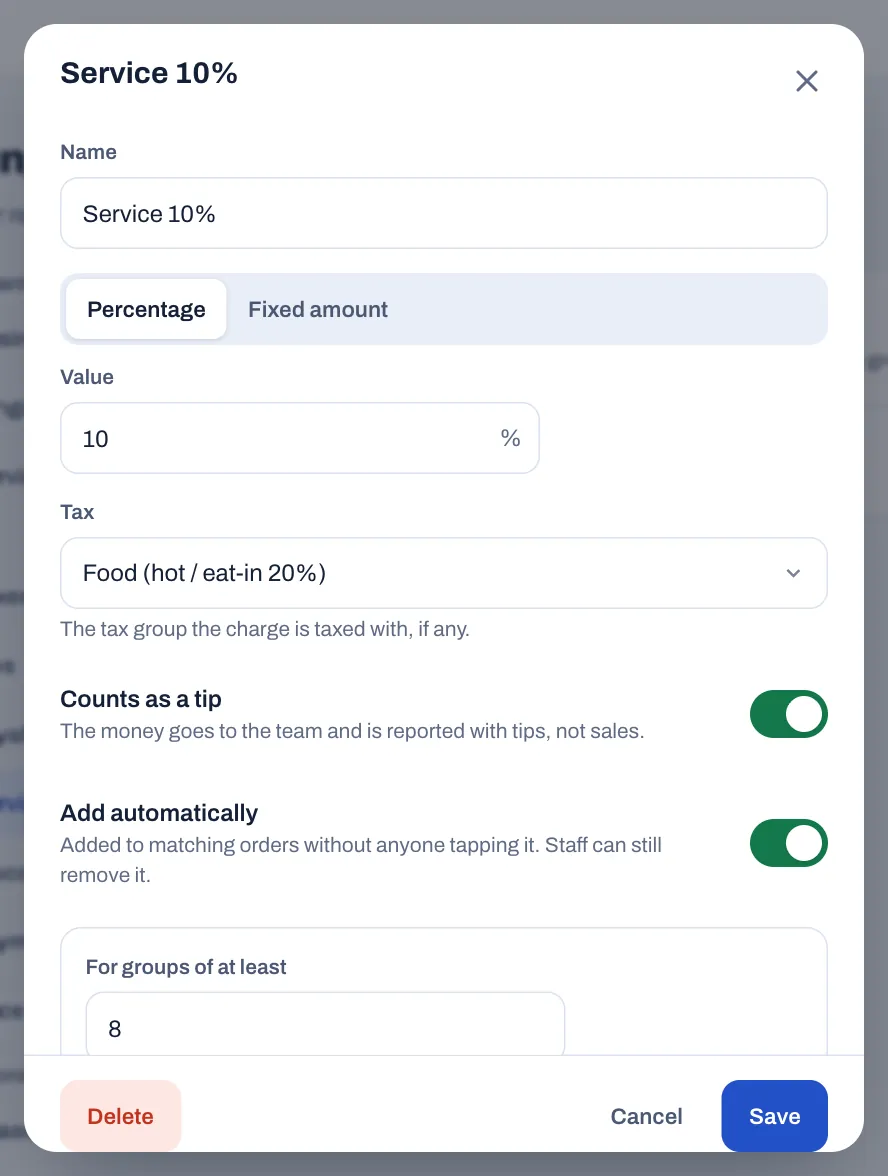
How service charges reach the bill:
- Automatically: Sofrito adds an automatic charge to every order that matches it, and takes it off again if the order stops matching, for example when the number of guests goes down.
- By area: an area of the floor plan can add a service charge to every order on its tables, for example on a terrace. See Draw your floor plan.
- By hand: on the till, staff tap More on the order, then Service charge, and choose one of your charges that is available on the POS. A charge already on the check shows On the check and can't be added twice. When no charge is available on the POS, the button doesn't show.
Staff take a charge off the bill with the cross next to it on the check. Taking off an automatic charge needs Apply discounts, or a manager's PIN. A charge taken off stays off that check, even if the order still matches its rule. Staff can add it back by hand.
To remove a service charge for good, select it in Settings › Service charges, then Delete and Tap again to delete. Floor areas that added it stop adding it. To stop using it for a while, turn off Available on the POS instead.
In reports, service charges have their own line, apart from net sales and from tips. A charge with Counts as a tip on is different: the money goes to the team, so reports count it once, with the tips, never in sales, and Team & roles › Tips shares it like a tip (see Share and pay out tips). In the list, it has a Tip badge.
Put the customer's tax number on a receipt
Businesses often need a receipt with their name and tax number. Staff add them when the guest pays:
- On the payment screen, turn on Invoice with VAT No. ("Adds the customer's name, tax number and address"). The name of the tax number follows your country, for example Invoice with NIF in Portugal or Invoice with NUIT in Mozambique.
- Type the customer's tax number.
- Under Name / company, type the customer's name.
- If the customer wants their address on it, fill in Address, Postcode and Town or city.
- Choose the payment method and charge as usual.
The document prints the customer's name, tax number and address. In some countries this changes the kind of document Sofrito issues: in the United Kingdom, for example, the guest gets a VAT invoice instead of a receipt. In Portugal, Sofrito checks the NIF and says "That tax number is not valid." if it is wrong. Above €1,000 before VAT, the switch is on and can't be turned off, and the last payment can't be taken until the customer's name and address are filled in. See Taxes, receipts and legal documents.
Before you go live
- Check every payment method in Settings › Payment methods: the names staff will see, which ones open the cash drawer, and which ones allow tips.
- Set every card and mobile method to Separate terminal: staff confirm the payment.
- Turn off the methods you don't take, so they don't appear on the payment screen. If you don't sell gift cards, turn off Gift card too.
- If regulars or companies will run a tab with you, add a House account method and open their accounts.
- Decide on tips, pooling and cash rounding, and save them.
- Check the Service 10% charge: change its value, its tax and group size, decide whether it counts as a tip, or turn it off.
- Take one test payment with each method and check the receipt.