Chapters
Guide › Run service
The kitchen display
This chapter covers the kitchen side of service: how orders reach each station, which tickets each kitchen screen shows, how to read a ticket, guests' allergies, and how to start, finish, bump and recall a ticket. It also covers dishes voided after they reach the kitchen, kitchen printers, bump bars, and how servers hear that their food is ready. Cooks and bartenders use the kitchen display. Managers set up stations, screens and printers in the back office. Servers follow their food on the till or a handheld.
Before you start
- The kitchen screens are paired and the kitchen printers are added: see Devices, printers and stations.
- Your stations are set up and every dish goes to one: see Send each dish to the right station and Build your menu.
How orders reach the kitchen
When a server taps Send, Sofrito splits the order by station. Each station gets its own ticket with only its own dishes: the kitchen gets the food, the bar gets the drinks. The ticket appears at once on every kitchen display that shows that station, and prints on the station's printers if it has any.
A station's tickets wait on kitchen screens only when both of these are true at the moment the order is sent:
- Show on kitchen screens is on for the station in Back office › Devices & printers › Stations. It is on for a new station.
- A paired kitchen display shows the station: the station is chosen in the display's settings, or the display shows All stations. The display doesn't have to be switched on.
Otherwise the station's tickets only print, and close as they print. Its dishes show Served on the check as soon as they are sent, nothing waits on the till's Kitchen screen, and nothing counts as late. A restaurant without kitchen screens doesn't need to do anything. In Devices & printers › Stations, each station shows Shown, Hidden, No screen shows it, or Screen not in use when the displays that show it haven't connected for over a day. Such a display is marked Tickets wait on it under Devices: its tickets are never marked served. Switch it back on, or revoke it if it is no longer used. Pairing a kitchen display changes only the orders sent after it.
- When the server sends more dishes for the same table later, they arrive on a new ticket marked ADD-ON.
- A dish with no station is never sent to the kitchen.
- A kitchen display shows only the tickets of the current business day, which ends at the hour set in Back office › Settings › Language and region › Business day ends at. Closing the day (Z) clears any ticket still open from that day, and those tickets don't come back in Recall: see Close the day.
- A kitchen display needs no PIN. Once it is paired, it shows tickets as soon as it is switched on.
- The kitchen display uses a dark theme. When nothing is waiting, it shows All caught up.
Choose the stations a screen shows
Each kitchen display shows every station, or only the ones you choose. Give each station its own screen, for example one on the grill and one behind the bar, and put a screen on All stations at the pass. The demo restaurant has one kitchen display, Kitchen pass, which shows all stations. Devices & printers lists it as Demo screen: no device connects to it, but its tickets wait on it as on a real screen.
On the kitchen display:
- Tap a station at the top of the screen, for example Kitchen. The screen now shows only that station's tickets.
- Tap another station to add it, or tap a chosen station again to take it off.
- Tap All stations to show everything again.
Only stations with Show on kitchen screens turned on are listed. If none is, the screen says so and tells you where to turn it on. The screen keeps your choice when it restarts. The settings button at the top right opens Screen settings, which has the same choice as switches under Stations on this screen.
From the back office:
- Select Devices & printers › Devices, then the kitchen screen.
- Under Stations on this screen, select All stations, or only the stations this screen should show.
- Select Save.
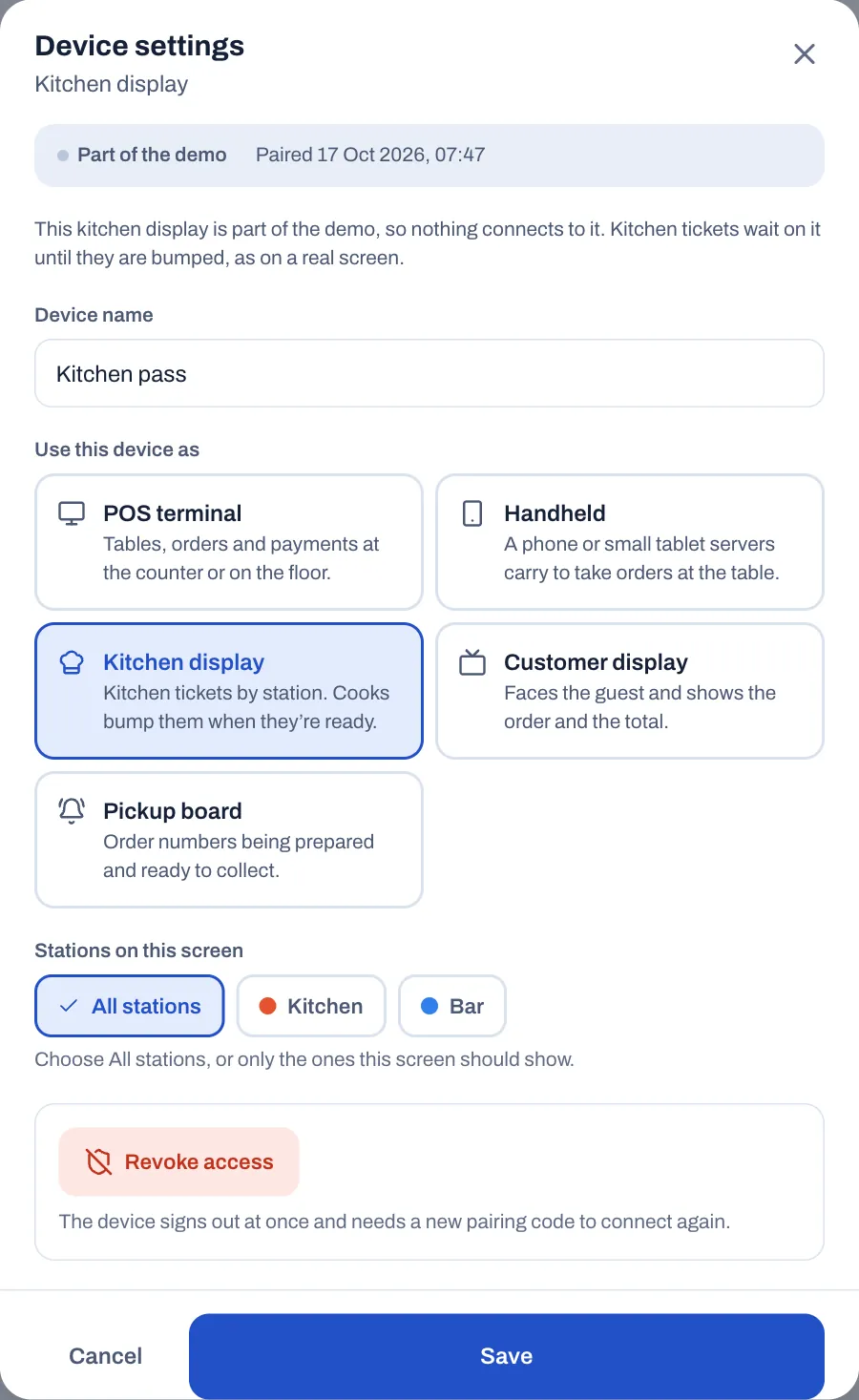
To use the screen as a till again, press and hold the logo at the top left for 2 seconds. The screen asks "Use this screen as a point of sale? Kitchen tickets stop showing on it.": tap Switch to point of sale, or Cancel to keep it as a kitchen display. Or open Screen settings, tap Use this screen as a point of sale, then tap Switch to point of sale. To turn a till into a kitchen display, see Repurpose a screen.
Read a ticket
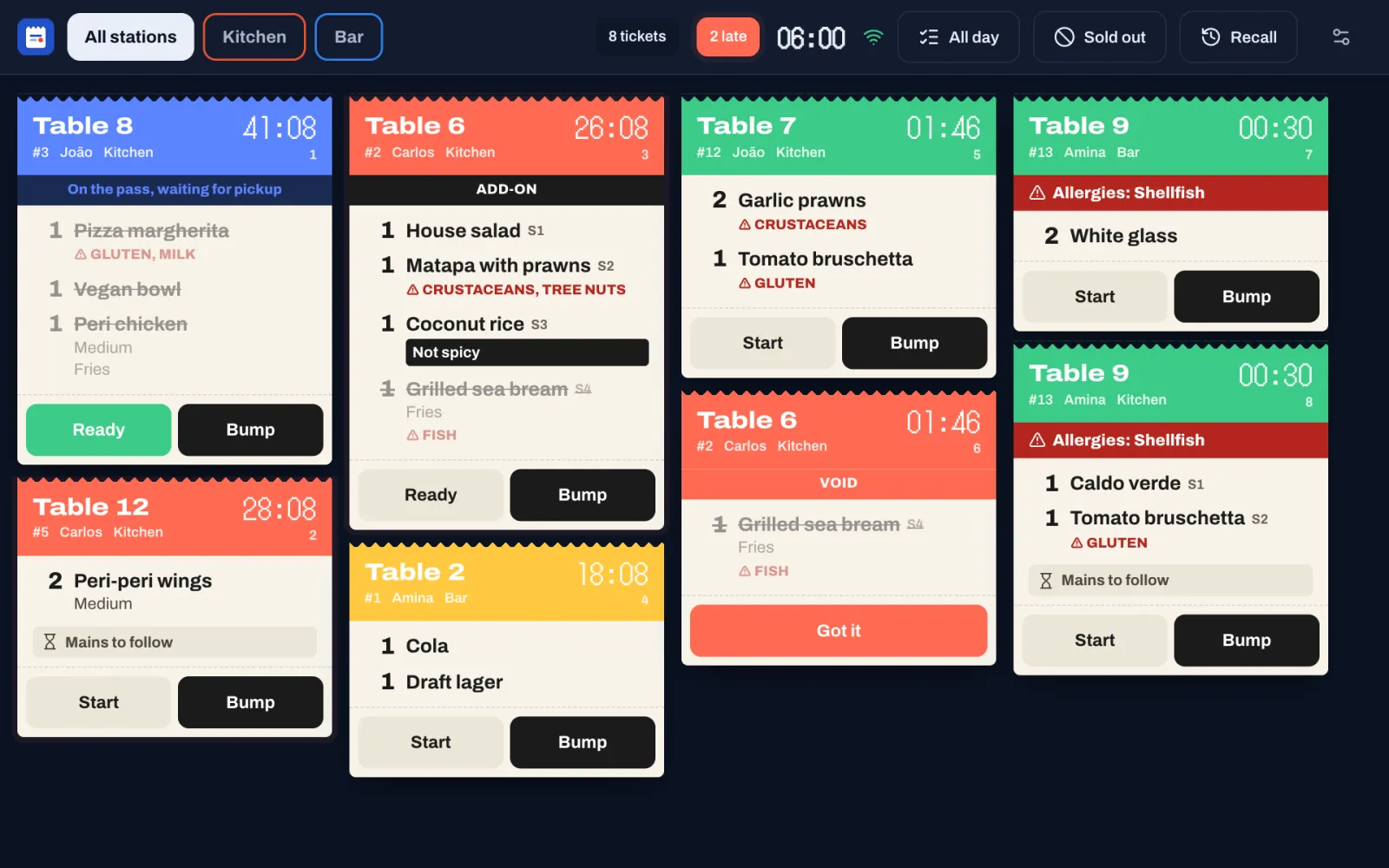
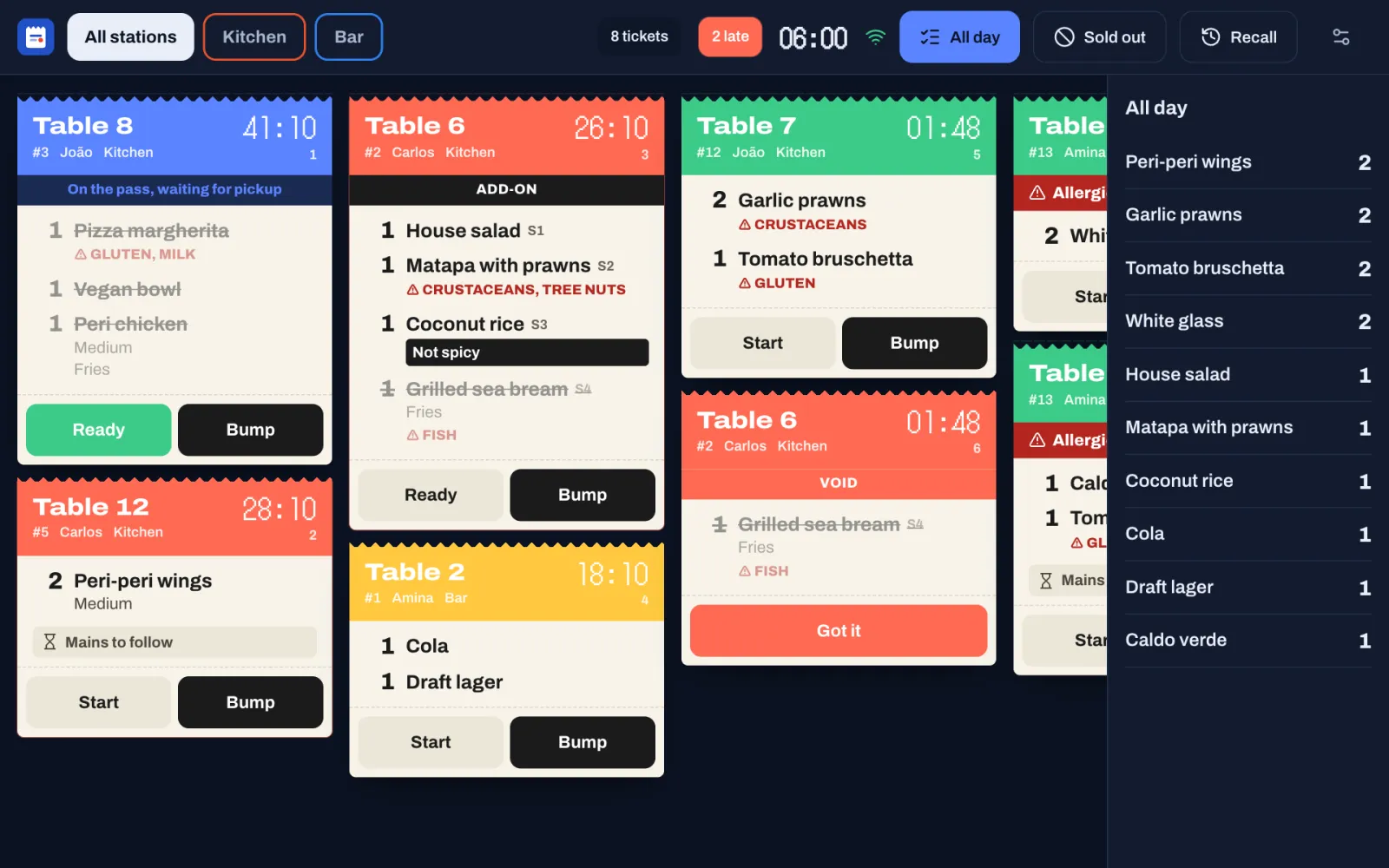
Tickets are in the order they arrived, oldest first: down the first column, then down the next. Tickets marked RUSH go first. When there are more than fit, scroll sideways.
The top bar shows how many tickets are on the screen, how many are late (in red), the time, and a Wi-Fi sign that turns red when the screen loses its connection.
The colour at the top of a ticket shows its age:
| Colour | Meaning |
|---|---|
| Green | New. |
| Yellow | Older than Warn after: 10 minutes in a new restaurant. |
| Red | Older than Late after: 20 minutes in a new restaurant. The ticket pulses and counts as late. |
| Blue | Ready and waiting on the pass. |
A VOID ticket is red too, whatever its age: see When a dish is voided.
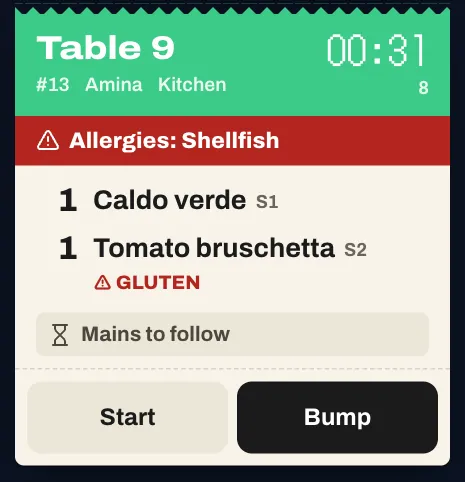
At the top of each ticket:
- The table, for example Table 7. A takeaway or counter ticket shows the guest's name, or the order type when there is no name.
- The order number, the server and, when the screen shows all stations, the station.
- The timer: minutes and seconds since the order was sent.
- A small number under the timer: the ticket's place on the screen, for the bump bar.
Under it, a red band when the guests have allergies: for example "Allergies: Shellfish". See Guests' allergies.
Then a coloured line when the ticket needs attention:
- ADD-ON: more dishes for a table that already has a ticket at this station.
- RUSH: the server has asked the kitchen to hurry.
- FIRE: start a course you already have. The note says which, for example "FIRE MAINS".
- VOID: the server has voided a dish you already had.
- On the pass, waiting for pickup: the ticket is ready.
Then the dishes:
- A yellow note at the top is for the whole order, for example the note on a booking.
- Each dish shows the quantity, the name and the seat: S1 is seat 1. Dishes are listed by course, then by seat.
- Identical dishes sent together share one line, for example "2 Burger", when Group identical dishes is on (it is in a new restaurant). Dishes with different choices, notes or seats stay on lines of their own.
- The guest's choices are under the dish. A choice that starts with "No", such as "NO onion", is in bold red.
- A note the server typed for the dish is in white on black.
- Allergens are in red capitals after ⚠.
- A dish that is crossed out and faded is done, or the server voided it after sending.
A course the server holds back is not on the kitchen display yet. While a later course of the order is held for your station, the ticket ends with a grey line such as "Mains to follow". The course arrives when the server taps Fire for it, for example Fire Mains, as a new ticket, marked ADD-ON if the table already has a ticket at your station, and the line goes. See Hold items and send them later.
Guests' allergies
When a guest has allergies on their guest profile, every kitchen ticket for their order shows them in a red band under the ticket's header, for example "Allergies: Shellfish". Printed kitchen tickets start with them, after "ALLERGY:". The till shows the same band on the check and on each card of its Kitchen screen.
Sofrito takes the allergies from the guest on the order, from the guest of the booking the table was seated from, and from the guests of checks merged into the order. To add a guest's allergies, open their profile in Back office › Guests & loyalty: see Let allergies reach the kitchen.
The allergens of each dish, set in the menu, show under the dish. The guest's allergies are what that person can't eat, whatever they order.
Start, finish and bump a ticket
- When you start a ticket, tap Start. The button changes to Ready.
- As each dish is done, tap it to cross it off. Tap it again if you crossed off the wrong one.
- When the whole ticket is on the pass, tap Ready. Crossing off the last dish does the same. The ticket turns blue, shows On the pass, waiting for pickup, and Sofrito tells the server.
- When the food has left the pass, tap Bump. The ticket leaves the screen.
A ready ticket also leaves the screen when the server takes the food and marks it served on the till. See How servers know food is ready.
When a dish is voided
When a server voids a dish the kitchen already has:
- The dish is crossed out on its ticket, if the ticket is still on the screen. A ticket whose dishes are all voided leaves the screen.
- A red VOID ticket arrives at each station that had the dish, with the dish crossed out, and the screen plays a falling tone. It arrives even if you have already bumped the dish's ticket.
- On a station that only prints, the station's printers print the VOID ticket instead.
The VOID ticket stays on the screen until a cook taps Got it. Stop making the dish, or put it aside, then tap Got it. A VOID ticket never counts as late, and its dishes don't count under All day.
Bring back a bumped ticket
If you bumped a ticket by mistake:
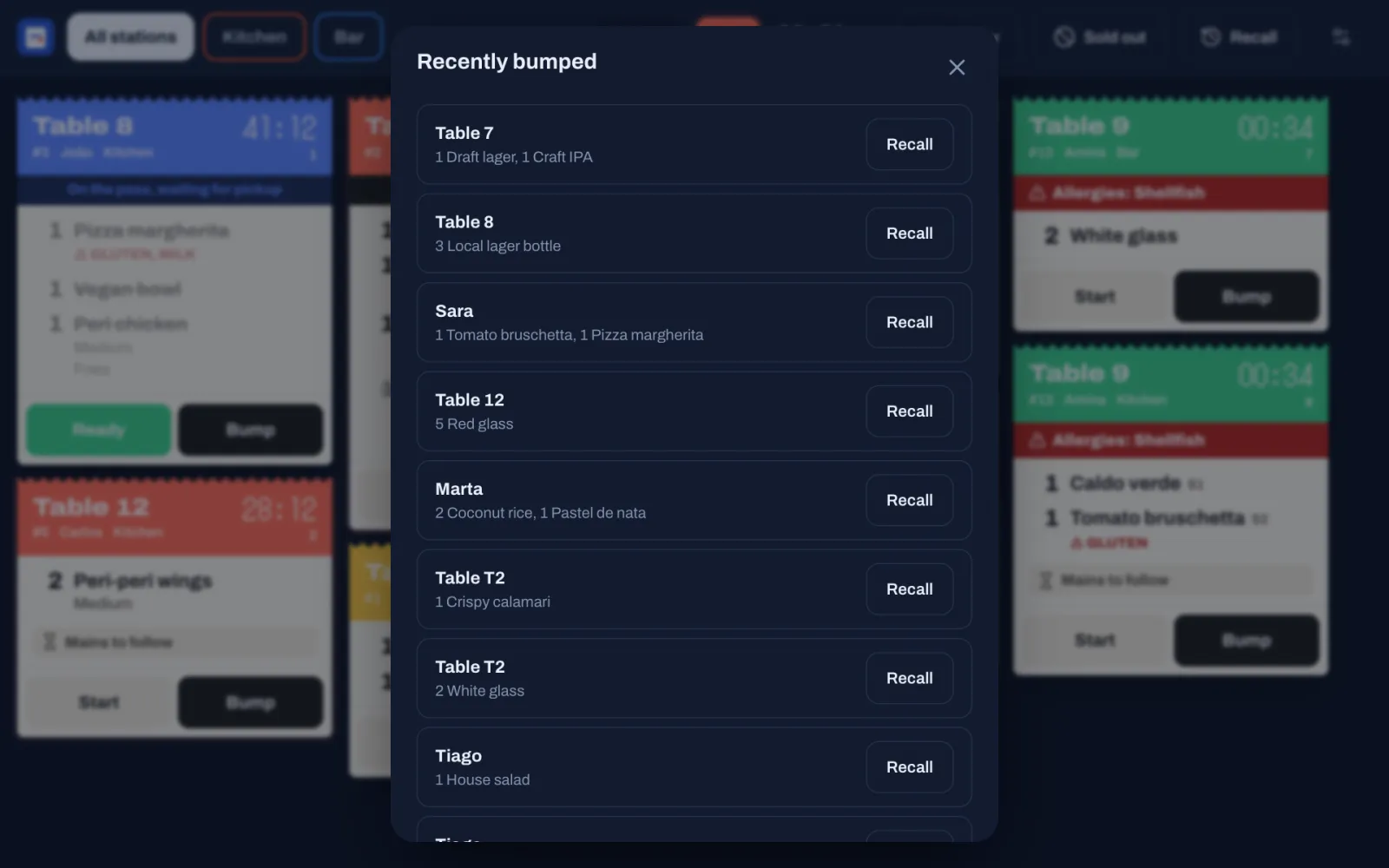
- Tap Recall at the top of the screen.
- Recently bumped lists the tickets bumped at this screen's stations in the last 30 minutes, newest first, up to 20. VOID tickets, and tickets the day close (Z) cleared, are not in it.
- Tap Recall next to the ticket.
The ticket comes back with its dishes no longer crossed off. Its timer still counts from when the order was sent. A manager sets how long tickets stay in the list with Keep bumped tickets in Recall for: see Set the kitchen times and alerts.
See how much of each dish to make
Tap All day at the top of the screen. A panel lists each dish still to make on the tickets this screen shows, with how many in all, the most first. Dishes you have crossed off don't count. Tap All day again to close the panel.
Mark a dish sold out
When the kitchen runs out of something, mark it sold out from the kitchen display. Every till and handheld greys the dish out at once, and nobody can order it until it is back on sale. The kitchen display needs no PIN for this.
- Tap Sold out at the top of the screen. The number next to it is how many dishes are sold out.
- Find the dish. The list shows the dishes this screen's stations make, with the sold-out ones first. To search, type part of the name in Find a dish.
- Tap the dish, then Mark sold out.
To put it back on sale, open Sold out, tap the dish and tap Put back on sale.
For a dish whose stock is counted, such as a daily special, the dish shows How many are left. Change the number with − and +, or type it, and tap Save count. When none are left, type how many you have and tap Put back on sale.
Closing the day puts every dish marked sold out back on sale, unless your manager turned that off. See Mark a dish as sold out.
Run the pass and the bar
The pass. Put a kitchen display on All stations where the food leaves the kitchen. It shows every station's tickets, each with the station's name, so whoever runs the pass sees when all of a table's dishes are ready. The cooks tap Ready. The ticket stays blue on the pass until the food goes out and the pass bumps it, or the server marks it served.
The bar. The bar is a station like any other. Put a kitchen display behind the bar showing only Bar, or give the Bar station a printer. Drinks tickets arrive the moment a server sends them, with the same buttons and colours.
Use a bump bar or a keyboard
A kitchen display also works from keys, so you can plug in a keyboard, or a bump bar that sends these keys:
- 1 to 9 bump the ticket with that number. The number is the small figure under each ticket's timer. On a VOID ticket, the key does the same as Got it.
- R recalls the last ticket bumped.
Only the first nine tickets on the screen have a key.
Print kitchen tickets
A station can print its tickets as well as show them on a screen, or print them instead.
- Add the kitchen printer in Back office › Devices & printers › Printers, with Prints set to Kitchen tickets. See Add a printer.
- In Devices & printers › Stations, open the station and choose the printer under Tickets print on. Choose more than one printer to print each ticket on all of them.
- Check that Print kitchen tickets is on in Back office › Settings › Kitchen. It is on in a new restaurant.
Each paper ticket shows:
- at the top, the guest's allergies after "ALLERGY:", in large white-on-black letters, when the guests have allergies on their profile;
- the station and the time, then the table in large letters;
- the order number, the order type, the number of guests, the server and the guest's name;
- each dish in capitals with its seat, and the guest's choices under it;
- the dish's note after ">>" and its allergens after "ALLERGY:", both printed white on black;
- a line such as "-- Mains --" between courses, when the ticket has more than one;
- the note for the whole order at the bottom.
When a server voids a dish the kitchen already has, the station's printers print a VOID ticket for it. RUSH, on the other hand, shows only on kitchen screens: it doesn't print anything.
A station that only prints has nobody to tap Ready on a screen, so its servers don't get a message when the food is ready. Tell them yourself, or give the station a kitchen display too. A takeaway made only of such dishes doesn't become ready by itself either: mark it ready on the till, as in Hand over an order when it's ready. To keep tickets coming when a kitchen printer fails, give it a Backup printer: see Choose the printing options.
How servers know food is ready
When a station marks a ticket ready, the server who owns the order hears a chime and sees a message, for example "Table 7 is ready" and "Kitchen finished the ticket". It appears on every till and handheld where that server is signed in.
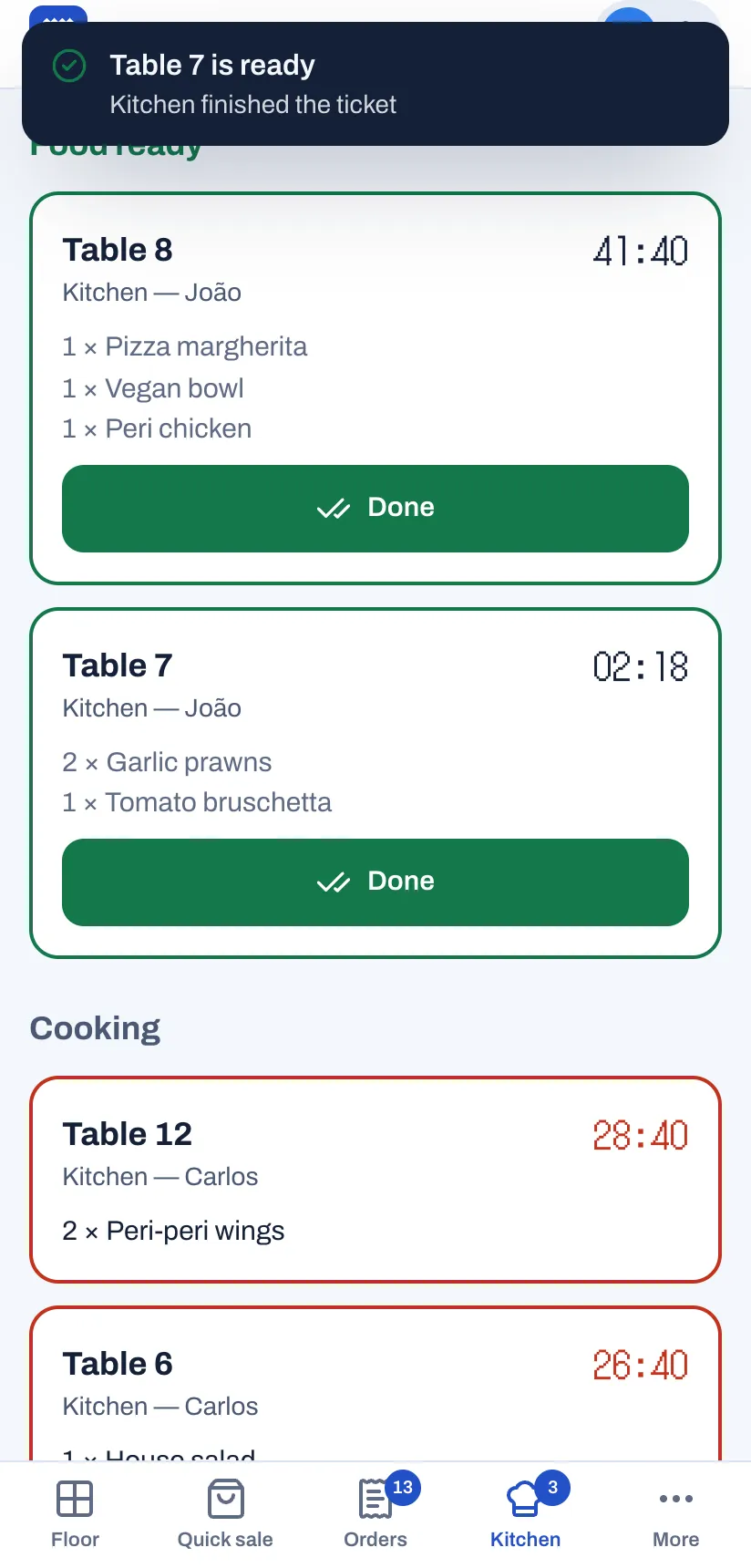
The server also sees that the food is ready:
- on the floor plan, where the table turns green, Food ready;
- under Kitchen, which lists every ticket under Food ready or Cooking, with the station, the server, the timer and the guests' allergies. The timer turns red when a ticket is late. Tap a ticket's table to open its order;
- on the order itself, where a green button shows, for example, Served: 3 ready on the pass.
When the server takes the food:
- Tap Done on the ticket under Kitchen, or open the order and tap the green Served button.
- The ticket leaves the kitchen display, and the table stops showing Food ready.
Tickets of stations that only print never show under Kitchen. For takeaway and counter orders, the order also becomes ready on the pickup board once every station with a kitchen screen has marked its ticket ready. See Counter, takeaway and pickup.
Set the kitchen times and alerts
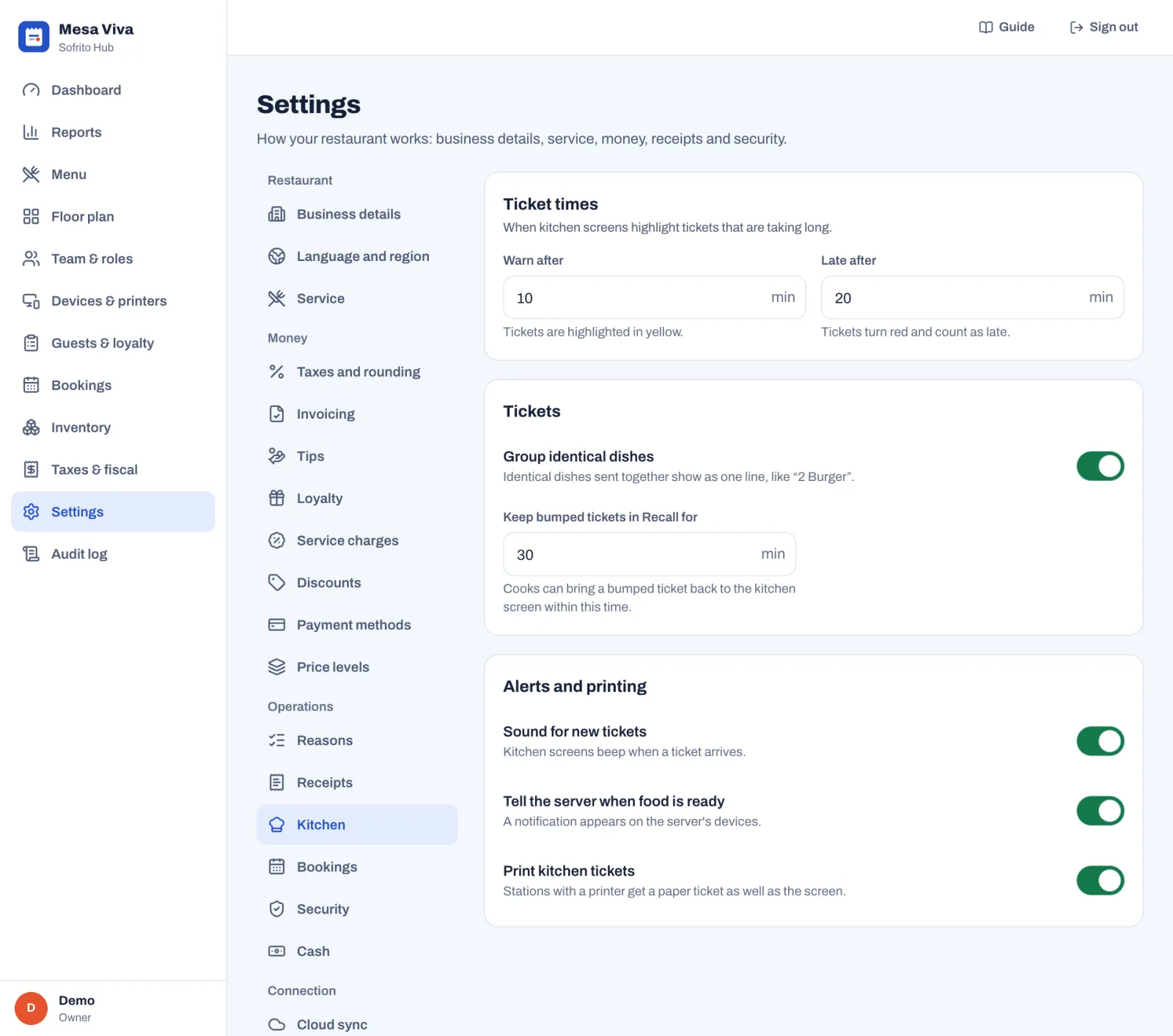
In Back office › Settings › Kitchen:
- Warn after: the minutes before a ticket turns yellow.
- Late after: the minutes before a ticket turns red and counts as late. It must be more than Warn after.
- Group identical dishes: identical dishes sent together show as one line, like "2 Burger". On in a new restaurant. Voiding one of them leaves the rest on the line.
- Keep bumped tickets in Recall for: how long a bumped ticket stays in Recall. 30 minutes in a new restaurant.
- Sound for new tickets: kitchen screens play a sound when a ticket arrives.
- Tell the server when food is ready: the message on the server's devices.
- Print kitchen tickets: stations with a printer get a paper ticket as well as the screen.
Select Save changes when you are done. The same late time turns timers red on the Kitchen screen of the till.
To see how long tickets take at each station, open the Kitchen tab in Back office › Reports: see Dashboard and reports. It times only tickets finished on a kitchen screen.
Busy nights
- Read the red allergies band before you start each ticket.
- Tap Ready as soon as food is on the pass, so servers come straight away.
- Keep one screen on All stations at the pass, even when each station has its own.
- Open All day at the start of a rush to see how many of each dish are coming.
- Mark a dish sold out the moment you run out, before servers take orders you can't make.
- Tap Got it on a VOID ticket as soon as you have seen it, so it doesn't hide the tickets still to cook.
- Bump tickets as the food leaves. Old tickets left on the screen hide the ones that are really late.
- Before you close, bump anything left on the kitchen display. Closing the day clears what is still open, and the next business day starts with All caught up.