Chapters
Guide › Set up
Taxes, receipts and legal documents
Every sale in Sofrito ends in a legal document: a receipt, a simplified invoice or an invoice, depending on your country. Sofrito numbers each document without gaps, seals it so it can't be changed, works out the tax per rate, and keeps the day closes and tax files your tax office asks for. This chapter is for the owner, a manager or the accountant. You set it up once, before your first real sale, and check it from time to time in Back office › Taxes & fiscal.
Before you start
- Create your restaurant. The country you chose decides your currency, tax rates and legal documents. See Create your restaurant.
- To change taxes and Settings › Invoicing, your role needs Taxes and fiscal settings. Receipts and business details need Restaurant settings. Day closes need View reports, and tax files need Export data.
Know what your country decides
When you create the restaurant, Sofrito sets it up for your country: the currency, the tax rates and categories, the name of the tax number (VAT No. in the United Kingdom, NIF in Portugal, NUIT in Mozambique), the documents it issues and how they are sealed. Sofrito has settings for 32 countries. The country and the currency can't be changed afterwards: Settings › Language and region shows them as fixed.
To see what Sofrito does for your country:
- In the back office, select Taxes & fiscal.
- Select Compliance.
The top of the page names your country, the way Sofrito seals documents there, and a badge:
- Built in: Sofrito applies the country's rules itself. Complete the checks before you go live.
- Partly built in: Sofrito numbers, chains and prints documents the way the law describes, but doesn't send records to the tax authority yet. This is Spain.
- Needs a certified add-on: Sofrito prepares every record the way the law expects, but going live needs a certified device, provider or certificate. The Country notes say which.
- Standard receipts: numbered receipts sealed in a tamper-evident chain. Check local rules with your accountant before you go live.
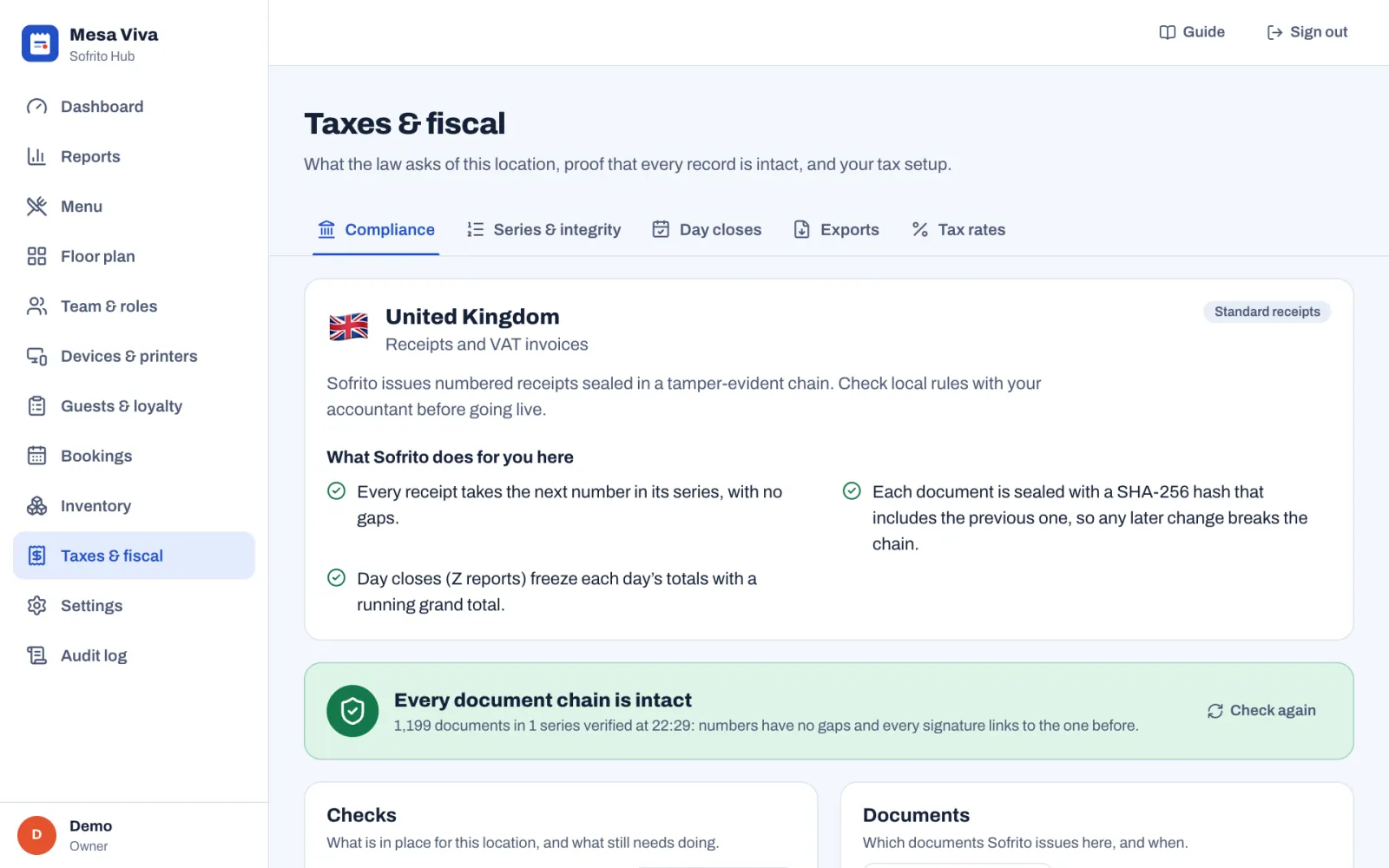
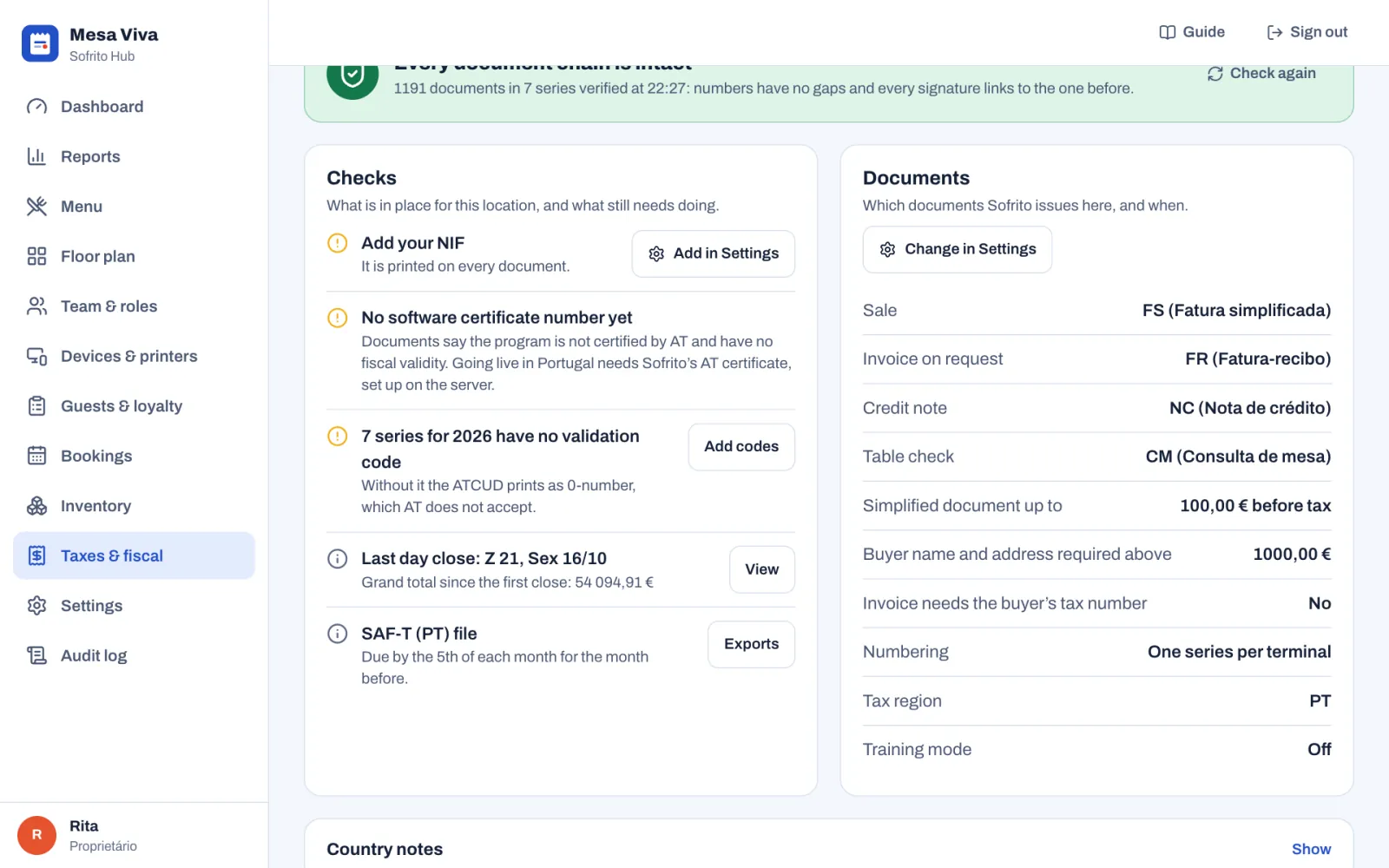
Under it, Checks lists what is in place and what still needs doing, with a button to fix it where there is one: Add in Settings for a missing tax number, Add codes for Portugal's validation codes, View for the last day close and Exports for your tax file. Documents lists which documents Sofrito issues and when, with Change in Settings to open Settings › Invoicing. Open Country notes at the bottom for the rules Sofrito follows in your country, in the language of your back office. For more about each country, see Country notes.
Add your business details
Your legal name, tax number and address are printed at the top of every receipt and invoice.
- In the back office, select Settings › Business details.
- Check the Restaurant name. It is printed in large letters on receipts.
- Type your Legal name, the registered company name.
- Type your Tax number. Its label uses your country's name for it, for example Tax number (VAT No.).
- Type your Email and Phone.
- Under Address, type your address.
- Select Save changes.
Documents already issued keep the details they were issued with. If you have more than one location, each location can print its own details under This location: leave a field empty to use the business details.
Choose whether your prices include tax
- In the back office, select Settings › Taxes and rounding.
- Under Prices and tax, choose:
- Prices include tax: guests pay the price on the menu and tax is worked out from it. Usual in Europe and Africa.
- Tax is added at payment: menu prices are before tax and tax is added to the bill. Usual in the United States and Canada.
- Under Round tax, leave Once per receipt unless your tax office asks for On every line. Most tax offices expect tax to be rounded once per rate on each receipt.
- Select Save changes.
Set up your tax rates
Your country's rates are already there. Check them with your accountant, and change them when the law changes.
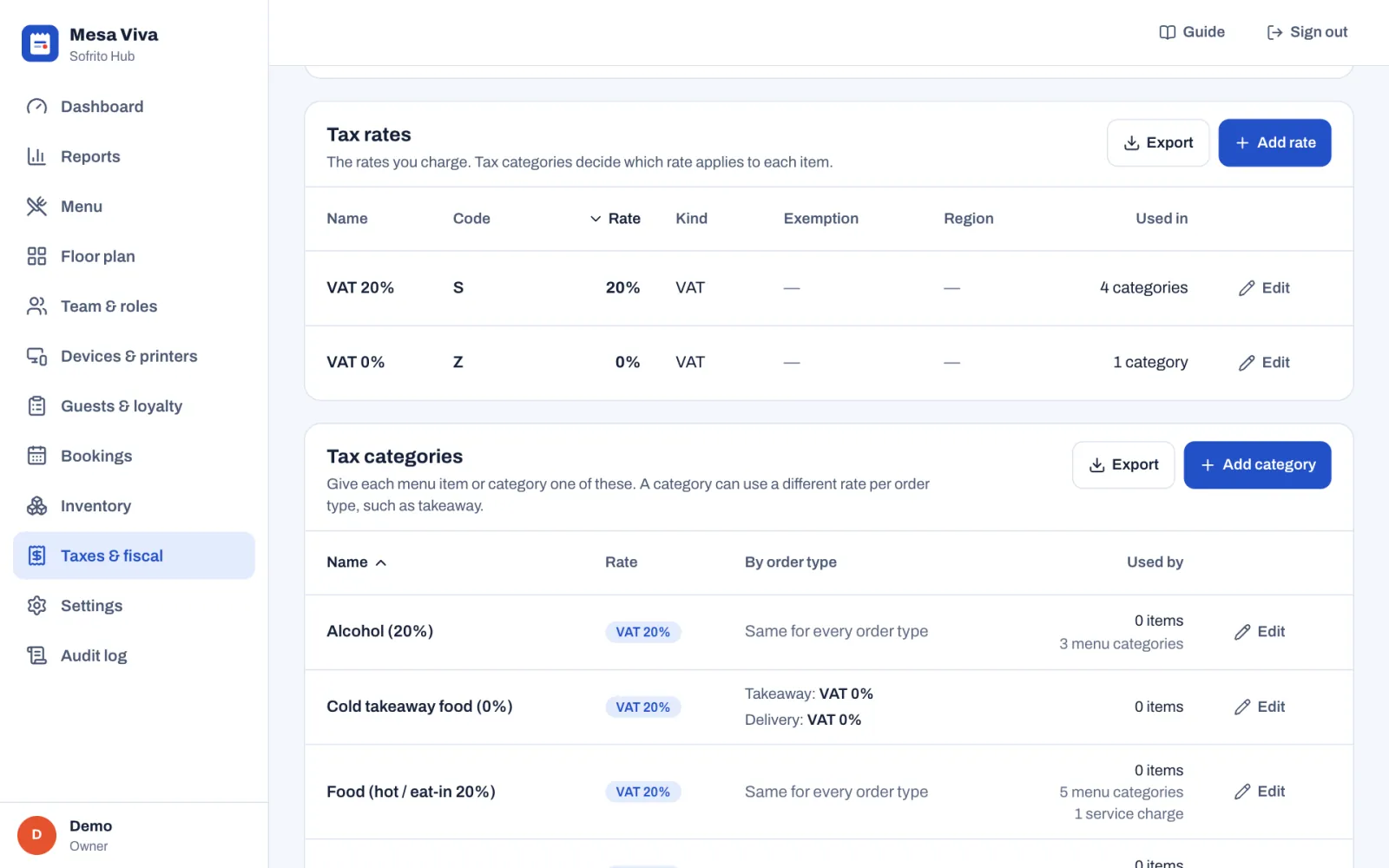
- Select Taxes & fiscal › Tax rates.
- Under Tax rates, select Add rate, or Edit next to a rate.
- Type the Name, for example "VAT 20%", and the Rate in per cent.
- Type a short Code. It is printed on documents and used in tax files. In Portugal the codes are NOR (normal), INT (intermediate), RED (reduced) and ISE (exempt).
- Choose the Kind: VAT, Sales tax, Levy, Service tax or Other.
- Optional: type a Region when the rate applies to one region only.
- For a 0% rate, Sofrito asks for an Exemption: type the exemption Code and the Legal reason. Both are printed on the document.
- Select Save.
Changes apply to new orders. Documents already issued keep the tax they were issued with. A rate used by a tax category can't be deleted.
Group rates in tax categories
Dishes don't get a rate directly. Each dish, or its menu category, gets a tax category, and the tax category decides the rate. This is how one dish can be taxed differently when it is eaten in or taken away.
- Select Taxes & fiscal › Tax rates.
- Under Tax categories, select Add category, or Edit next to a category.
- Type the Name, for example "Food".
- Under Rate, pick the rate that applies. Pick more than one to combine rates, or none if these items are not taxed.
- If the rate changes with the kind of order, turn on that order type under Different rate by order type, for example Takeaway, and pick its own rate.
- Select Save.
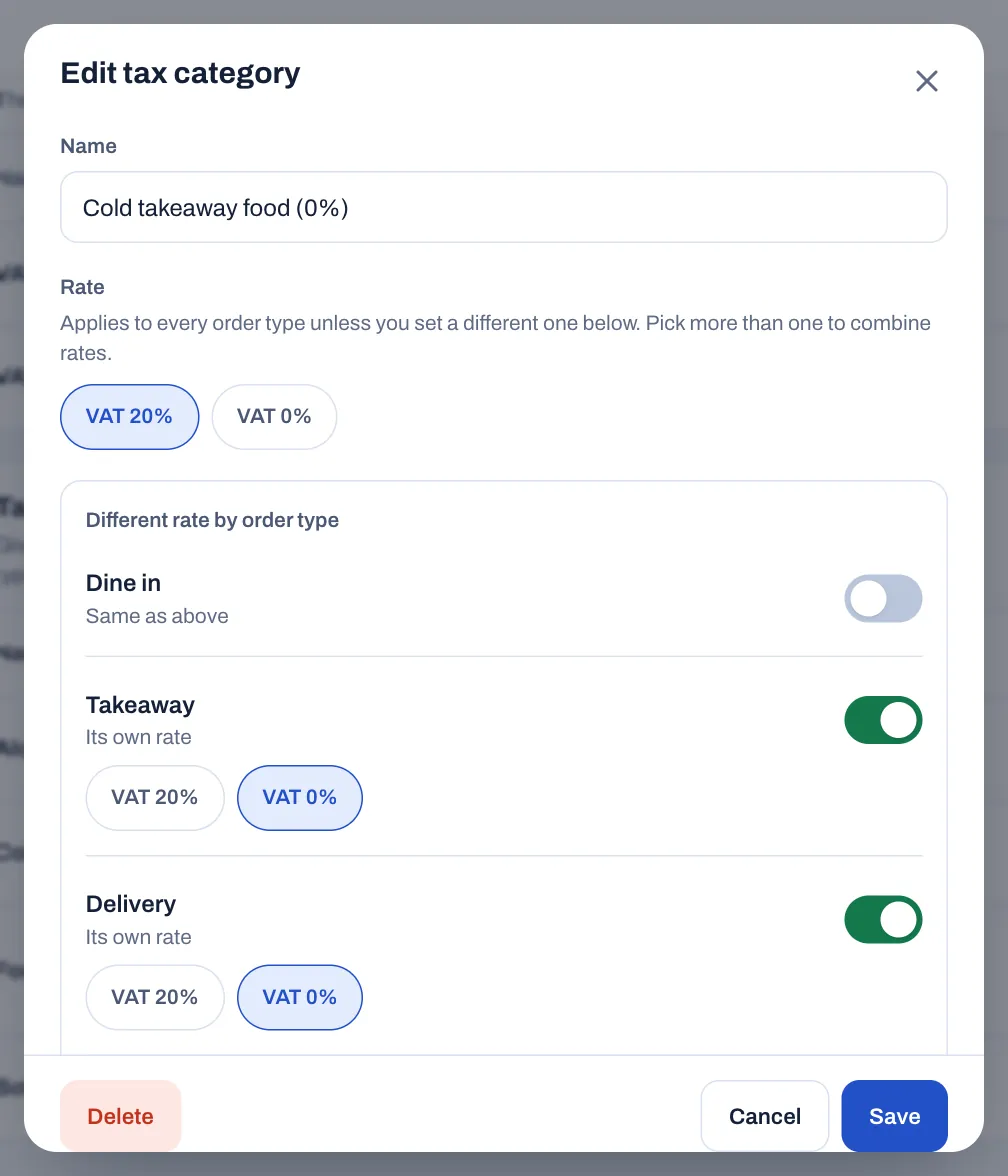
Then give each dish or menu category its tax category in the menu (see Build your menu). There, each tax category shows its rates, for example "Cold takeaway food (20%, Takeaway 0%, Delivery 0%)". Service charges get a tax category too (see Payment methods, tips and service charge). The Used by column shows how many items, menu categories and service charges use each tax category. A category in use can't be deleted.
Understand the documents Sofrito issues
Every paid order gets a legal document straight away. Which one depends on your country, and Taxes & fiscal › Compliance › Documents shows yours:
- Sale: the document for a normal sale, for example RC (Receipt) in the United Kingdom or FS (Fatura simplificada) in Portugal.
- Invoice on request: the document for a customer who asks for one. In some countries Sofrito issues it by itself when the customer's tax number is given or the bill is above a limit.
- Credit note: the document that corrects an earlier one, after a refund or when a paid order is reopened. In Spain there are two: one for simplified invoices and one for full invoices.
- Table check: in Portugal, the check printed for a table is a legal document too, a Consulta de mesa.
A document is never changed or deleted. If something was wrong, Sofrito issues a credit note that points to the original. How staff put a customer's name, tax number and address on a document is in Put the customer's tax number on a receipt. Refunds and reopened orders are in Voids, discounts, refunds and approvals.
Choose your documents and invoicing details
Settings › Invoicing holds the document settings for your country. It only shows what applies where you are.
- In the back office, select Settings.
- Under Money, select Invoicing.
- Under Documents, choose the Sale document, issued for a paid bill. Where your country has an invoice on request, choose it under Invoice on request: its hint says when Sofrito issues it. The Credit note and the Table check are fixed by Sofrito, as your country's rules ask.
- Under Tax authority, fill in what your tax authority gave you. Only some countries have this part: see below.
- Under Printed on every document, type any extra lines your accountant asks for, one per line. They print after the mentions the law requires, which Sofrito adds itself.
- Select Save changes.
Without Taxes and fiscal settings, your role can see this page but not change it.
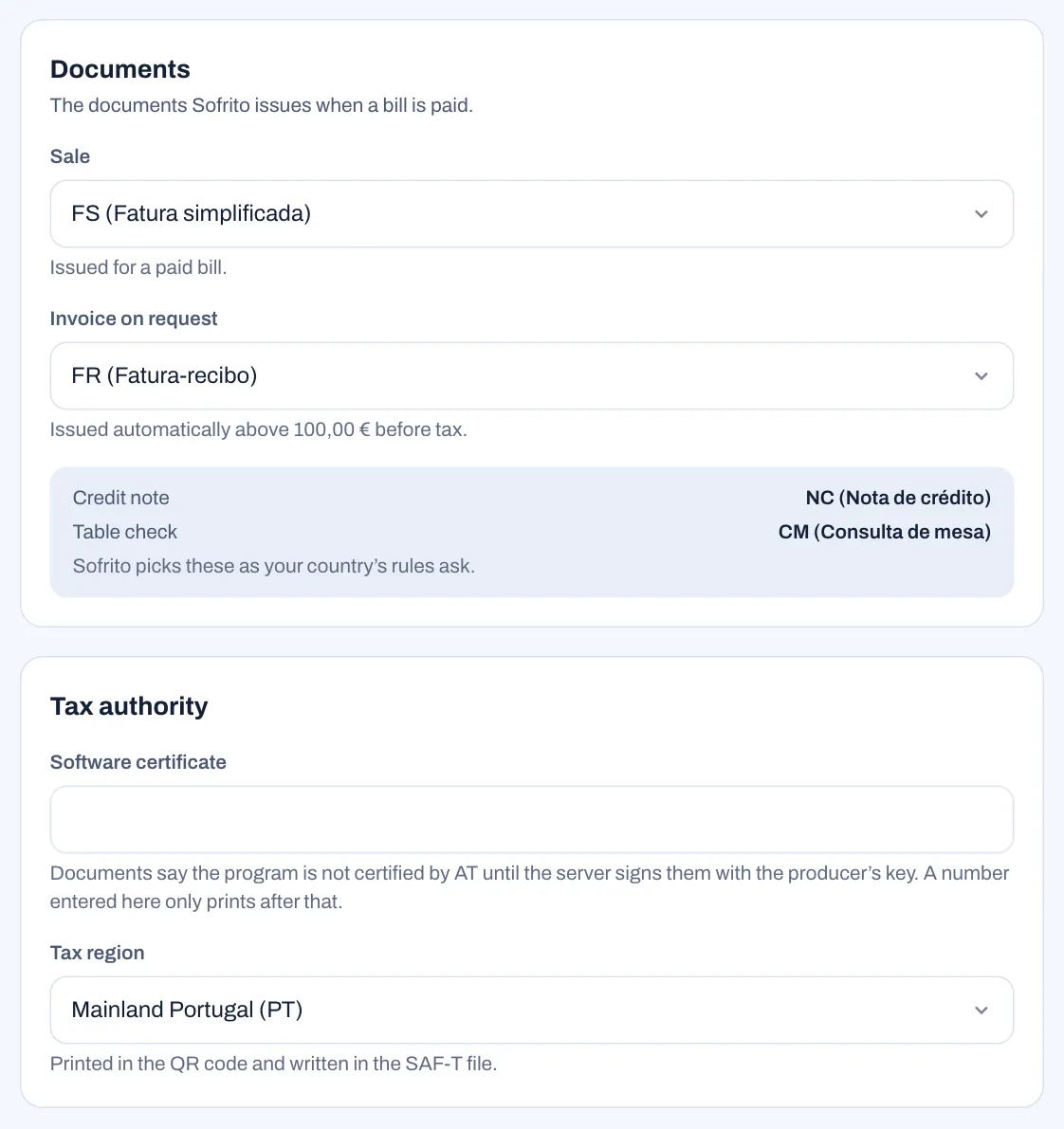
What Tax authority asks for:
- DAF authorisation (Mozambique): the reference of the authorisation your Direcção de Área Fiscal gave for computer-processed invoices. It is printed on every document.
- Software certificate (Portugal and Angola): the certificate number of the software. The server signs your documents, and a number typed here only prints once the server signs them with the producer's key. When the number is set on the server, it shows here and can't be changed.
- Tax region (Portugal): Mainland Portugal (PT), Madeira (PT-MA) or Azores (PT-AC). It is printed in the QR code and written in the SAF-T file. Changing it doesn't change your rates: also change them in Taxes & fiscal › Tax rates, because Madeira and the Azores have their own.
Practise with training documents
Before you open, staff can practise with real orders and payments without issuing real documents.
- In Settings › Invoicing, under Training mode, turn on Issue training documents.
- Select Save changes. Every terminal now issues training documents: they go to a separate training series and say they are not valid for tax purposes.
- When you have finished, turn it off and save. Terminals issue real documents again.
While training mode is on, the Compliance tab says Training mode is on, with Turn off in Settings. Turn it off before real service.
Check that every document is intact
Each document type has its own numbered series each year, such as RC A2026. Sofrito creates a series with the first document of its type, unless you create it in advance (in Portugal, see Meet the rules in Portugal). Each document carries a seal made from its own content and the seal of the document before it. If a document were changed or removed later, the chain would break.
- Select Taxes & fiscal › Series & integrity.
- Read the banner at the top. "Every document chain is intact" means the numbers have no gaps and every seal links to the one before.
- Select Check again to check now.
The Document series list shows each series with its Year, its Terminal, how many documents it has Issued, whether its Chain is Intact, and its Last hash, the seal of its latest document. Training documents have their own series, marked Training. In Spain, every record of the installation also forms one chain, shown under Installation chain.
See your day closes
A day close, or Z report, freezes the day's totals. Each close is numbered, carries a grand total since the first close, and is sealed with the close before it. You close the day on the till: see Close the day.
- Select Taxes & fiscal › Day closes.
The top shows the Last close, the Grand total since the first close, and Seals: your browser recomputes each seal, and All verified means none has been changed. The list shows each close with its business day, when and by whom it was closed, the number of orders, the day total and the grand total. Select a close to see its full report. Its payments are listed under Payments, tips included, and any gift cards sold or house accounts paid under Gift cards and house accounts, as on the printed Z report. Export downloads the list.
Download your tax files
- Select Taxes & fiscal › Exports.
- Under Period, choose a month. The month that just ended is chosen for you. Choose Custom dates for any other period.
- Download what you need:
- Fiscal documents (Download CSV): every document issued in the period, with its number, type, date, customer and tax number, totals, status and hash. One file holds up to 2,000 documents: pick a shorter period for more.
- SAF-T (Download XML), in Portugal, Angola and Mozambique: the tax file for your tax authority. Check it with the tax authority's validator before you submit it.
The SAF-T file needs your tax number. Without it, Sofrito says "Add the restaurant's tax number in Settings → Business details before exporting the SAF-T file." Your accountant can use the CSV file whatever your country. For your sales figures, see Dashboard and reports.
Know what a receipt shows
A receipt from Sofrito shows, from top to bottom:
- your logo, the restaurant name, your legal name, address, tax number with your country's name for it (for example VAT No.) and phone, then your header lines;
- the document type and number, for example Receipt RC A2026/1185, with Original on the first one when more than one copy prints, and Copy on the others and on reprints;
- the date and time, the table or the kind of order, the number of guests, the order number and the server;
- each item with its quantity, its extras and any discount; on a full invoice, each line also shows the quantity, the unit price before tax and the rate, for example "2 x 10.00 excl. tax · Tax 20%";
- service charges and order discounts by name, then the total;
- a tax summary with the base, the tax and the total for each rate, and the legal reason for any exempt rate;
- each payment, with the cash given, the tip, the card or transaction reference, any cash rounding and the change;
- the customer's name, tax number and address, when given;
- the QR code and the legal lines your country requires, such as a short code taken from the document's seal;
- your extra lines from Settings › Invoicing, then your footer lines.
Order number, table, server, tax summary and prices of extras follow your choices in Settings › Receipts.
Choose what your receipts show
- In the back office, select Settings › Receipts.
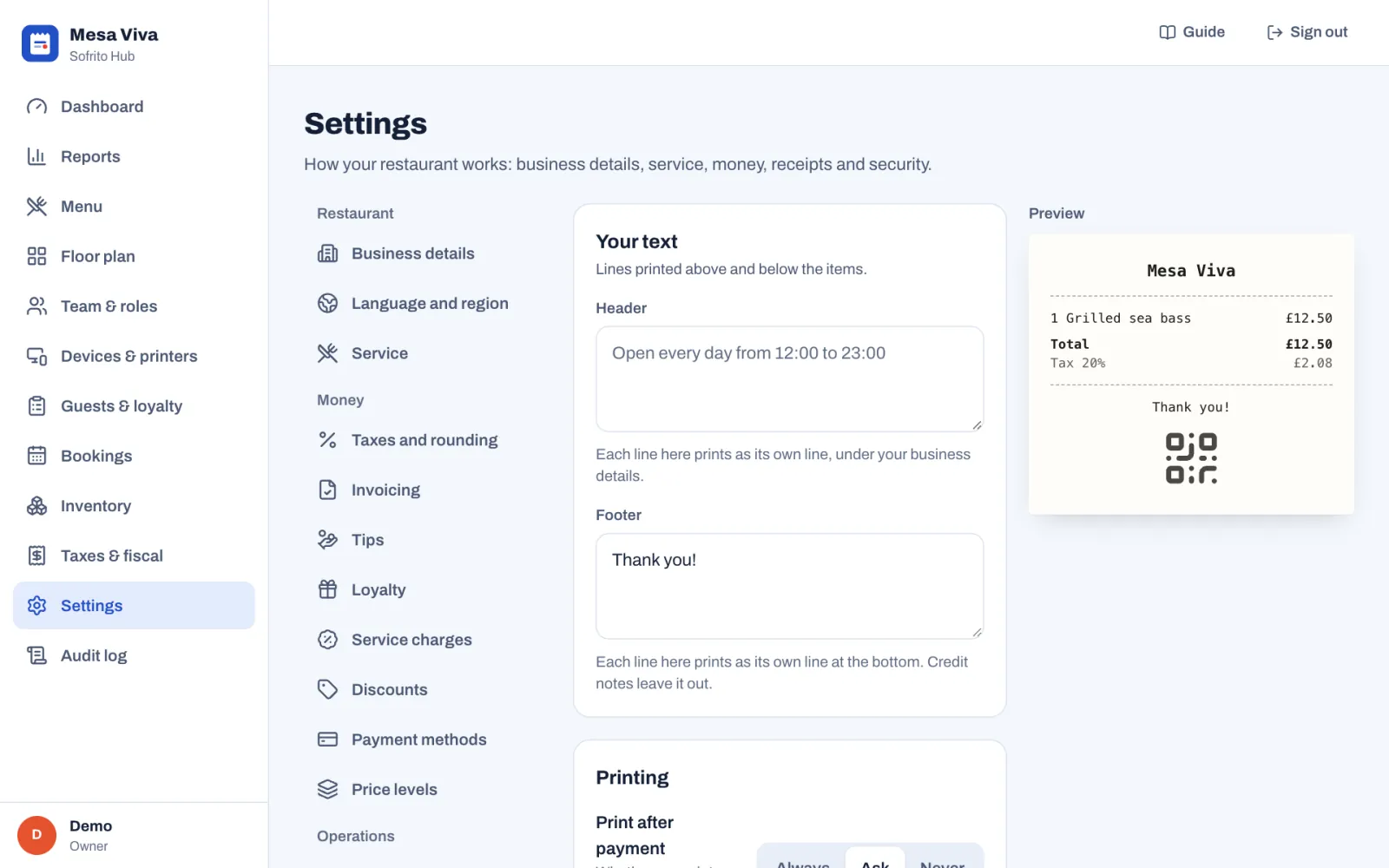
- Under Header, type the lines to print under your business details, for example your opening hours. Each line prints as its own line.
- Under Footer, type the lines to print at the bottom, for example "Thank you!". Credit notes leave the footer out. A new restaurant starts with a thank-you line in its own language.
- Under Print after payment, choose Always, Ask or Never (see below).
- Under Copies, choose how many receipts print each time: 1, 2 or 3.
- Under Receipt language, choose the language of the printed labels, such as Total and VAT: English, Português, Español, Français, Deutsch, Italiano or Nederlands, or keep the restaurant's language.
- Under What the receipt shows, turn on or off: Logo, QR code, Tax summary, Order number, Table, Server and Prices of extras.
- Select Save changes.
What Print after payment does:
- Always: the receipt prints by itself when an order is paid.
- Ask: the till asks "Print a receipt?", with No receipt and Print.
- Never: the till only shows Done. Staff can print it later from the order, with Reprint receipt. The first time it prints, it is still the original.
With more than one copy, the first is marked Original and the others Copy. If the receipt printer has its own Copies setting (see Choose the printing options), the higher of the two counts: they don't multiply. A reprint is always one copy.
The document title, such as Receipt or Invoice, follows the receipt language too, except in countries where Sofrito prints the titles the law uses, such as Portugal, Spain, France, Germany, the United Kingdom and Mozambique.
The Preview on the right shows where your lines go. Anything the law requires is always printed, whatever you switch off. QR code adds a code guests can scan to check the document. Where the law requires a QR code, in Portugal, Spain and Saudi Arabia, the switch stays on and says "Required here: every document carries the fiscal QR code."
Add your logo
- In the back office, select Settings › Business details.
- Under Logo, select Upload logo.
- Choose a PNG, SVG, JPG or WebP image. A transparent background looks best, and Sofrito makes large images smaller for you.
The logo is saved as soon as you choose it. Sofrito also makes a black-and-white copy for thermal printers. It prints at the top of receipts and shows on the screens guests see. Star CloudPRNT printers print receipts without it. To leave it off receipts, turn off Logo in Settings › Receipts.
Meet the rules in Portugal
Certification. The country note says going live in Portugal needs Sofrito's AT certificate. Its number and the producer's key that signs documents are set up on the server. Until they are, every document ends with the line "Programa não certificado pela AT. Documento sem validade fiscal.", and the Checks on the Compliance tab show No software certificate number yet. Once the server signs documents, the check shows the certificate number, and so does Settings › Invoicing › Software certificate.
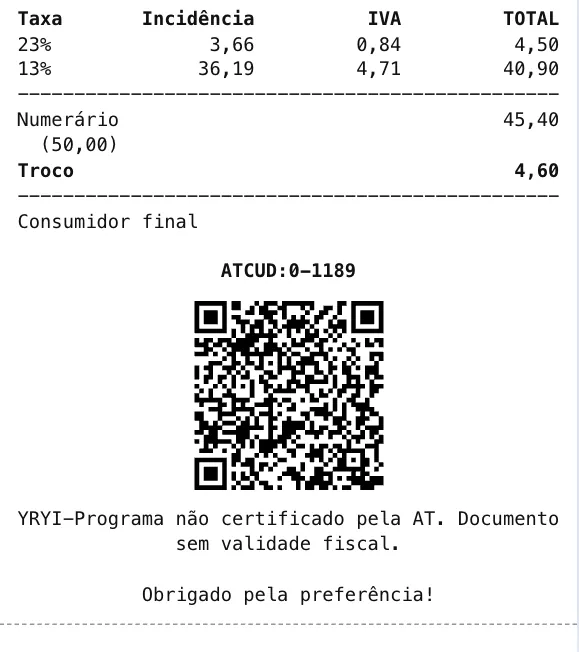
Series and ATCUD. The country note says every series must be communicated to the AT before its first document, to get its validation code. Sofrito prints that code in the ATCUD of every document in the series. Without it, the ATCUD prints as 0 and the document number, as on the receipt above. Create the series in advance and add their codes before you open:
- Select Taxes & fiscal › Series & integrity.
- Under AT validation codes, choose the year: this year or next year.
- Select Create and the number of series, for example Create 4 series. Sofrito creates every series that year needs: one for each document type your restaurant issues, on every till and handheld. Until then, they show Not created yet.
- Communicate each series to the AT in the Portal das Finanças (e-Fatura, Séries), with the document type, the series and the first number, 1.
- Next to each series, select Add code, and type the Validation code exactly as the AT shows it: 4 to 20 letters and numbers.
- Check the line under The next document in this series will print, then select Save.
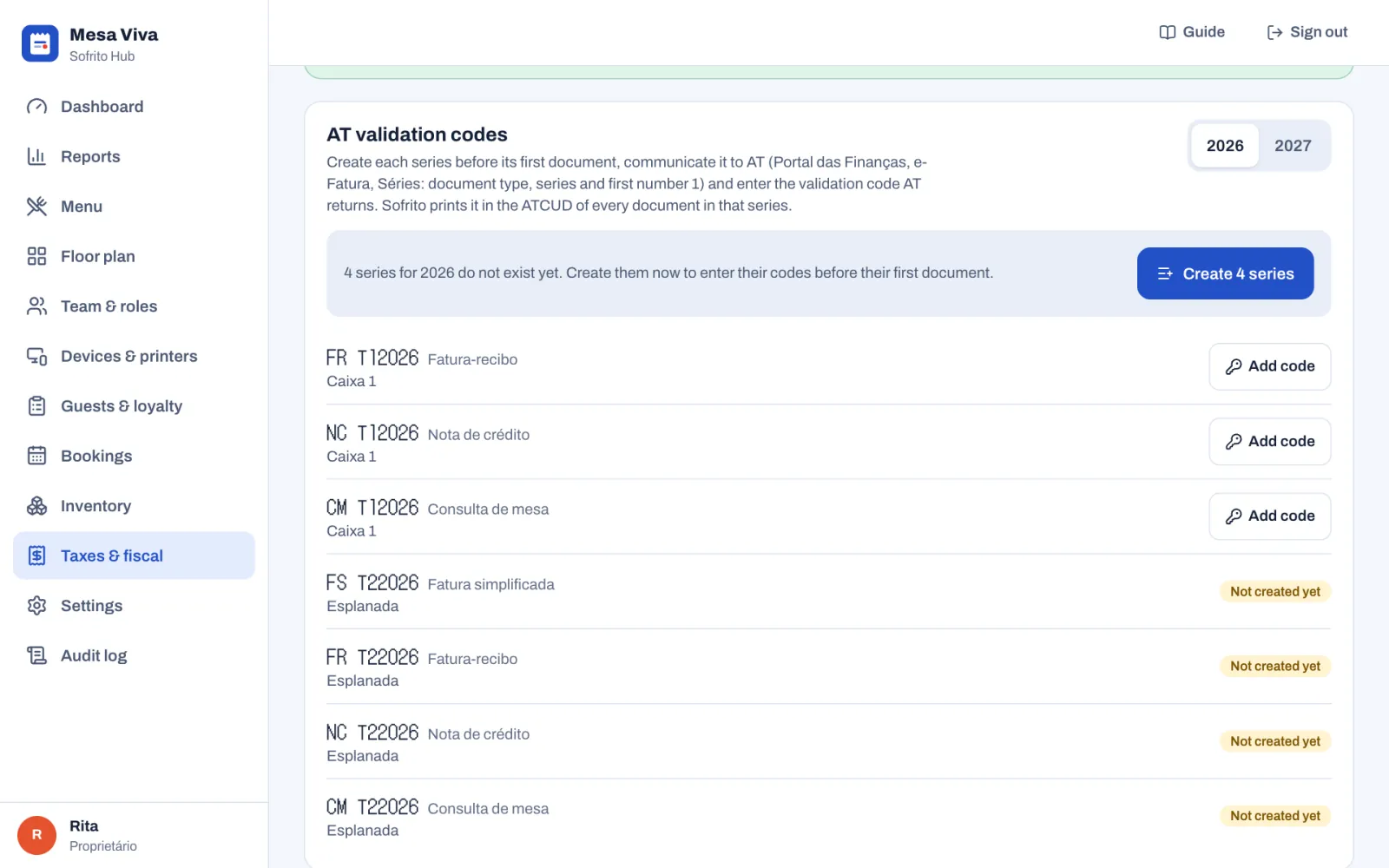
When every series has its code, the panel says so. Once documents are issued with a code, the code can no longer be changed. When you pair another till or handheld, its series show as Not created yet: create them and add their codes before it takes its first payment. A series that a document creates by itself starts without a code, and its first documents keep the ATCUD they were printed with.
The till warns staff before they charge. When series of their terminal have no code yet, the payment screen says "No AT validation code for this terminal's … series", naming the document types, and "A manager adds the codes in Back office → Taxes & fiscal → Series & integrity." The Compliance tab counts the series without a code, with Add codes. In December it checks next year's series too, so you can add their codes before 1 January.
Madeira and the Azores. Set Settings › Invoicing › Tax region to Madeira (PT-MA) or Azores (PT-AC), and change your rates in Taxes & fiscal › Tax rates.
SAF-T (PT). The country note says the monthly invoicing file is due by day 5 of the following month. Download it from Taxes & fiscal › Exports.
Meet the rules in Angola and Mozambique
Before you go live
- In Settings › Business details, check the legal name, tax number and address. They print on every document.
- Decide whether your prices include tax, before your first sale.
- Check every tax rate and tax category with your accountant, and give every dish a tax category.
- Check Settings › Invoicing with your accountant.
- Write your receipt header and footer, choose the receipt language, the copies and when receipts print, and upload your logo.
- Print a receipt from a test sale and show it to your accountant.
- If you practised with training documents, turn Issue training documents off.
- On Taxes & fiscal › Compliance, work through every warning under Checks, and read the Country notes.
- In Portugal: pair all your tills and handhelds, create this year's series, add the AT validation code of each one, check your tax region, and plan the monthly SAF-T (PT) file.
- In Mozambique: type your DAF authorisation in Settings › Invoicing, and plan the monthly SAF-T (MOZ) file.
- Close every business day with a Z report (see Close the day).