Chapters
Guide › Get started
Create your restaurant
You create your restaurant once, with a short wizard: the restaurant, its country, and your own account. Sofrito then sets up taxes, payment methods, printers, roles and a floor plan to match. This chapter is for the owner, or the partner who sets Sofrito up for them. It takes about ten minutes.
Before you start
- Decide between Sofrito Cloud and Sofrito Hub. See Plan your setup.
- Have ready: the restaurant's name, its legal name and tax number, your email address, a password of at least 8 characters, and a 4-digit PIN.
- If a Sofrito partner is helping you, ask them for their partner code.
Create your restaurant on Sofrito Cloud
You can do this on a computer, a tablet or a phone. The device you use becomes your restaurant's first till.
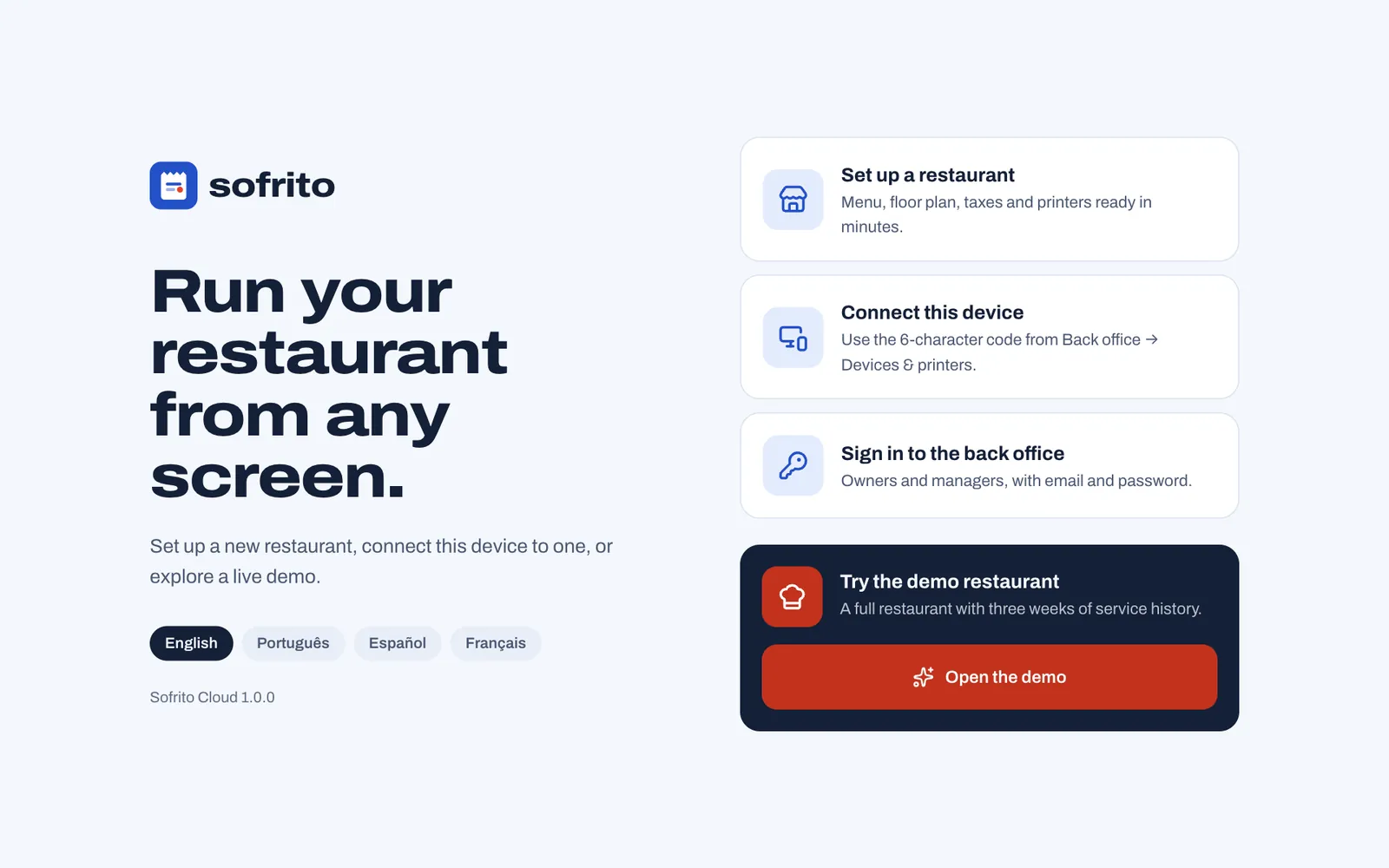
- Open go.sofritopos.app in the browser. In the Sofrito app, tap Use Sofrito Cloud on the first screen.
- Choose your language: English, Português, Español or Français.
- Select Set up a restaurant.
- Complete the three steps below: Restaurant, Country & taxes and Your account. Select Continue after each one, or Back to return to the one before.
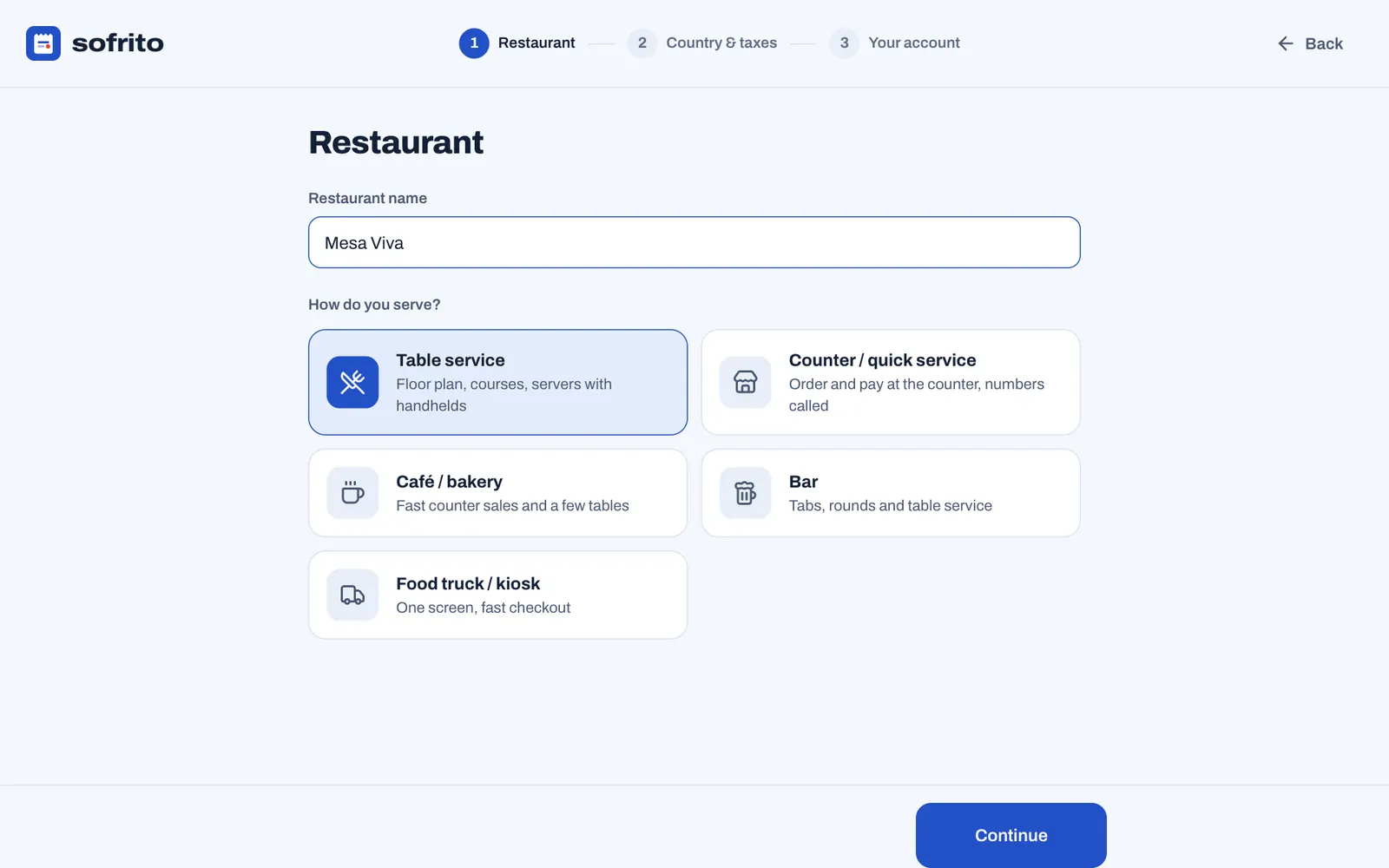
Name the restaurant and choose how you serve
- In Restaurant name, type the name your guests know. It is shown on every device and printed in large letters on receipts.
- Under How do you serve?, select the choice closest to your restaurant. It decides how Sofrito starts, and you can change all of it later in the back office.
- Select Continue.
| Choice | What Sofrito sets up |
|---|---|
| Table service | A floor plan with a dining room, a terrace and a bar. Orders start at a table, with the number of guests, seats and courses. Takeaway, delivery and bar tabs are on too. |
| Counter / quick service | Counter, takeaway and delivery orders, without a floor plan, seats or courses. The till locks after each payment and prints every receipt. |
| Café / bakery | Counter orders first, plus eat-in and takeaway, with a dining room floor plan. No seats or courses. |
| Bar | Bar tabs first, plus table and counter orders, with a dining room, a terrace and a bar. No seats or courses. |
| Food truck / kiosk | Counter and takeaway orders only, without a floor plan. The till locks after each payment. |
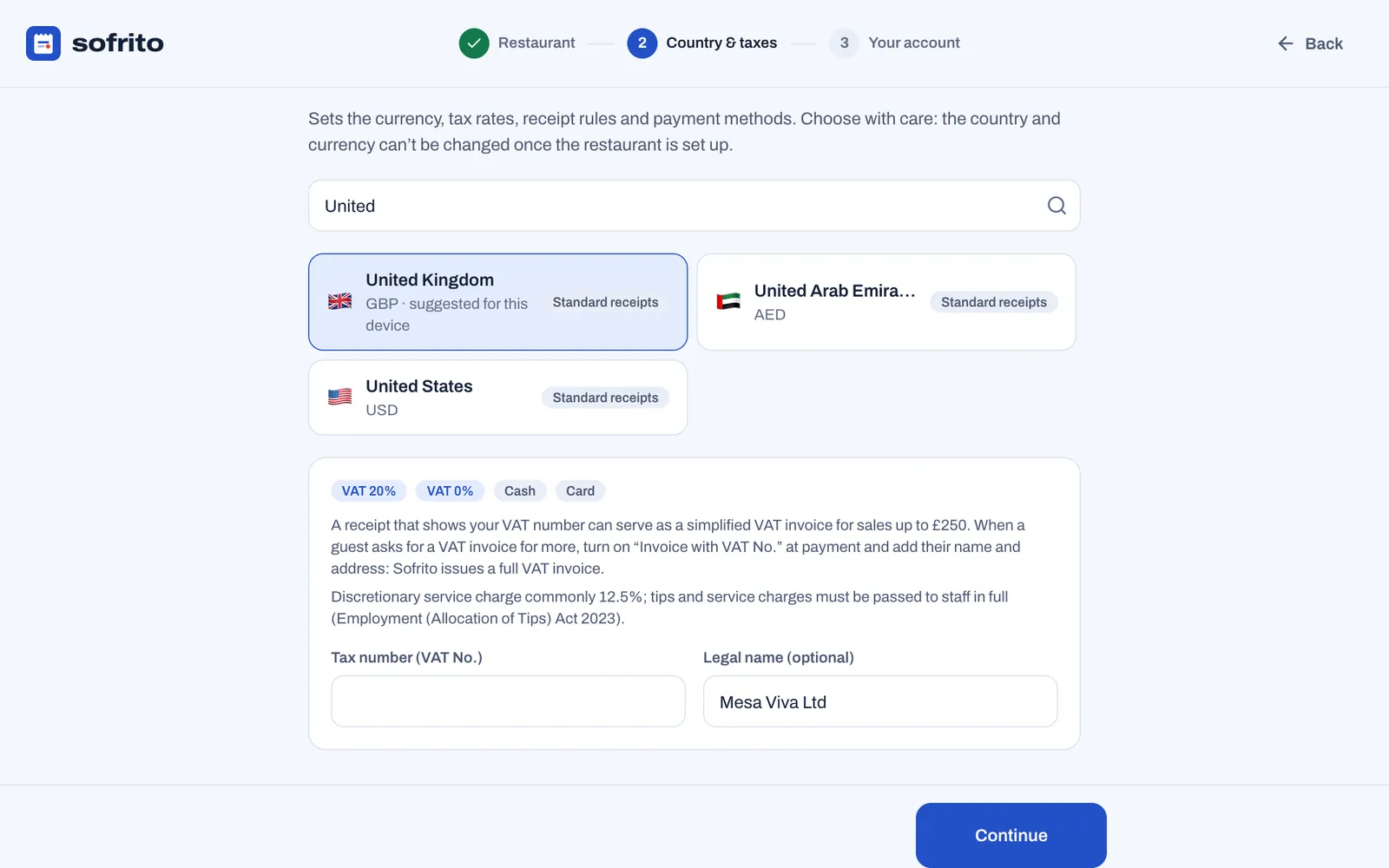
Choose your country and taxes
Nothing is selected when this step opens, and Continue stays off until you choose a country.
- Search for your country, in English or in its own language, then select it. Countries are listed by their own
name, such as España, and the country this device seems to be in comes first, marked suggested for this
device. Each country shows its currency and one of these labels:
- Fiscal rules built in: Sofrito follows your country's rules for receipts, invoices and their numbering.
- Fiscal rules partly built in: Sofrito numbers and prints documents the way the law describes, but does not send records to the tax authority. Spain has this label.
- Certified add-on required: your country requires a certified fiscal device or service. Talk to your Sofrito partner before you trade.
- Standard receipts: Sofrito prints ordinary receipts.
- Check the panel below the list. It shows the tax rates and payment methods Sofrito will create, and notes about your country's rules, in the language you chose.
- Type your Tax number. The label shows its local name, for example Tax number (VAT No.) in the United Kingdom. You can leave it empty and add it later in Back office › Settings › Business details.
- Type your company's Legal name (optional) if it is different from the restaurant's name.
- Select Continue.
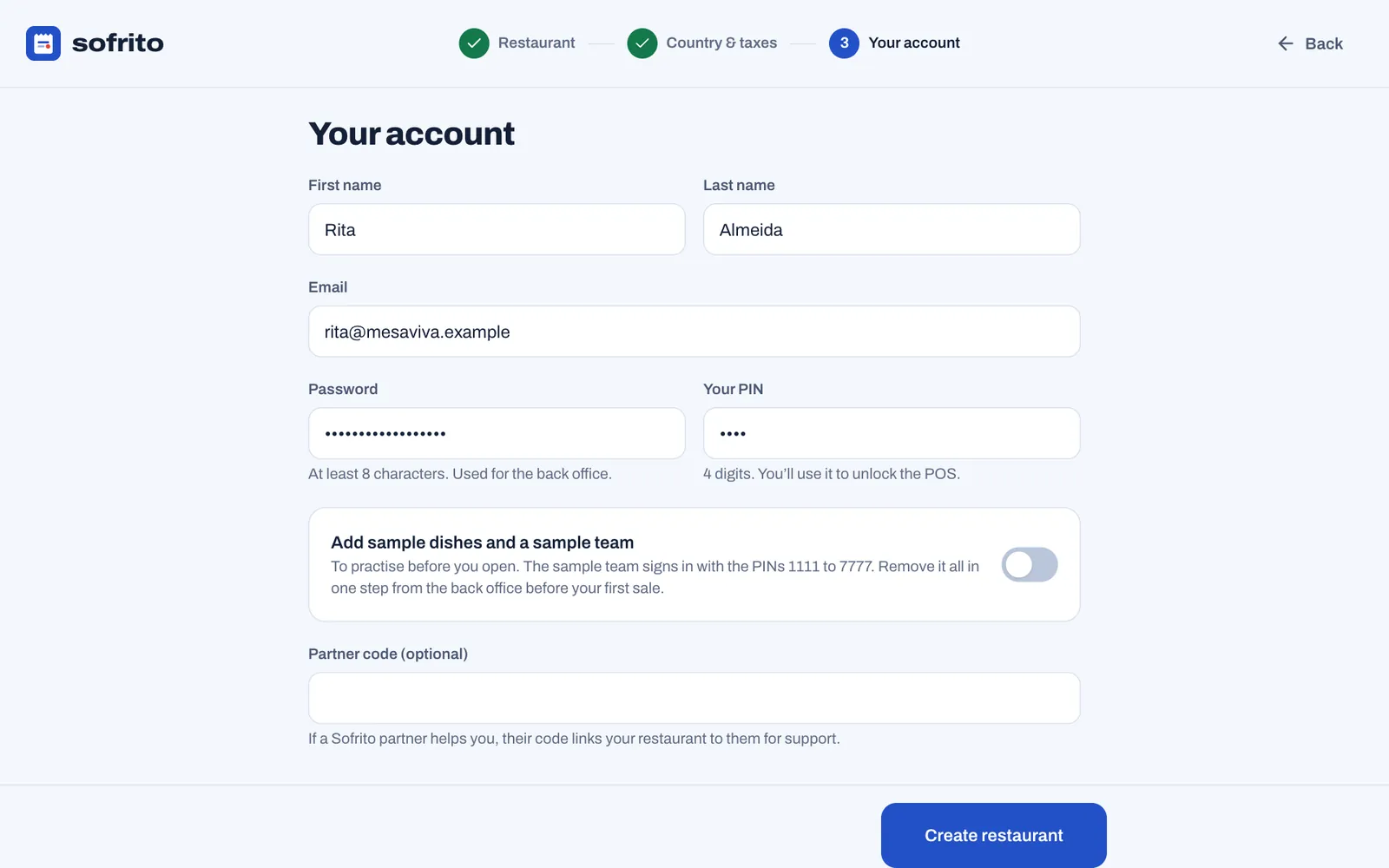
Create your account
- Type your First name and Last name.
- Type your Email and a Password of at least 8 characters. You use them to sign in to the back office.
- Type Your PIN: 4 digits. You use it to unlock the tills.
- Leave Add sample dishes and a sample team off to start with an empty menu and only yourself on the team. Turn it on to practise before you open: you get sample dishes, a sample team, guests, stock and bookings, which you remove in one step before you open (see Remove the sample data).
- On Sofrito Cloud, type the Partner code (optional) if a Sofrito partner is helping you. It links your restaurant to them for support. A link from your partner fills it in for you.
- Select Create restaurant.
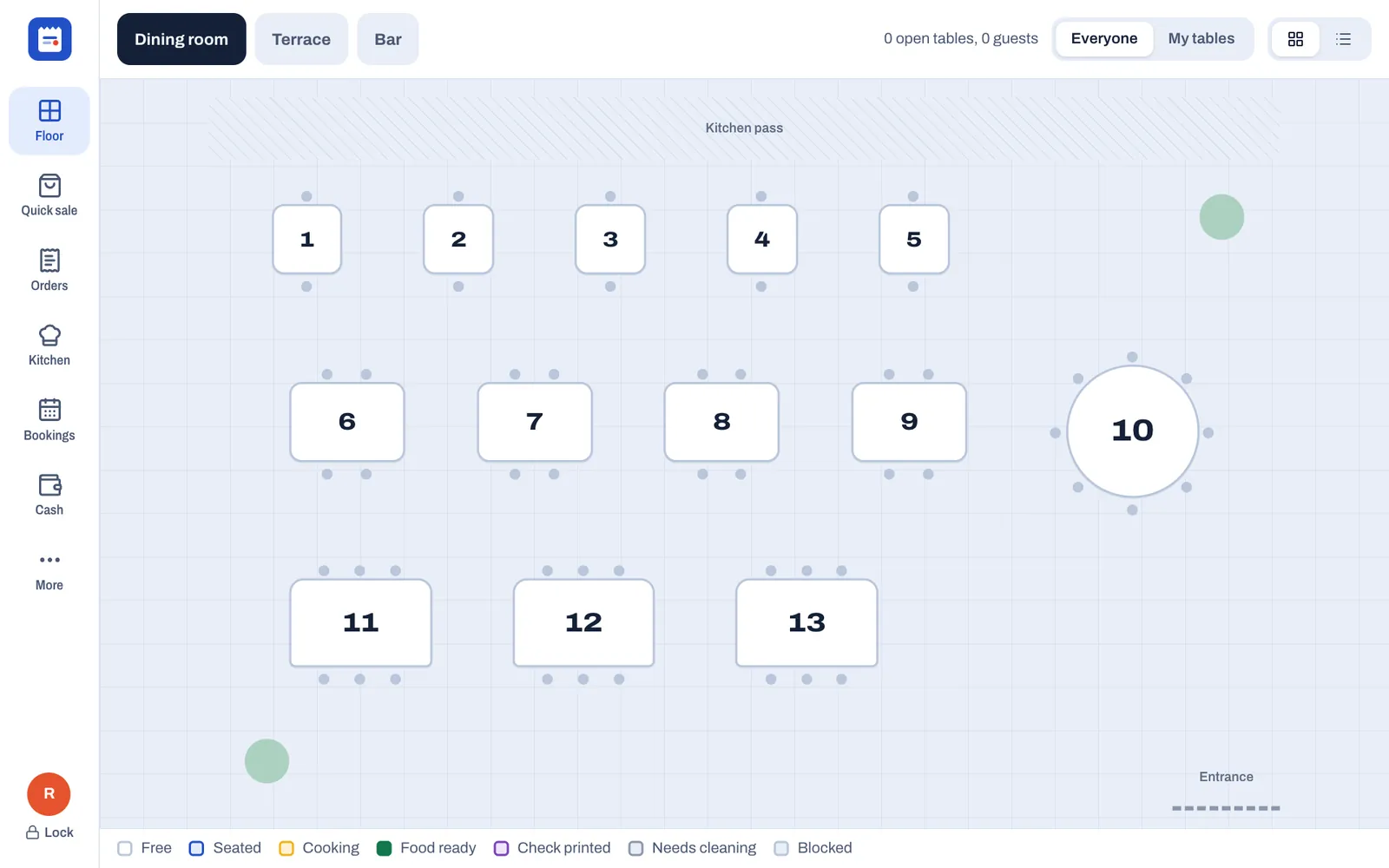
After a few seconds the device becomes your first till, called Main terminal, signed in as you. It opens on the floor plan, or on a new order if you serve at a counter. Once it locks, everyone, you included, unlocks it with their PIN.
Check what Sofrito created
Everything below is ordinary data: you can rename, change or delete it in the back office.
- Your restaurant, with the currency and language of your country, and this device's time zone when the device is in that country (otherwise the country's main one). Check it in Back office › Settings › Language and region.
- You, as the owner, with your email, password and PIN.
- Seven roles: Owner, Manager, Server, Bartender, Cashier, Host and Kitchen. See Your team, roles and PINs.
- Taxes from your country pack. In the United Kingdom: VAT 20% and VAT 0%, with tax categories for food, cold takeaway food, soft drinks and alcohol. See Taxes, receipts and legal documents.
- Payment methods from your country pack, plus Gift card. In the United Kingdom: Cash and Card. See Payment methods, tips and service charge.
- Three printers, all virtual, which show tickets on screen: Front counter for receipts, Kitchen and Bar for kitchen tickets. Replace them with your real printers when they arrive. See Devices, printers and stations.
- Two stations, Kitchen and Bar, each printing its tickets on its printer. Their tickets also wait on a kitchen display once you pair one that shows them.
- A cash drawer, Main drawer, opened by the Front counter printer.
- A floor plan, if you serve at tables: a dining room with tables 1 to 13. Table service and Bar also get a terrace (T1 to T8) and a bar (B1 to B8 at the counter, H1 to H3). See Draw your floor plan.
- Courses: Drinks, Starters, Mains and Desserts.
- Discounts: Staff meal, Manager 10%, Friends & family 20% and Loyalty reward, and a 10% service charge added automatically for tables of 8 or more.
- Reasons staff choose from when they void, give away or discount an item, refund, or take cash in or out.
- This device, as your first till, called Main terminal.
With Add sample dishes and a sample team on, you also get a menu with photos, options and allergens (in Portuguese, Spanish or French when your country speaks it, otherwise in English), a happy hour price for cocktails and beer on weekdays from 17:00 to 19:00, seven team members, a few guests with loyalty points switched on, a supplier with stock items and recipes, and some bookings for today.
Remove the sample data
The sample team signs in with simple PINs: 1111, 2222, 3333 and so on up to 7777. Remove the sample data before your first real sale. While it is there, a banner at the top of the back office says so.
- In the back office, select Remove sample data in the banner at the top.
- Select Tap again to remove.
Sofrito archives the sample team, so their PINs stop working at once, and removes the sample dishes, guests and bookings. Sample stock items and the supplier are archived. Anything you changed, or now use with your own dishes, stays. You need Restaurant settings to see the banner. Loyalty stays switched on: turn it off in Back office › Settings › Loyalty if you don't want it.
Sofrito refuses while orders are open ("Close or void the open orders first."). Once something has been sold, even a practice sale, the banner adds "Removing it now archives it, so the sales already made with it stay in your reports." The sample dishes, categories, options, price level and guests are then archived instead of removed, so every sale and report keeps what it names.
Sign in to the back office
On any computer, tablet or phone:
- Open go.sofritopos.app, or your hub's address on the restaurant network.
- Select Sign in to the back office.
- Type your Email and Password.
- Select Sign in to the back office.
If your email and password open more than one restaurant on Sofrito Cloud, Sofrito shows Choose a restaurant: select the one you want.
In the Sofrito app, first tap Use Sofrito Cloud or type your hub's address on the app's first screen. You do not need the Server address link on the sign-in screen.
On a computer, tablet or phone that isn't paired as one of your restaurant's devices, you stay signed in for 30 days. To sign out, select Sign out at the top of the back office.
On a till or handheld, tap Back office on the lock screen, or More › Back office once you have unlocked it with your PIN. The back office never stays signed in there:
- Back office on the lock screen opens a PIN pad: "Someone with back-office access enters their PIN." Type a PIN whose role can open the back office, or select Use email and password instead. A server's PIN gets "Your role can't open the back office."
- It locks again when the till locks, and after 5 minutes without a touch, whatever the till's own lock time. Sign out locks the till.
- The POS button at the top of the back office takes you back to the till.
Connect your first device
Each till, handheld and screen is connected once, with a pairing code. Here is the short version; see Devices, printers and stations for every option.
In the back office:
- Select Devices & printers.
- Select Pair a new device.
- Choose what the device will be: POS terminal, Handheld, Kitchen display, Customer display, Pickup board, or Print bridge for a computer that sends print jobs to network printers.
- Type a Device name if you like, for example "Terrace handheld".
- Select Create pairing code. A 6-character code and a QR code appear. The code works once and expires after 15 minutes.
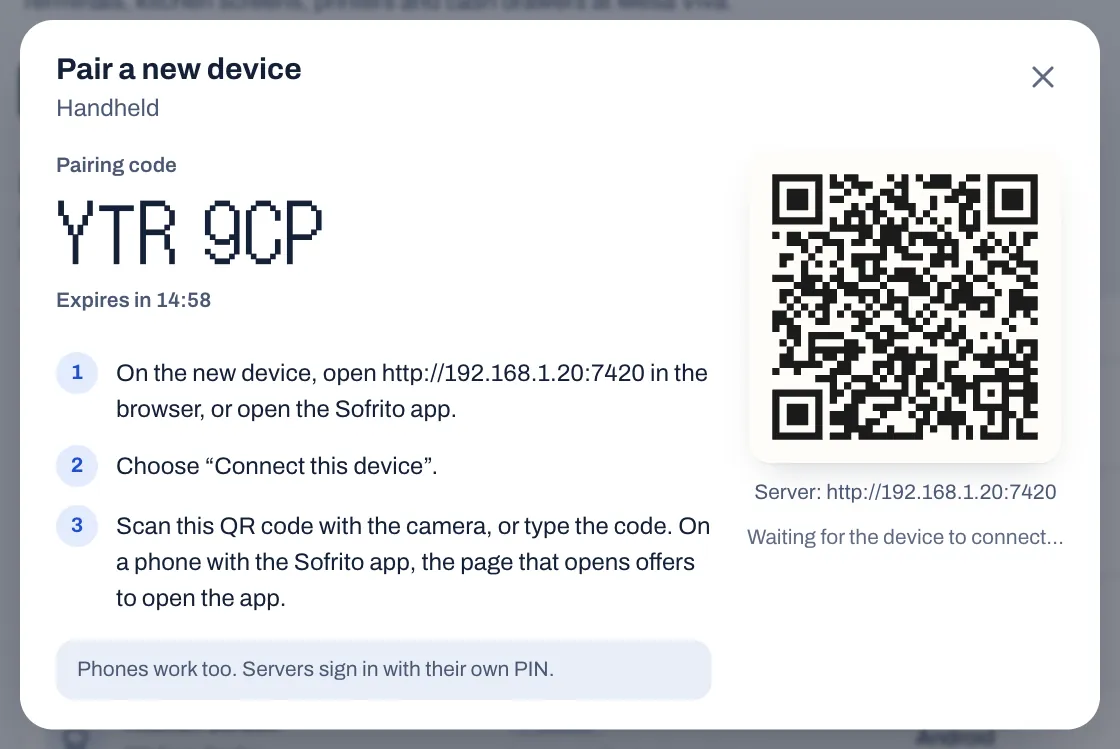
On the new device:
- Open Sofrito the same way: go.sofritopos.app in the browser, the Sofrito app, or your hub's address.
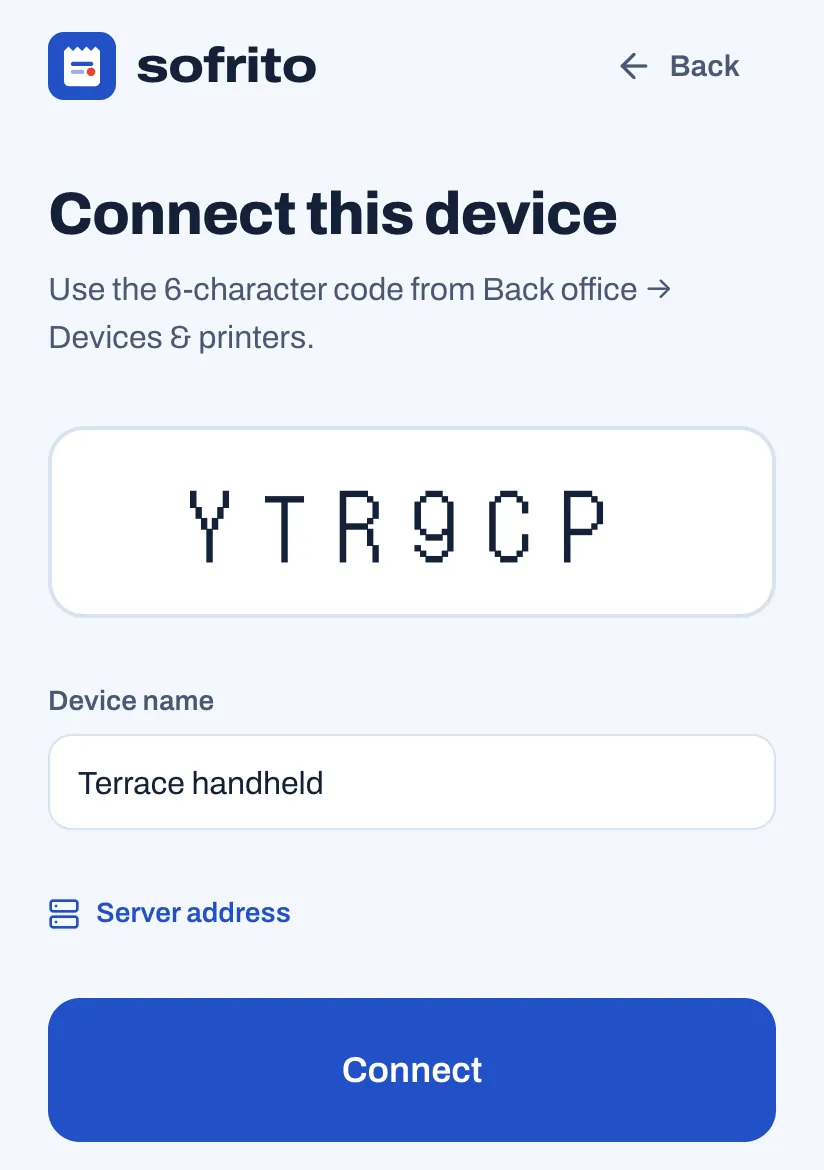
- Tap Connect this device.
- Type the 6-character code, and a Device name if you did not give one.
- Tap Connect.
Or scan the QR code with the device's camera instead. On a computer, the page it opens connects the device at once. On a phone or tablet, the page offers Open in the Sofrito app, for a phone where the app is installed; tap Connect on that page to use the browser instead.
A till or handheld then shows its lock screen, and the back office says it is connected. Staff now unlock it with their PIN.
Try the demo restaurant
The demo is a full restaurant, Mesa Viva, with a menu, a floor plan, a team and three weeks of service history. Use it to learn Sofrito or to train staff without touching your own restaurant.
- Open go.sofritopos.app. In the Sofrito app, tap Use Sofrito Cloud.
- Under Try the demo restaurant, select Open the demo.
- The device becomes a till called Demo terminal, signed in as the demo's owner. Once it locks, unlock it with a PIN: 1234 for the owner, 1111 for the manager, 2222 or 3333 for the servers, 4444 for the bartender, 5555 for the cashier and 7777 for the host. 6666 is the kitchen's PIN, for clocking in: the kitchen display needs no PIN.
The demo uses your own country when Sofrito has a pack for it, so prices, taxes and receipts look like yours. It has a kitchen display called Kitchen pass, so its tickets wait on kitchen screens like a real service. Devices & printers shows it as Demo screen, Part of the demo: no device connects to it. Sofrito Cloud deletes demo restaurants after 7 days.
To leave the demo:
- Unlock the till with 1234 and tap More.
- Under This is the demo restaurant, tap Leave the demo, then Tap again to leave.
On Sofrito Cloud, the device leaves the demo, signs out of the demo's back office and goes back to the welcome screen.
Create your restaurant on Sofrito Hub
Most restaurants run the hub on their main till or an office computer, with the Sofrito desktop app. Sofrito, or your Sofrito partner, sends you the installer for Windows, macOS or Linux. To run the hub as a background service on a server instead, see Sofrito Hub and working offline.
- On the computer that will run the hub, install the Sofrito desktop app and open it.
- On Connect to your restaurant, under This is the restaurant's main computer, select Run Sofrito Hub on this computer.
- The welcome screen shows Sofrito Hub at the bottom. Select Set up a restaurant.
- Complete the wizard as described in Create your restaurant on Sofrito Cloud. There is no partner code on a hub.
This computer is now your restaurant's server and its first till.
Open Sofrito on other devices
Every device must be on the restaurant's staff Wi-Fi or network.
- On the hub computer, open Back office › Devices & printers, select Pair a new device, choose the kind of device and select Create pairing code.
- Under the QR code, the sheet shows the hub's address, for example Server: http://192.168.1.20:7420.
- On the other device, open that address in the browser. In the Sofrito app, type the address in Server address, for example 192.168.1.20, and tap Connect: Sofrito adds the rest.
- Tap Connect this device, type or scan the code, and tap Connect.
Once the hub is set up, its welcome screen offers only Connect this device and Sign in to the back office.
Use the desktop app
The Sofrito desktop app runs on Windows, macOS and Linux computers: touch tills, office computers, the hub computer and the computer that serves as a print bridge. The first time it opens, it shows Connect to your restaurant:
- To connect to a hub, type its address in Server address, for example 192.168.1.20, and select Connect.
- To use Sofrito Cloud, select Use Sofrito Cloud.
- To make this computer the restaurant's hub, select Run Sofrito Hub on this computer.
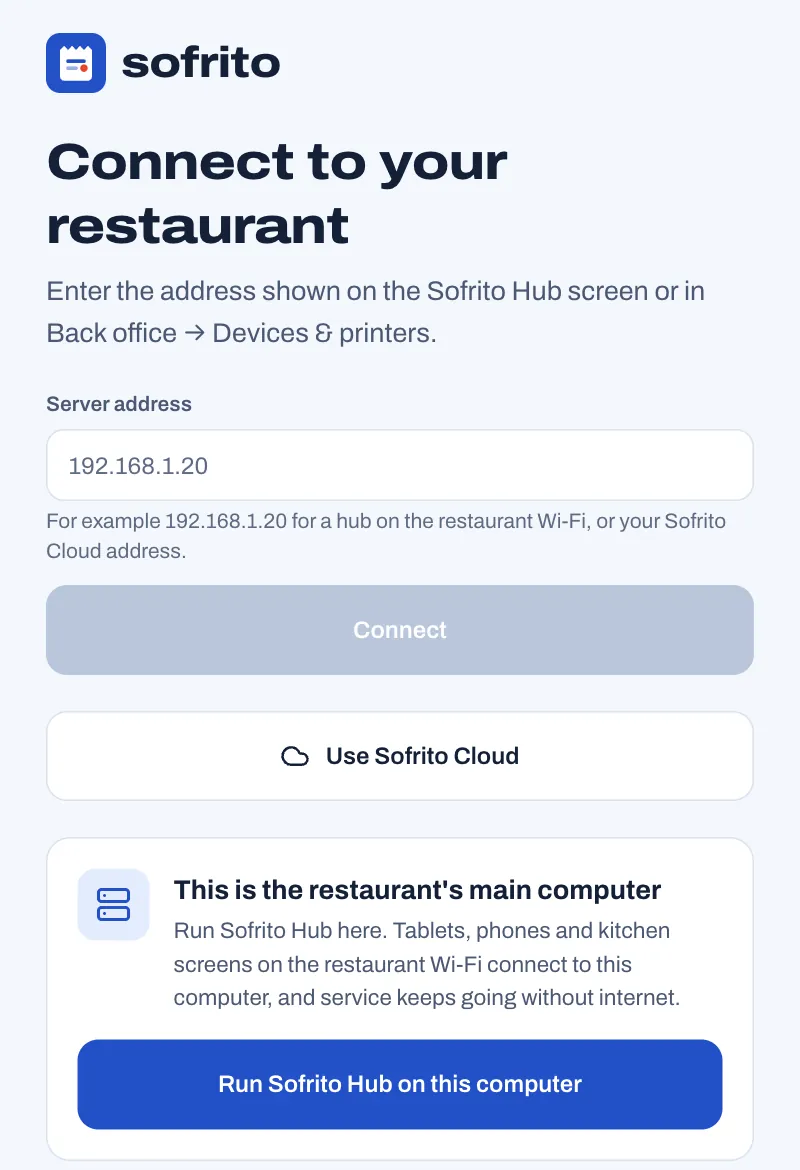
The app remembers your choice and opens straight on your restaurant next time. It always shows the version of Sofrito that your hub or Sofrito Cloud runs.
The Sofrito menu has:
- Reload: loads the screen again (Ctrl+R, or Cmd+R on a Mac).
- Full screen: fills the screen (F11).
- Kiosk mode (start full screen): opens Sofrito full screen, without the window's borders, every time it starts. Use it on a dedicated till. Choose it again to turn it off.
- Connect to a different server…: goes back to the first screen to choose again. If this computer runs the hub, the hub stops, but its data stays on the computer.
- Quit Sofrito (Ctrl+Q, or Cmd+Q on a Mac).
When this computer runs the hub and other devices are connected to it, Quit Sofrito and closing the window ask first: Quit Sofrito? says how many devices are connected. Select Keep Sofrito open, or Quit anyway to stop the hub. Quitting from the Dock on a Mac, or shutting the computer down, does not ask.
Before you go further
Your restaurant is ready to set up. Work through these chapters in order: