Chapters
Guide › Manage the business
Sofrito Hub and working offline
Sofrito Hub keeps your restaurant trading when the internet stops, because every device talks to a computer in the restaurant instead of the internet. This chapter explains what keeps working during an outage, and how to look after the hub: running it, backing it up, updating it and moving it. It is for owners, managers and the partners and IT staff who install hubs.
Before you start
- Set up the hub. See Create your restaurant on Sofrito Hub.
- Prepare the network. See Plan the network and Wi-Fi.
Know what keeps working when the internet drops
With Sofrito Hub, the tills, handhelds, kitchen displays and network printers all talk to the hub over the restaurant's own network. The internet is only needed for things outside the restaurant.
| Keeps working without the internet | Waits for the internet |
|---|---|
| Unlocking with PINs, and clocking in and out | Cloud sync, if the hub is linked to Sofrito Cloud: the hub keeps every change and sends it when the internet is back |
| The floor plan, orders and sending them to the kitchen | Card terminals and mobile money that use your internet connection |
| Kitchen displays, network printers and printers built into handhelds | The Sofrito Cloud back office away from the restaurant |
| The customer display and the pickup board | |
| Payments, receipts and invoices with their legal numbering | |
| The cash drawer, the shift report and the close of the day | |
| Bookings, the waitlist, guests, loyalty points, gift cards and house accounts | |
| The back office, on any device on the restaurant's network |
When a device cannot reach Sofrito
A device goes offline when it cannot reach its server: with Sofrito Cloud, when the internet drops; with Sofrito Hub, when the hub computer is off or the device has left the staff Wi-Fi.
- The lock screen says Offline — reconnecting… in red.
- The till, handhelds and kitchen displays show a red crossed-out Wi-Fi sign.
- Dishes already tapped but not yet sent stay on that device, ready to send, as long as Sofrito stays open on it.
- Nothing else that needs the server works: unlocking with a PIN, opening a table, sending to the kitchen, taking payment and printing all wait until the device reconnects.
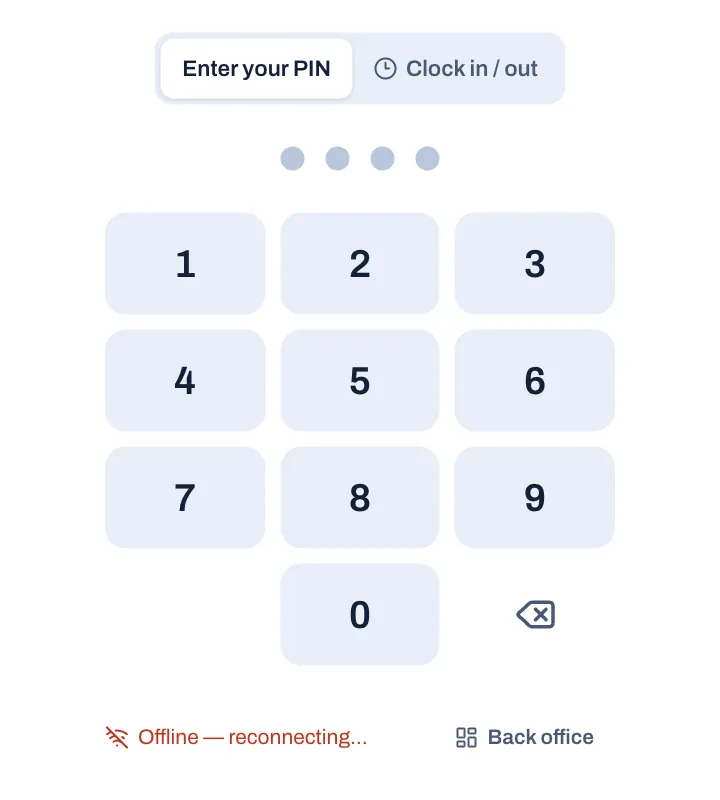
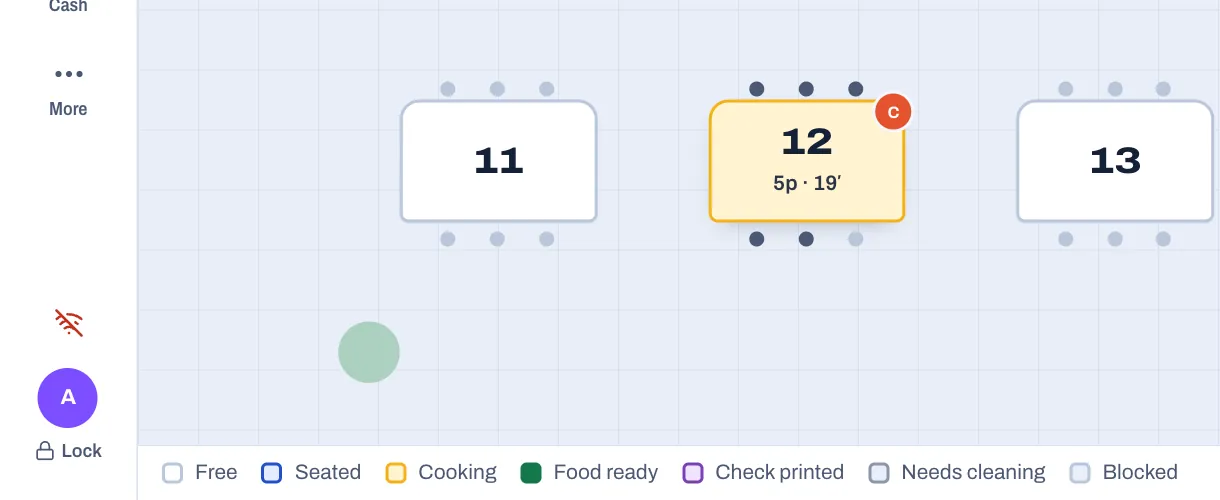
Devices reconnect by themselves. When they do, they show Back online and load the open orders again, so every screen catches up.
Keep service going during an outage
If you use Sofrito Hub and the internet drops, carry on as normal. If the hub itself stops:
- Check that the hub computer is on. With the desktop app, open Sofrito on it.
- Check that the router and the switch are on, and that the devices are on the staff Wi-Fi.
- Wait for the devices to show Back online.
If you use Sofrito Cloud and the internet drops:
- Keep Sofrito open on every device, so dishes not yet sent are not lost.
- Take new orders on paper, with the table and the time.
- Take card payments on a terminal with its own mobile data, and note each one.
- When the devices show Back online, send the waiting dishes, enter the paper orders, and record the payments.
Tickets for a print bridge that could not print within 15 minutes are not printed late: they show as failed in the print queue under More › Printers, where you can reprint them. See Devices, printers and stations.
Run the hub as a service
A hub must be running whenever the restaurant trades. How it runs depends on how it was installed.
The desktop app as the main computer. The hub runs while the Sofrito app is open on that computer, and stops when you quit it. While other devices are connected, Quit Sofrito and closing the window ask first: Quit Sofrito? says how many devices are connected, with Keep Sofrito open and Quit anyway. Quitting from the Dock on a Mac, or shutting the computer down, does not ask. Set the computer to open Sofrito when it starts, never to sleep, and to restart after a power cut if its settings allow it.
The hub program, for a mini PC or a server. Sofrito, or your Sofrito partner, gives you a zip file for your
system, for example sofrito-hub-linux-x64-1.0.0.zip. There are versions for Linux (linux-x64, linux-arm64),
Windows (windows-x64) and macOS (macos-arm64, macos-x64). The zip holds the sofrito-hub program and a web
folder. On Linux it also holds sofrito-hub.service, and on Windows start-sofrito-hub.cmd.
When the hub starts, it shows the restaurant's name, its data folder and its addresses, for example Open on any device: http://192.168.1.20:7420.
Find the hub's data folder
Everything the hub knows is in one folder: the database mise.db, the file hub.json and the backups folder.
| How the hub runs | Data folder |
|---|---|
| Desktop app on Windows | %APPDATA%\com.lefamtech.mise.desktop\hub |
| Desktop app on macOS | ~/Library/Application Support/com.lefamtech.mise.desktop/hub |
| Desktop app on Linux | ~/.local/share/com.lefamtech.mise.desktop/hub |
| Hub program on Linux | /var/lib/sofrito |
| Hub program on Windows | %PROGRAMDATA%\Sofrito\data |
| Hub program on macOS | ~/Library/Application Support/Sofrito/data |
If there is a folder called data in the folder you start the hub program from, the hub uses that instead.
Change how the hub program starts
| Setting | Option | Or set | Default |
|---|---|---|---|
| Port | --port | SOFRITO_PORT | 7420 |
| Network address it listens on | --host | SOFRITO_HOST | 0.0.0.0, every network connection |
| Data folder | --data | SOFRITO_DATA | See the table above |
| Screens folder | --web | SOFRITO_WEB | The web folder next to the program |
If you change the port, every device needs the new address. If you give --host one address, the hub listens
only there and shows only that address when it starts. With an address that only this computer can reach, such as
127.0.0.1, it says Open on this computer: instead of Open on any device:.
In Portugal and Angola, documents are signed with the software producer's key. When Sofrito, or your Sofrito
partner, gives you the key and the certificate number, set them for the hub program before it starts:
SOFRITO_PT_PRIVATE_KEY and SOFRITO_PT_CERTIFICATE in Portugal, SOFRITO_AO_PRIVATE_KEY and
SOFRITO_AO_CERTIFICATE in Angola, where the certificate is the AGT validation number, such as 25/AGT/2019. Your
partner may also give you SOFRITO_PT_KEY_VERSION or SOFRITO_AO_KEY_VERSION, and SOFRITO_PT_PRODUCER_TAX_ID or
SOFRITO_AO_PRODUCER_TAX_ID. Without the key, documents print that the program is not certified by the AT
(Portugal) or not validated by the AGT (Angola). The certificate number can also be typed in
Back office › Settings › Invoicing, under Software certificate: it prints only once the hub has the key. See
Taxes, receipts and legal documents.
Install it as a Linux service
Unzip the hub, then run these two commands in its folder. The service starts the hub when the computer starts and restarts it if it stops.
sudo useradd --system --home /var/lib/sofrito sofrito && sudo mkdir -p /opt/sofrito /var/lib/sofrito && sudo chown sofrito /var/lib/sofrito
sudo cp -r sofrito-hub web /opt/sofrito/ && sudo cp sofrito-hub.service /etc/systemd/system/ && sudo systemctl enable --now sofrito-hub
Use sudo systemctl stop sofrito-hub and sudo systemctl start sofrito-hub to stop and start it, and
journalctl -u sofrito-hub to read what it printed.
Install it as a Windows service
start-sofrito-hub.cmd runs the hub in a window, which stops when someone closes it. To run it in the background
whenever Windows starts, register it with a service manager such as NSSM, for example:
nssm install SofritoHub "C:\Sofrito\sofrito-hub.exe" --port 7420
Run it in Docker
IT teams that already use Docker can run the hub from the Sofrito Hub container image, with the compose file Sofrito
provides. It uses the host's network, so the hub can reach the printers, and keeps the data in a volume called
sofrito-data.
Keep backups
Every day at 04:00 in the restaurant's time zone, the hub saves a complete copy of the restaurant in the backups
folder of its data folder. If the hub computer was off at 04:00, the hub makes the copy later that day, as soon as
no order is open, so a backup never pauses service. Each copy is one file named with the restaurant's date, for
example sofrito-2026-10-16.db. The hub keeps the newest 30 copies and deletes older ones by itself. Nothing is
copied before the restaurant is set up.
Each copy also holds the hub's keys from hub.json: the keys to everyone's PIN and to every paired device. A copy
is all you need to restore the restaurant, on this computer or on a new one.
The copies are on the same computer as the hub, so they are lost with it. Copy the backups folder somewhere else
regularly: a USB drive kept away from the restaurant, another computer, or online storage.
Restore a backup
Restoring takes the restaurant back to the day of the copy. Do it only when the hub's database is lost or damaged.
- Stop the hub: quit Sofrito on the hub computer, or stop the service.
- In the data folder, make a new folder, for example
old, and movemise.dbinto it, withmise.db-walandmise.db-shmif they are there. Keep them until you are sure the restore worked. - Copy the backup you want from
backupsinto the data folder, and rename the copymise.db. - Start the hub.
The hub takes its keys back from the backup: it writes them to hub.json by itself, and keeps the hub.json it
replaces as hub.json.old. Devices paired before the day of the copy reconnect by themselves, and everyone's PIN
works as it did that day. Pair any newer devices again.
Update Sofrito Hub
Update outside service, after you close the day.
- Make a copy of the hub's data folder first (see Move the hub to a new computer for which files).
- Install the new version:
- Desktop app: quit Sofrito, install the new version over the old one, and open it again.
- Hub program: stop the hub, replace the
sofrito-hubprogram and thewebfolder with the new ones, and start it again. - Docker: start the new container image in place of the old one.
- The hub updates its database by itself when it starts.
- Reload Sofrito on each device: close and open the app, or reload the page in the browser. On a desktop app connected to the hub, choose Sofrito › Reload.
- Check Back office › Devices & printers: the App version column shows which version each device runs.
The Sofrito apps for phones and tablets update through their app store. Keep them up to date too.
Link the hub to Sofrito Cloud
Cloud sync connects a hub to a Sofrito Cloud account. While the internet is up, every few seconds the hub sends its orders, payments, receipts, day closes, kitchen tickets, cash movements, time cards and tips paid out, stock movements and purchase orders, loyalty, gift card and house account movements, and its audit log. It receives the menu, the team, taxes, payment methods, the floor plan, printers, stock items, recipes, suppliers and the settings edited in Sofrito Cloud. Guests, bookings, the waitlist and gift cards go both ways. Service never waits for it.
You need the owner or a manager who can change settings, and a Sofrito Cloud account.
In Sofrito Cloud:
- Sign in to the back office at go.sofritopos.app.
- Select Devices & printers, then Pair a new device.
- Select Sofrito Hub, then Create pairing code. Keep the code on screen: it expires after 15 minutes.
In the hub's back office:
- Select Settings, then Cloud sync. This section appears only on a hub.
- Check the Cloud address. It shows https://go.sofritopos.app already.
- Type the code in Pairing code.
- Select Link this hub.
If the link fails, the section says why: for example that Sofrito Cloud can't be reached from this computer, that the address is not a Sofrito Cloud address, or that Sofrito Cloud did not accept the code. Create a new code and try again.
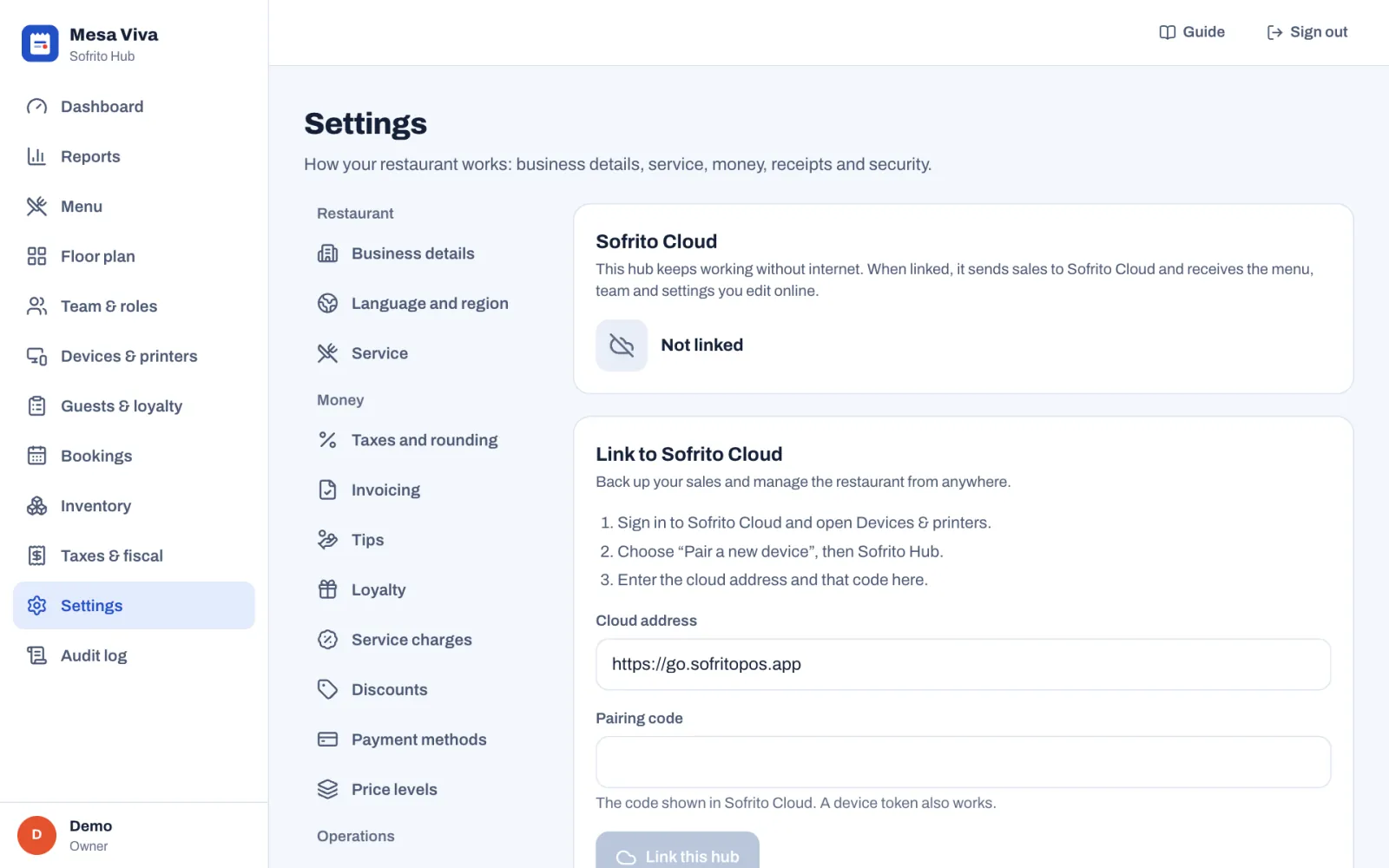
Once linked, the section shows Linked to Sofrito Cloud with:
- Last sync: when the hub last sent or received changes.
- Waiting to upload: how many changes have not been sent yet, or Everything is up to date.
- Needs attention, with the reason, when the last sync did not finish. Sofrito tries again every few seconds.
- Sync now, to send and receive at once.
In Sofrito Cloud, the hub is listed under Devices & printers › Devices as a Sofrito Hub, Online while it keeps syncing. It never prints and is never offered as a print bridge: the hub prints for itself.
To stop syncing, select Unlink, then Tap again to unlink. Nothing is deleted on the hub or in the cloud. From Sofrito Cloud, Revoke access on the hub's device unlinks it too.
Protect the hub from power cuts
- Put the hub computer, the router and the switch on a small UPS, a battery that keeps them running through a short power cut. If the main till runs the hub, it goes on the UPS too.
- Connect the hub computer to the switch with a network cable, not Wi-Fi.
- Give the hub computer a fixed address with a DHCP reservation in the router. If you change the router, set up the same reservation on the new one.
- Turn off "client isolation" on the staff Wi-Fi, so devices can reach the hub.
- Set the hub computer never to sleep, and to switch on again after a power cut if its settings allow it.
Move the hub to a new computer
- Close the day on the old hub.
- Stop the hub: quit Sofrito on that computer, or stop the service.
- Copy the whole data folder:
mise.db,mise.db-walandmise.db-shmif they are there,hub.jsonand thebackupsfolder. - Install Sofrito on the new computer the same way.
- Desktop app: open it, select Run Sofrito Hub on this computer, then quit it straight away. Do not set up a restaurant.
- Hub program: install it, but do not start it yet.
- Empty the new computer's data folder, which only holds the empty hub you just created, then put the copied files in it.
- In the router, give the new computer the old computer's fixed address.
- Start the hub on the new computer and check that every device shows Online in Back office › Devices & printers.
If the new computer has a different address, devices cannot find it: pair each one again. See Devices, printers and stations.
Start again with an empty hub
If the hub runs the demo restaurant, you don't need this: unlock a till with 1234, tap More, then Leave the demo and Tap again to leave. The hub erases the demo, and its welcome screen offers Set up a restaurant again.
To start again from scratch with a restaurant you set up yourself:
- Stop the hub.
- Move the whole data folder somewhere safe, or delete it if you are sure you do not need it.
- Start the hub. It creates an empty data folder, and its welcome screen offers Set up a restaurant again.
Devices paired with the old restaurant, or with the demo, must be paired again.