Chapters
Guide › Run service
Close the day
This chapter covers the money side of the end of the night: cash put into or taken out of the drawer, paying out tips, counting and closing the drawer, the shift report (X) and the day close (Z), and what each figure on those reports means. Whoever closes a drawer counts it. A manager closes the day.
Before you start
- The drawer was opened with a counted float: see Open for service.
- Your payment methods and tips are set up: see Payment methods, tips and service charge.
The closing routine
At the end of service, in this order:
- Make sure every check is paid or closed. The number on Orders shows how many are still open.
- Bump what is left on the kitchen display: see The kitchen display.
- Pay out the tips you pay from the drawer, and record any other cash still to come out of it: see Pay out tips.
- Count and close the cash drawer, and keep the cash report that prints.
- Close the day (Z), and keep the Z report that prints.
- Check the new day close in the back office.
- Lock the tills.
The sections below explain each step.
Take cash in and out of the drawer
Record every amount that goes into or out of the drawer without a sale, so the count at the end matches.
- Pay in: cash put in, for example more change from the bank.
- Pay out: cash taken out to pay for something, for example a supplier or cleaning supplies.
- Cash drop: cash taken out during service and put in the safe, so the drawer never holds too much.
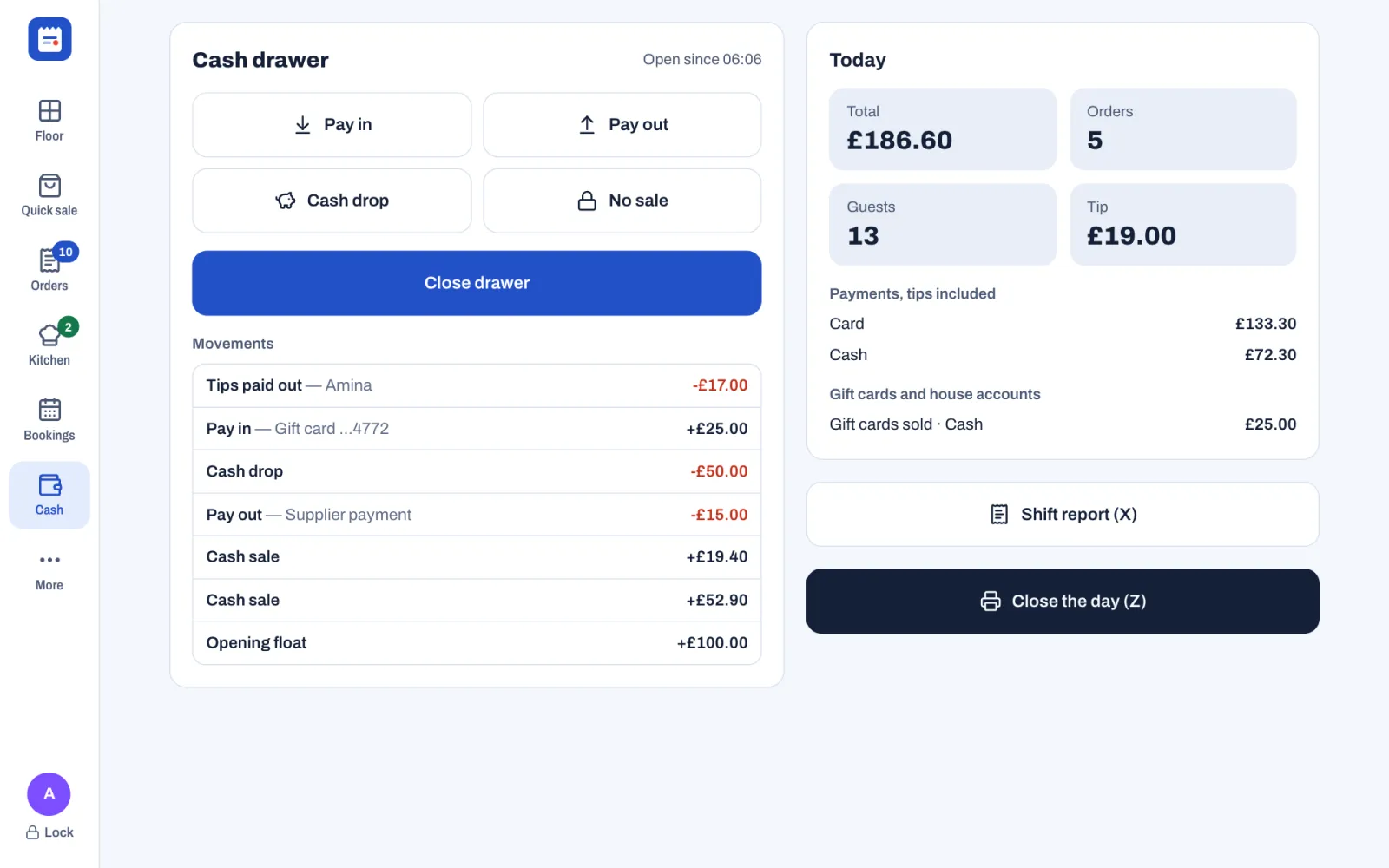
The Cash screen shows this till's drawer: the one chosen for the till under Cash drawer in Back office › Devices & printers. When the restaurant has more than one drawer, their names show at the top of the Cash drawer card: tap one to see that drawer.
- Tap Cash. On a phone, if Cash is not in the bottom bar, tap More, then Cash.
- Tap Pay in, Pay out or Cash drop.
- Type the amount. The last two digits are pence: 1, 5, 0, 0 is £15.00.
- Tap Confirm.
- For a pay-in or a pay-out, tap a reason, or type one under Other reason and tap Confirm. A cash drop asks for no reason.
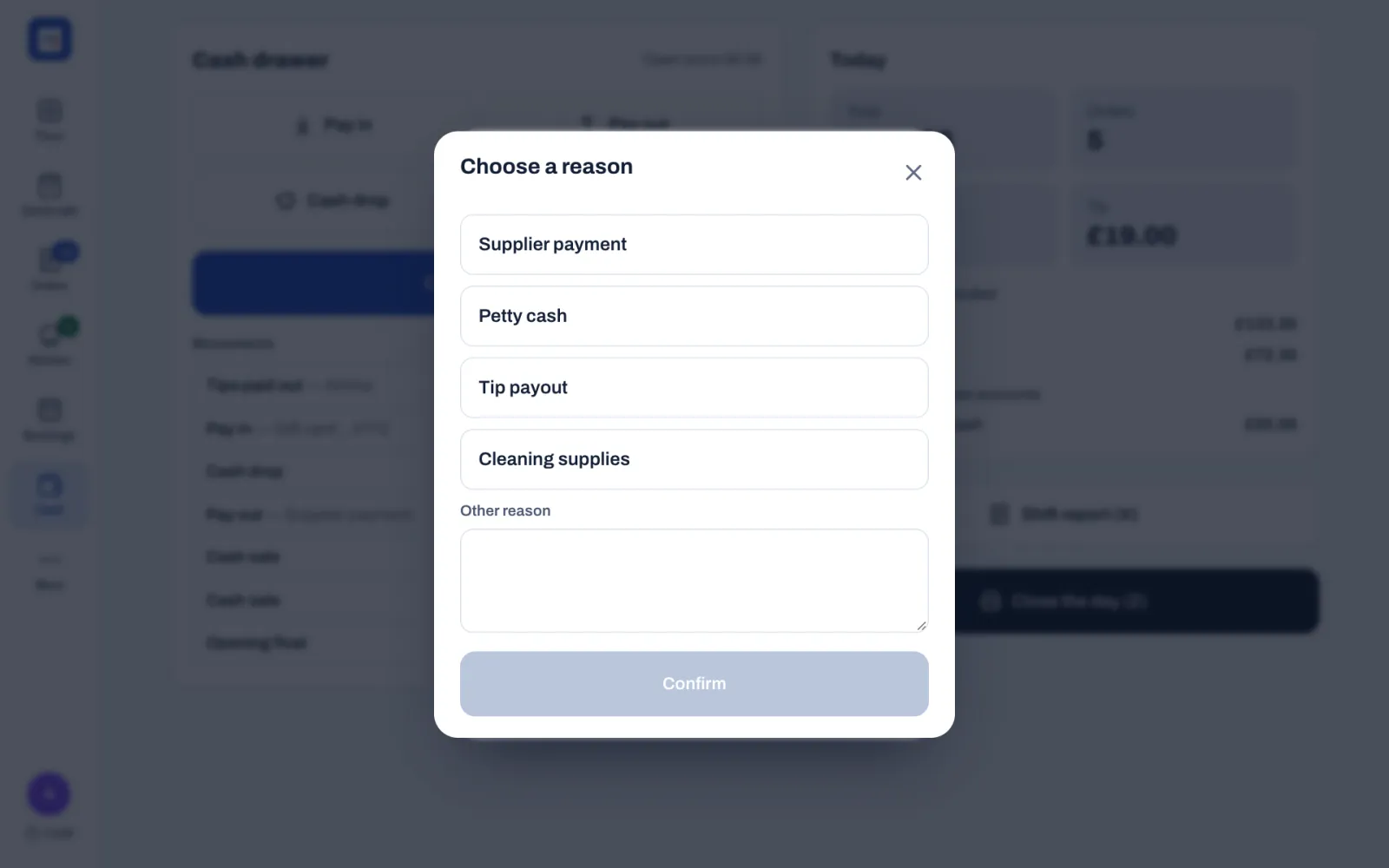
The drawer opens if it is connected, and the movement shows under Movements, for example Pay out — Supplier payment -£15.00 or Cash drop -£50.00. A manager sets the reasons in Back office › Settings › Reasons.
Cash taken for a gift card or a house account goes into the drawer too, as a pay-in such as Pay in — Gift card …4772: see Guests, loyalty and gift cards.
Pay-ins, pay-outs and cash drops need Pay-ins, pay-outs and drops, which only managers and owners have in a new restaurant. When someone else does one, Manager approval opens: a manager types their PIN and taps Approve. To open the drawer without a sale, see Voids, discounts, refunds and approvals.
Pay out tips
Tips are added when guests pay: see Taking payment. At the end of the night:
- The Today card on the Cash screen shows the day's tips under Tip, cash and card together.
- Cash tips added to a payment are already in the drawer, and they count in what the drawer should hold.
- Card tips are not in the drawer.
- Cash that guests leave on the table, outside a payment, stays with the staff. Each person declares it when they clock out, under Cash tips for this shift: see Clock in and out.
To pay someone the tips they are owed:
- In the back office, select Team & roles, then Tips.
- Select Pay out next to the person.
- The window Pay tips to and the person's name opens. Check the Amount, then choose From the cash drawer or With wages.
- For From the cash drawer, when more than one drawer is open, choose the one the cash comes out of under From which drawer.
- Select Pay and the amount, for example Pay £45.00.
From the cash drawer takes the money out of the open drawer: it shows as Tips paid out under Movements and on the cash report, so the count still matches. When no drawer is open, Sofrito says "Open the cash drawer before paying cash out.": open one on a till first. It needs Pay-ins, pay-outs and drops. With wages leaves the drawer alone: add the amount to their next pay. It needs Manage the team. Each payment is listed under Tips paid out on the same page.
For each person, the Tips page shows On their orders, what they are owed (Due, or Share of the pool when tips are pooled), Declared in cash, Paid out and Still to pay. With Pool tips on in Back office › Settings › Tips, each day's tips are shared by the hours each person worked. Service charges that count as a tip are owed with the tips. Cash tips that staff declare are listed, but they keep them: they are not shared or paid out.
Tips never count as sales. A service charge marked Counts as a tip is reported with the tips; other service charges have their own line on the reports.
Check the day so far
The Today card on the Cash screen shows the business day so far: Total (what guests were charged, without tips), Orders, Guests and Tip. Under Payments, tips included is the amount taken with each payment method, tips included. When gift cards were sold or house accounts paid, Gift cards and house accounts lists that money by payment method, for example Gift cards sold · Cash or House accounts paid · Card. It is money taken, but not sales.
For the full figures on paper, tap Shift report (X). Sofrito prints the shift report on the receipt printer. It has the same lines as the Z report below, for the whole team's sales of the business day so far, and closes nothing: print it as often as you like, for example when a shift changes over.
You need Print shift reports (X) to see the Today card and print the report. Servers, bartenders, cashiers, managers and owners have it in a new restaurant.
Count and close the cash drawer
Close the drawer at the end of each shift or of the day.
- Tap Cash, then Close drawer.
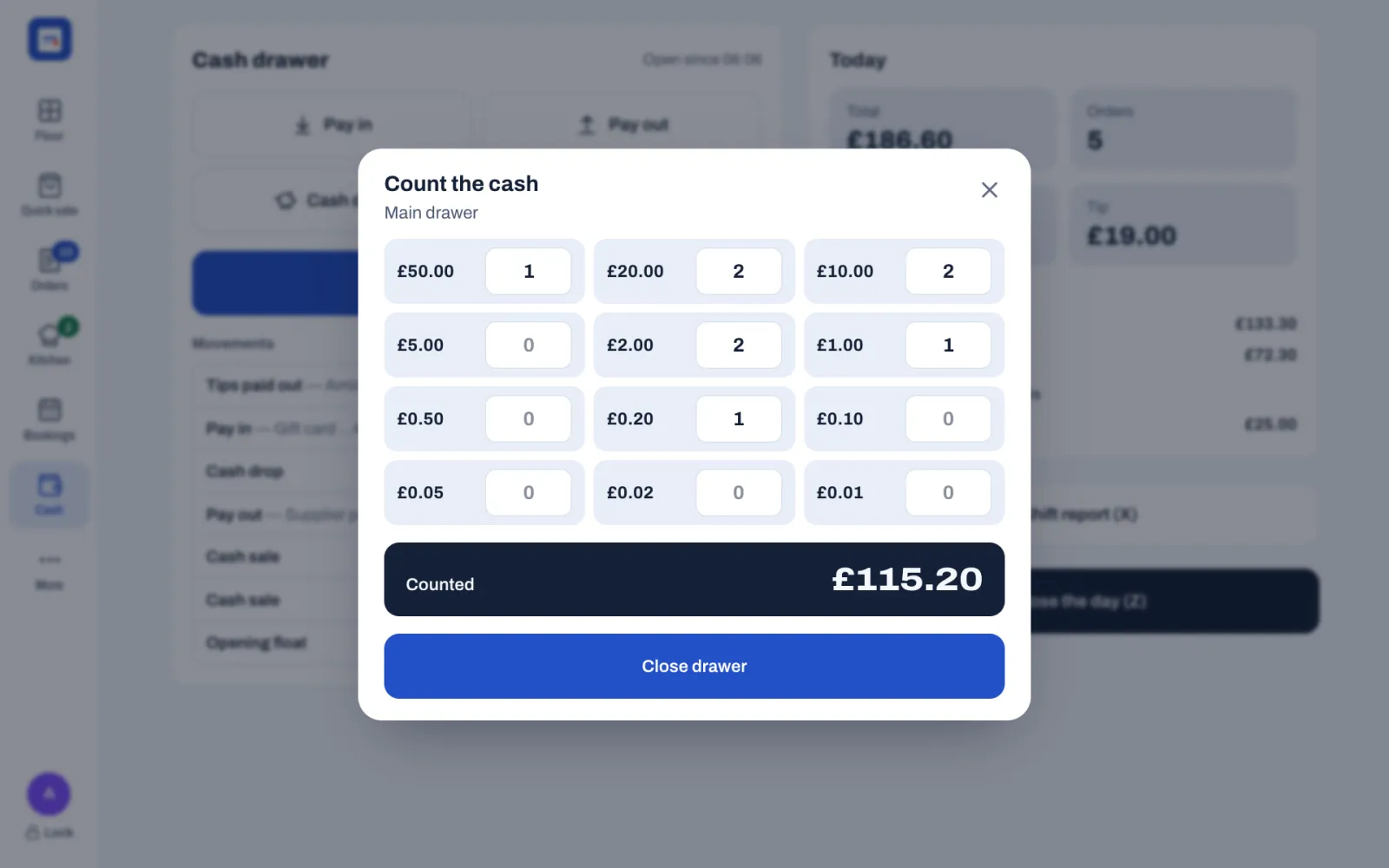
- Count the cash lists every note and coin. Type how many of each you have. Counted adds them up as you go.
- Count again. Once the drawer is closed, the count can't be changed.
- Tap Close drawer.
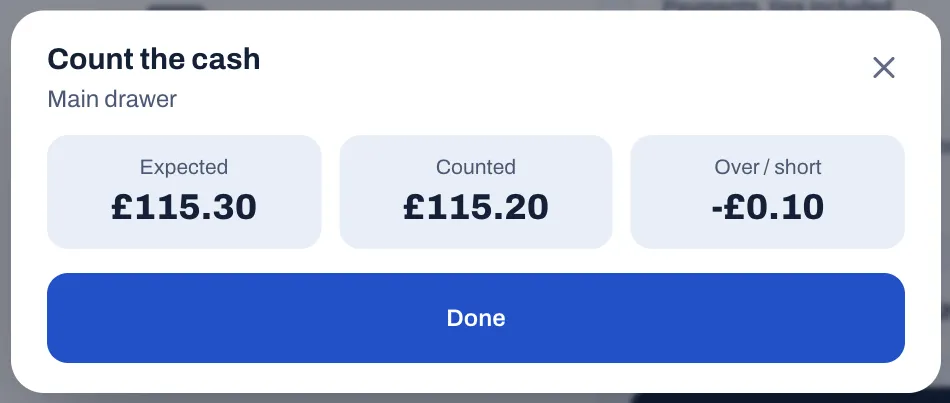
- Sofrito shows Expected, Counted and Over / short, and keeps them on the screen until you tap Done.
Sofrito prints the cash report, and the Cash drawer card shows No drawer is open until someone opens it again with Open drawer. To see the report again, tap More, then the drawer's name under Print queue.
In a new restaurant, staff count without seeing how much should be in the drawer, so nobody counts to a number. A manager can change this in Back office › Settings › Cash with Count without seeing the expected amount. When it is off, the Cash screen shows Expected while the drawer is open, and the count shows it too.
To close a drawer, you need Open and close the cash drawer. Servers, bartenders, cashiers, managers and owners have it in a new restaurant. Each close is also recorded in Back office › Audit log, with the amount counted and the difference: see Security, the audit log and your data.
Read the cash report
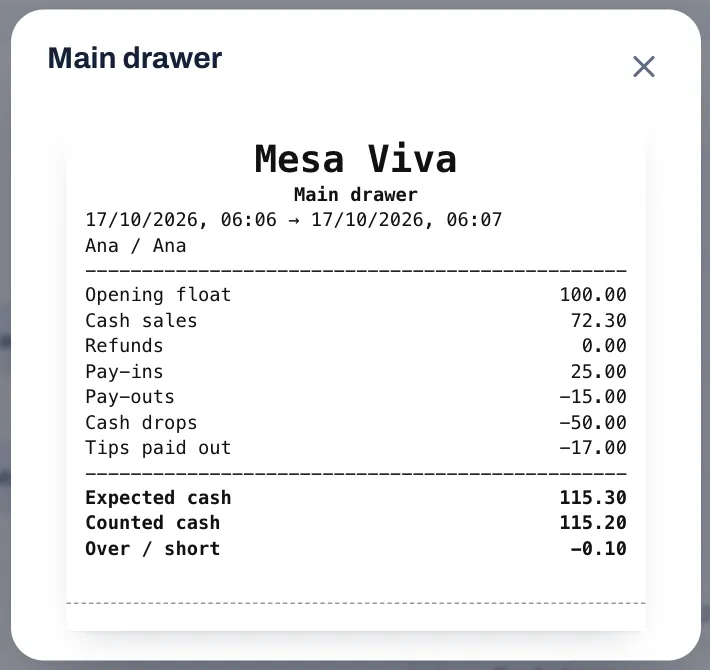
At the top: the restaurant, the drawer's name, when it was opened and closed, and who opened and who closed it.
| Line | What it is |
|---|---|
| Opening float | The cash in the drawer when it was opened. |
| Cash sales | The cash taken for sales, with the tips guests paid in cash. A cash payment that was voided is taken off. |
| Refunds | Cash given back to guests. |
| Pay-ins | Cash put into the drawer, including the cash taken for gift cards and house accounts. |
| Pay-outs | Cash taken out with Pay out. |
| Cash drops | Cash taken out to the safe with Cash drop. |
| Tips paid out | Tips paid to staff from the drawer. Only printed when there are some. |
| Expected cash | What the drawer should hold: the float, plus cash sales and pay-ins, minus refunds, pay-outs, cash drops and tips paid out. |
| Counted cash | What you counted. |
| Over / short | Counted cash minus expected cash. A minus sign means the drawer is short: -0.20 is 20p missing. Without a minus sign, there is more cash than expected. |
If the drawer is over or short by more than small change, look for a pay-out, a cash drop or a refund that nobody recorded, or a card payment that was rung up as cash.
Close the day (Z)
The day close, or Z report, freezes the business day's totals for good. Sofrito numbers each close, adds the day to a grand total that runs from the very first close, and seals it to the close before it, so any later change would show.
- Tap Cash.
- Tap Close the day (Z). A window opens with the business day it closes, and asks, for example, "Close business day 17 Oct? Totals are locked and printed."
- If no check of that day is still open, tap Close the day (Z) in the window.
Sofrito prints the Z report on the receipt printer and shows, for example, "Day 22 closed" with the date and time. Each business day can be closed once.
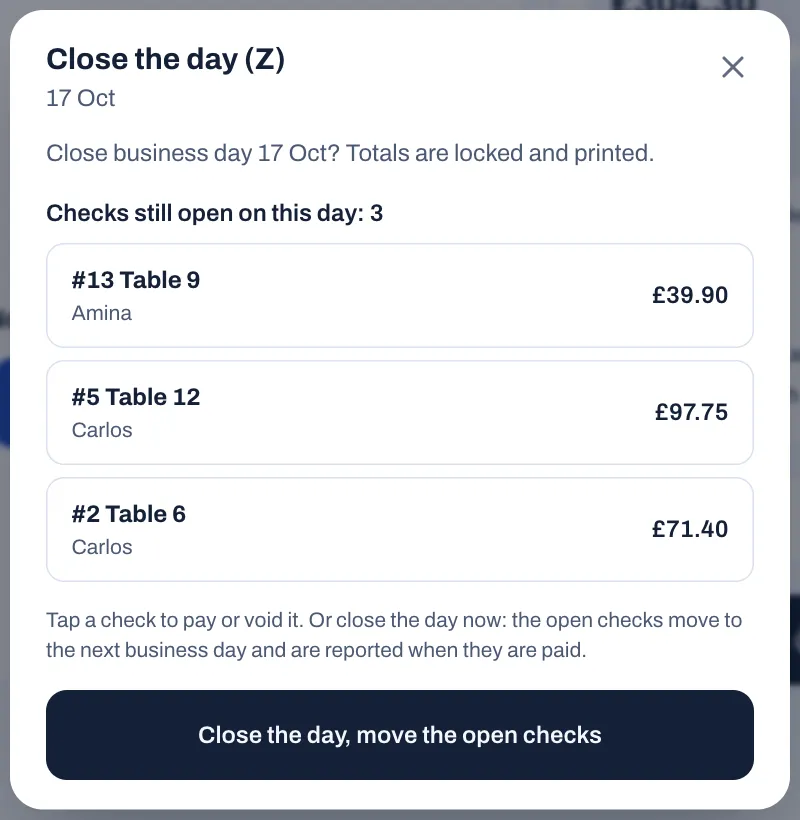
Checks still open. If checks of that day are still open, the window lists them, for example under "Checks still open on this day: 3", each with its number, its table or name, the server and what is left to pay. Either:
- tap a check to open it, then pay or void it, and close the day once none is left; or
- tap Close the day, move the open checks. The day closes without them. They move to the day sales now go on, today or, when you close early, the next business day, and they are reported on the day they are paid. Dishes already voided on them stay on the day that was closed. Where order numbers restart every day, each one gets a new number on that day.
A day nobody closed. If an earlier business day was never closed, the window closes that day first and says so, for example "Business day 16 Oct was never closed. Close it before today's." Close it, then tap Close the day (Z) again for the next day.
After the close:
- New sales never go on a closed day: after an early close, they go on the next business day, even before the hour set in Back office › Settings › Language and region › Business day ends at. Today on the Cash screen starts again from zero and, where order numbers restart every day, they start again at 1.
- Tickets still open on the kitchen screens from the closed day are cleared, and their dishes count as served. Cleared tickets don't come back in Recall.
- Every dish marked sold out goes back on sale for the next day. Dishes whose stock is counted keep their count. To change this, see Mark a dish as sold out.
- Gift cards sold and house accounts paid after the close count on the next day.
Close the day (Z) shows only to people with Close the day (Z), which managers and owners have in a new restaurant.
Service after midnight still belongs to the day before until the hour set in Business day ends at, so close the day at the end of the night, not the next morning.
Read the Z report
The Z report starts with the restaurant, its tax number, END OF DAY (Z) with its number, for example N.º 22, the business day, when it was closed and who closed it. The shift report says SHIFT REPORT (X) instead, has no number and no grand total.
| Line | What it is |
|---|---|
| Orders | The checks paid during the business day. |
| Guests | The guests on those checks. |
| Gross sales | The dishes sold, at menu price, before discounts and comps. |
| Discount | Discounts given. |
| Comps | Dishes given on the house. |
| Voids | Dishes voided that day after they were sent to the kitchen, even on checks still open. They were not charged; the line is there so you can keep an eye on them. |
| Refunds | Money given back to guests. |
| Net sales | What you charged, without tax, service charges and refunds. |
| Service charge | Service charges added to bills, except those that count as a tip. |
| Tax | The tax in your sales. When menu prices include tax, it is part of the total; when they don't, it is added on top. |
| TOTAL | What guests were charged on their bills, after refunds. Tips added when paying, and service charges that count as a tip, are not in it. |
| Tip | Tips for the team, with the service charges that count as a tip. Not part of sales, so not in TOTAL. |
| Average check | The average total of a check. |
| Payments, tips included | Each payment method, with the number of payments in brackets and the amount taken, tips included. |
| Gift cards and house accounts | Money taken for gift cards sold and house accounts paid, by payment method, for example "Gift card · Cash (1)". Not part of sales. Only printed when there is some. |
| Tax (second list) | Each tax rate, with the amount it was charged on (Base) and the tax. |
| DINE IN, TAKEAWAY and so on | The number of orders and the total of each order type. |
| Total on receipts | Only on the Z, and only when service charges that count as a tip were charged: TOTAL plus those charges, which is what the day's receipts add up to. The day close seals this amount. |
| Grand total | The running total of every day close since the first one. Each close adds what its receipts charged: Total on receipts when the Z prints it, otherwise TOTAL. |
Check the day close in the back office
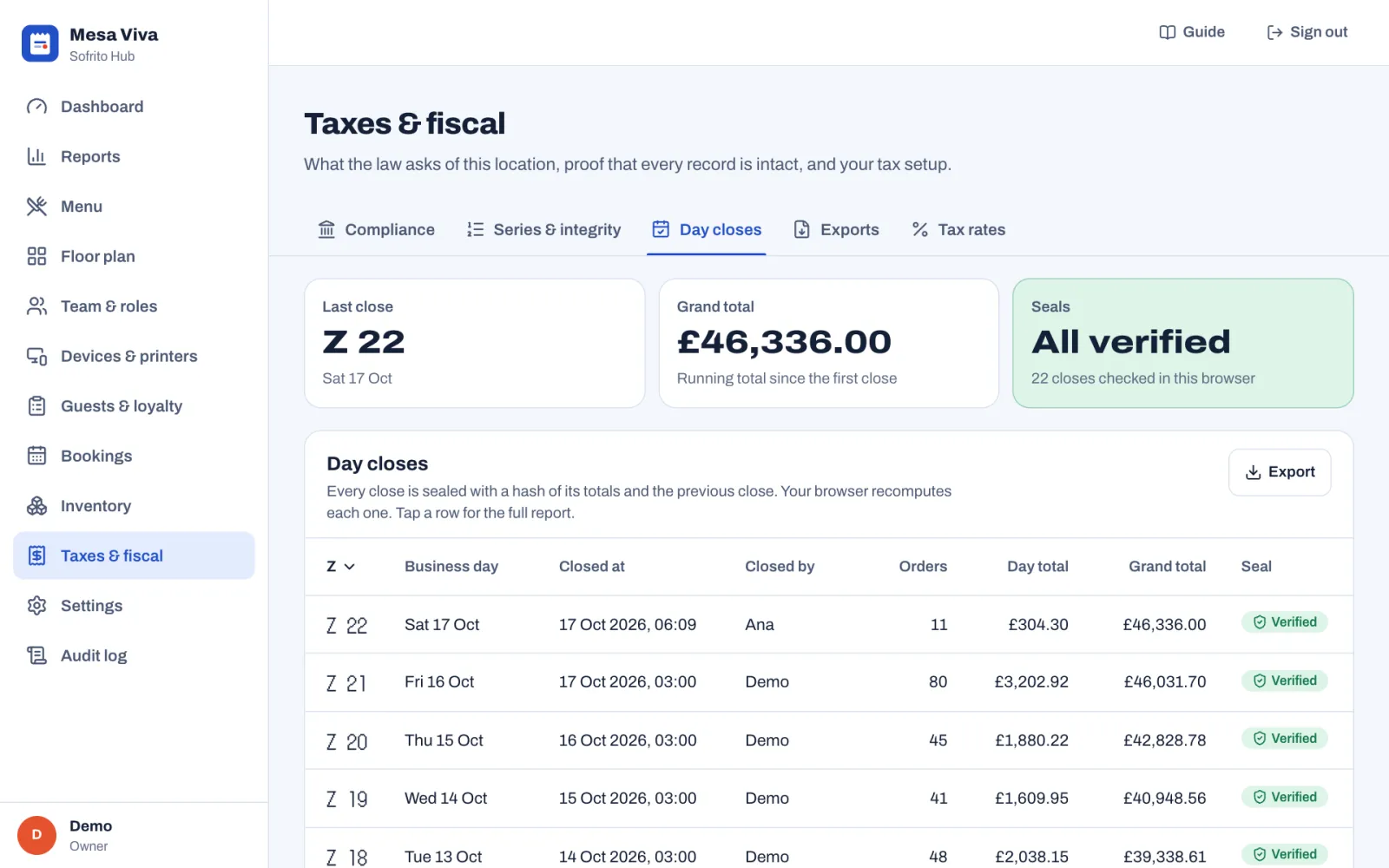
- Select Taxes & fiscal › Day closes.
- Check that the new close is at the top of the list, with the right business day, and that its Seal says Verified.
- Select it to see its full report.
The full report shows the day's Sales, Orders, Guests and Average check, then each line from Gross sales to Total sales, the Tax included, Net sales, Tips and Voids, the Tax breakdown and Payments, tips included, with each method's tips, as on the printed report. When gift cards were sold or house accounts paid that day, Gift cards and house accounts lists them too, for example "Gift cards sold · Cash (1) £25.00". If checks were moved to the next day when the day was closed, a yellow line says how many, for example "3 orders were still open when the day was closed." Under Seal are the grand total, the Hash of this close and the Previous hash. Export downloads the report as a spreadsheet file.
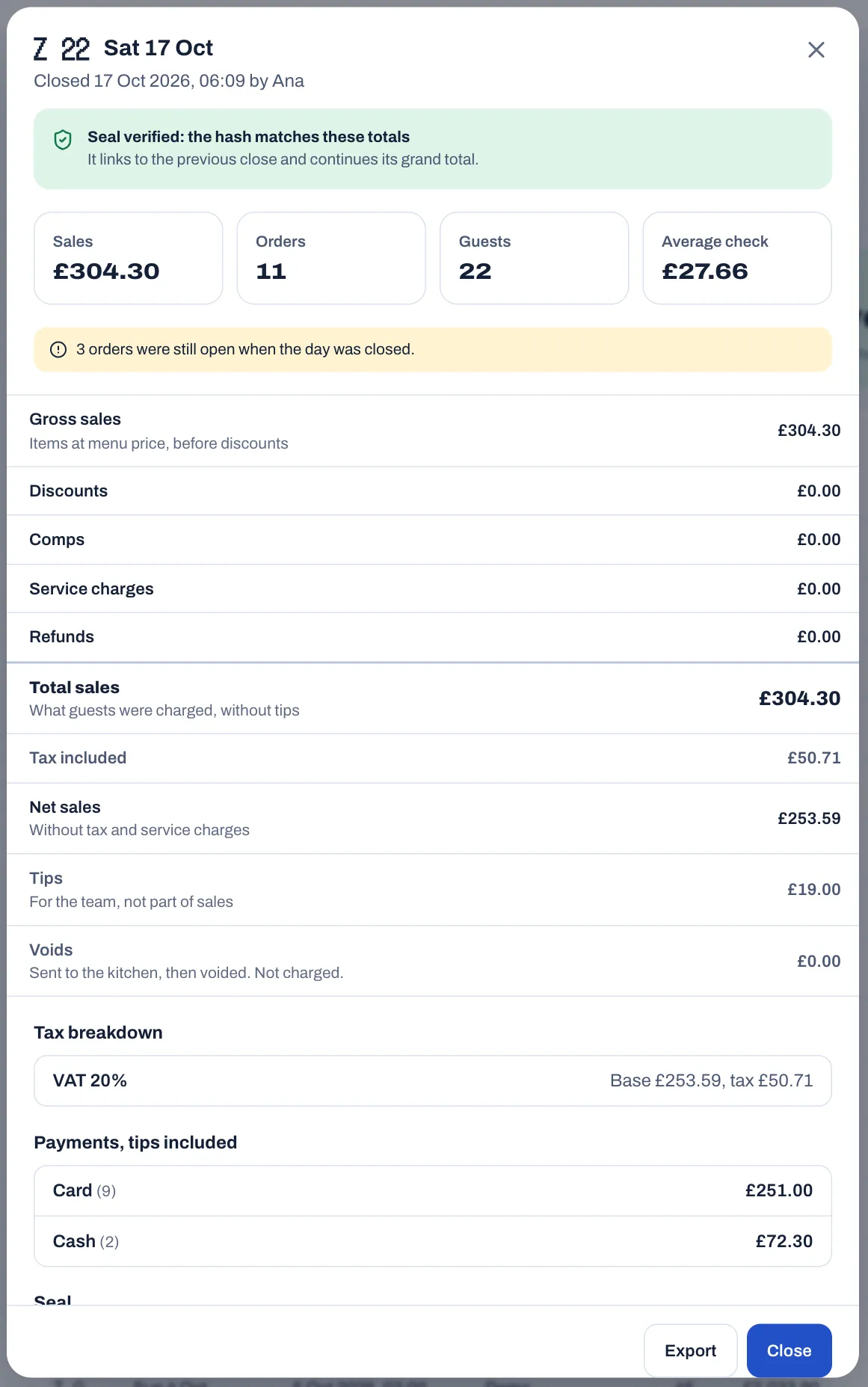
Verified means the close still matches its seal and follows on from the close before it. Does not match means a close no longer matches its seal. For what the seals protect, see Taxes, receipts and legal documents.
Before you go home
- Orders shows no open checks.
- The kitchen display shows All caught up.
- In Bookings, no-shows are marked, and tomorrow's bookings have their tables: see Bookings and the waitlist.
- Tips paid from the drawer are recorded, so the count matches.
- The cash drawer is counted and closed, and its cash report is with the cash.
- The day is closed, the Z report is printed, and the close shows Verified in the back office.
- Every till is locked.