Chapters
Guide › Appendices
Quick cards for every role
Sofrito creates seven roles with every new restaurant: Owner, Manager, Server, Bartender, Cashier, Host and Kitchen. This chapter gives each role a short card that you can print or keep next to the till. The cards describe the roles as Sofrito sets them up. If your owner has changed a role in Back office › Team & roles › Roles and permissions, what you see may be different.
Before you start
- Everyone has their own PIN. See Your team, roles and PINs.
- The tills, handhelds and kitchen display are paired. See Devices, printers and stations.
Every role: start and end a shift
Every till and handheld opens on the lock screen. Staff use it to clock in and out, and to sign in with their PIN. The kitchen display has no lock screen: it works as soon as it is paired.
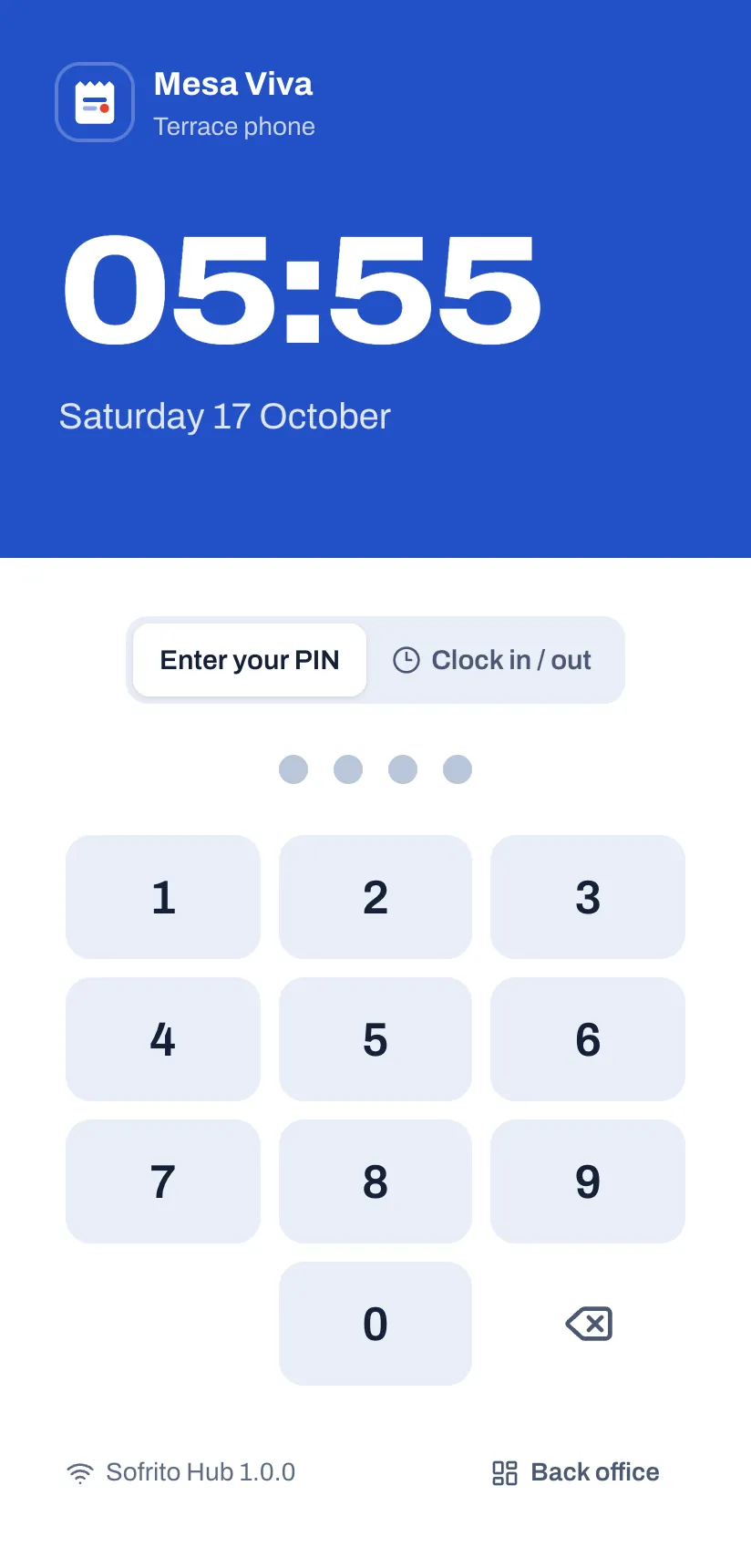
To clock in or out:
- On the lock screen, tap Clock in / out.
- Type your PIN. The till shows, for example, "Ana clocked in".
When you clock out and the restaurant asks guests for tips, the till asks for your Cash tips for this shift: type what guests left you in cash and tap Declare with the amount, or tap No cash tips.
To sign in:
- Tap Enter your PIN.
- Type your 4-digit PIN. The till opens on Floor, or on a new order if your restaurant has no floor plan.
Your PIN only opens devices your role works on. A Kitchen PIN on a till shows "Kitchen can’t sign in on this device.", but it still clocks in and out there.
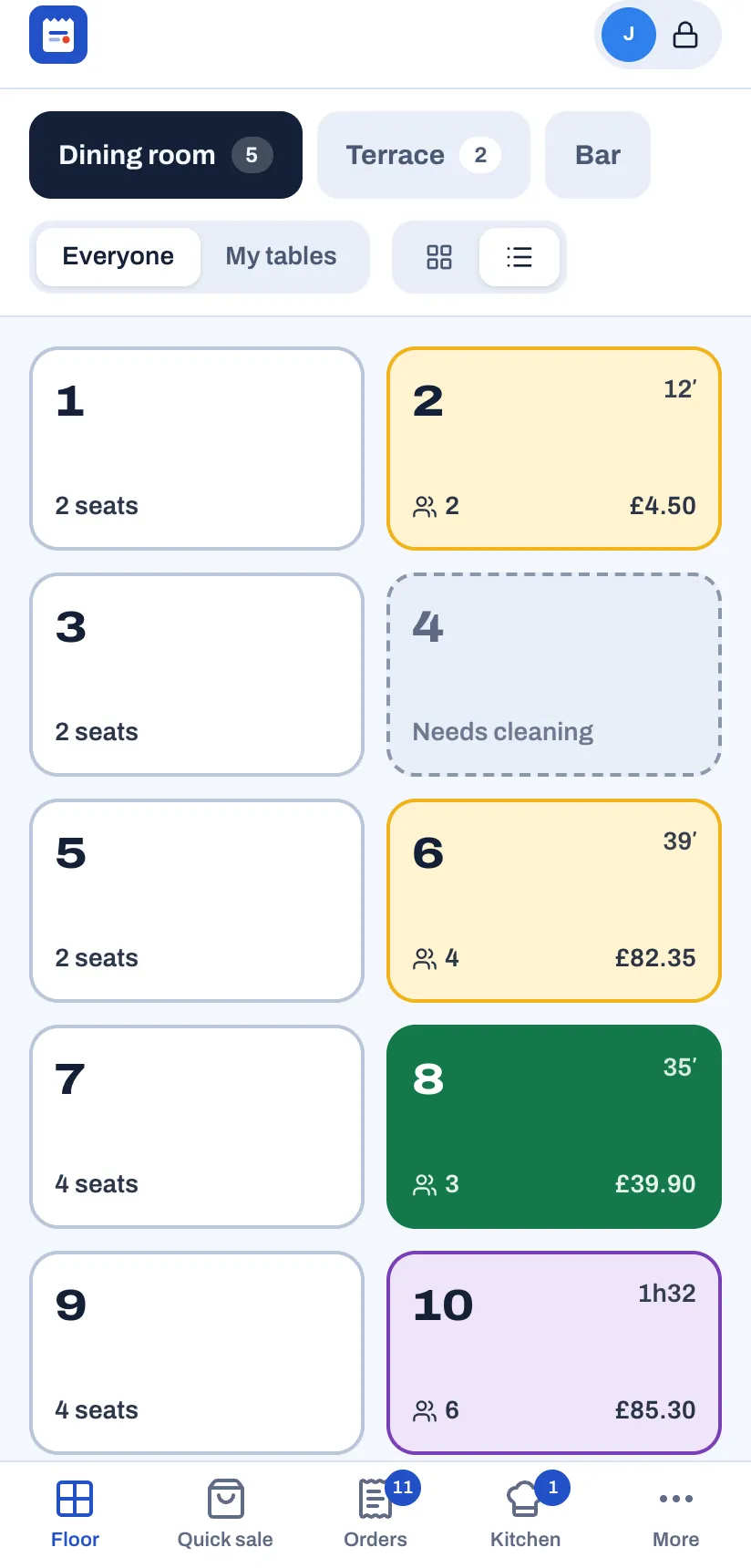
To lock the till when you walk away, tap your name with Lock at the bottom of the left-hand bar. On a phone, tap the round button with your initial and a padlock at the top right. The till also locks itself after 90 seconds without a touch. In counter service and food trucks, it locks after every payment too. A manager changes both in Back office › Settings › Security.
More has your shift card. Once you are signed in, it shows Clock in if you haven't clocked in yet. During the shift it has Unpaid break and Paid break (tap End break when you are back), Declare cash tips and Clock out. More also has the Language (English, Português, Español or Français) and Theme for that device.
On a phone, the bottom bar shows the first four buttons and More. The others, such as Bookings and Cash, are buttons at the top of More.
If you type a wrong PIN, the dots shake. After five wrong PINs in a row, that device stops taking PINs for a short time and shows "Too many wrong PINs. Try again in a moment." If you forget your PIN, a manager gives you a new one in Back office › Team & roles.
Server
Takes orders at the table on a handheld or the till, sends them to the kitchen and bar, and takes payment.
Your buttons
- Floor: the tables. My tables shows only yours and Everyone shows them all. Tap a free table, answer How many guests? and the order opens.
- On the order, tap dishes to add them. Pick a seat (Shared, S1, S2 and so on) before you tap the dishes. On a till you can also pick the course; otherwise each dish takes its course from the menu (By menu).
- Send (or Send 3) sends the new items to the kitchen and bar. The hourglass (Hold) holds them back: they show Held until you tap Fire with the course, for example Fire Mains.
- Pay takes payment. Print check prints the bill.
- The ••• button on the order opens its other actions: Discount, Service charge, Rename, Print check, Guests, Move table, New separate check, Hand over to…, Split check, Merge checks, Add guest, Rush and Void order.
- Tap an item already saved or sent to change it, for example Change price or Void.
- Kitchen lists the food that is ready (Food ready) and still cooking (Cooking). Tap Done when you take a dish out. On the order, Served: 2 ready on the pass does the same.
- When the kitchen marks your food ready, your device chimes and shows, for example, "Table 6 is ready".
- Press and hold a dish to see its price, description and allergens, or to mark it sold out (Mark sold out, Put back on sale).
Needs a manager's PIN
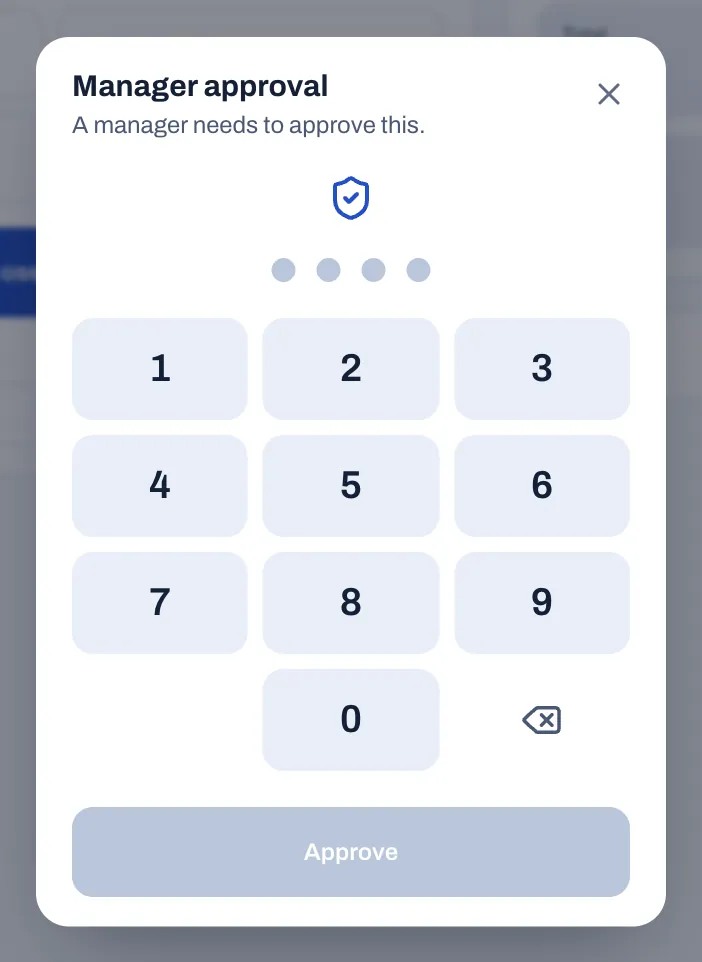
When you need a manager, the till opens Manager approval. The manager types their PIN and taps Approve. You need one for:
- voiding items already sent to the kitchen, or voiding an order that has sent items
- comps (items on the house)
- discounts above the limit (10% unless your owner changed it) and discounts marked Manager PIN, such as Manager 10% and Friends & family 20%
- charging a different price from the menu (Change price)
- refunds and reopening a closed order
- Pay in, Pay out, Cash drop and No sale on the cash drawer
- changing a check another server opened: adding items, voids, discounts, moving, splitting or merging it. Sending, printing the check and taking payment don't need a manager. A check with nothing on it yet, such as one a host opened, becomes yours when you add its first dishes.
Only managers and owners see Close the day (Z).
Start of shift
- Clock in and sign in.
- Check your handheld is charged and shows no red, crossed-out Wi-Fi symbol.
- On Floor, check your section, the Reserved tables and any table that Needs cleaning.
- Ask the kitchen what is sold out. Sold-out dishes show Sold out on their tiles.
- Look at Bookings for large parties and notes.
End of shift
- Make sure every check you opened is paid. Give tables that stay open to a colleague: on the order, tap the ••• button, then Hand over to….
- Open Orders and check nothing is left under your name.
- Give any cash you collected to the cashier or manager. Sofrito has already counted it in the open cash drawer.
- Lock the handheld, then clock out and declare your cash tips.
Bartender
Serves drinks, runs bar tabs and takes payment at the bar. A bartender has the same permissions as a server.
Your buttons
- Quick sale starts an order without a table. The buttons at the top choose its kind, for example Takeaway or Bar tab. Type the guest's name in the box at the top ("Called out when ready"), add the drinks and tap Send.
- Orders lists every open tab. Search by name or order number to find one.
- Drinks set up for the Bar station print on the bar printer, or appear on a kitchen display that shows the bar.
- Pay splits a tab evenly (÷2 to ÷6) or takes Other amount. Tip buttons appear when tipping is on.
- Floor, Kitchen, Bookings and the ••• button work as they do for servers.
Needs a manager's PIN
The same actions as a server: voids of sent items, comps, discounts above the limit, price changes, refunds, reopening, Pay in, Pay out, Cash drop and No sale, and changes to a tab someone else opened.
Start of shift
- Clock in and sign in.
- Tap Cash. If it shows No drawer is open, tap Open drawer, count the cash, type it as Starting cash and tap Open drawer.
- Tap More. Under Printers, the bar printer should show Online. Tap Print test page if in doubt.
- Check which drinks are Sold out.
End of shift
- Close every tab, or hand open tabs to a colleague with the ••• button and Hand over to….
- If you are responsible for the drawer, count it: see the cashier's end of shift below.
- Tap Cash › Shift report (X) if your manager wants the takings so far on paper.
- Lock the till, then clock out and declare your cash tips.
Cashier
Takes payment at the counter or the till, looks after the cash drawer and counts it at the end of the shift.
Your buttons
- Quick sale (or New order when there is no floor plan) for counter orders. Type the guest's name when the till asks: it is called out when the order is ready.
- Pay, then the payment method:
- Cash: type the Cash received or tap a quick amount such as Exact. Sofrito shows the Change to give back.
- Card: tap Charge with the amount (for example Charge £24.50), take the card on your card terminal, then tap Approved once the terminal shows it approved.
- Mobile money: type the transaction Reference from the guest's phone.
- You can take payment for any server's check: paying never needs a manager.
- Invoice with VAT No. adds the customer's tax number, name and address to the document. The button uses your country's name for the number, such as Invoice with NIF in Portugal.
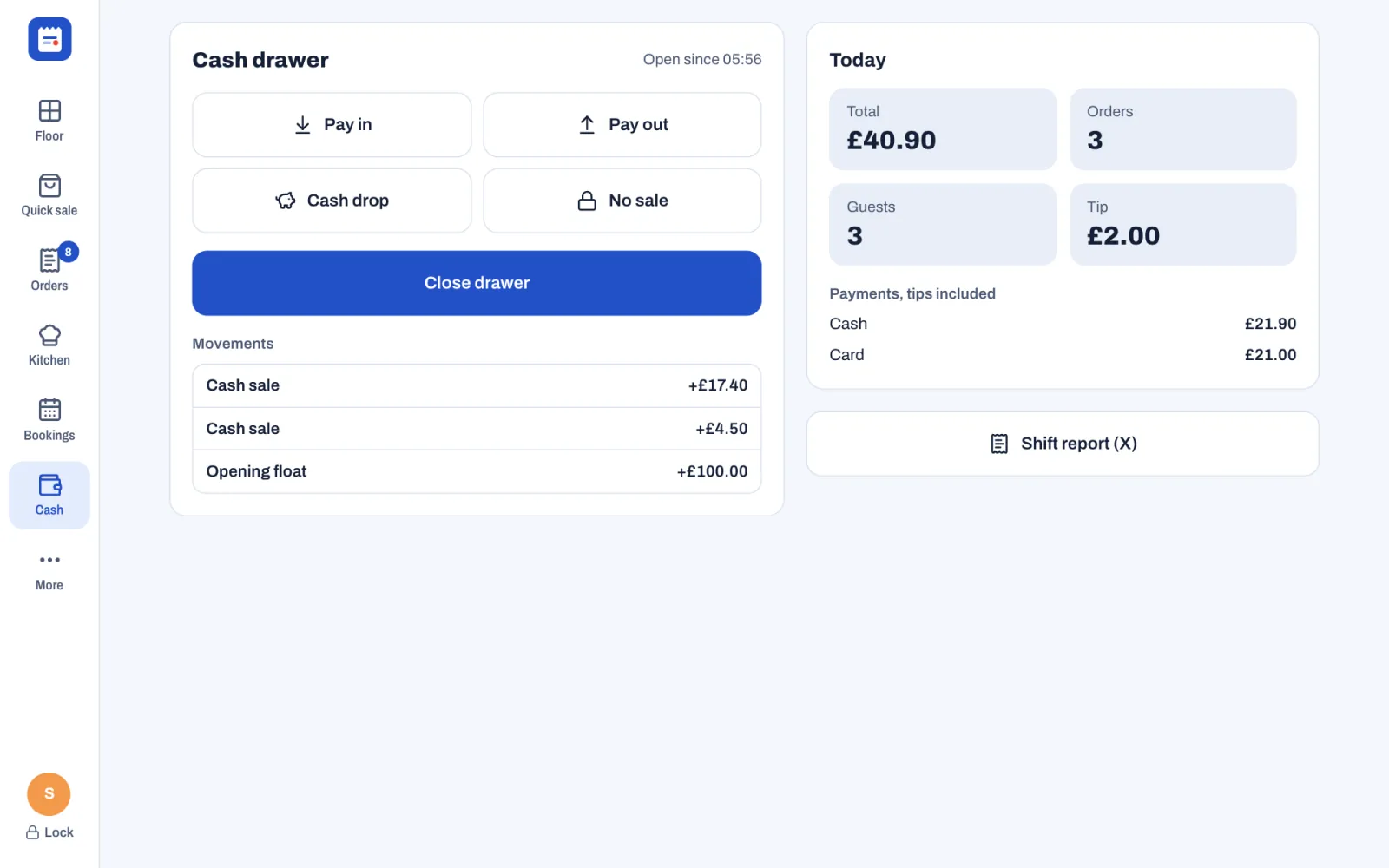
- Cash: Pay in, Pay out, Cash drop, No sale, Close drawer, today's totals and Shift report (X).
- More › Sell or check under Gift cards sells a gift card, tops one up or checks what is left on it.
- Orders › Closed: open a paid order to Reprint receipt.
Needs a manager's PIN
- any discount, because the Cashier role has none
- Move table, Hand over to… and Merge checks
- voids of sent items, comps and price changes
- Refund and Reopen on a closed order
- Pay in, Pay out, Cash drop and No sale
- adding to or changing a check a server opened, once it has items on it
Only a manager signed in as themselves sees Close the day (Z).
Start of shift
- Clock in and sign in.
- Tap Cash. If it shows No drawer is open, tap Open drawer. Count the cash in the drawer, type it as Starting cash (Sofrito suggests the float from Settings, £100.00 in the demo) and tap Open drawer. The drawer opens.
- Check the receipt printer has paper. More › Printers › Print test page prints a test.
If someone takes cash, refunds cash or sells a gift card for cash before the drawer is open, the Starting cash window opens first. Count the drawer, type the amount and tap Open drawer: the payment then goes ahead.
End of shift
- Open Orders and make sure no counter order is left open.
- Tap Cash › Close drawer. Type how many of each note and coin you have. The total shows as Counted.
- Tap Close drawer. Sofrito shows Expected, Counted and Over / short, and prints the drawer report. You see the expected amount only after you count. Tap Done.
- Tell your manager about any difference.
- Tap Shift report (X) if your manager wants it, then lock the till and clock out.
Host
Welcomes guests, takes bookings, runs the waitlist, seats guests and keeps an eye on the tables.
Your buttons
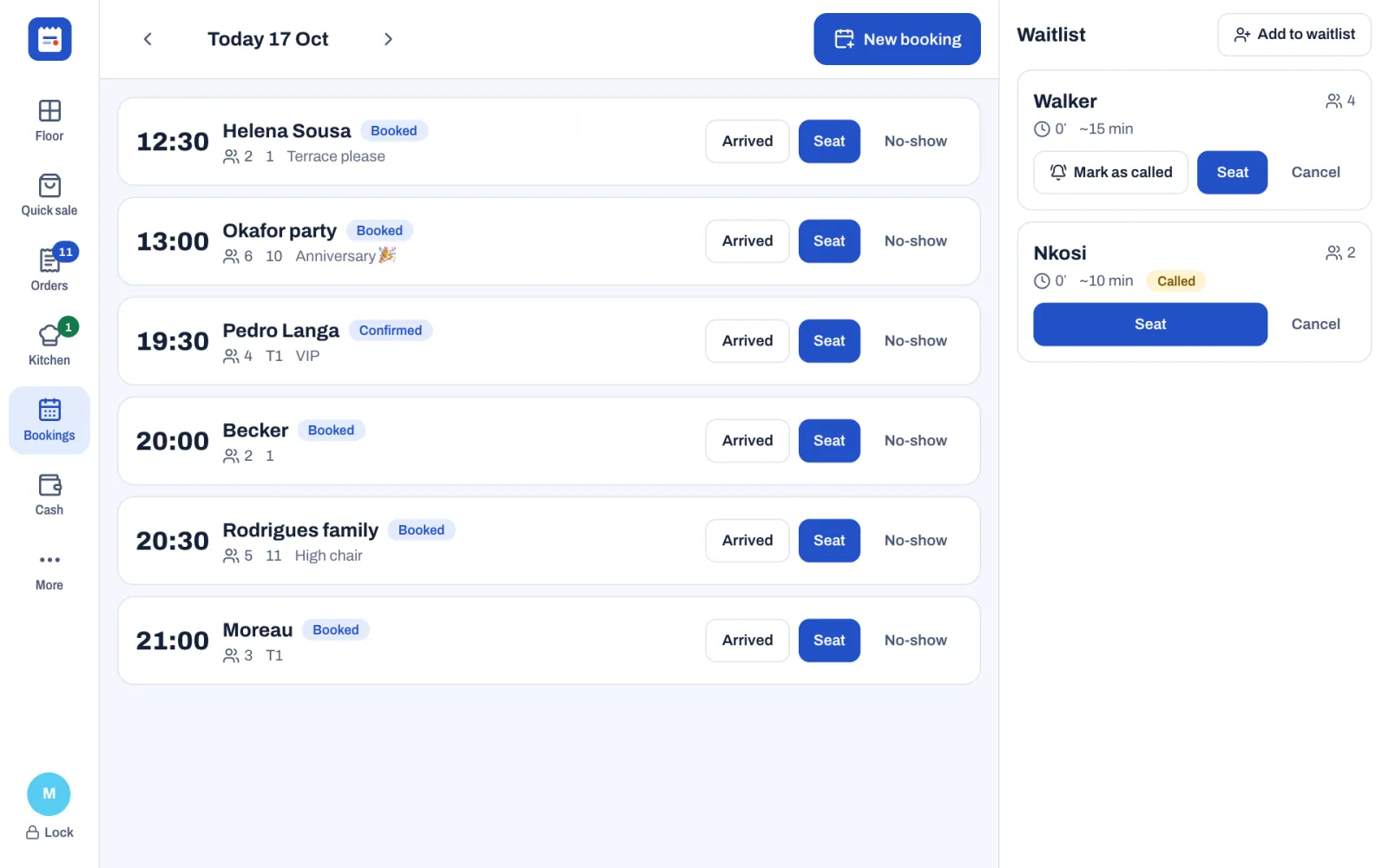
- Bookings: today's bookings, each with its status, such as Booked, Confirmed or Arrived. The arrows change the day. New booking adds one. On each booking: Arrived, Seat and No-show. Tap a booking to change it, move it with Date, or cancel it with Cancel booking (tap again to confirm).
- Seat on a booking: choose the table. Sofrito opens the table's check and you stay on the floor plan.
- Waitlist: Add to waitlist records the party and quotes a wait, for example "~15 min", or No wait when a table is free. Tap Mark as called when you have told the guests their table is ready (the party then shows Called), Seat to give them a table, and Cancel if they leave.
- Floor: what each table is doing: Free, Seated, Cooking, Food ready, Check printed, Needs cleaning, Blocked or Reserved with the booking time. To seat guests who walk in, tap a free table and answer How many guests?: the till shows Seated with the table, for example "Table 3". Tap a table that Needs cleaning and then Mark as clean once it is ready.
Needs someone else
- Taking orders and payments: a server or a manager does that once the guests are seated.
- A check you open when you seat guests is in your name until a server adds the first dishes to it. It then becomes theirs, without a manager's PIN.
Start of shift
- Clock in and sign in.
- Read today's Bookings: large parties and notes such as "High chair".
- On Floor, check the Reserved tables and any table that Needs cleaning.
End of shift
- Mark guests who never came as No-show.
- Cancel waitlist parties that have left.
- Look at tomorrow's bookings with the arrow.
- Lock the till and clock out.
Kitchen
Cooks and plates the food from the kitchen display.
Your buttons (on the kitchen display)
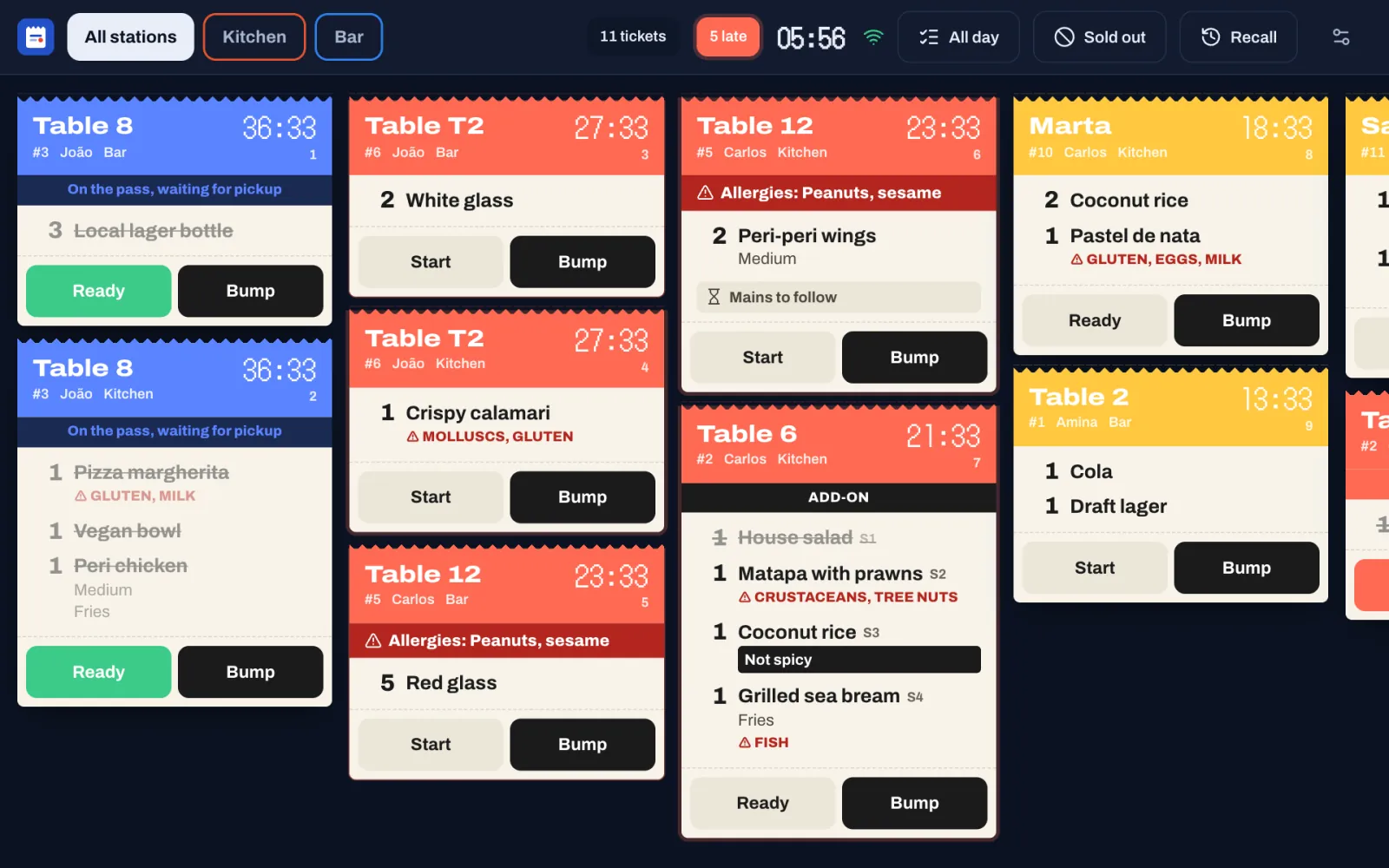
- Tickets arrive by themselves, with a beep. Each shows the table or the guest's name, the order number, the server, the station and the minutes since it was sent.
- The ticket turns from green to yellow after 10 minutes and to red after 20 minutes, when it counts as late. A manager changes the times in Back office › Settings › Kitchen.
- Tap Start when you start cooking and Ready when the food is on the pass. The ticket turns blue ("On the pass, waiting for pickup") and the server is told. Tap Bump to clear it.
- Tap a dish on a ticket to cross it out when it is done. Once every dish is crossed out, the ticket counts as ready.
- Banners: RUSH, FIRE (cook the next course) and ADD-ON (items added to a table you are already cooking for). "Mains to follow" means the server is holding the next course: its dishes arrive when they fire it.
- A VOID ticket means stop: those dishes were cancelled. It stays, with its own sound, until you tap Got it, even if you had already bumped the dish.
- A red "Allergies: …" band lists the guest's allergies on every ticket of their order. Allergens show in red with a warning sign, kitchen notes in a black box, and options such as "NO onion" in red.
- All day counts every dish still to cook. Recall brings back a ticket you bumped by mistake.
- All stations and the station buttons (Kitchen, Bar) choose which tickets this screen shows.
- With a bump bar or a keyboard, keys 1 to 9 bump the first to ninth ticket, and R recalls the last one.
- Sold out lists the dishes your stations make. Tap a dish to mark it sold out, put it back on sale or set how many are left. Every till and handheld follows at once.
Needs a manager
Nothing on the kitchen display. Servers and managers cancel dishes on the till; you then see a VOID ticket.
Start of shift
- Clock in on a till: Clock in / out, then your PIN. Your Kitchen PIN doesn't open the till itself.
- Check the kitchen display shows a green Wi-Fi symbol and the right stations.
- Tap the screen once. A kitchen display that has just started stays silent until someone touches it.
End of shift
- Bump every ticket that has gone out. Check Recall for anything bumped by mistake.
- Tell the manager what has run out, or mark it in Sold out.
- Clock out on a till.
Manager
Runs the shift: approves voids, comps and discounts, looks after the cash, closes the day and uses the back office.
Your buttons
- Everything servers and cashiers use, with no approvals needed.
- Manager approval: when staff need you, type your PIN on their device and tap Approve. Sofrito records you as the person who approved.
- Cash: Pay in, Pay out, Cash drop, No sale, Close drawer, Shift report (X) and Close the day (Z).
- Orders › Closed: Refund, Reopen and Reprint receipt.
- The back office: tap More › Back office while you are signed in, or sign in from any browser with your email and password. On a till, it locks again after 5 minutes without a touch. It has Dashboard, Reports, Menu, Floor plan, Team & roles, Devices & printers, Guests & loyalty, Bookings, Inventory, Taxes & fiscal, Settings and Audit log.
- Back office › Team & roles › Timesheets to correct clock-in and clock-out times, breaks and cash tips, and Tips to pay out the team's tips.
Only an owner can
- create roles or change what a role can do (managers see "You can see roles but not change them. Ask an owner.")
- change an owner's details or make someone an owner
- close a Sofrito Cloud account
Start of shift
- Clock in and sign in.
- In Back office › Devices & printers, check the tills, handhelds and kitchen displays show Online, and every printer shows Online. Print a test page on any printer that does not.
- Check a cash drawer is open with the right float.
- Read the day's bookings and the sold-out dishes, and brief the team.
End of the day
- Open Orders: every check should be paid or voided.
- Make sure the drawer is counted: Cash › Close drawer.
- Tap Cash › Close the day (Z). The window asks "Close business day …? Totals are locked and printed." and lists any Checks still open on this day: tap one to pay or void it. Then tap Close the day (Z). Sofrito prints the Z report and shows, for example, "Day 12 closed".
- Look at Over / short and at Reports for voids, comps and discounts.
- Pay out the day's tips if you pay them daily: Back office › Team & roles › Tips. See Pay out tips.
- Lock the till and clock out.
Owner
Owns the account: sets up the restaurant, decides what each role can do and keeps the fiscal records in order. The Owner role always has every permission, and the restaurant always keeps at least one owner.
Your buttons
- Everything a manager uses.
- Back office › Team & roles › Roles and permissions: create roles and choose what each one can do. Permissions marked Manager can approve are the ones a manager can allow on the spot with their PIN.
- Back office › Taxes & fiscal: Compliance, Series & integrity, Day closes, Exports and Tax rates.
- Back office › Settings › Invoicing: the documents Sofrito issues and the details your tax authority asks for, where your country has them.
- Back office › Audit log: who did what, when, on which device.
- Back office › Settings › Cloud sync when the restaurant runs on Sofrito Hub, and Back office › Settings › Account to close a Sofrito Cloud account.
Only you can
- change roles and permissions
- make someone an owner or change an owner's details
- close a Sofrito Cloud account
Start of the day
- Check yesterday's close in Back office › Taxes & fiscal › Day closes.
- Open Taxes & fiscal › Compliance. Deal with any warning, such as a missing tax number or missing validation codes.
- On Sofrito Hub, check Settings › Cloud sync shows Everything is up to date if you link to Sofrito Cloud.
End of the day, week and month
- Check the day was closed and read the drawer differences.
- Read Reports and the Audit log for voids, refunds, discounts and drawers opened without a sale.
- Each month, download your tax file from Taxes & fiscal › Exports if your country has one. See Country notes.
- On Sofrito Hub, keep a copy of the backups away from the restaurant. See Sofrito Hub and working offline.