Chapters
Guide › Run service
Open for service
This chapter covers the first minutes of a shift: unlocking the till with your PIN, locking it again, clocking in and out, opening the cash drawer with a float, and a short check that everything works before the doors open. Everyone on a shift unlocks and clocks in. The person who opens the restaurant, usually a manager, also opens the drawer and runs the checklist.
Before you start
- The till, handhelds and screens are paired, and the printers are added: see Devices, printers and stations.
- Everyone has a PIN and a role: see Your team, roles and PINs.
- The menu and the floor plan are ready: see Build your menu and Draw your floor plan.
Unlock the till with your PIN
When nobody is signed in, the till shows the lock screen. On the left are the restaurant name, the name of this device, the time and the date. On wide screens, Who’s working? lists the team, with a green dot next to everyone who is clocked in. On the right is the PIN pad.
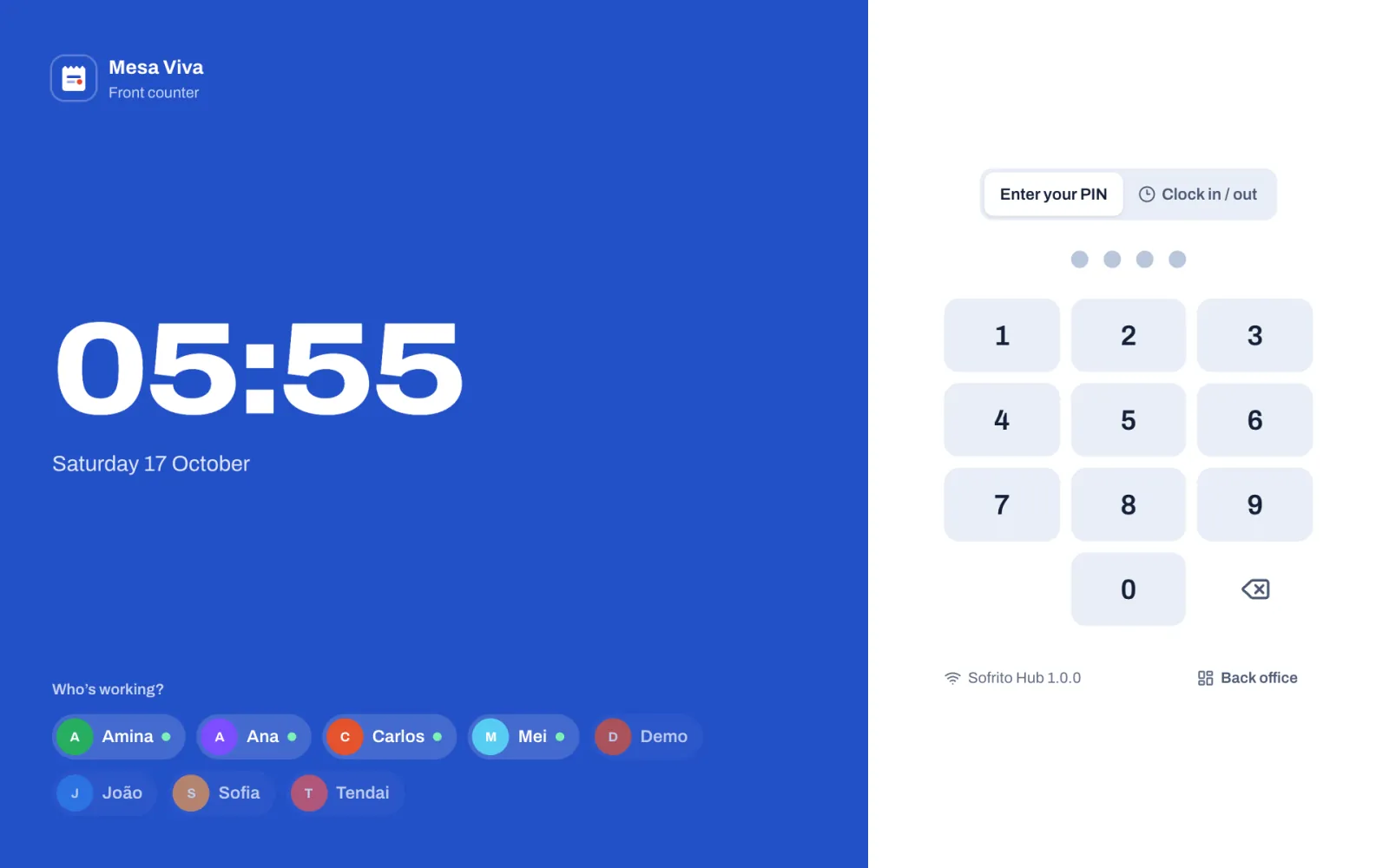
- Check that Enter your PIN is selected above the PIN pad.
- Type your PIN.
The till opens as soon as you type the last digit. In a restaurant with tables it opens on Floor; in a counter restaurant, on a new order.
The till you used to set up the restaurant, or to open the demo, opens signed in as the owner the first time. Once it locks, it asks for a PIN like every other till.
If the PIN is wrong, the dots turn red, shake and clear. Type it again. After five wrong PINs in a row, the device stops taking PINs for a short time and shows "Too many wrong PINs. Try again in a moment." A PIN only opens a till if its role works on tills: a Kitchen PIN shows "Kitchen can’t sign in on this device." If you have forgotten your PIN, a manager gives you a new one: see Your team, roles and PINs.
Under the PIN pad, the till shows how it is connected: Sofrito Hub with its version, Sofrito Cloud, or "Offline — reconnecting…" in red. Back office opens the back office for someone with back-office access: they type their PIN, or tap Use email and password instead. It locks again after 5 minutes without a touch. See Let someone use the back office.
Lock the till when you step away
- On a till or a tablet, tap your picture with Lock at the bottom of the left-hand bar.
- On a phone, tap your picture with the padlock at the top right.
The next person unlocks with their own PIN. Items you have tapped but not sent are still on the check when you come back to that device.
The till also locks itself after 90 seconds without a touch. A manager can change this in Back office › Settings › Security under Lock when nobody uses it, and can turn on Lock after each payment for shared tills at a bar or counter.
Clock in and out
Clocking in records when your shift starts, for the timesheets and the labour cost. It is separate from unlocking: the till also opens for someone who has not clocked in, so make clocking in a habit.
- On the lock screen, tap Clock in / out.
- Type your PIN.
The till shows, for example, "João clocked in". Your name moves up the Who’s working? list with a green dot, and the PIN pad goes back to Enter your PIN. Type your PIN again to start working. If you signed in first, tap More, then Clock in.
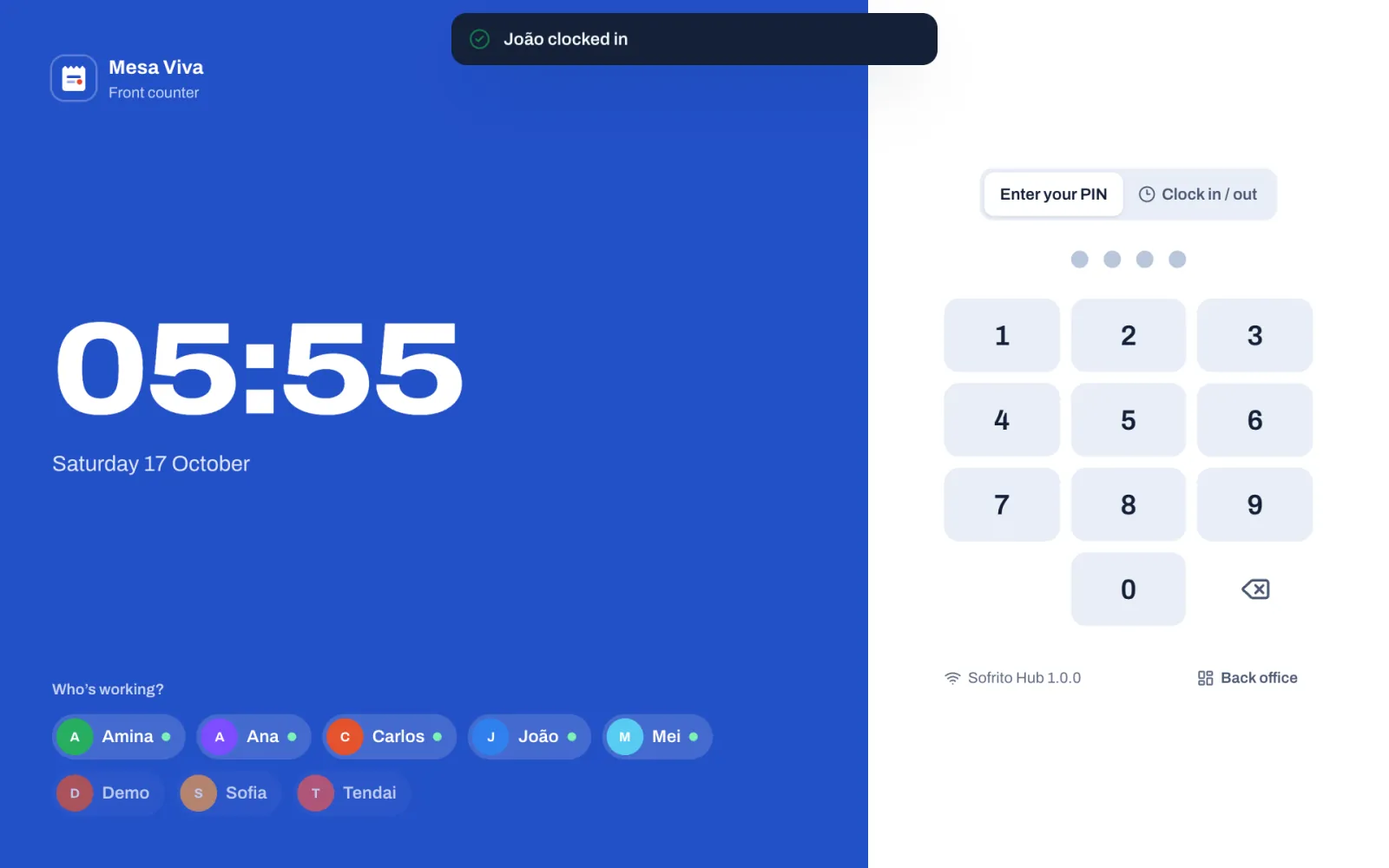
At the end of your shift, do the same again: tap Clock in / out and type your PIN, or tap More, then Clock out. The till shows "João clocked out". If you are on a break, clocking out ends it.
When the restaurant asks guests for tips, the till then asks for your Cash tips for this shift. Type the tips guests left you in cash and tap Declare with the amount, or tap No cash tips. Tips added to card payments are counted already. Managers pay out tips from Back office › Team & roles › Tips: see Pay out tips.
Take a break
- On the till, tap More.
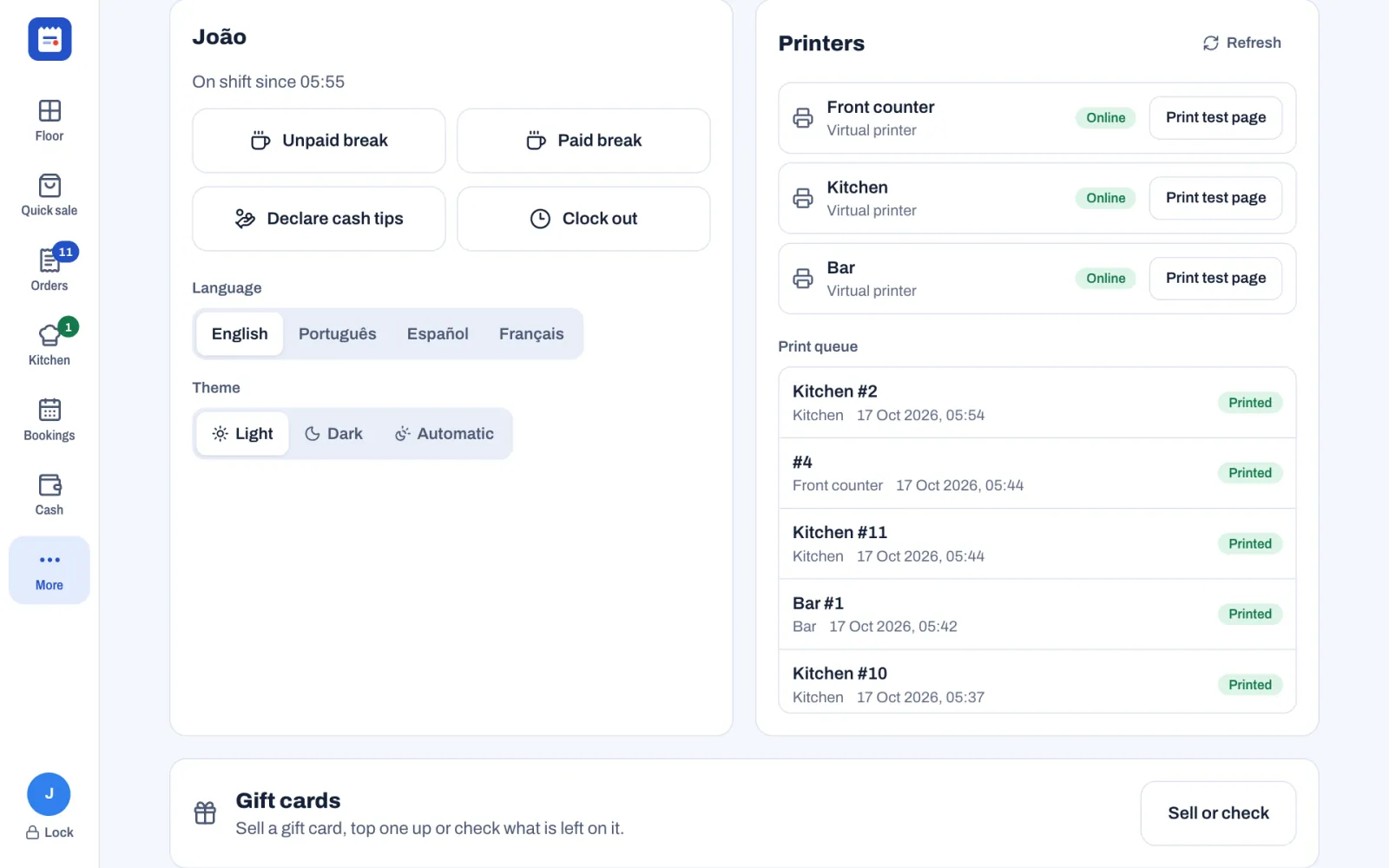
- The first card shows your name and On shift since with the time you clocked in. Tap Unpaid break or Paid break, as your manager tells you.
- When you come back, tap End break.
Unpaid breaks are taken off the hours worked; paid breaks count as hours worked. The same card has Declare cash tips, to record cash tips before you clock out, and Clock out. If you are not clocked in, the card shows Clock in instead.
On a phone, the bottom bar shows the first four sections and More. More lists the other sections, such as Bookings and Cash, as buttons at the top.
Managers check and correct shifts in Back office › Team & roles › Timesheets: see Your team, roles and PINs.
Open the cash drawer with a float
The float is the cash you put in the drawer before service so you can give change. Open the drawer before the first cash payment of the day.
- Count the cash you are putting in the drawer.
- Tap Cash. The Cash drawer card shows No drawer is open. It is this till's own drawer. If the restaurant has more than one drawer, buttons with their names at the top of the card switch between them.
- Tap Open drawer. The Starting cash window says "Count the cash in the drawer before the first sale." and suggests the restaurant's usual float (£100.00 in the demo).
- If you counted a different amount, tap the delete key until the amount is empty, then type what you counted. The last two digits are pence: type 1, 2, 0, 0, 0 for £120.00.
- Tap Open drawer.
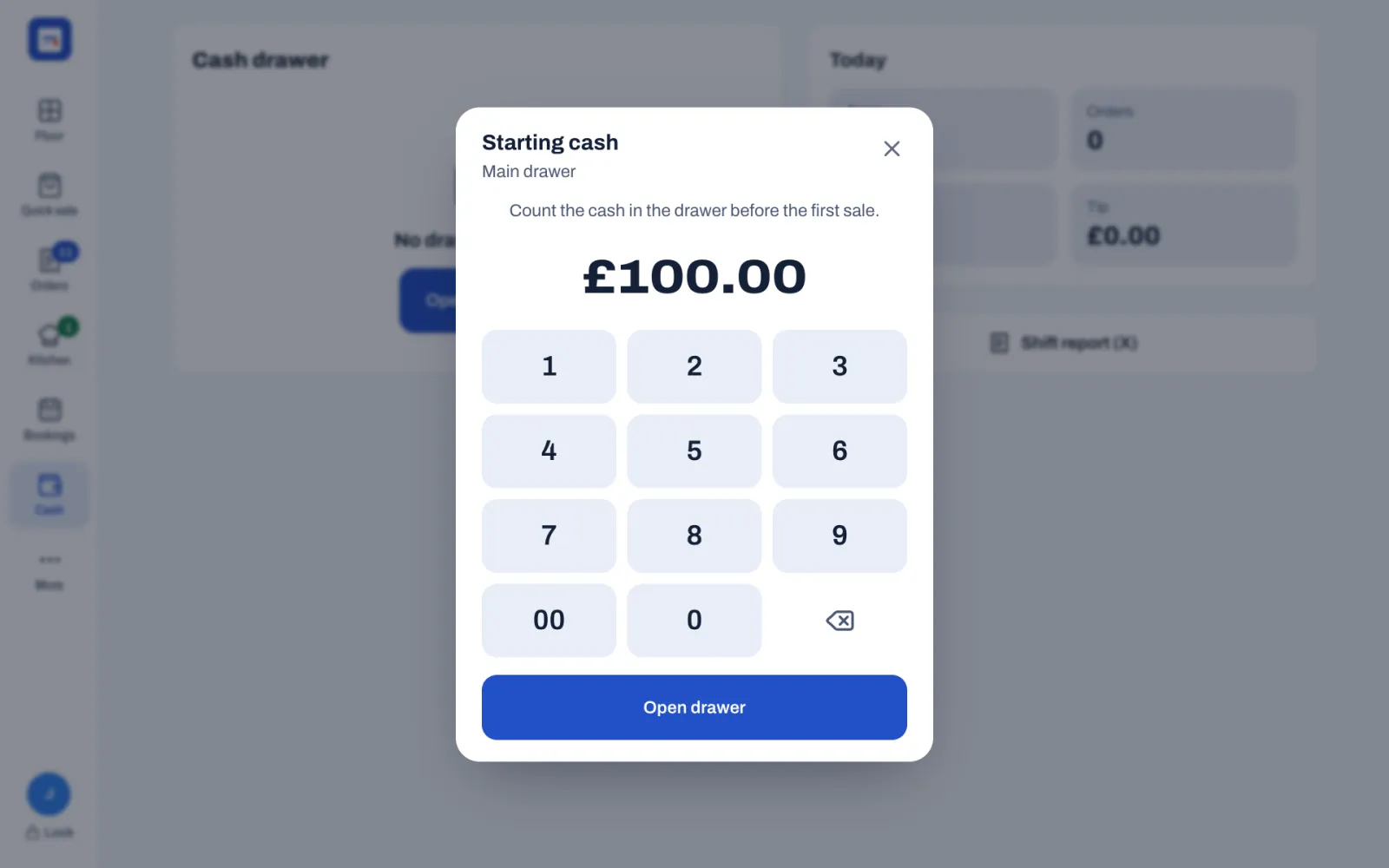
The drawer opens if it is connected. The card now shows Open since and the time, the buttons Pay in, Pay out, Cash drop, No sale and Close drawer, and under Movements the first line: Opening float +£100.00. If you are allowed to print shift reports, the Today card on the right shows the day's takings so far, and the payments by method under Payments, tips included.
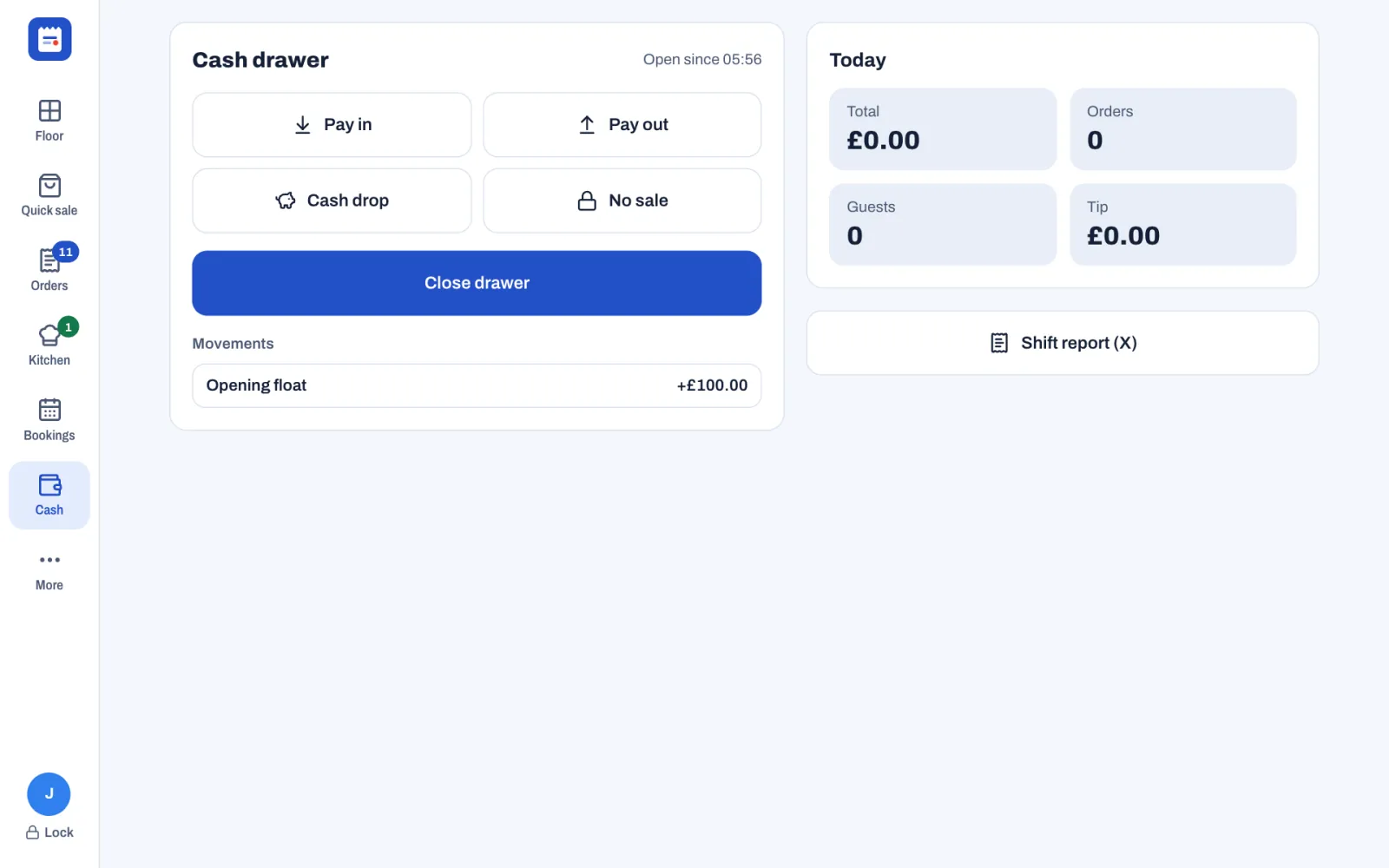
To open the drawer, your role needs Open and close the cash drawer. Servers, bartenders, cashiers, managers and owners have it in a new restaurant.
For pay-ins, pay-outs, cash drops, the shift report and closing the drawer, see Close the day. For No sale, see Voids, discounts, refunds and approvals.
Mark dishes you can't serve as sold out
When the kitchen tells you a dish has run out, mark it so nobody can sell it.
- Open any order, or tap Quick sale, so the menu shows.
- Press and hold the dish. On a till with a mouse, right-click it. The dish's details open, with its photo, description and allergens, and whether it is On sale.
- Tap Mark sold out.
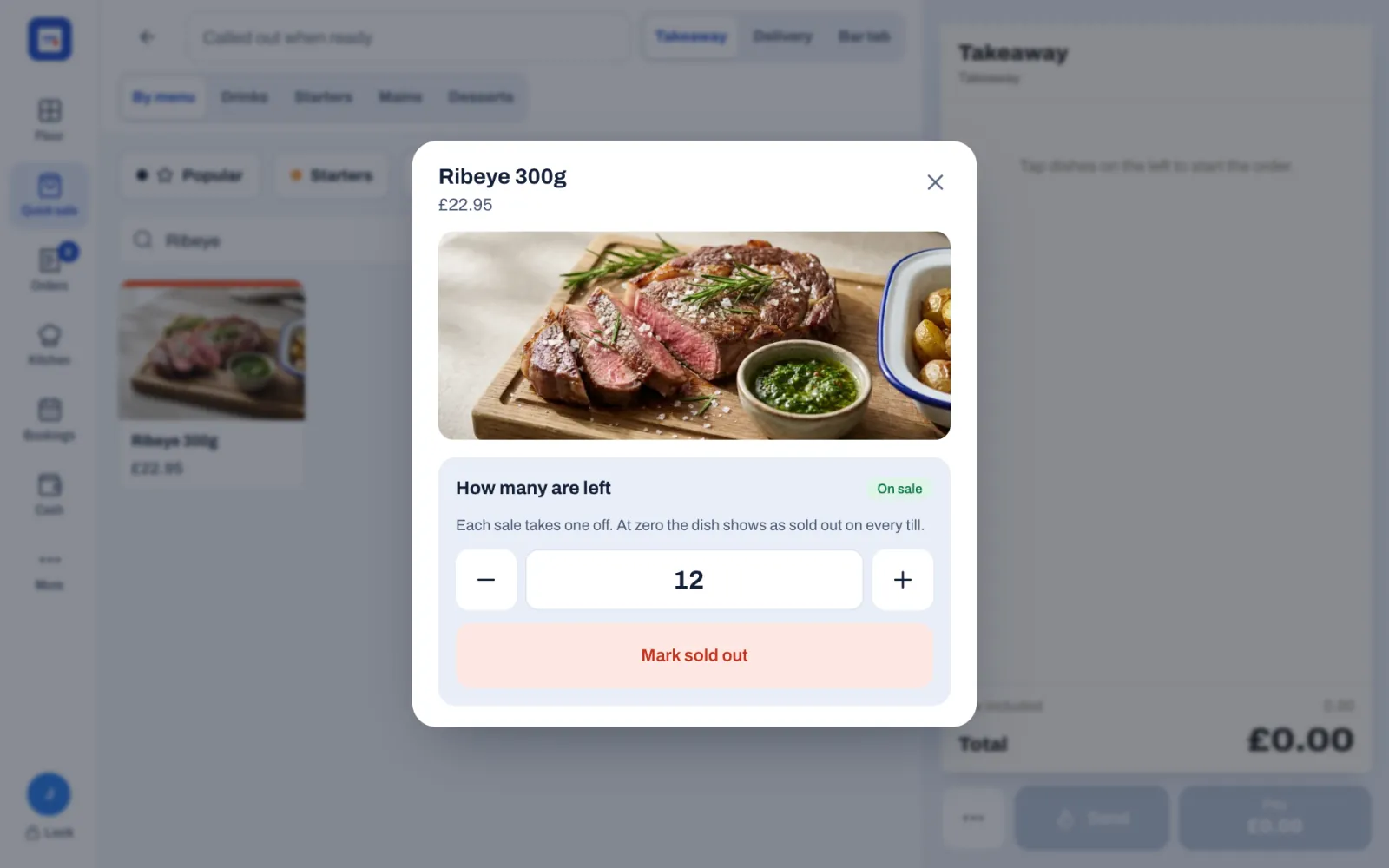
The dish shows a Sold out stamp on every till and handheld, and staff can't add it to an order. To sell it again, press and hold it and tap Put back on sale. Closing the day puts every sold-out dish back on sale, unless a manager turns off Put sold-out dishes back on sale each day in Back office › Settings › Service.
You need Mark dishes as sold out for this. Servers, bartenders, cashiers and the kitchen have it in a new restaurant; the kitchen uses Sold out on the kitchen display. When the menu counts how many of a dish are left, the details show How many are left: change the number and tap Save count. The dish shows the number once five or fewer remain, for example 3 left, and is sold out at zero. Counted dishes keep their count when the day closes. See Build your menu.
Before the doors open
Run through this list before the first guests arrive.
The connection
- On the lock screen of each till and handheld, check the connection under the PIN pad. It should say Sofrito Hub or Sofrito Cloud, not "Offline — reconnecting…". See Sofrito Hub and working offline.
Printers
- On a till, tap More.
- Under Printers, check each printer you use tonight. Its status shows Online, Offline, Error or Not checked.
- Tap Print test page on each one and check that a page comes out with no faded or missing lines.
- Under Print queue, the latest jobs show Printed, Queued, Sending, Failed or Cancelled. Tap a job to see what it printed. Refresh updates the list.
- Put a spare roll of paper next to each printer.
- If the restaurant prints through a computer (a print bridge), check that Sofrito is open on it and says "Ready. Print jobs go out as they arrive."
If a printer stops working during service, a yellow message appears on the tills, for example "Kitchen is offline" with the reason. The till that sent a ticket that didn't print shows it in red, with Reprint. See Troubleshooting and questions.
The kitchen display
- Check each kitchen screen is on, shows the stations it should and reads All caught up before the first order. See The kitchen display.
Handhelds and other screens
- Charge every handheld, and check each one shows the lock screen and its connection.
- Each server unlocks with their own PIN. Never share a handheld under one person's PIN.
- Switch on the customer display and the pickup board if you use them, and check the customer display faces the right till. See Counter, takeaway and pickup.
Payments
- Switch on the card terminal and check it has paper and a charged battery. Sofrito does not talk to the terminal: see Taking payment.
- Open the cash drawer with a counted float, as above.
The menu and the bookings
- Ask the kitchen what is not available tonight and mark it Sold out.
- Tap Bookings to see tonight's tables, large parties and notes. See Bookings and the waitlist.