Chapters
Guide › Run service
Voids, discounts, refunds and approvals
Some actions change what the restaurant earns: voids, comps, discounts, price changes, voided payments, refunds, reopening a paid order and opening the cash drawer without a sale. Sofrito asks why, asks a manager to approve when your role doesn't allow the action, and records who did it and who approved it. This chapter is for everyone on the floor, and for the managers who approve these actions and check them afterwards.
Before you start
- Each role's permissions are set: see Your team, roles and PINs.
- The discount limit, the reasons staff choose from and the restaurant's discounts are set in Back office › Settings, under Security, Reasons and Discounts: see Settings, section by section.
Know what needs a manager
Each role has a list of permissions in Back office › Team & roles › Roles and permissions. When someone tries an action their role doesn't allow, and the permission is marked Manager can approve, the till asks for a manager's PIN instead of refusing.
With the roles of a new restaurant:
| Action | Permission | Server, bartender | Cashier |
|---|---|---|---|
| Remove an item that hasn't been sent | none | Yes | Yes |
| Change a check someone else opened | Change other people's orders | Manager | Manager |
| Void a whole order before anything was sent | none | Yes | Yes |
| Void an item already sent | Void items already sent | Manager | Manager |
| Void a whole order once something was sent | Void whole orders | Manager | Manager |
| Comp an item, or undo a comp | Comp items | Manager | Manager |
| Change the price of an item | Change prices | Manager | Manager |
| Give a discount up to the limit | Apply discounts | Yes | Manager |
| Give a discount above the limit, or one marked Needs a manager's PIN | Discount above the limit | Manager | Manager |
| Remove an automatic service charge | Apply discounts | Yes | Manager |
| Move a check to another table, hand it over, or merge checks | Move orders and tables | Yes | Manager |
| Void a payment, or change its method | Void payments | Manager | Manager |
| Refund a paid order | Give refunds | Manager | Manager |
| Reopen a paid order | Reopen closed orders | Manager | Manager |
| Open the drawer without a sale | Open the drawer without a sale | Manager | Manager |
| Pay in, pay out or make a cash drop | Pay-ins, pay-outs and drops | Manager | Manager |
Yes means the person can do it. Manager means a manager approves with their PIN. Owners and managers have all of these permissions. The limit for discounts is Discounts up to in Back office › Settings › Security: 10% in a new restaurant.
Change other people's orders ("Add to or change orders that another server opened") covers every change to a check someone else opened: adding or changing items, voids, comps, discounts, service charges, voiding a payment, moving the table, handing the check over, the number of guests, the guest on the check, renaming, splitting and merging, and voiding the order. Without it, a manager approves, even for a change your role may make on your own checks. It is never asked for to send, fire a course, print the check, rush, mark a pickup ready or done, take payment or close a paid check. A check with nothing on it yet, such as one a host opened when seating guests, needs nobody's approval either: whoever adds its first items takes it over, and anyone can hand it over. Orders that came from an online shop or another app belong to nobody, so anyone can change them.
Approve with a manager PIN
When an action needs approval, the Manager approval window opens: "A manager needs to approve this." Like every message on the till, it is in the till's language.
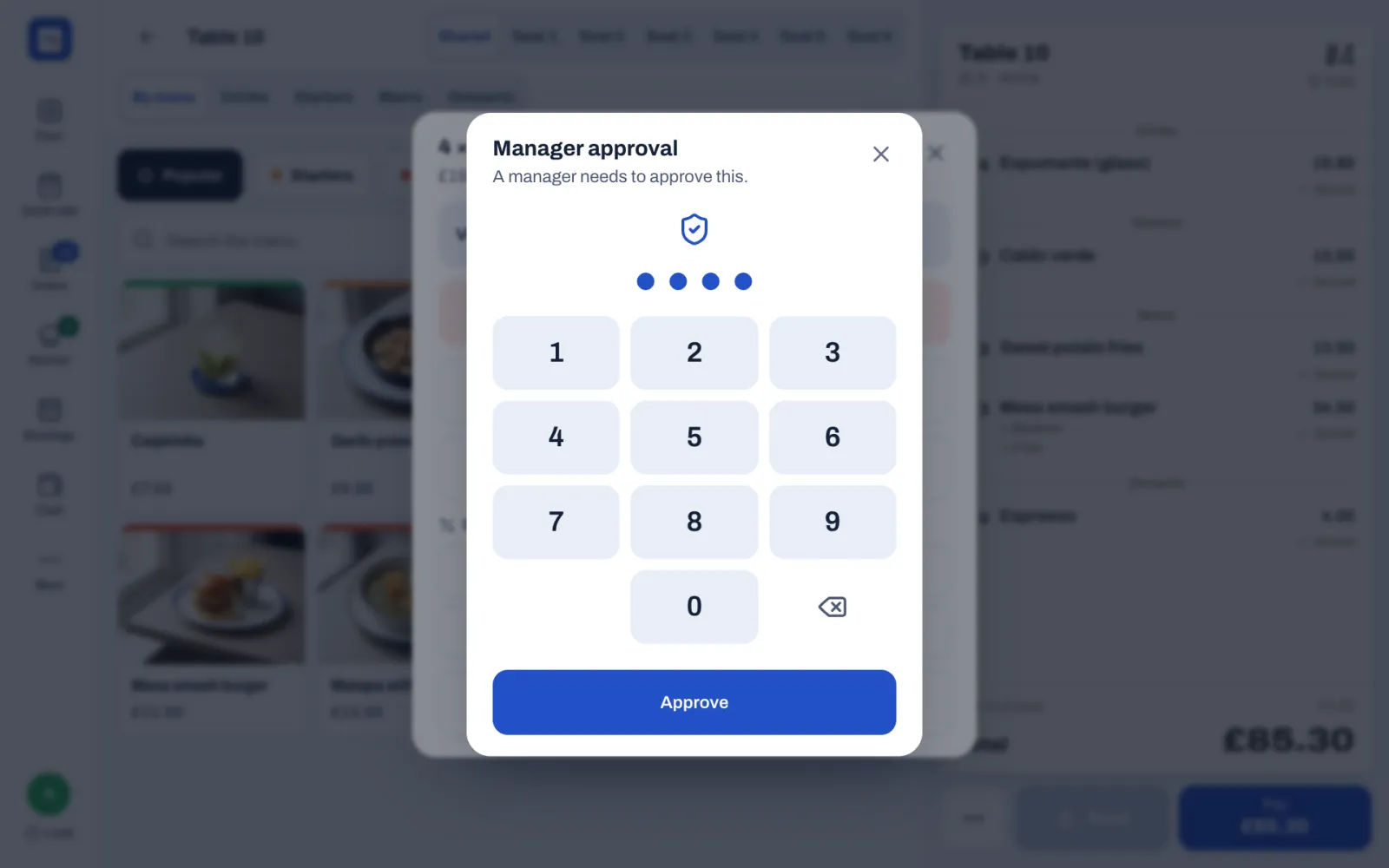
- Hand the till to a manager.
- The manager types their PIN.
- The manager taps Approve.
The action goes ahead and is recorded with both names: the person who asked and the person who approved. The person who asked stays signed in, and the approval counts only for that one action.
"Manager" means anyone whose role has the permission, so an owner can approve too.
- If the PIN is wrong, the window says "Wrong PIN." Type it again.
- If that person's role doesn't have the permission, the window says so, for example "Ana can't approve this."
- After three wrong tries the action is cancelled. Start it again.
- After five wrong PINs on the same device, approvals pause there for a moment: "Too many wrong PINs. Try again in a moment." A correct manager PIN clears the earlier wrong tries.
- To cancel, close the window with ×.
Remove an item that hasn't been sent
Items marked New, and items saved but not sent (Held, or Saved — not sent yet), have not reached the kitchen.
- Tap the item on the check.
- Tap Remove.
The item disappears from the check. Sofrito asks no reason and no approval, and the kitchen sees nothing. On a check someone else opened, removing a held or saved item needs Change other people's orders, or a manager's PIN.
Void an item already sent
- Tap the item on the check.
- If there are several, for example 4 × Espumante (glass), set how many to void with − and +.
- Tap Void.
- Tap the reason, or type it under Other reason and tap Confirm.
- If your role needs it, a manager approves.
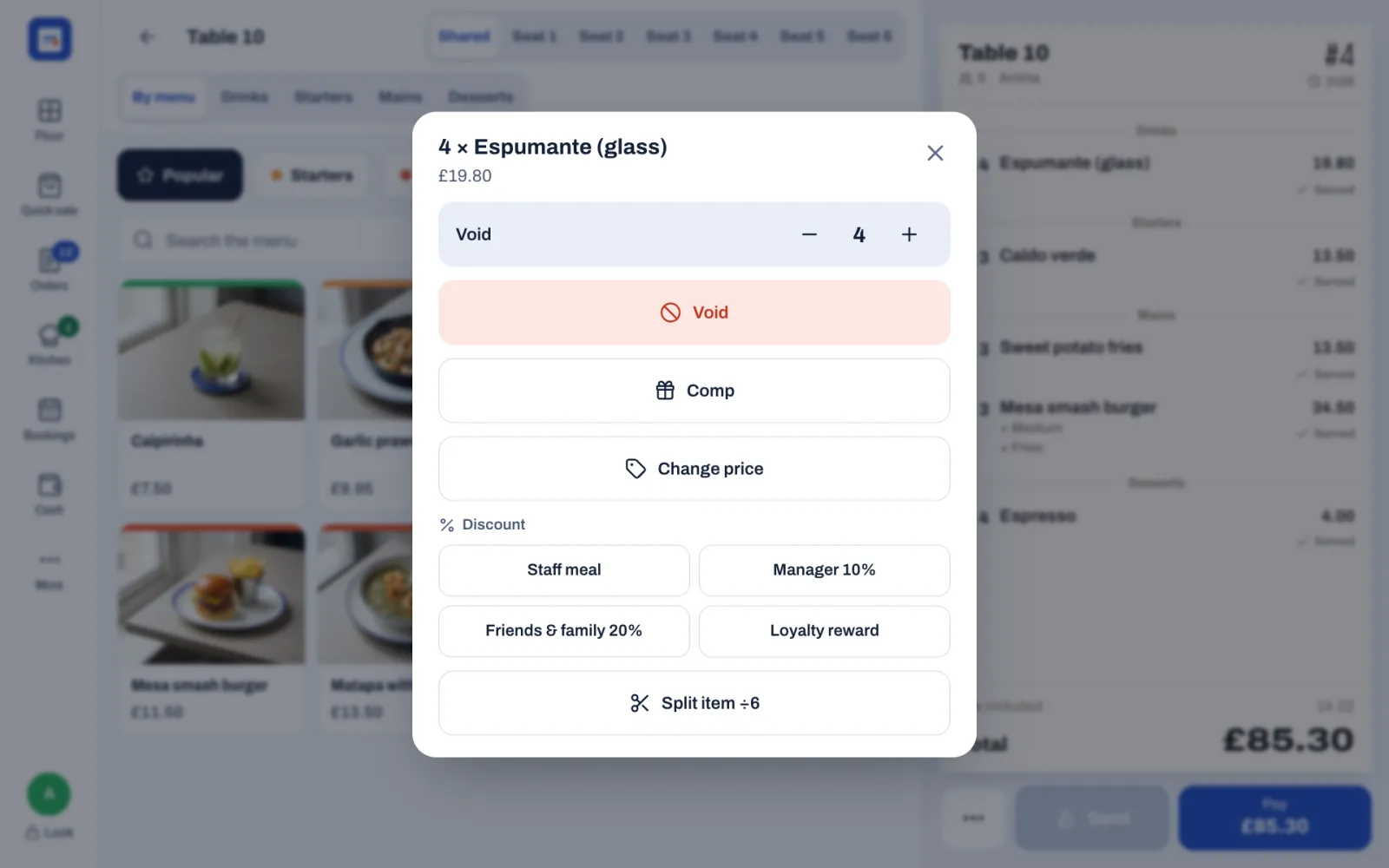
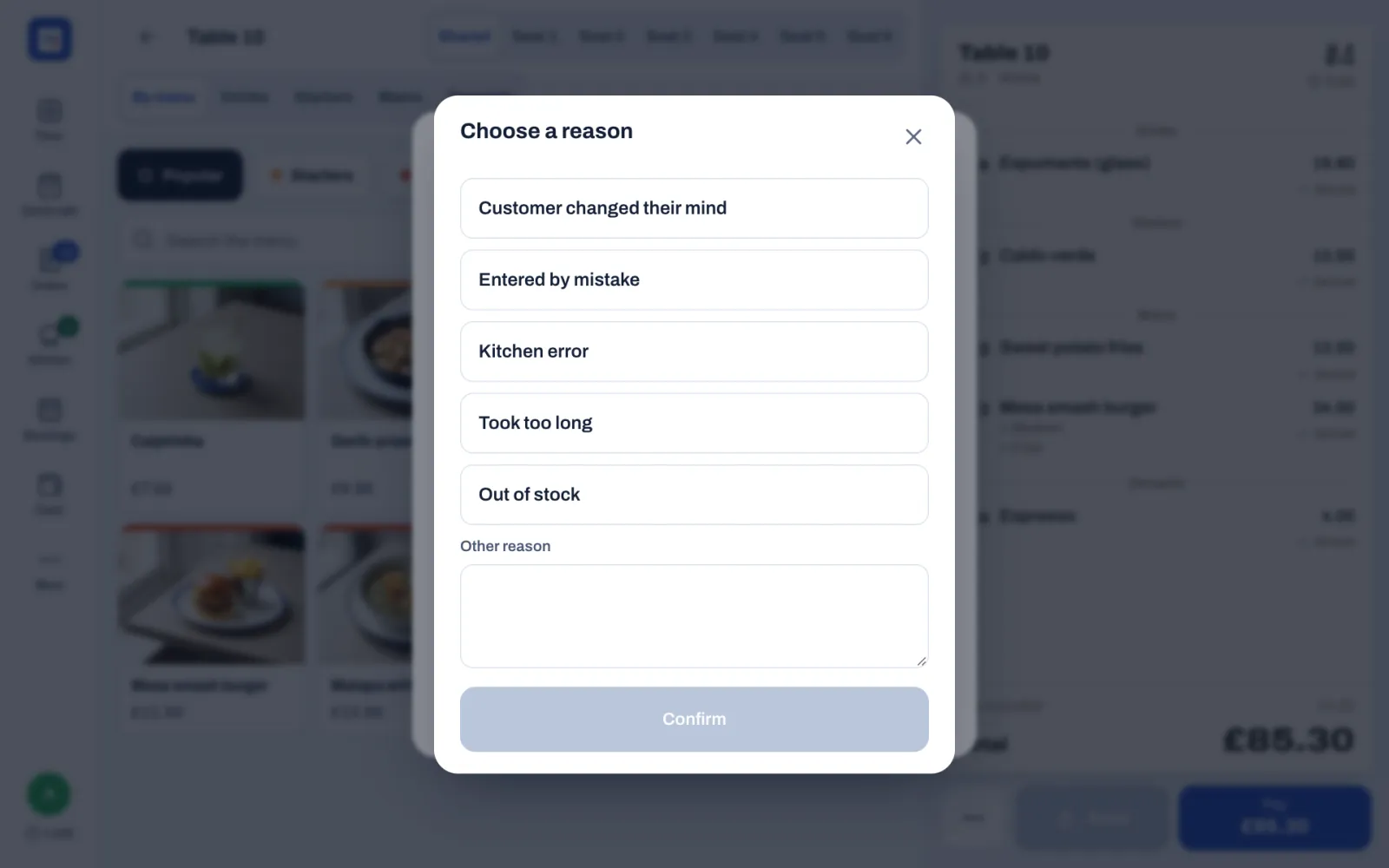
The item is crossed out on the check, with Voided and the reason, and the total no longer includes it. The kitchen gets a VOID ticket for it, on screen or on paper, so the cooks stop; on the kitchen display it stays until a cook taps Got it. If you voided only some of them, the rest stay on the check.
Sofrito asks for the reason when Ask why an item is voided is on in Back office › Settings › Security (on in a new restaurant). You choose the reasons staff can tap in Back office › Settings › Reasons.
If you void every item on a check, Pay says there is nothing to charge: close the check with ••• › Void order.
Void a whole order
Use this for an order opened by mistake, or for guests who leave before eating.
- Open the order.
- Tap ••• › Void order.
- Tap the reason, or type it under Other reason and tap Confirm. A reason is always needed.
- If anything was already sent to the kitchen and your role needs it, a manager approves.
The order closes as Voided, the kitchen gets VOID tickets for what it had, and the table is free again. The order is listed under Orders › Closed, marked Voided, and a booking seated on it is marked Finished. Any loyalty points the guest spent on the order go back to them.
If payments were taken on the order, Void order first says "Void the payments first: the money goes back to the guest. Then void the order." and lists them:
- Tap Void payment on each payment, and tap the reason. See Correct a payment.
- When no payment is left, tap Void order.
- Carry on from step 3 above.
Give an item on the house
A comp makes an item free but keeps it on the check and in the reports.
- Tap the item on the check. Items marked New must be sent or held first.
- Tap Comp.
- Tap the reason, for example Birthday.
- If your role needs it, a manager approves.
The price is crossed out and On the house shows under the item. The comp covers every unit on that line. Sofrito asks for the reason when Ask why an item is free is on in Back office › Settings › Security.
To undo a comp, tap the item and tap Undo comp. This needs the same permission as the comp.
Change the price of an item
When an item must cost something other than its menu price, for example a dish served smaller:
- Tap the item on the check. Items marked New must be sent or held first.
- Tap Change price.
- Type the new price for one item under New price for one. Below it, Sofrito shows the price now, for example "Now £4.50 for one".
- Tap Change price.
- If your role needs it, a manager approves.
The item shows Price changed and its new total. Change price doesn't show for comped items, or for dishes whose price staff type at the till (Open price). Every price change appears in Reports › Exceptions under Price changes, and in the audit log with the old and the new price.
Apply a discount
On one item
- Tap the item on the check. Items marked New must be sent or held first.
- Under Discount, tap one of the restaurant's discounts, for example Staff meal.
On the whole check
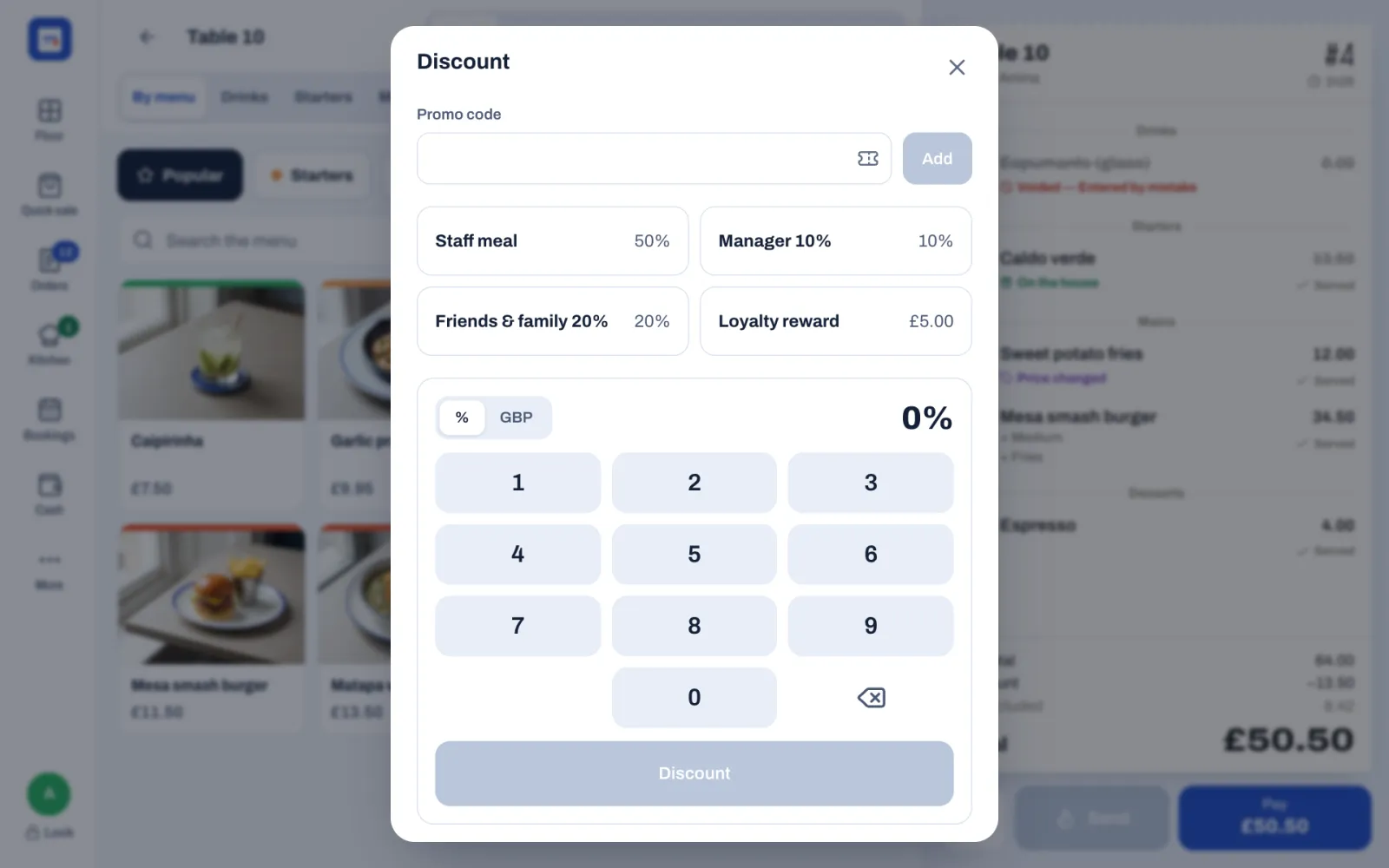
- Tap ••• › Discount.
- Tap one of the restaurant's discounts. The value shows next to each, for example 20% or £5.00.
- If Sofrito asks for a reason, tap it.
- If your role needs it, a manager approves.
To give a discount of your own, use the lower part of the same window instead of step 2:
- Tap %, or the currency for an amount (GBP in the demo).
- Type the value.
- Tap Discount.
With a promo code
When one of the restaurant's discounts has a promo code (set in Back office › Settings › Discounts), the Discount window starts with a Promo code box.
- Tap ••• › Discount.
- Type the code the guest gives you. Capital or small letters don't matter.
- Tap Add.
The discount comes with its own rules: a reason or a manager's PIN, if it asks for them. If no discount has that code, Sofrito says, for example, "No discount has the code SPRING10."
On the check
The discount shows at the bottom of the check with its name and amount. The totals show the Subtotal and the Discount, which includes any comps. To remove a discount, tap × next to it. Removing a discount paid with loyalty points gives the guest their points back.
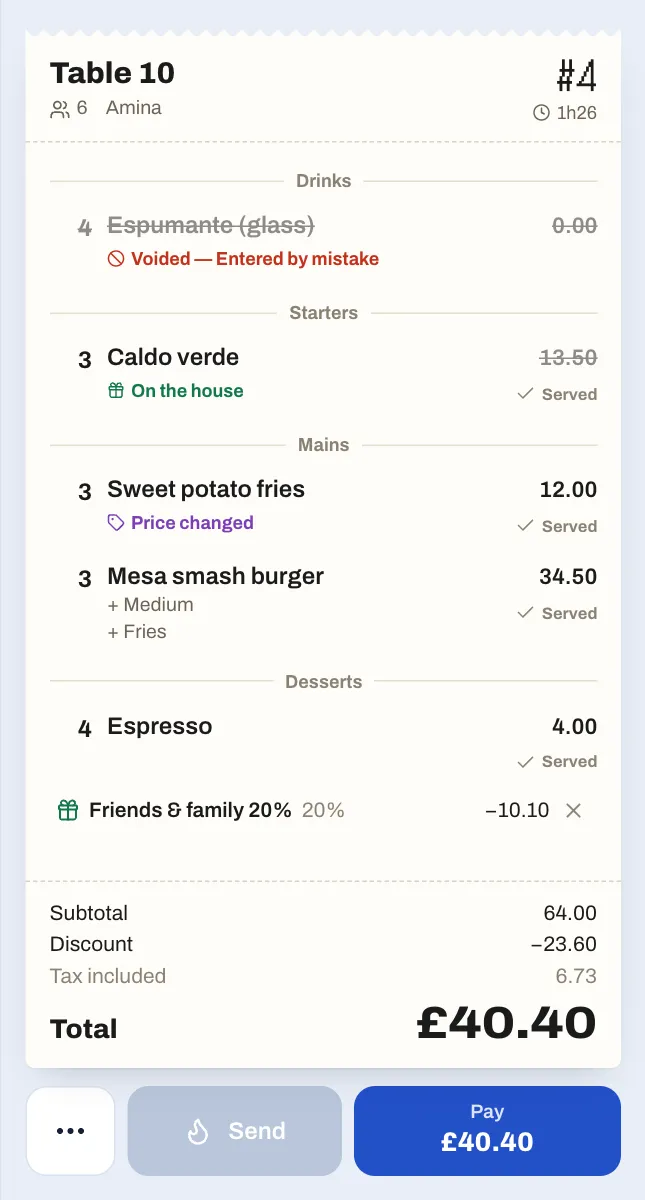
A discount needs a manager when:
- it is bigger than the Discounts up to limit (a fixed amount counts as its share of the check);
- it is marked Needs a manager's PIN in Back office › Settings › Discounts, like Manager 10% and Friends & family 20% in the demo;
- your role doesn't have Apply discounts.
Sofrito asks for a reason for discounts marked Ask for a reason, and for your own discounts when Ask why an item is free is on.
Remove an automatic service charge
A service charge that Sofrito adds by itself, for example Service 10% on tables of eight or more in the demo, shows on the check with an ×. Removing it counts as a discount: you need Apply discounts, or a manager approves. Once removed, it stays off that check, even if more guests join. To put it back, tap ••• › Service charge and choose it.
Refund a paid order
- Tap Orders.
- Tap Closed.
- Tap the order.
- Tap Refund.
- For each item to give back, tap + once for each one, or All. Each row says how many are left to refund, for example "2 left to refund", and − takes one off.
- Tap how the money goes back: Cash, Card, a mobile money method, or the gift card or house account that paid for the order. Only payment methods that are switched on are listed, and the one the order was paid with is chosen first. The red button shows the total, for example Refund £7.50.
- Tap Refund £7.50.
- Tap the reason.
- If your role needs it, a manager approves.
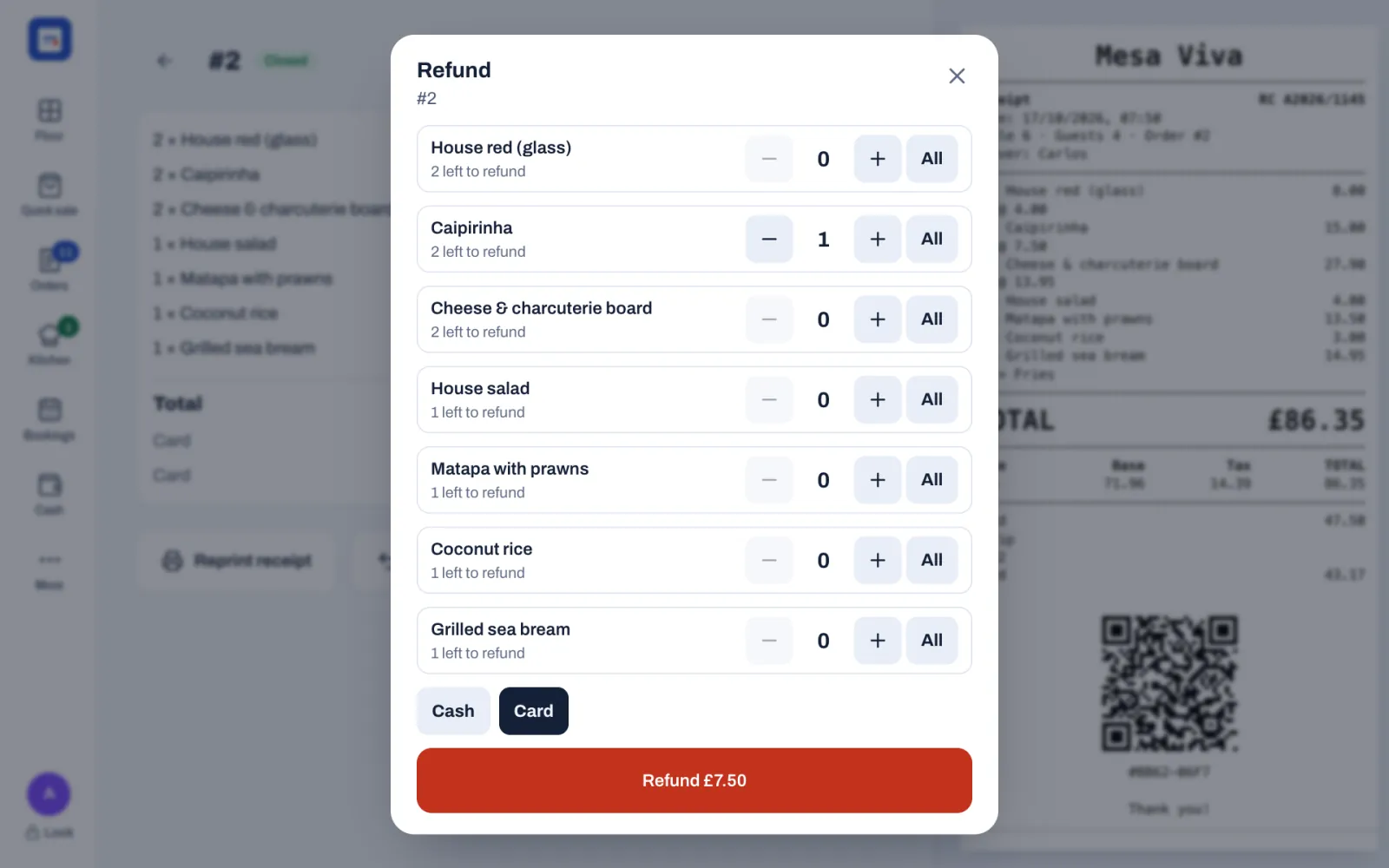
What happens next:
- Sofrito issues a credit note for the refunded items.
- A cash refund opens the drawer, and the amount comes out of the cash the drawer should hold. If no drawer is open, the Starting cash window opens first, before any manager's approval: "Count the cash in the drawer before the refund is paid out of it." Count the cash, tap Open drawer, and the refund goes on.
- A gift card refund puts the money back on the card that paid, and a house account refund takes it off what the guest owes. Neither can give back more than the card or the account paid.
- A card or mobile money refund is only recorded in Sofrito. Make the refund on the card terminal, or send the money back, yourself.
- If a guest is on the order, the refund takes back the loyalty points its share of the order earned, and gives back the points spent on that share.
Tap the back arrow and open the order again: it now shows a Refund line, and the refunded items carry a badge, for example −1. You can't refund more of an item than was sold, or more money than was paid. A refund is booked on the day you make it, even when the order's own day is already closed.
Reopen a paid order
Reopen puts a paid order back on the floor so you can correct it: a dessert ordered after the bill, a payment taken with the wrong method, or a wrong tax number on the receipt.
- Open the order from Orders › Closed.
- Tap Reopen.
- Tap the reason, for example Items added after paying.
- If your role needs it, a manager approves.
Sofrito cancels the receipt with a credit note, and the order opens again with its payments. Then:
- To add items, add them and take payment for the difference. Sofrito issues a new receipt when the order is paid in full.
- To fix a payment, void it under Payments taken and take it again: see Correct a payment.
- When nothing is left to pay, tap Pay. The window says "Nothing is left to pay. Close the order to issue its receipt." Tap Close order.
Until the order is closed again, the guest's visit, spend and loyalty points from it are taken back; closing it counts them once. An order whose business day has been closed (Z) can't be reopened: Sofrito says, for example, "The business day of this order (16 October 2026) is closed. Refund it instead."
Open the drawer without a sale
- Tap Cash.
- Tap No sale.
- Tap the reason, for example Change for a note, or type one.
- If your role needs it, a manager approves.
The drawer opens. The drawer's Movements list shows No sale with the reason, and the audit log records it as Drawer opened without a sale.
Find every exception in the reports and the audit log
Owners and managers check these actions in the back office.
The Exceptions report
- In the back office, select Reports.
- Select Exceptions.
- Choose the dates: Today, Yesterday, Last 7 days, Last 30 days, This month, or your own dates.
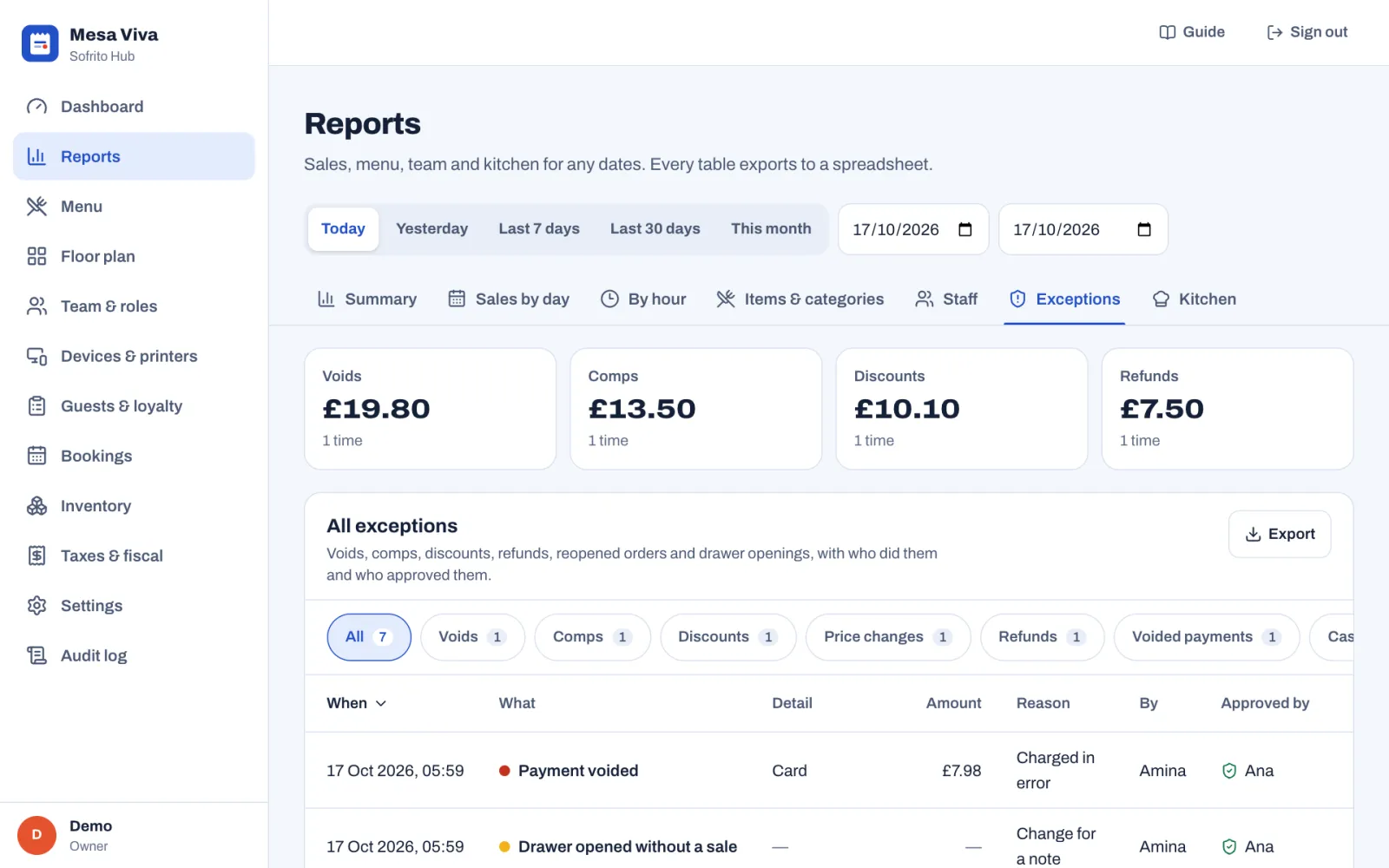
- Four tiles show the total and the number of Voids, Comps, Discounts and Refunds. Select a tile to list only those.
- All exceptions lists every void, comp, discount, price change, refund, voided payment, reopened order, drawer opened without a sale and pay-out, with When, What, Detail, Amount, Reason, By and Approved by. Not needed means nobody had to approve it. The buttons above the table filter by kind: Voids, Comps, Discounts, Price changes, Refunds, Voided payments, Reopened orders and Cash drawer, each shown when it has entries.
- By employee shows how often each person used these actions, and for how much. Voided payments count with the refunds.
- Export downloads each table as a spreadsheet.
The other reports show the same money: the Summary has lines for Discounts, Comps, Refunds and Voids, and Staff shows each person's discounts, comps and voids. See Dashboard and reports.
The audit log
- In the back office, select Audit log.
- Choose the dates.
- Under Activity, choose Voids, comps, discounts and refunds.
- To narrow it down, choose an Employee, or type an item, reason, document or person under Search.
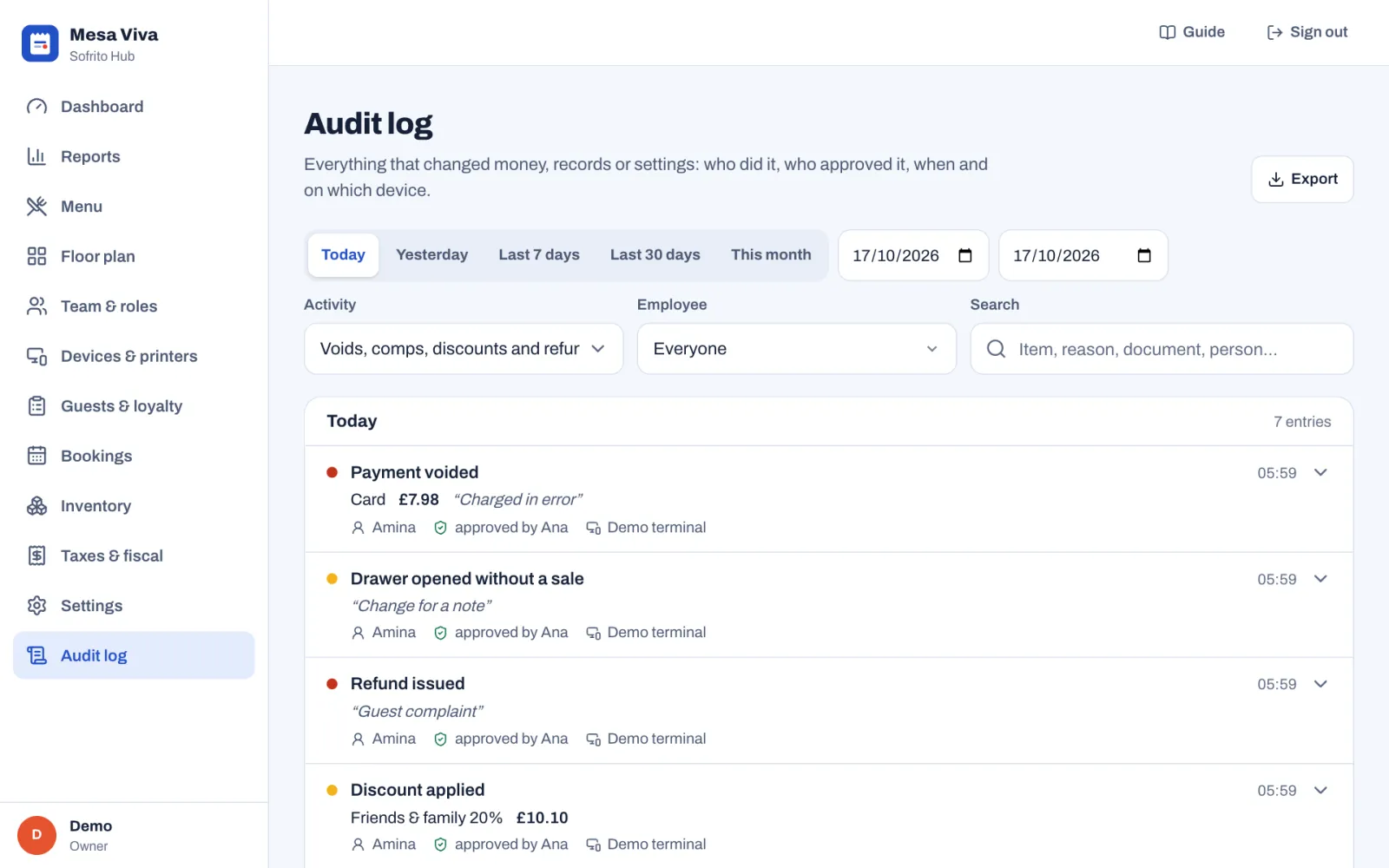
Each entry shows what happened, the details such as the item, the amount and the reason, who did it, approved by whom, the device and the time. Select an entry to see all its details. Export downloads the list. To see the log, a role needs View the audit log. See Security, the audit log and your data.
Good practice
- Everyone works under their own PIN, and managers type their own PIN for approvals.
- Choose the real reason. Use Other reason when none of the reasons fits, and keep the list of reasons short and clear in Back office › Settings › Reasons.
- Keep the discount limit low, and mark generous discounts Needs a manager's PIN.
- Fix a payment taken with the wrong method with Change method before the bill closes, rather than refunding it afterwards.
- Look at Reports › Exceptions every week. Look for one person with many voids, price changes or voided payments, or voids and refunds late at night with no approval.