Chapters
Guide › Manage the business
Guests, loyalty and gift cards
Sofrito keeps a guest book: everyone you add to an order or a booking, with their visits, what they spend, their preferences and their allergies. When loyalty is on, guests earn points on every paid order and spend them as a discount on a later visit. Gift cards are sold on the till and spent like money. A house account lets a regular charge orders and pay later. This chapter also covers how to look after guests' personal data. Managers set things up in the back office. Staff add guests, spend points and sell gift cards on the till.
Before you start
- To add, change, import, export and erase guests, to adjust points, to give and correct gift cards and to open house accounts, your role needs Manage guests and loyalty. To find and add guests on the till, staff need Look up guests. Selling gift cards and taking house account payments need Take payments. See Your team, roles and PINs.
- To turn loyalty on, you need Restaurant settings.
Open the guest book
- In the back office, select Guests & loyalty.
- Keep Guests selected at the top. Gift cards opens the gift cards instead (see Manage gift cards in the back office).
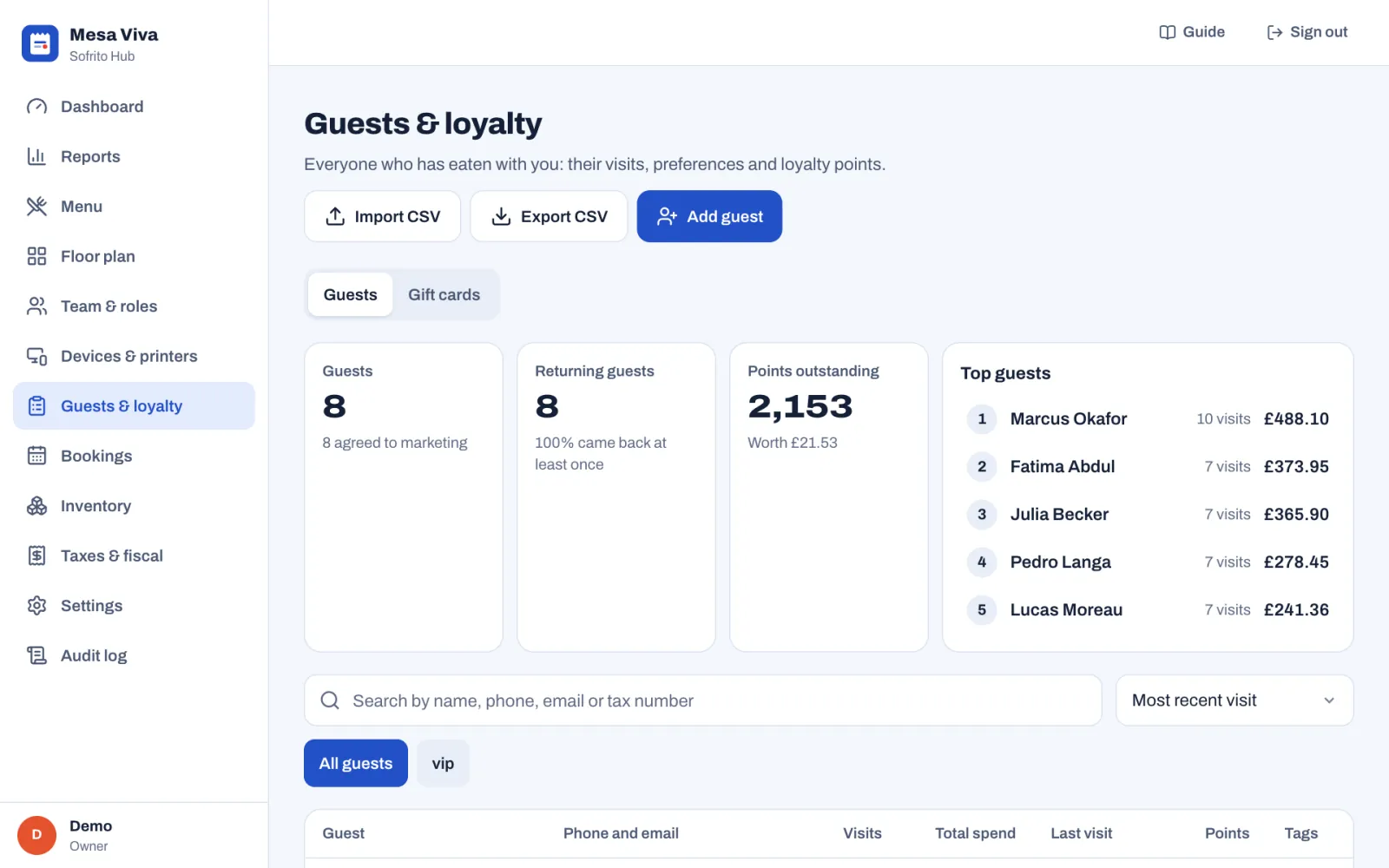
At the top:
- Guests: how many guests you have, and how many agreed to marketing.
- Returning guests: how many came at least twice, and their share.
- Points outstanding: the points your guests hold, and what they are worth as discounts.
- Top guests: your five best guests by total spend. Select one to open their profile.
The tiles count every guest in the book. The list shows each guest's phone and email, Visits, Total spend, Last visit, Points and Tags. A small megaphone next to a name means the guest agreed to marketing.
- Search by name, phone, email or tax number.
- Sort by Most recent visit, Highest spend, Most visits, Most points or Name.
- Select a tag under the search box to list only the guests with that tag.
The list loads 100 guests at a time. Select Show more at the bottom to load more: it says how many are shown.
Add a guest in the back office
- In Guests & loyalty, select Add guest.
- Under Contact, type the First name and Last name, and if you have them the Phone, Email and Birthday. Only a name is needed: a first name, a last name or a company.
- Under Preferences, add Allergies and dietary needs, Notes (a favourite table, the usual order) and Tags. Type a tag and press Enter. Tags such as "vip" or "regular" let you filter the list.
- Under Consent, turn on Agreed to marketing only if the guest said yes to offers and newsletters.
- Under Invoice details, add the Company, the tax number, Address, Postal code and City if the guest asks for invoices in a company's name. The tax number field uses your country's name for it, such as VAT No.
- Select Add guest.
Notes show under the guest's name when staff search for them on the till. Write notes you would be happy for the guest to read.
Let allergies reach the kitchen
A guest's Allergies and dietary needs travel with them. When the guest is on an order, or the order was seated from their booking:
- the check on the till shows a red band, "Allergies:" and what you wrote;
- every kitchen ticket for that order shows it, on the kitchen display, on the till's Kitchen screen and on paper, where tickets start with "ALLERGY:";
- on the till, the guest's button under More shows a warning triangle, and their card says that every kitchen ticket shows the allergies.
When staff search for a guest on the till, guests with allergies show them under their name. The allergies show on the guest's bookings in the back office too.
Add a guest to an order on the till
Add the guest before the bill is paid. That is what counts the visit, adds to what they spend and gives them points.
- On the order, tap the ••• button (next to Send).
- Tap Add guest.
- Type part of the guest's name, phone, email or tax number, then tap the guest. Without a search, the list shows the most recent guests.
- If the guest is new, tap New, type their First name, and if you can their Last name, Phone and Tax number, then tap Save.
The guest is now on the order. Under More, the Add guest button now shows their name. Tap it to see their visits and points, what they owe on a house account, or to choose another guest.
When a booking is linked to a guest, seating the booking opens the table's order with the guest already on it. See Bookings and the waitlist.
See a guest's profile and history
- In Guests & loyalty, select the guest.
The top of the profile shows their Visits, Total spend, Average spend and Last visit, and badges for their birthday, marketing consent, points and house account.
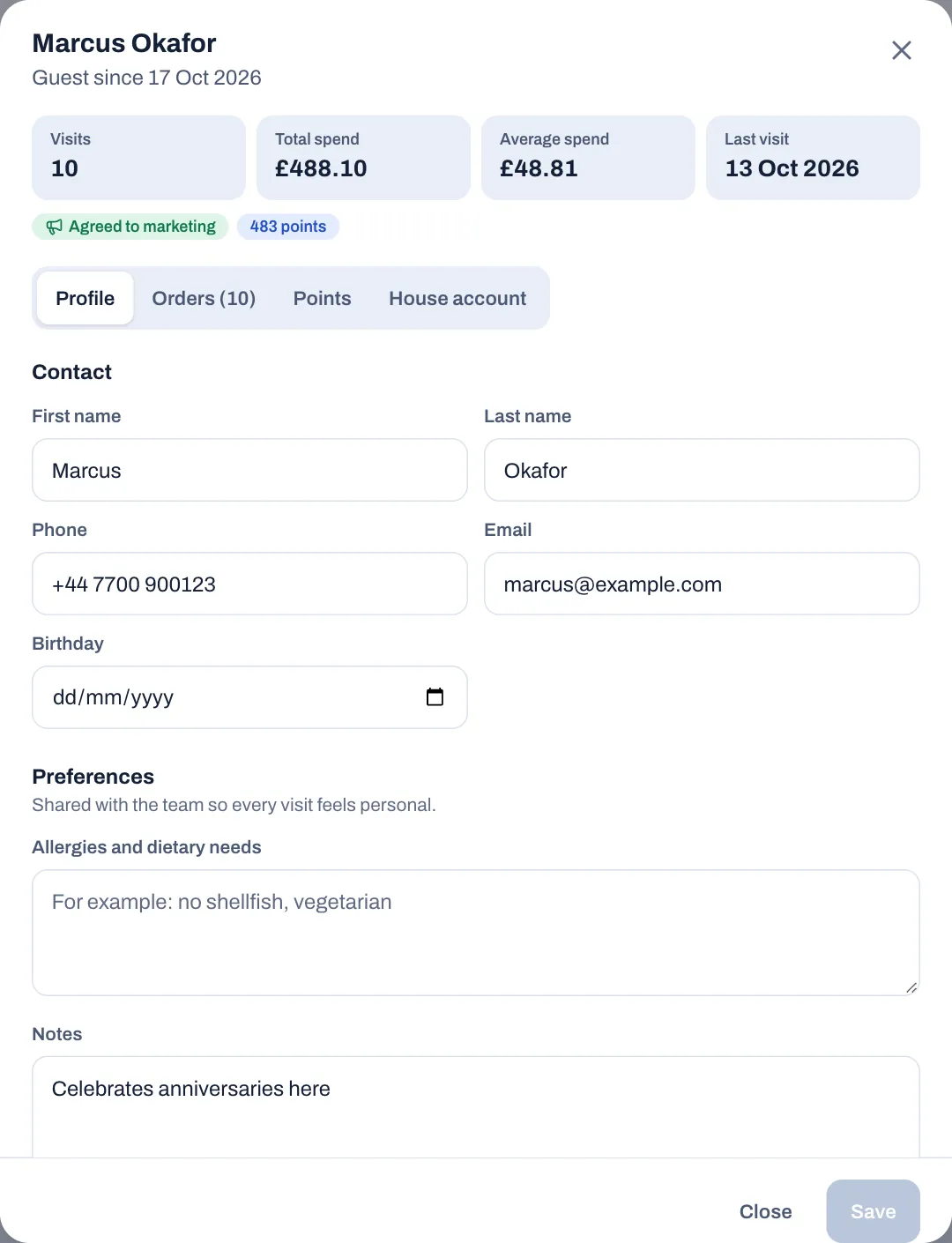
- Profile holds the details you can change. Change them and select Save.
- Orders lists their last 50 orders with the order number, date, type and table, and marks open and voided ones.
- Points shows their points balance and history, and lets you adjust it (see Adjust a guest's points).
- House account opens and runs their house account (see Run a house account).
A visit counts when an order with the guest on it is paid. Total spend adds up those orders, with tax, without tips. If a paid order is reopened, its visit, spend and points come off until it is paid again.
Turn on loyalty points
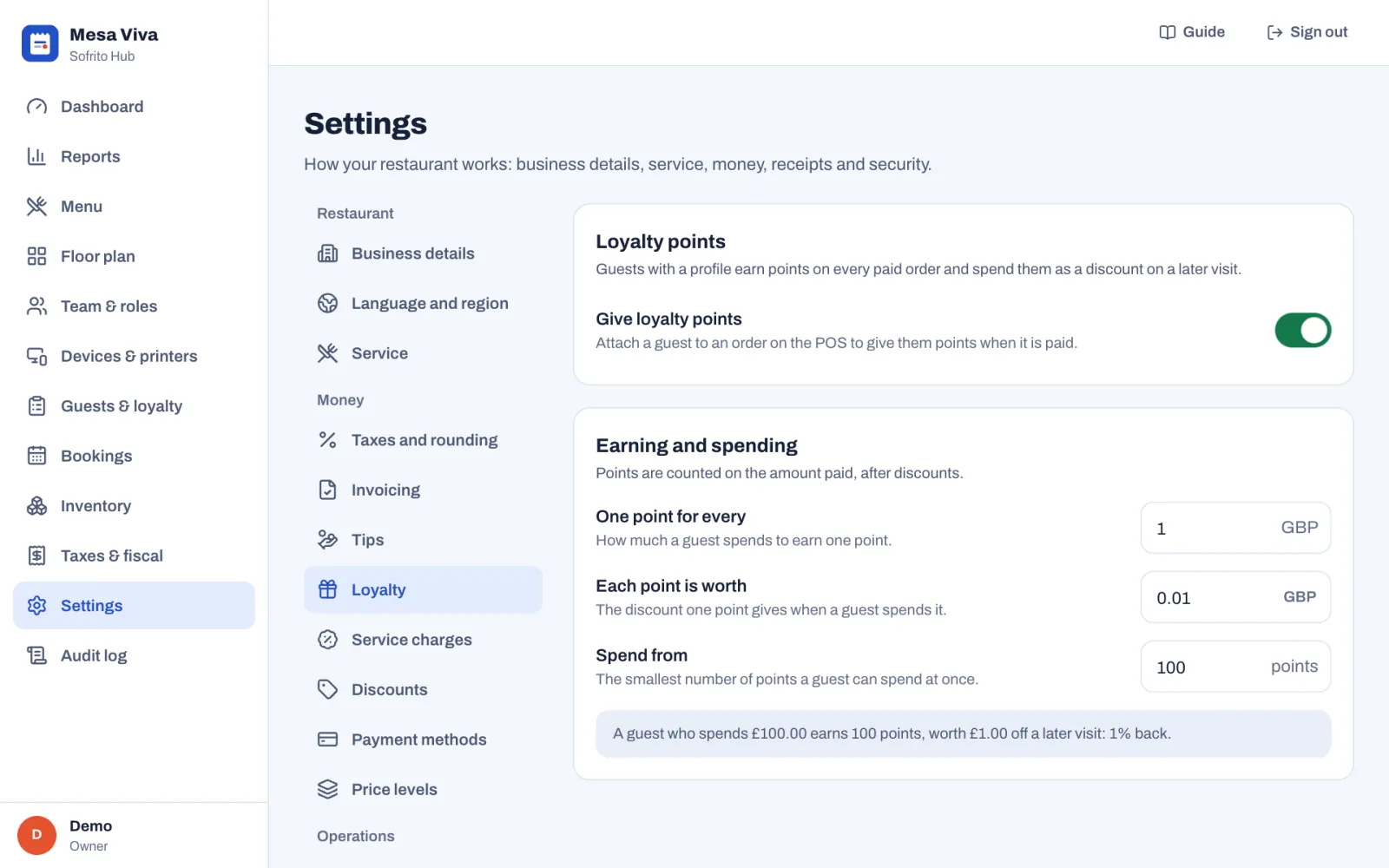
- In the back office, select Settings › Loyalty.
- Turn on Give loyalty points.
- Under Earning and spending, set:
- One point for every: how much a guest spends to earn one point, in whole amounts of your currency, for example 1 for one point per pound.
- Each point is worth: the discount one point gives when a guest spends it, for example 0.01 for one penny.
- Spend from: the smallest number of points a guest can spend at once, for example 100.
- Read the example under the fields. It shows what your rules give back, for example "A guest who spends £100.00 earns 100 points, worth £1.00 off a later visit: 1% back."
- Select Save changes.
When you turn loyalty off, guests keep their points, but new visits don't earn any and staff can't spend them.
Earn points
There is nothing to tap. When an order with a guest on it is paid in full, the guest earns points on the bill total, after discounts and without tips, rounded down to whole points. With one point for every £1, a bill of £35.80 earns 35 points.
Orders without a guest earn nothing, and points can't be added to an order after it is paid. If that happens, add the points by hand (see Adjust a guest's points). When part of an order is refunded, the guest loses the same share of the points it earned.
Spend points at the till
- Open the order and add the guest, if they are not on it yet (see Add a guest to an order on the till).
- On the order, tap the ••• button (next to Send), then tap the guest's name.
- The guest's card shows their visits and their points, for example "371 points, worth £3.71".
- Tap Use {n} points: {amount} off, for example Use 371 points: £3.71 off.
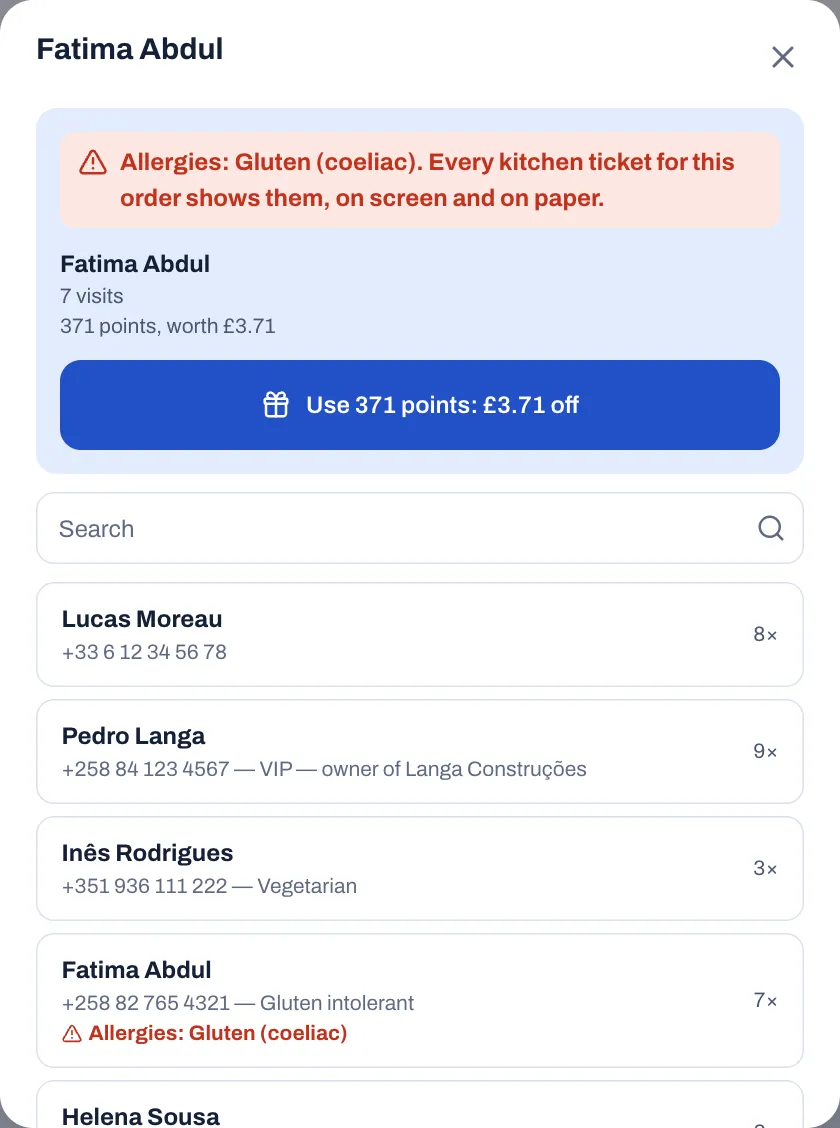
Sofrito spends as many points as the bill allows: all of them, or just enough to cover what is still due. The points become a discount on the order, named in your restaurant's language, for example "Loyalty (371 points)". Staff don't need Apply discounts for it, and it shows in the reports and the audit log like any other discount. The guest then earns new points on what they pay.
The button only appears when the guest can spend at least the Spend from number of points. Below it, the card says, for example, "Points can be spent from 100."
Spent points come back by themselves when someone removes the loyalty discount from the order or voids the order. When the order is refunded, the guest gets back the same share of the points they spent.
Adjust a guest's points
Use this for a goodwill gesture, a birthday bonus, or to correct a mistake.
- In Guests & loyalty, select the guest.
- Select Points.
- Under Adjust points, choose Add or Remove.
- Type the number of Points.
- Type a Reason, or tap Goodwill gesture, Birthday bonus or Correction. A reason is required.
- Select Add {n} points or Remove {n} points, for example Add 50 points.
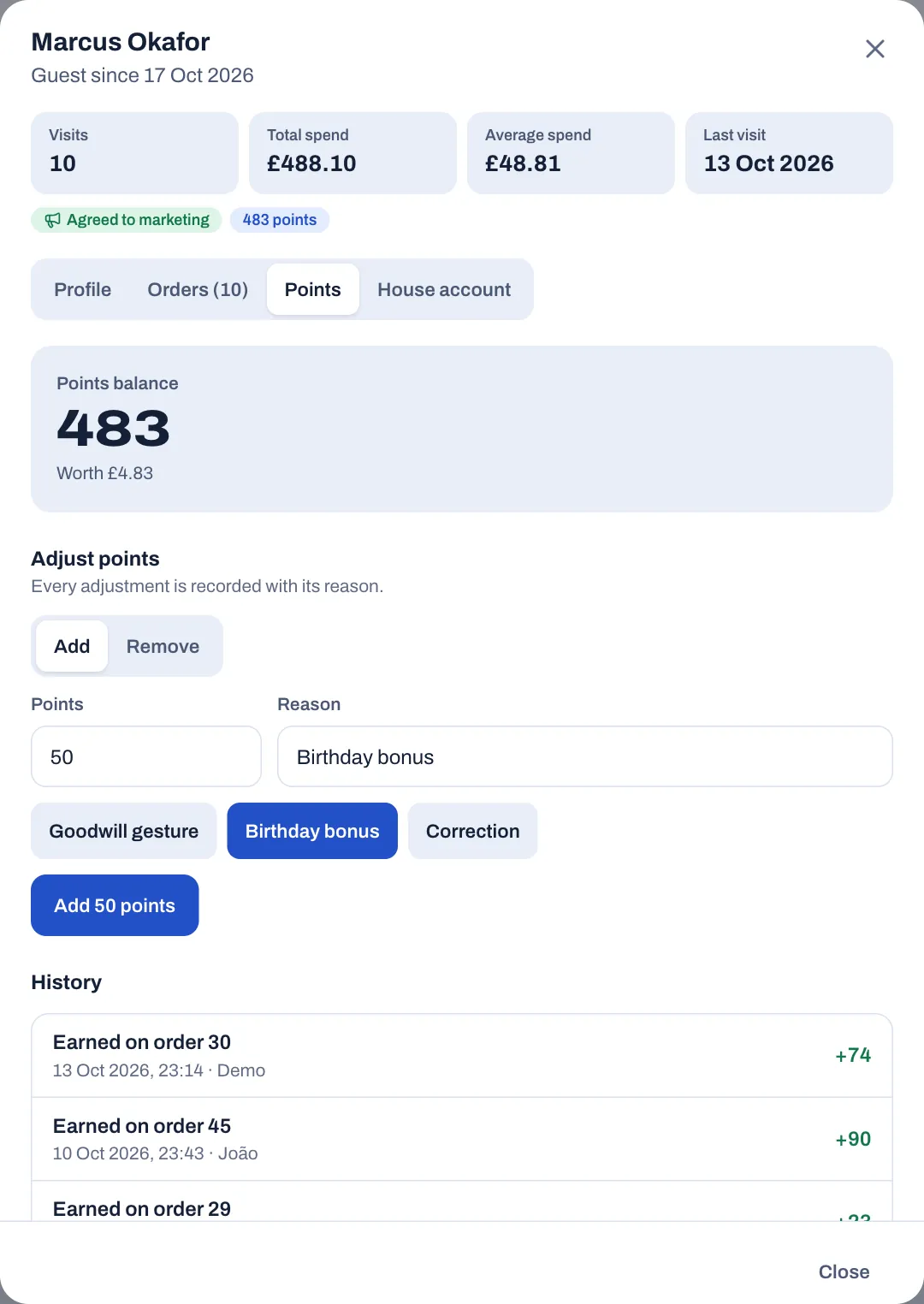
You can't remove more points than the guest has. Each adjustment goes in the audit log, as Loyalty points changed by hand, with your reason.
History, under it, lists every change to the guest's points, newest first, with the date, the reason or who made it: Earned on order and its number, Spent on order, Changed by hand, Given back from order (points spent that came back) and Taken back from order (points earned that went, after a refund or a reopened order).
Sell gift cards and take them as payment
Gift cards are sold, topped up and checked on the till, under More › Gift cards, by anyone whose role can take payments. Guests spend them on the payment screen with the Gift card method, and Sofrito takes the amount off the card's balance. The steps are in Sell a gift card or check its balance and Take a gift card.
Selling a gift card is not a sale: Sofrito issues no receipt or invoice for it and charges no tax. The tax is charged on the order the card pays for. The money taken shows on its own in the reports and on the X and Z reports, under Gift cards and house accounts (see Dashboard and reports). Cash taken for a card goes into the open cash drawer. A gift card or a house account can't pay for a gift card.
If a gift card payment was a mistake, it can be voided under Payments taken before the order is paid in full: the amount goes back on the card. After the order is closed, a refund with the Gift card method puts the money back on the card that paid, never more than it paid. For voids and refunds, see Voids, discounts, refunds and approvals.
Manage gift cards in the back office
- In the back office, select Guests & loyalty.
- Select Gift cards at the top.
The tiles show how many Gift cards you have, how many have money left, and the Money on cards: what guests can still spend. The list shows each card's Code, Guest, Balance, what it was Issued for and its Last change. Search by code or guest.
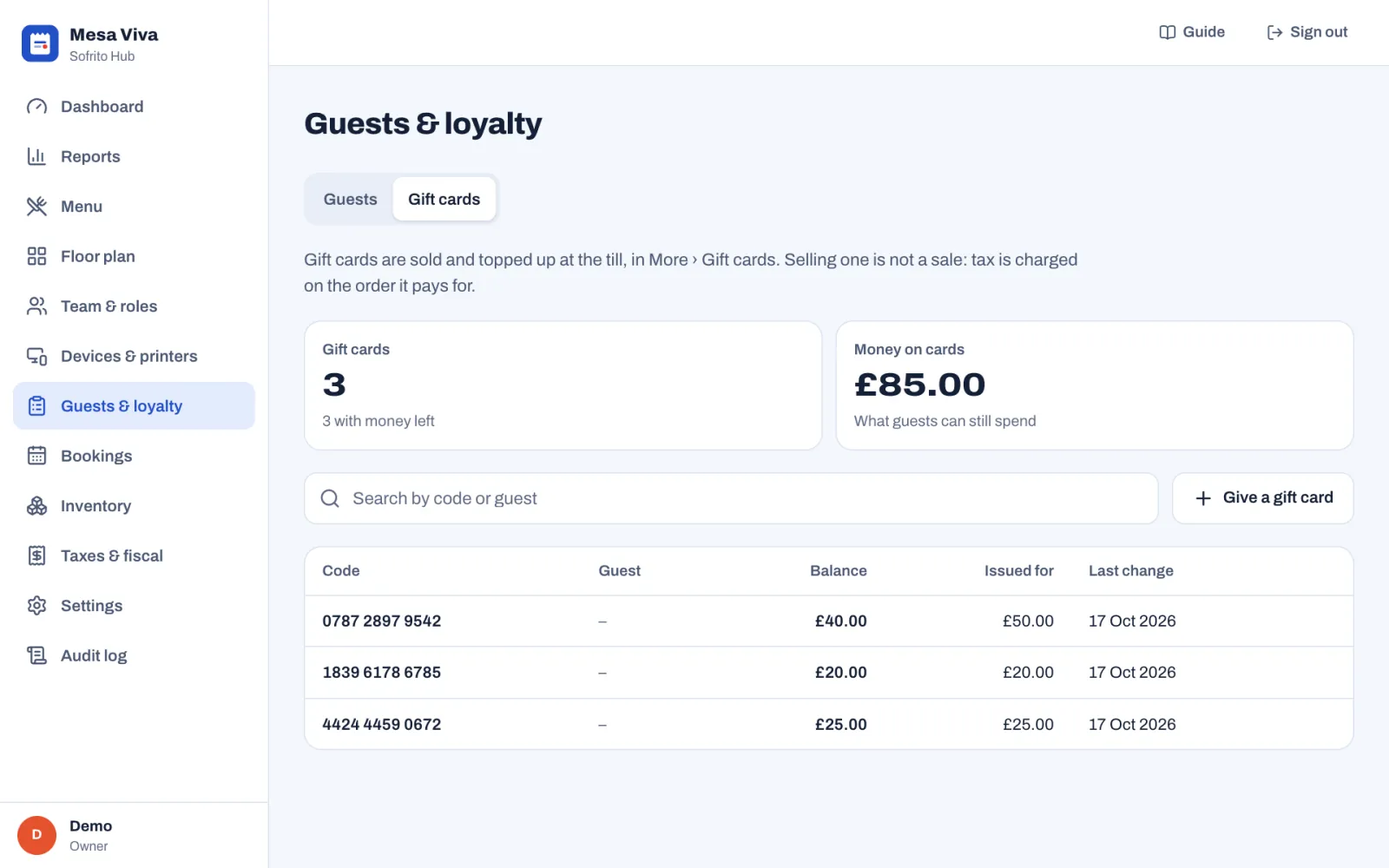
Select a card to see its balance and its History: issued, topped up, spent, payment voided, refunded and corrected, with the date, the order number, how it was paid and who did it.
To give a gift card away, for a prize or a goodwill gesture, without taking money:
- Select Give a gift card.
- Type the Amount.
- Under Code on the card, type the code of the card you hand over, or leave it empty for a new code.
- Type a Reason, such as "Competition prize".
- Select Create the gift card.
To correct a card's balance, open the card. Under Correct the balance, choose Add or Take off, type the Amount and a Reason, then select Save the correction. Every correction stays in the card's history with its reason, and in the audit log.
Run a house account
A house account lets a guest, such as a regular or a company, charge orders and pay later, up to a credit limit. Your restaurant needs a House account payment method first: see Payment methods, tips and service charge.
To open one:
- In Guests & loyalty, select the guest, then House account.
- Type the Credit limit: orders can be charged to the account until the guest owes this much.
- Select Open a house account.
On the till, staff add the guest to the order, then choose the house account method on the payment screen: see Charge a guest's house account. The guest's card under More shows what they owe and what is left, for example "House account: £120.00 owed, £380.00 left".
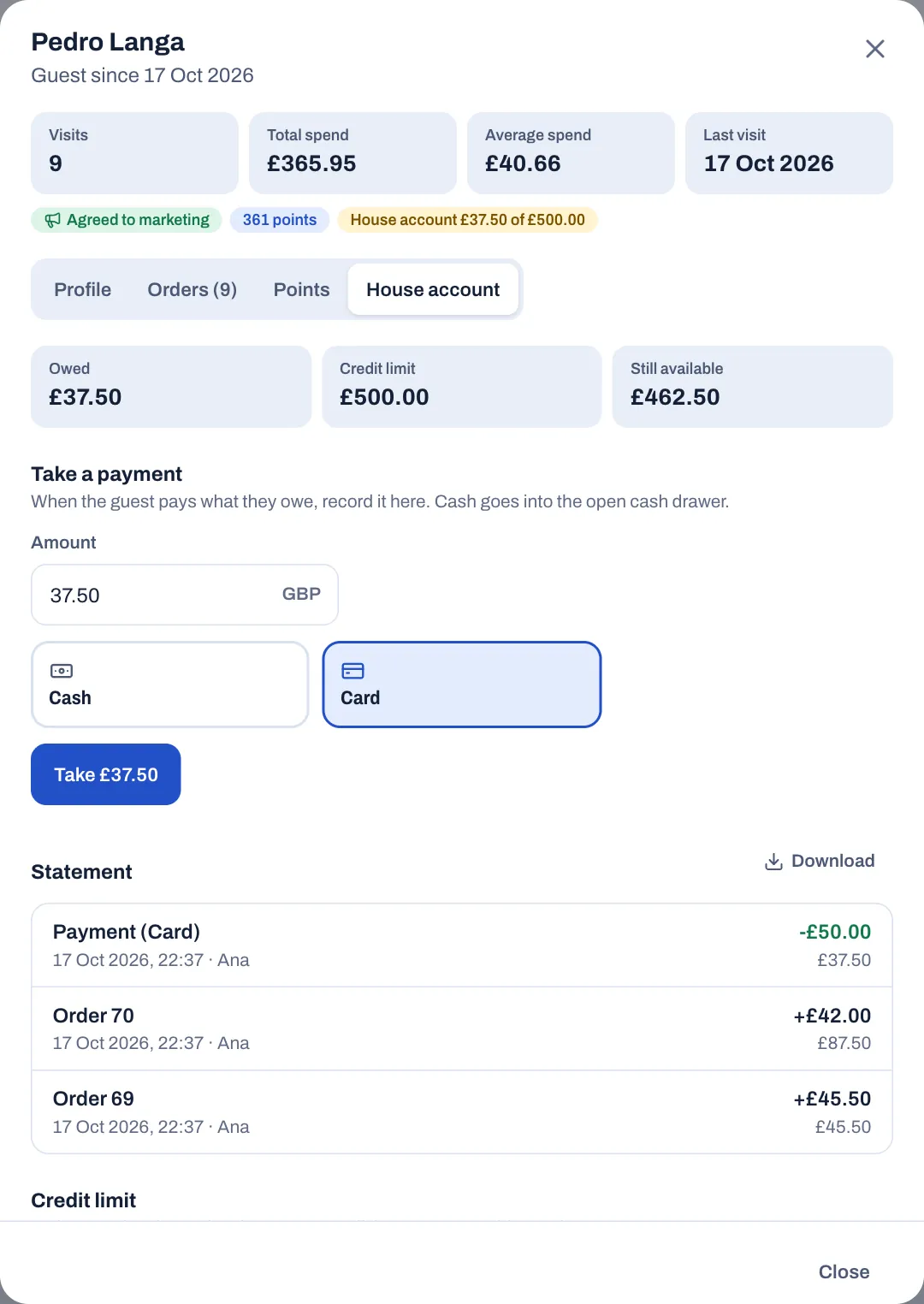
On the guest's House account tab:
- Owed, Credit limit and Still available say where the account stands.
- Take a payment: when the guest pays what they owe, type the Amount, choose how they pay and select Take {amount}, for example Take £37.50. Cash goes into the open cash drawer. Like a gift card sale, it is not a sale: the orders charged to the account were the sales.
- Statement lists every order charged and every payment, with the Date, What, Amount and what is Owed after. Download saves it as a CSV file you can send to the guest.
- Credit limit: type a new limit and select Save the limit. The change goes in the audit log.
- Close the house account, then Tap again to close it, once the guest owes nothing.
A void or a refund of an order paid on the account takes the money off what the guest owes. A guest who still owes money can't be erased.
Import guests from a spreadsheet
Bring your existing guest list into Sofrito from a CSV file. Most spreadsheets and booking systems can save one.
- In Guests & loyalty, select Import CSV.
- Not sure about the format? Select Download template and fill it in.
- Drop the file on the window, or select it from your computer. It must be under 10 MB.
- Check which columns Sofrito found (Using) and which it will leave out (Ignoring). The first row should name the columns: first name, last name (or just name), phone, email, birthday, tags, allergies, notes and marketing. Column names in English, Portuguese, Spanish and French all work.
- Choose what to do with guests already in your list. Sofrito matches them by email or phone number. With Skip guests already in your list on, they are left as they are. With it off, their details are updated from the file.
- Check the rows. Each one is Ready, Already a guest, skipped (or Updates the guest), Repeated in the file, skipped or No name, skipped.
- Select Import {n} guests.
The file is read on your device, and nothing is saved until you import. When guests are updated, Sofrito says how many were added and how many updated. An update never creates a second profile: empty cells keep what the guest already has, and tags in the file are added to theirs.
Export guests
- In Guests & loyalty, select Export CSV.
- Read the note about personal data.
- To send a newsletter, turn on Only guests who agreed to marketing.
- Select Download {n} guests.
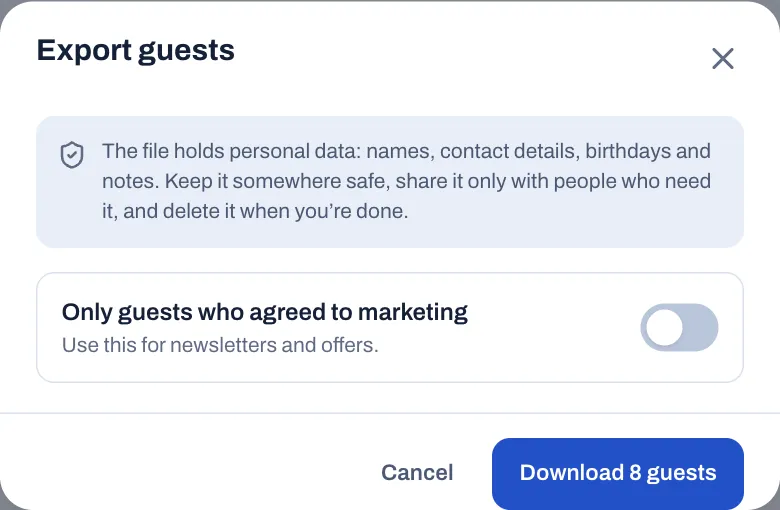
The file has each guest's name, company, contact details, tax number, birthday, tags, allergies, notes, marketing consent and address, then their visits, total spend, last visit, points and the date they were added. Its columns match what the import reads, so you can import it again.
Look after guests' personal data
Names, phone numbers, birthdays and allergies are personal data. Data protection laws, such as the GDPR in Europe and the UK, give guests rights over it.
- Ask before you record. Tell guests why you keep their details: to recognise them, to remember their allergies, to give them points.
- Marketing needs a yes. Turn on Agreed to marketing only when a guest agrees, and send offers only to those guests. Turn it off when they ask you to stop.
- Keep exports safe. A guest export holds everyone's details. Share it only with people who need it, and delete it when you are done.
- Who sees guests. Staff with Look up guests can find guests on the till and see their phone, notes and allergies there. Managers with Manage guests and loyalty can see and change everything in the back office.
- One guest book for all your locations. If you have several locations, they share the same guests.
Erase a guest who asks you to
When a guest asks you to delete their data:
- In Guests & loyalty, select the guest.
- At the bottom of Profile, under Erase this guest, select Erase guest.
- Select Tap again to erase for good.
Sofrito removes the guest's name, contact details, birthday, notes, allergies and tags for good, including from their bookings and the waitlist, and takes them off every list. Their visits and spend stay in your reports without a name. Invoices already issued keep what tax law requires. The audit log records who erased a guest, but not the guest's details. A guest who still owes money on a house account can't be erased: settle the account first.