Chapters
Guide › Manage the business
Stock, recipes and suppliers
Inventory follows what you buy: flour, oil, coffee, takeaway boxes. You record what arrives, what is thrown away and what is on the shelves when you count. With recipes linked to your dishes, every dish sold takes its ingredients out of stock, and Sofrito tells you what is running low and suggests what to order. This chapter is for owners, managers and head chefs.
Before you start
- Your role needs Manage inventory. To turn on taking ingredients out of stock as dishes sell, you also need Restaurant settings. See Your team, roles and PINs.
- Your menu should be in Sofrito, so you can link recipes to dishes. See Build your menu.
Understand stock items and units
A stock item is one thing you buy and count, such as "Olive oil" or "Burger buns". Each one has:
| Field | What it means |
|---|---|
| Counted in | The unit you count it in: units, kg, g, L or ml. Recipes, counts and deliveries all use this unit. |
| Purchase unit | Optional. How your supplier sells it, such as a case, bag or bottle. With One {unit} holds you say how much of the counted unit is inside, for example one crate holds 12 L. |
| Cost | What you pay before tax. It is shown per purchase unit when there is one, otherwise per kg for items counted in grams, per litre for items counted in millilitres, or per unit. |
| Par level | How much you want on hand after a delivery. |
| Reorder at | At or below this, the item shows as low and goes on suggested orders. |
The Value of an item is what is on hand times its cost. When a delivery comes in at a new price, Sofrito updates the cost to the average of the old stock and the new delivery. When an item's cost changes, the cost of every dish whose recipe uses it is worked out again.
Open inventory
- In the back office, select Inventory.
The page has six tabs: Stock, Movements, Stock count, Recipes, Suppliers and Purchase orders. Stock opens first.
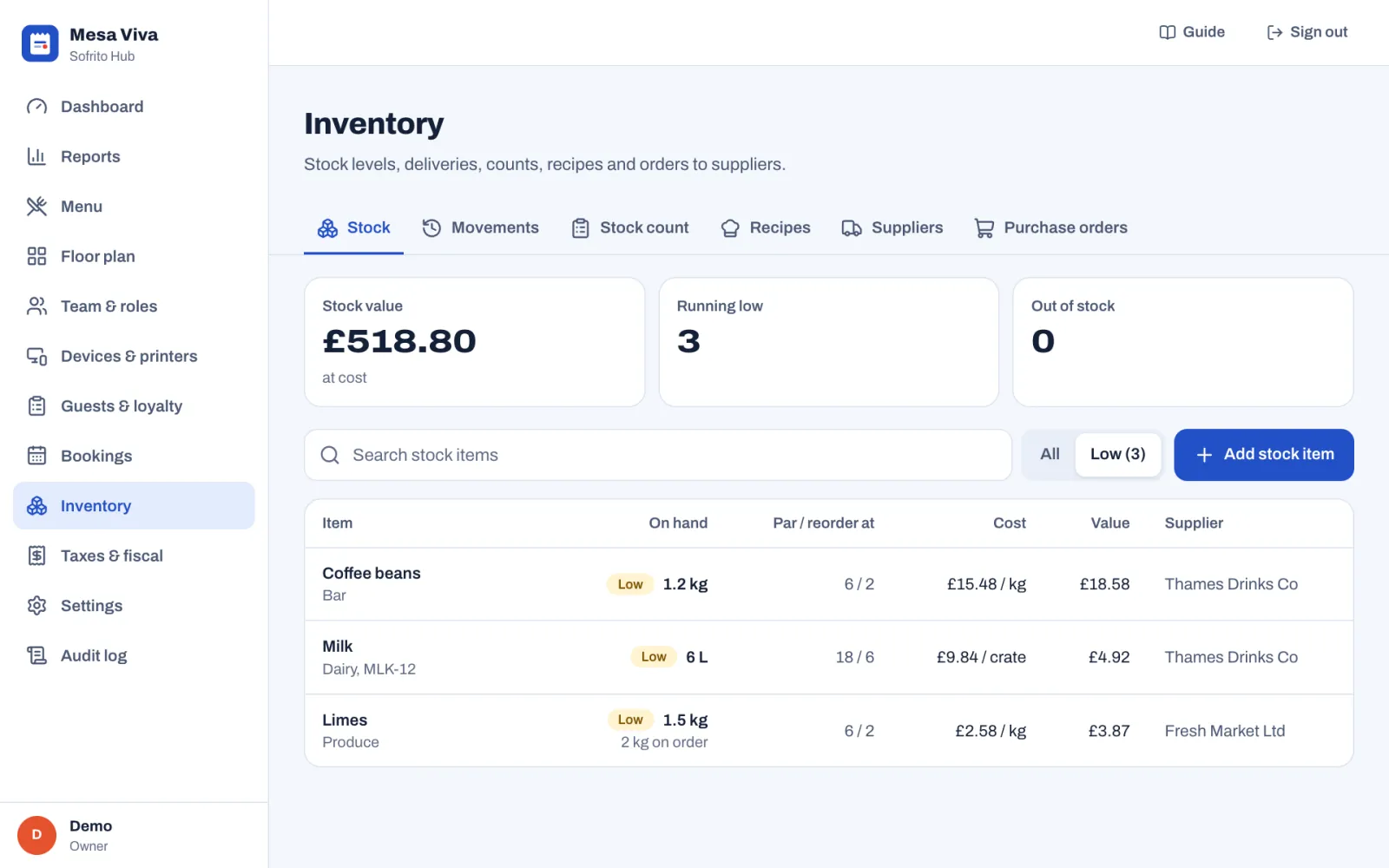
- The tiles show the Stock value at cost, how many items are Running low and how many are Out of stock.
- The list shows each item's On hand quantity, its Par / reorder at levels, Cost, Value and Supplier. A yellow Low badge means it is at or below its reorder point. A red Out badge means nothing is left. A line under the quantity, such as "2 kg on order", shows what open purchase orders will still bring.
- Select Low to see only the items running low or out. Use the search box to find an item by name, category or code.
Add a stock item
- In Inventory › Stock, select Add stock item.
- Type the Name.
- Optional: type a Category, such as "Dairy". Categories group items on lists and count sheets. Sofrito suggests the categories you already use.
- Optional: type a Code, such as the supplier's product code.
- Under Counted in, choose the unit you count it in.
- Optional: if your supplier sells it in packs, type the Purchase unit, such as "case", then how much One case holds in the counted unit.
- Type the Cost per purchase unit, kg, litre or unit, before tax.
- Type the Par level and the Reorder at level, in the counted unit.
- Choose the Supplier, or leave No supplier.
- Optional: type how much is In stock now. Sofrito records it as the first count, with the note "Opening stock".
- Select Add stock item.
If the reorder level is higher than the par level, Sofrito warns you: "The reorder point is above the par level."
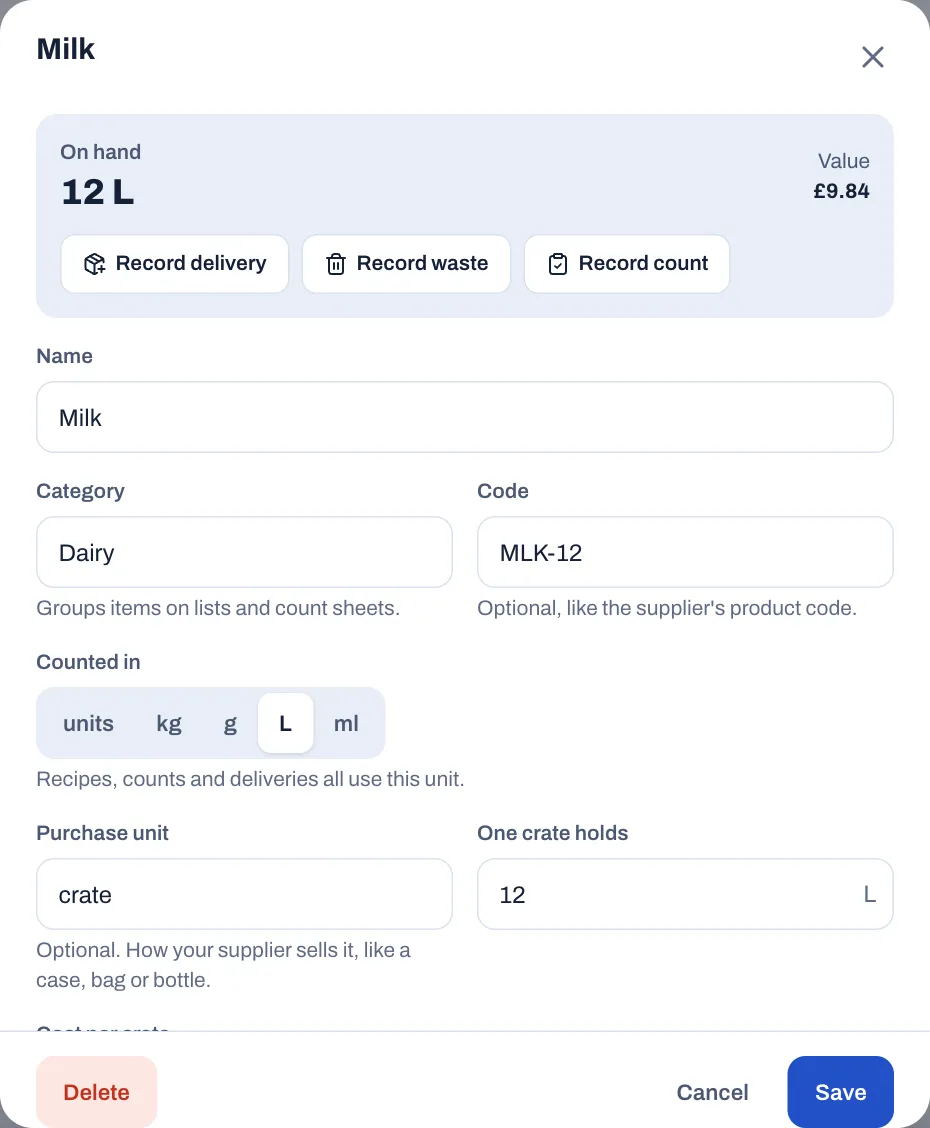
To change an item, select it in the list, change it and select Save. The box at the top of the item shows what is on hand and its value, with buttons to Record delivery, Record waste and Record count for that item.
To stop using an item, open it and select Delete, then Tap again to delete. It leaves the lists, counts and suggested orders, but its movements and past orders stay.
Record deliveries, waste and corrections
Every change to stock is a movement. Sofrito records sales by itself (see Take ingredients out of stock as dishes sell). You record the rest:
| Type | Use it when | What happens to stock |
|---|---|---|
| Delivery | Stock arrived from a supplier. | Adds to what is on hand. |
| Waste | Thrown away, spoiled or broken. | Takes it out of stock. |
| Count | You counted it. | On hand becomes exactly what you enter. |
| Adjustment | You need to correct stock up or down. | Adds or takes away the amount. |
| Transfer out | Sent to another of your locations. | Takes it out of stock here. |
| Transfer in | Received from another of your locations. | Adds to stock here. |
- In Inventory › Movements, select Record movement. From a stock item, you can also select Record delivery, Record waste or Record count.
- Choose the type.
- Choose the Item. The list shows how much of each is on hand.
- Type the Quantity, in the item's counted unit. For a count, type the Counted quantity. For an adjustment, choose Add to stock or Take out of stock first.
- For a delivery, type the Cost per unit if the price has changed. It is optional. A new price updates the average cost.
- Check the line under the fields: On hand now and what it will be After this.
- For waste and adjustments, choose a Reason, such as Spoiled, Past its date, Dropped or broken, Over-portioned, Staff meal or Sent back by a guest for waste.
- Optional: add a Note. For a delivery, the invoice number is a good note.
- Select the button at the bottom, for example Record delivery.
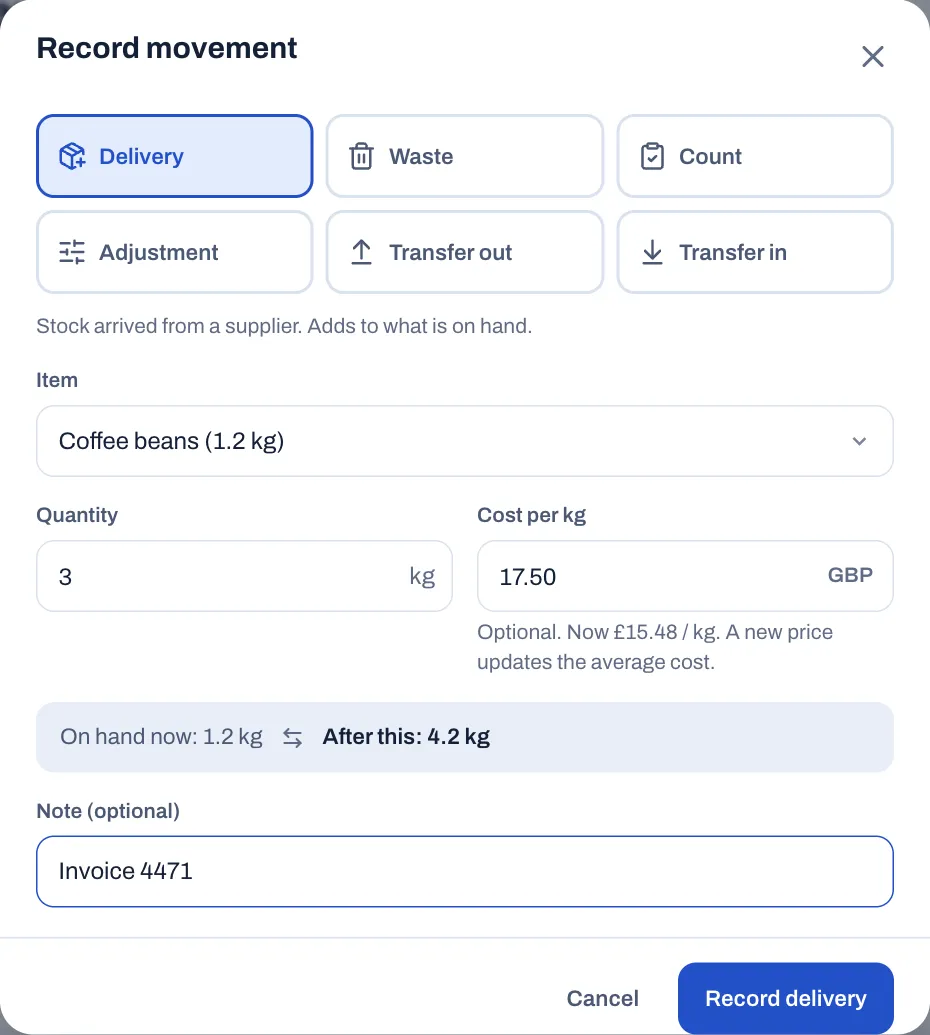
For a transfer between your locations, choose where it went (Sent to) or came from (Received from). The other location records its own side of the transfer.
To see what happened to stock, open Inventory › Movements. Each line shows When, the Item, the Type, the Quantity (in green when stock went up), its Value, a Note, such as your reason, "Sold on order 1042" or "Purchase order 3 received", and By: who recorded it, or for a sale, who sent or closed the order. Filter by item or by type (Deliveries, Waste, Counts and adjustments, Transfers, Sales), and select Show older movements to go further back. Movements you record by hand also go in the audit log, as Stock movement recorded.
Count your stock
A stock count sets each item to what is really on the shelves and records the difference.
- Select Inventory › Stock count.
- Optional: choose a category, or search for an item.
- Count each item and type the quantity in its row. Leave a row empty to skip that item.
- Optional: select Show expected to see what Sofrito expected and the difference for each item, in quantity and at cost.
- When you have finished, select Review and post.
- Check the list and the Difference at cost, then select Post {n} counts. To go back, select Keep counting.
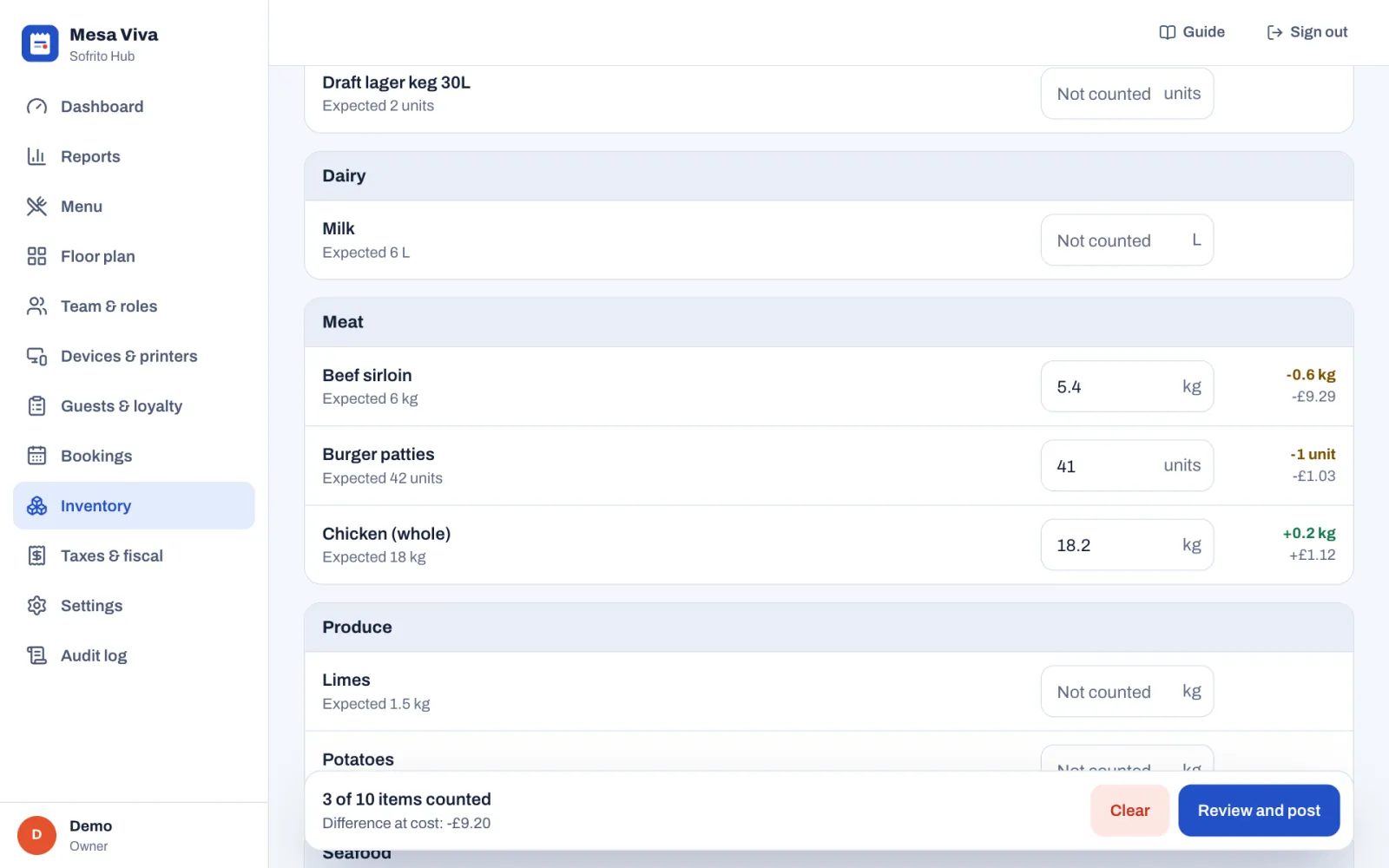
Sofrito records each counted item as a Count movement with the note "Stock count". Items you skipped don't change.
The count sheet stays in this browser until you post it or select Clear, so you can count the dry store today and the cold room tomorrow on the same device. If some items can't be posted, they stay on the sheet so you can try again.
Link recipes to dishes
A recipe says which stock items go into one portion of a dish. It gives the dish its plate cost, and, when you turn it on, takes the ingredients out of stock every time the dish sells.
- Select Inventory › Recipes, and keep Dishes selected at the top.
- Select the dish. Use the search box or the category list to find it.
- Select Add ingredient.
- Choose the Ingredient and type how much goes into one portion under Per portion, in the unit the stock item is counted in. Each line shows its cost and how much is on hand.
- Repeat for each ingredient.
- Check the Plate cost, Food cost and Margin at the bottom.
- Select Save recipe.
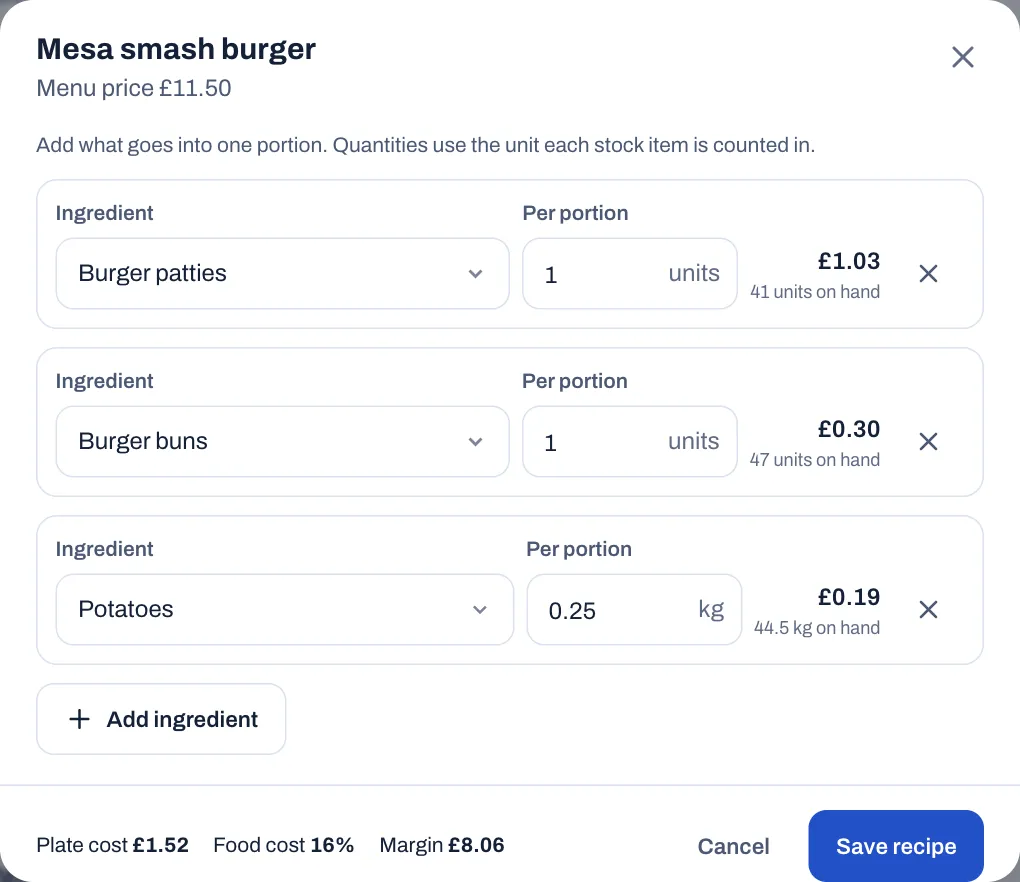
Saving a recipe replaces the dish's Cost to make in the menu with the recipe's cost. To remove a recipe, remove all its lines and save: the dish's cost goes back to zero.
The dish's cost follows its ingredients. When an ingredient's cost changes, for example after a delivery at a new price, Sofrito works out the cost of every dish that uses it again. Reports keep the cost each dish had when it was ordered.
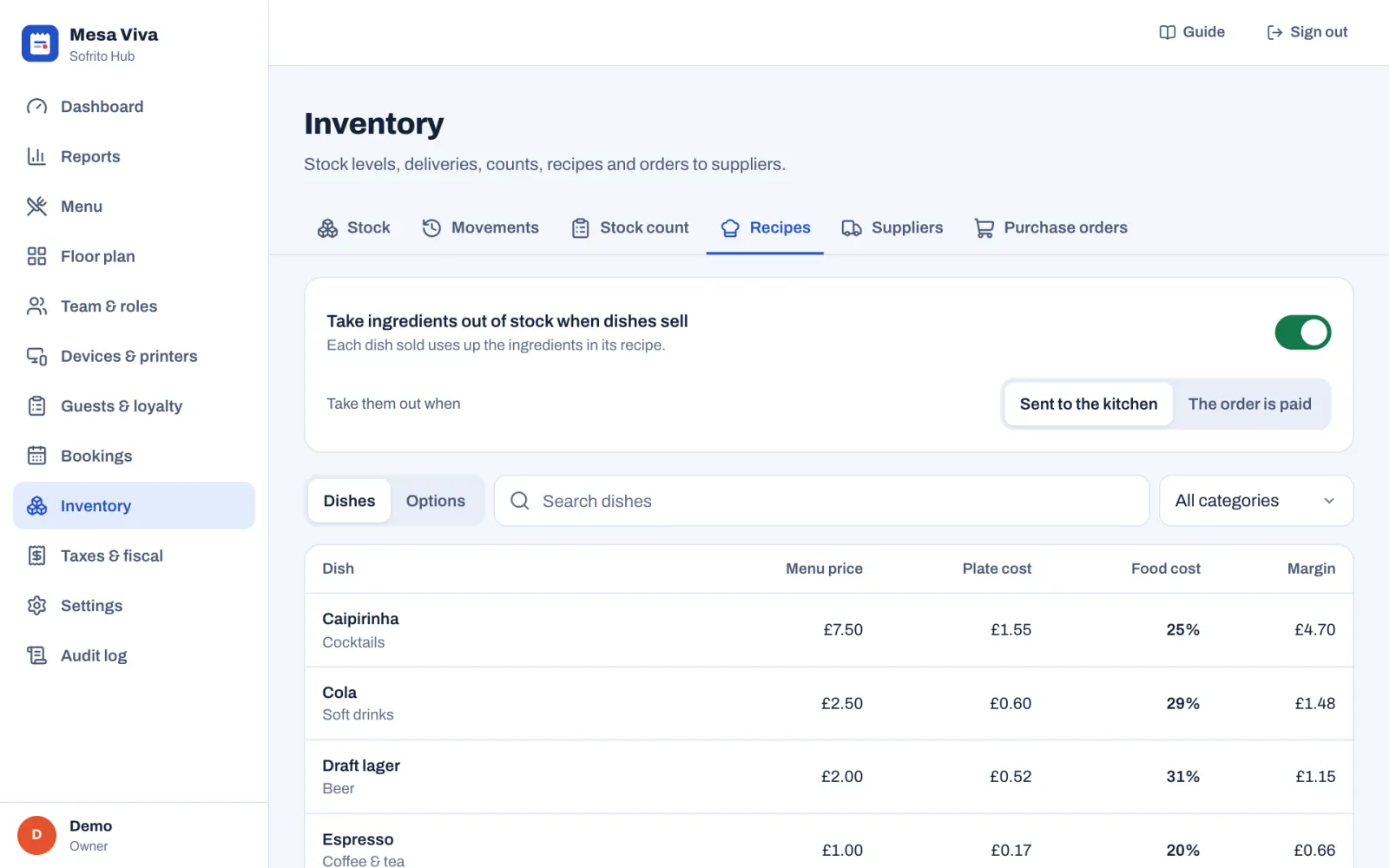
The Recipes tab lists every dish with its Menu price, Plate cost, Food cost (plate cost as a share of the price) and Margin. When your prices include tax, food cost and margin use the price without tax. Dishes above 35% food cost are highlighted. No recipe means the dish has neither a recipe nor a cost. Dishes where staff type the price aren't listed.
Give options a recipe
Options chosen on a dish can use stock too, like the bacon of an extra bacon. Give them a recipe for what one of them adds on top of the dish:
- In Inventory › Recipes, select Options at the top. The list shows every option of every option group, with its Extra charge and Ingredient cost.
- Select the option.
- Select Add ingredient, choose the Ingredient and type how much one of the option uses under Per portion, in the unit the stock item is counted in.
- Repeat for each ingredient, then select Save recipe.
An option with a recipe takes its ingredients out of stock when it sells, and its cost counts with the dish in menu engineering (see Dashboard and reports).
Take ingredients out of stock as dishes sell
Until you turn this on, stock only changes when you record deliveries, waste and counts, and the Stock tab says so.
- Select Inventory › Recipes.
- Turn on Take ingredients out of stock when dishes sell.
- Under Take them out when, choose:
- Sent to the kitchen: as soon as staff send the dish. Stock is right during service.
- The order is paid: when the bill is paid. Only dishes still on the order at that moment count.
The change applies straight away.
What happens from then on:
- Each dish with a recipe takes its ingredients times the quantity sold out of stock, and so does each option with a recipe chosen on it. Each ingredient gets a Sale movement with a note such as "Sold on order 1042".
- Dishes without a recipe take nothing.
- With Sent to the kitchen, a dish voided after it was sent has already been taken out of stock, and stays out: it was made. With The order is paid, voided dishes are never taken out.
- Items on the house still use their ingredients, so they are taken out like any other.
- A refund doesn't put anything back in stock.
- With The order is paid, reopening a paid order puts back what its sale took, with a note such as "Order 1042 reopened", and paying it again takes it out again.
- Nothing else changes stock by itself. Receiving a purchase order adds the delivery. Waste, counts, adjustments and transfers are the ones you record.
Stock can go below zero when more sells than Sofrito expected, for example when a delivery wasn't recorded. A count puts it right.
Add your suppliers
- Select Inventory › Suppliers.
- Select Add supplier.
- Type the Name, the Contact person, Phone and Email.
- Optional: type their Tax number and Notes, such as "Delivers Tuesdays and Fridays. Order by 16:00 the day before."
- Select Add supplier.
The list shows each supplier's phone and email, which you can select to call or write, and how many stock items they supply. To link an item to a supplier, choose the Supplier on the stock item. Suggested orders use it.
To remove a supplier, open it and select Delete, then Tap again to delete. Stock items and past orders keep pointing at it.
Order from a supplier
Purchase orders list what you want from a supplier. When the delivery arrives, you receive the order and stock goes up by what came.
Let Sofrito suggest an order
- Select Inventory › Purchase orders.
- Select Suggest an order.
- Choose the Supplier, or All suppliers.
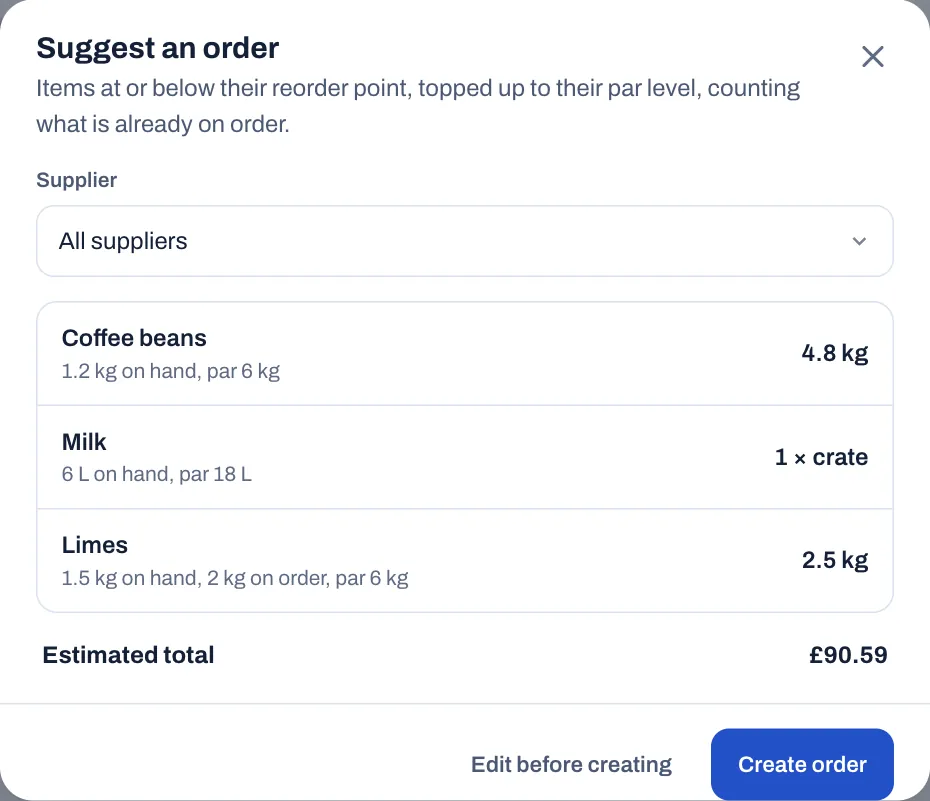
- Check the list. It has every item at or below its reorder point, topped up to its par level, counting what is on hand and what is already on order. An item without a par level is topped up to twice its reorder point. Items that need nothing more are left out.
- Select Create order, or Edit before creating to change quantities and prices first.
Each line says what is on hand, what is already on order if anything, and the par level, for example "1.2 kg on hand, 2 kg on order, par 6 kg". When an item has a purchase unit, such as a case or a crate, Sofrito orders whole ones, so the quantity may go a little over the par level. When nothing needs ordering, the window says so and there is nothing to create: "Nothing is running low. Every item is above its reorder point.", or, when your open purchase orders already cover what is low, "What is running low is already on order: open purchase orders cover it."
Write an order yourself
- In Inventory › Purchase orders, select New purchase order.
- Choose the Supplier.
- Select Add item, choose the Item, then type the Quantity and the Price per unit. The price starts at the item's current cost.
- Repeat for each item. Add items running low adds every low item from that supplier with the suggested quantity.
- Optional: type Notes for the supplier, such as "Deliver before 10:00".
- Select Create order.
Orders count in the unit your supplier sells and prices: cases or crates when the item has a purchase unit, kg or litres for items counted in grams or millilitres, otherwise the unit the item is counted in. The unit shows next to each quantity. Sofrito turns it into the counted unit when the delivery goes into stock.
Send the order
- Open the order in Inventory › Purchase orders.
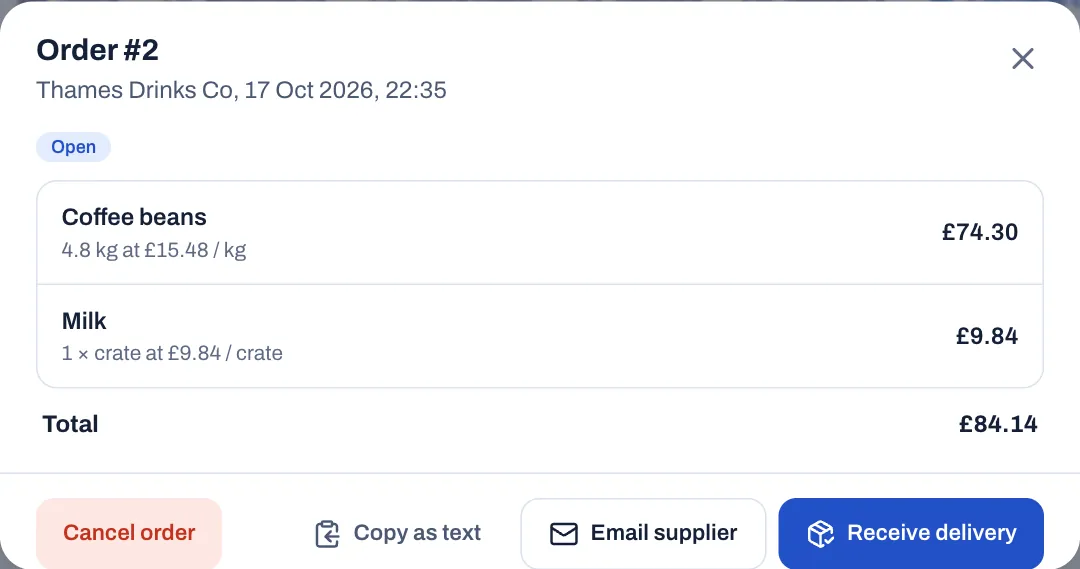
- Select Email supplier to open your email app with the order written out. The button appears when the supplier has an email address. Or select Copy as text and paste the order into a message.
Receive the delivery
- Open the order and select Receive delivery.
- Check the delivery against the order. Change any quantity that is different from what you ordered. Quantities are in the same unit as the order, such as cases.
- Check the Received value, then select Add to stock.
Stock goes up by what you entered, the average cost of each item is updated with the order's prices, and the order shows as Received with the date. Its total becomes the value of what was received. Where a quantity differed, the order shows what you received. In Movements, each item of the delivery has a note such as "Purchase order 3 received".
To cancel an order that hasn't arrived, open it and select Cancel order, then Tap again to cancel the order. Nothing changes in stock.
The list shows Open orders first. Select All to see received and cancelled ones too.
Find what is running low
Sofrito shows low stock in three places:
- The Low stock card on the Dashboard lists up to six items at or below their reorder point.
- Inventory › Stock marks them Low, or Out when nothing is left, and counts them in the Running low and Out of stock tiles. Select Low to list only them.
- Suggest an order puts them on an order for you.
An item only shows as low when it has a Reorder at level. Give one to everything you don't want to run out of.
Good practice
- Start with the items that cost the most or run out most often. You don't need every grain of salt in Sofrito.
- Give each item a par level and a reorder level, and link it to its supplier, so suggested orders are right.
- Receive every delivery through a purchase order, or record it as a delivery the same day.
- Record waste when it happens, with a reason. At the end of the month, filter Movements by Waste to see what you threw away.
- Count at the same time each week or month, before service, with Show expected off.
- Write recipes for your best sellers first. They move the most stock and the most money.