Chapters
Guide › Get started
Plan your setup
This chapter helps you decide what to buy and how to connect it, before you spend money. It is for owners and for the partners and installers who set Sofrito up. Sofrito runs on screens many restaurants already own, so check what you have first.
Before you start
- Read How Sofrito works to know the screens and the difference between Sofrito Cloud and Sofrito Hub.
Decide between Sofrito Cloud and Sofrito Hub
Answer these questions:
- Does your internet drop during service? With Sofrito Cloud, devices cannot send orders, take payments or print while the internet is down. With Sofrito Hub, service carries on.
- Do you want network printers in the kitchen? Ordinary thermal printers on a network cable or Wi-Fi work with both. With Sofrito Hub, the hub sends them the tickets. With Sofrito Cloud, a computer next to the printers runs the Sofrito desktop app as a print bridge, and it must be on whenever you trade. Star CloudPRNT printers and handhelds with a built-in printer need no print bridge.
- Do you want the back office away from the restaurant? Sofrito Cloud opens in any browser, anywhere. A hub's back office opens only on the restaurant's network.
- Can one computer stay on all day? Sofrito Hub needs a computer in the restaurant that is on whenever you trade. It can be the main till.
If the internet is reliable and you want no server to look after, choose Sofrito Cloud. If you must keep trading when the internet fails, choose Sofrito Hub.
Choose the screens for your kind of restaurant
When you create the restaurant, Sofrito asks how you serve and sets itself up to match (see Create your restaurant). Use the same answer to plan the hardware.
| Kind of restaurant | Till | Handhelds | Kitchen | Guests see | Printers |
|---|---|---|---|---|---|
| Café or counter | 1 at the counter | None | A kitchen display or a kitchen printer, if food is made out of sight | A customer display (optional) | 1 receipt printer with a cash drawer |
| Full service, about 40 seats | 1 at the bar or the pass | 1 per server on the floor, for example 3 phones | 1 kitchen display and 1 kitchen printer | Nothing | 1 receipt printer with a cash drawer |
| Full service, 120 seats or two kitchens | 2 | About 6 | 1 kitchen display and 1 printer per kitchen, each printer with a backup, and a bar printer | Nothing | 1 receipt printer with a cash drawer per till |
| Bar | 1 at the bar, for tabs and rounds | 1 or 2 if you serve tables | A kitchen display or printer if you serve food | Nothing | 1 receipt printer with a cash drawer |
| Takeaway | 1 at the counter | None | 1 kitchen display | A pickup board, and a customer display at the counter | 1 receipt printer with a cash drawer, 1 label printer for bags |
For Sofrito Hub, add the computer that runs it, unless the main till runs it (see Choose a computer for Sofrito Hub). For Sofrito Cloud with network printers, add the computer that will be the print bridge.
A kitchen display shows tickets only for the stations it is set to show. A station that no kitchen display shows only prints its tickets, so a kitchen that works from paper needs no screen.
Choose devices that run Sofrito
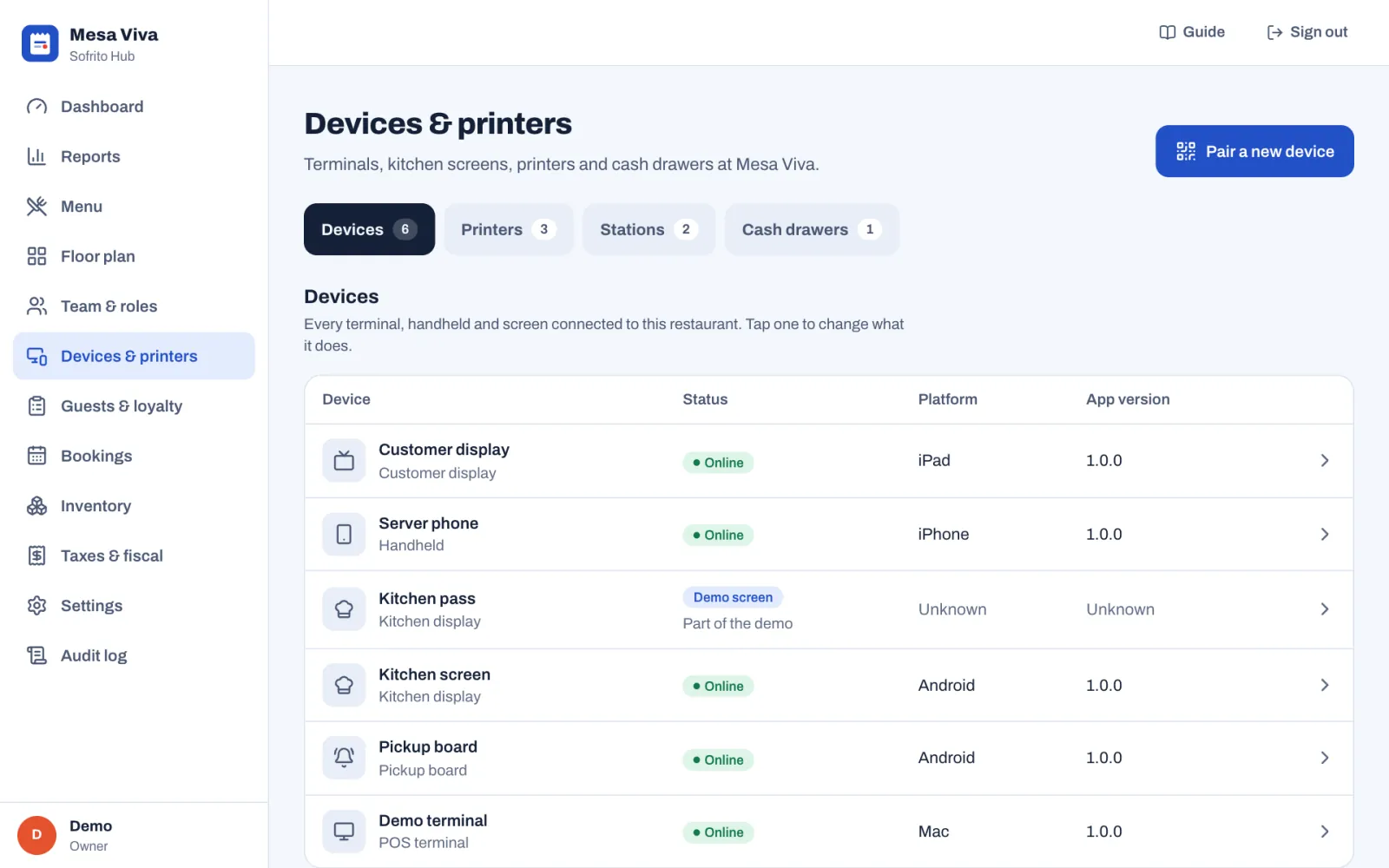
| Screen | Works well | Notes |
|---|---|---|
| The till | A Windows 10 or 11, macOS or Linux touch computer; an iPad (10th generation or newer); an Android tablet with Android 10 or newer and 4 GB of memory | 10 to 15 inches, used in landscape |
| Handheld | An iPhone with iOS 16 or newer; an Android phone with Android 8 or newer; a rugged handheld such as Zebra, Sunmi, Senraise or Urovo | Handhelds with a built-in printer can print their own receipts with the Sofrito app for Android |
| Kitchen display | Any screen with a current Chrome or Edge: a television with a stick PC, an Android tablet, an all-in-one computer | Mount it away from heat. A bump bar that types digits works: 1 to 9 bump that ticket, R brings back the last one |
| Customer display or pickup board | A second monitor, a television or a tablet facing the guests | |
| Print bridge (Sofrito Cloud with network printers) | A Windows, macOS or Linux computer that runs the Sofrito desktop app, on the same network as the printers | It must stay on, with Sofrito open, whenever you trade |
Every device needs the Sofrito app or a current Chrome, Edge, Safari or Firefox. Phones and tablets are better on a charger stand during service, because Sofrito keeps the screen on.
Check an Android device
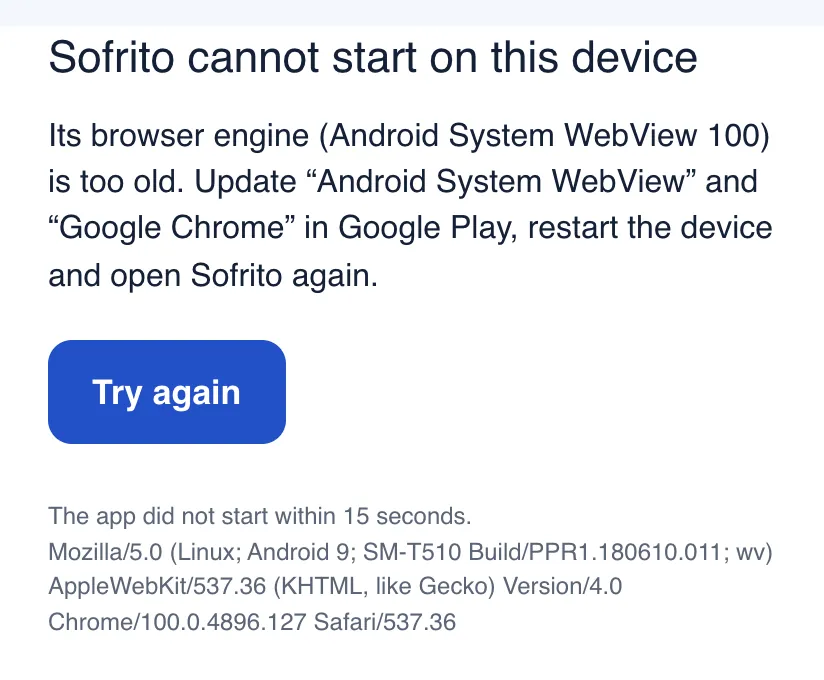
On Android, Sofrito runs inside a part of the system called Android System WebView. It must be version 111 or newer. Check every second-hand or older device before you rely on it:
- Open Settings on the device.
- Open Apps and find Android System WebView. On some devices you need to show system apps first.
- Read the version. The first number must be 111 or higher.
- If it is lower, open Google Play and update Android System WebView and Google Chrome.
- Restart the device.
If the engine is too old, Sofrito does not start. It shows this message instead, with the version it found:
Choose a computer for Sofrito Hub
Skip this section if you use Sofrito Cloud only.
| Option | Good for |
|---|---|
| The main till, running the Sofrito desktop app as the restaurant's main computer | Small restaurants: one machine is both the till and the hub |
| A mini PC (Intel N100 class, 8 GB of memory, an SSD) with Windows or Linux | Most restaurants. Keep it in the office, on a UPS |
| An existing Linux server or NAS that runs Docker | Groups and sites with their own IT |
| A Raspberry Pi 5 (8 GB) with an SSD | Food trucks and kiosks |
Whichever you choose, the computer must stay on and awake whenever the restaurant trades, and it needs a fixed address on your network (see Plan the network and Wi-Fi). See Sofrito Hub and working offline for how to install it.
Choose printers and a cash drawer
Sofrito prints to thermal receipt and kitchen printers that use ESC/POS, the command language of almost every receipt printer. Plan one receipt printer for each till, one printer for each kitchen station that wants paper tickets, and a label printer if you pack takeaway orders.
How a printer connects depends on where Sofrito runs:
| Printer | With Sofrito Hub | With Sofrito Cloud |
|---|---|---|
| Network thermal printer (network cable or Wi-Fi) | Yes: the hub sends the tickets | Yes, through a print bridge: a computer in the restaurant with the Sofrito desktop app sends the tickets |
| Star CloudPRNT printer | Not offered | Yes: the printer collects its tickets over the internet |
| Printer built into a handheld or terminal (Sunmi, Senraise, or a paired Bluetooth printer) | Yes, with the Sofrito app for Android | Yes, with the Sofrito app for Android |
| Any printer a computer already uses (USB or AirPrint) | Yes, through that computer's print dialog | Yes, through that computer's print dialog |
A print bridge sends to printers on the network only, not to USB printers. One print bridge can serve every network printer in the restaurant. See Devices, printers and stations to set one up.
Models that work well:
- Network: Epson TM-T20III or TM-T20IV, Epson TM-m30III, Star TSP143IV LAN, Bixolon SRP-350plusV, Xprinter XP-Q200, Rongta RP326.
- Star CloudPRNT: Star mC-Print3, TSP100IV, mC-Print2.
- Hot, greasy kitchens: an impact printer such as the Epson TM-U220.
- Labels: any ESC/POS printer loaded with 58 mm labels, for example the Epson TM-L90.
When you choose:
- Prefer a network cable for kitchen printers. Wi-Fi printers drop off in hot, busy kitchens.
- Choose the paper width: 80 mm paper fits 48 characters a line, 58 mm fits 32.
- Buy a second kitchen printer if a stopped printer would stop your kitchen. While a printer is offline, Sofrito sends its tickets to its backup, and goes back to the printer once it prints again.
- A kitchen printer with a buzzer can beep for each new ticket.
The cash drawer plugs into the receipt printer's drawer port with an RJ11 or RJ12 cable, and Sofrito opens it for cash payments. Buy a drawer made for receipt printers (24 V).
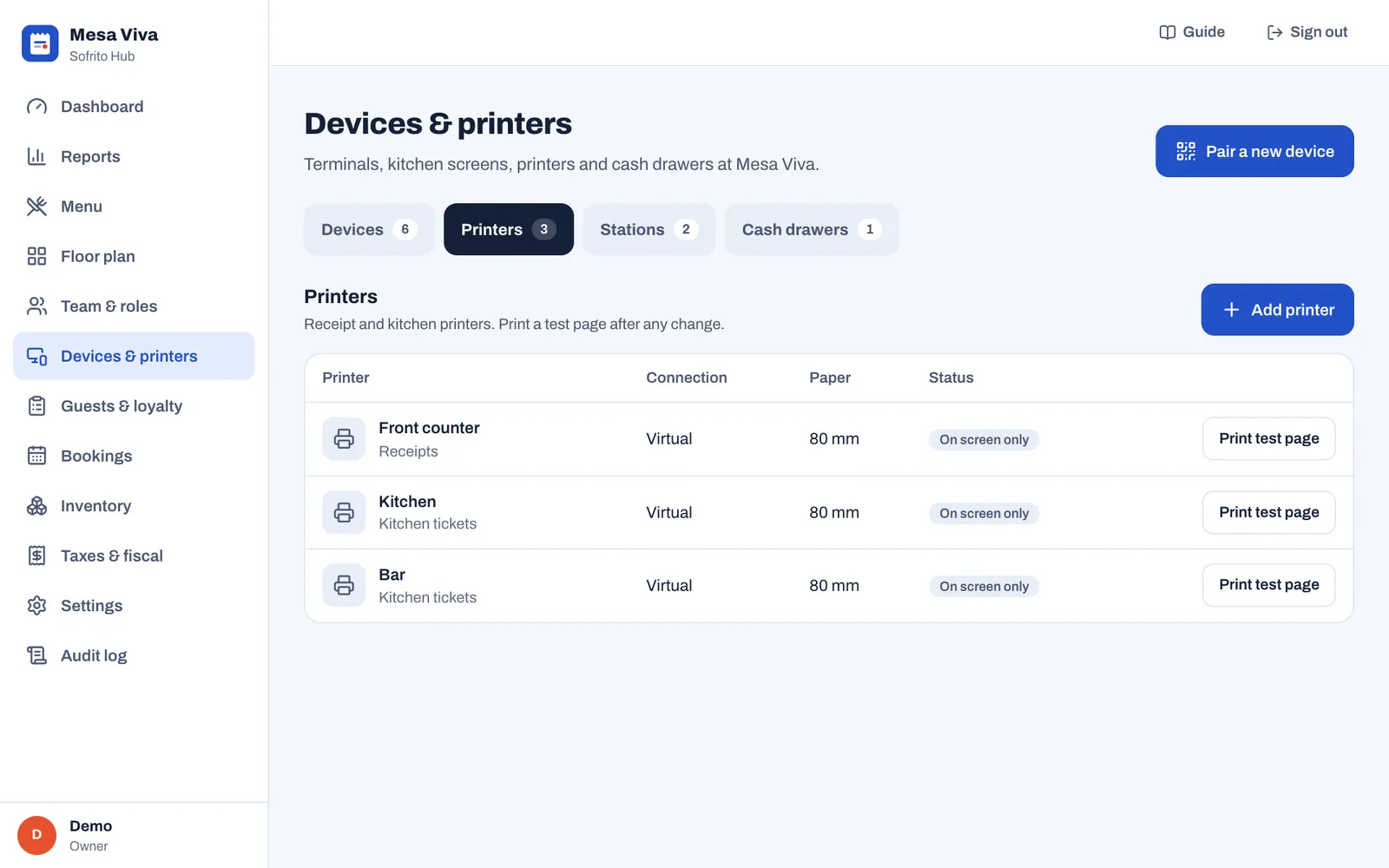
Until your printers arrive, a new restaurant prints to three virtual printers that show each ticket on screen:
Plan card and mobile payments
Sofrito records card payments taken on your own card terminal, from any bank or provider. The cashier charges the amount on the terminal, waits for it to show "Approved", then confirms the payment in Sofrito. Mobile money, such as M-Pesa or MB WAY, is recorded with its transaction reference. See Payment methods, tips and service charge.
Card terminals need their own connection, usually mobile data or the restaurant's Wi-Fi. A terminal on mobile data keeps taking cards when the restaurant's internet is down.
Plan the network and Wi-Fi
- Use one router for the restaurant, with a staff Wi-Fi for Sofrito and a separate guest Wi-Fi.
- Turn off "client isolation" (sometimes called "AP isolation") on the staff Wi-Fi, so devices can reach each other and the hub.
- Put the hub computer, or the print bridge computer, and the printers on a wired switch, with network cables.
- Give the hub computer and every network printer a fixed address, with a DHCP reservation in the router. Devices and printers then always find each other.
- Walk the dining room, the terrace and the kitchen with a phone on the staff Wi-Fi. Check the signal at every table, and add access points where it is weak.
If your IT team separates devices into different networks, allow devices to reach the hub on TCP port 7420 and the hub to reach the printers on TCP port 9100. A print bridge needs to reach the printers on TCP port 9100 and Sofrito Cloud over the internet.
Plan internet and power
- Sofrito Cloud: every device needs the internet all the time, and so does the print bridge computer. If your line drops, add a second connection, such as a router with a mobile data backup, or choose Sofrito Hub.
- Sofrito Hub: the internet is needed only for things outside the restaurant, such as Cloud sync and card terminals that use your Wi-Fi. Service itself runs on your network.
- Put the hub computer, the router and the switch on a small UPS (a battery backup). Short power cuts then do not stop service. Tablets and phones run on their own batteries.
- Set the hub computer, or the print bridge computer, never to sleep, and to switch on again after a power cut if its settings allow it.
Buying checklist
- The choice of Sofrito Cloud or Sofrito Hub.
- Tills: how many, and that each meets the requirements above.
- Handhelds: one for each server on a busy shift, plus a spare, with cases and chargers.
- Android devices checked for Android 8 or newer and Android System WebView 111 or newer.
- Kitchen displays: screens, wall mounts, and a stick PC or tablet for each. A bump bar if your cooks want one.
- A customer display for each till where guests pay, and a pickup board, if you serve at a counter or do takeaway.
- For Sofrito Hub: the computer that runs it, and a UPS.
- For Sofrito Cloud with network printers: a computer near the printers for the print bridge.
- Printers: a receipt printer for each till, a kitchen printer for each station that wants paper, backups for the busiest stations, and a label printer for takeaway. Paper rolls in the right width.
- A cash drawer and its cable for each till that takes cash.
- Card terminals from your bank or provider, with their own connection.
- Network: router, staff and guest Wi-Fi, access points, a switch and network cables.
- Power sockets near every till, printer and kitchen display.