Chapters
Guide › Manage the business
Settings, section by section
Settings decides how your restaurant works: what prints on receipts, how service runs, how money is handled and how the tills are kept safe. This chapter goes through every section in the order the back office lists them, with what each setting changes. It is a reference for owners and managers. The step-by-step setup is in the chapters linked from each section.
Before you start
Who may change what depends on their role:
| Sections | Permission needed to change them |
|---|---|
| Business details, Language and region, Service, Taxes and rounding, Tips, Loyalty, Receipts, Kitchen, Bookings, Security, Cash, Cloud sync, API access | Restaurant settings |
| Prices and tax and Round tax, in Taxes and rounding, and the whole of Invoicing | Taxes and fiscal settings, as well as Restaurant settings |
| Service charges, Discounts, Price levels, Reasons | Edit the menu |
| Payment methods | Manage payment methods |
| Account | The Owner role to close the account, and Export data to download everything |
Without the permission you can open a section and read it, but not change it. Sofrito then says "You can see these settings, but your role can't change them." See Your team, roles and PINs.
Find your way around Settings
- In the back office, select Settings.
- Select a section in the list on the left. On a phone, choose it in the Section menu at the top of the page.
The sections come in five groups:
| Group | Sections |
|---|---|
| Restaurant | Business details, Language and region, Service |
| Money | Taxes and rounding, Invoicing, Tips, Loyalty, Service charges, Discounts, Payment methods, Price levels |
| Operations | Reasons, Receipts, Kitchen, Bookings, Security, Cash |
| Connection | Cloud sync (on Sofrito Hub only), API access |
| Account | Account |
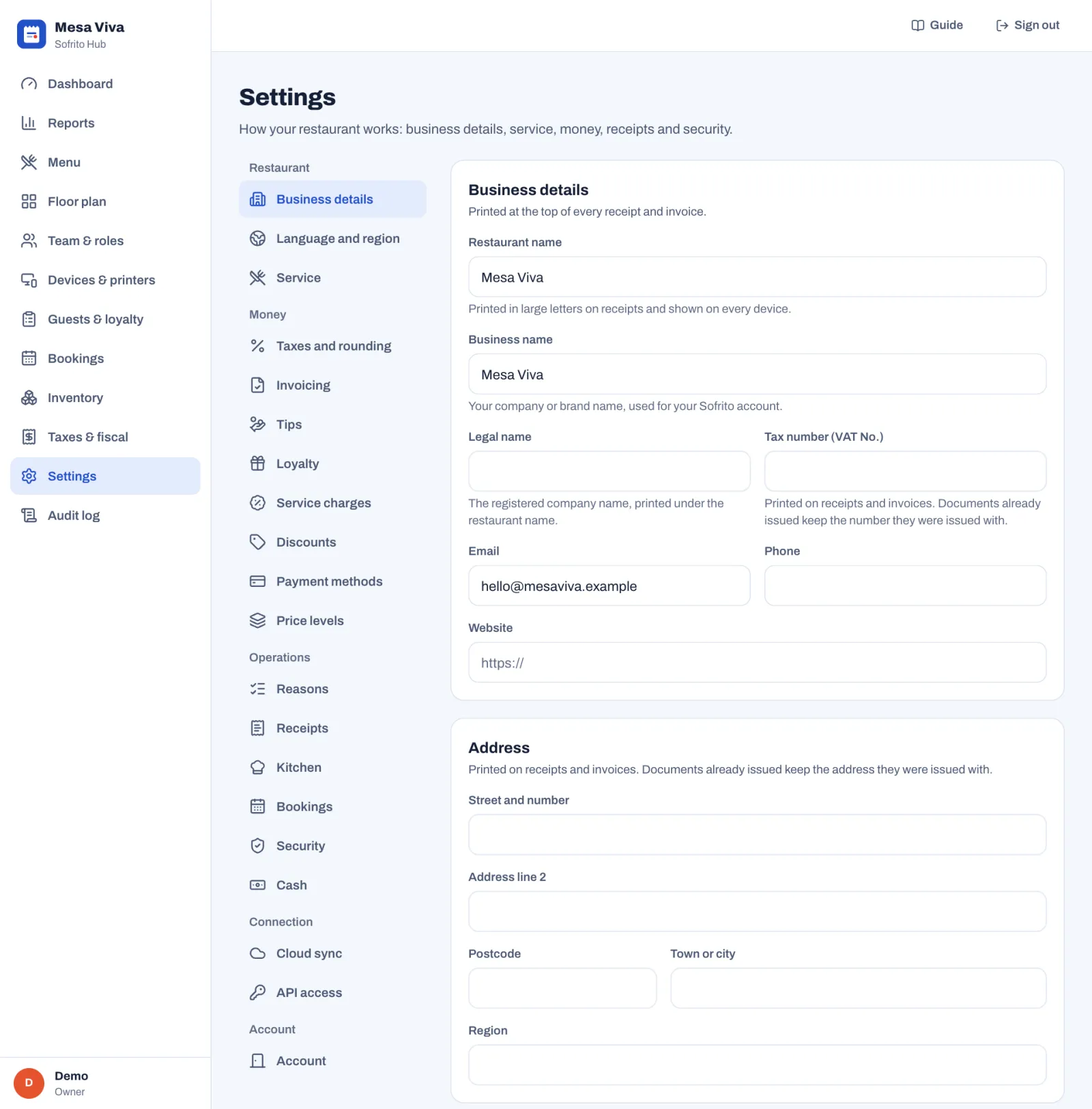
If your business has more than one location, the settings apply to the location you are working in. The page says so under its title. Business details are shared by all your locations.
Changes reach every till, handheld and kitchen display within moments of being saved.
Save your changes
Settings saves in two ways.
Form sections (Business details, Language and region, Service, Taxes and rounding, Invoicing, Tips, Loyalty, Receipts, Kitchen, Bookings, Security and Cash) keep your changes until you save them:
- Change what you need. A bar appears at the bottom of the page: "You have unsaved changes".
- Move to other sections and change them too, if you like. A yellow dot marks each section with unsaved changes.
- Select Save changes. To undo everything instead, select Discard, then Tap again to discard.
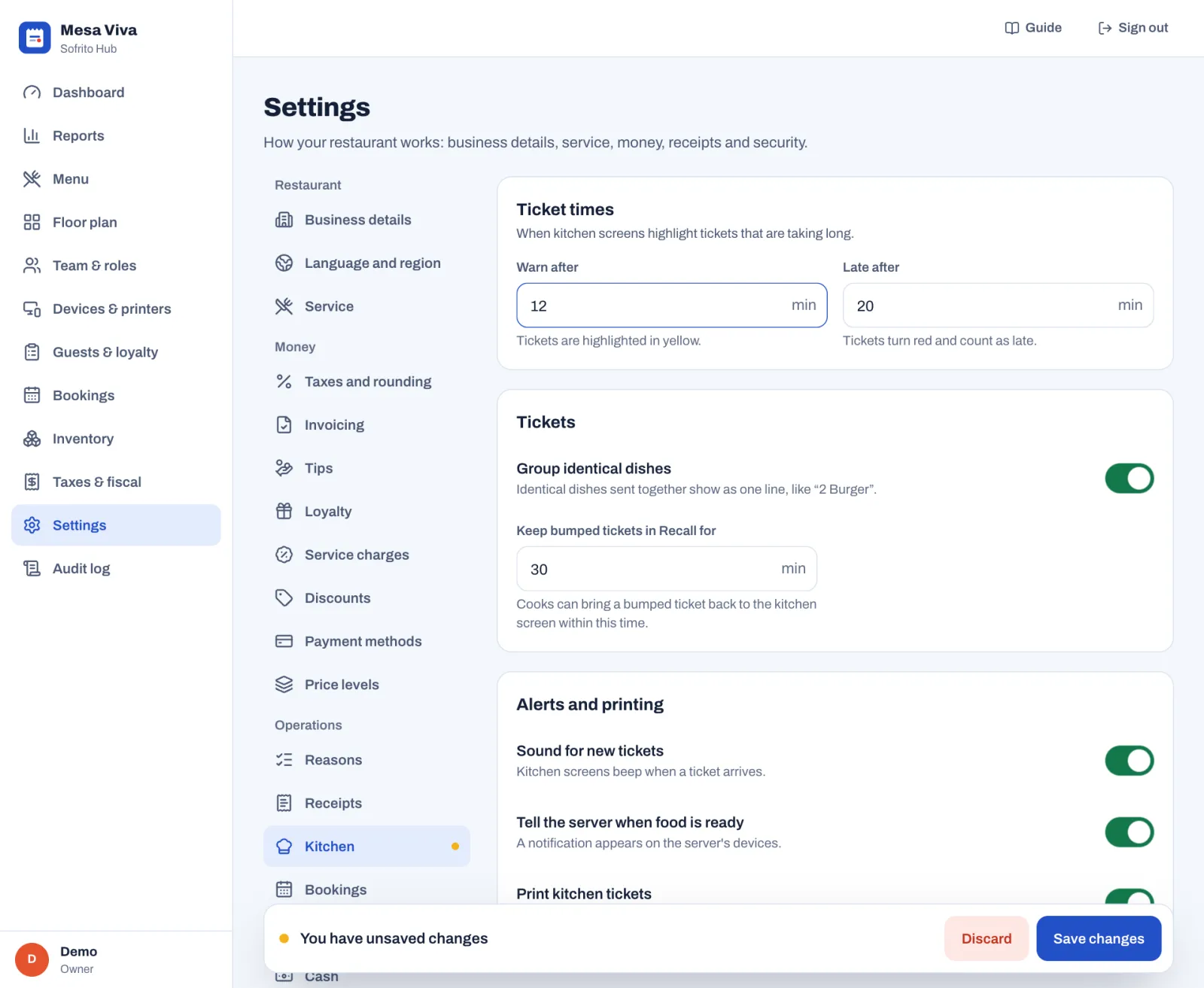
If something stops the save, the bar says what, for example "Turn on at least one order type." Select the message to go to the section that needs it.
If you open another back-office page, or go back to the till, with unsaved changes, Sofrito asks Leave without saving?: select Save and leave, Leave without saving or Keep editing. If you close or reload the page, your browser asks before it leaves.
List sections (Service charges, Discounts, Payment methods, Price levels and Reasons) open each item in its own window. Each window saves on its own when you select Save, or the Add button for a new item. To delete an item, open it and select Delete, then Tap again to delete.
Cloud sync, API access, Account and the logo also act straight away, when you select their buttons.
Business details
What prints at the top of every receipt and invoice. The how-to is in Taxes, receipts and legal documents.
| Setting | What it changes |
|---|---|
| Restaurant name | Printed in large letters on receipts and shown on every device. |
| Business name | Your company or brand name, used for your Sofrito account. Closing the account asks you to type it. |
| Legal name | The registered company name, printed under the restaurant name. |
| Tax number | Printed on receipts and invoices, with your country's name for it, such as Tax number (VAT No.). If the number fails your country's check, Sofrito warns you, but still lets you save it. |
| Email, Phone, Website | Your contact details. |
| Address | Street and number, Address line 2, Postcode, Town or city and Region. Printed on receipts and invoices. |
| Logo | Upload logo, Replace logo or Remove logo. A PNG, SVG, JPG or WebP image. Saved as soon as you choose it, without the save bar. It prints on receipts and shows on the screens guests see. |
Documents already issued keep the details they were issued with.
With more than one location, a section called This location lets each location print its own legal name, tax number, email, phone and address. Leave a field empty to use the business details, shown in grey.
Language and region
| Setting | What it changes |
|---|---|
| Country | Set when your restaurant was created, and locked. It decides your tax and fiscal rules. |
| Currency | Set when your restaurant was created, and locked, so your sales history and fiscal records never mix two currencies. Contact support if it is wrong. |
| Language and formats | The language new devices start in, and how dates, numbers and money are written. The Example under it shows today's date and an amount in the chosen format. |
| Time zone | Set when your restaurant was created: the time zone of the device used for setup when that device is in the restaurant's country, otherwise the country's usual time zone. Used for business days, reports and the times printed on receipts. Change it only if it is wrong: times already recorded stay as they are. |
| Business day ends at | Sales after midnight and before this hour count towards the day before. A new restaurant starts with 04:00. Reports, the dashboard, the kitchen screens and the day close all use it. |
Service
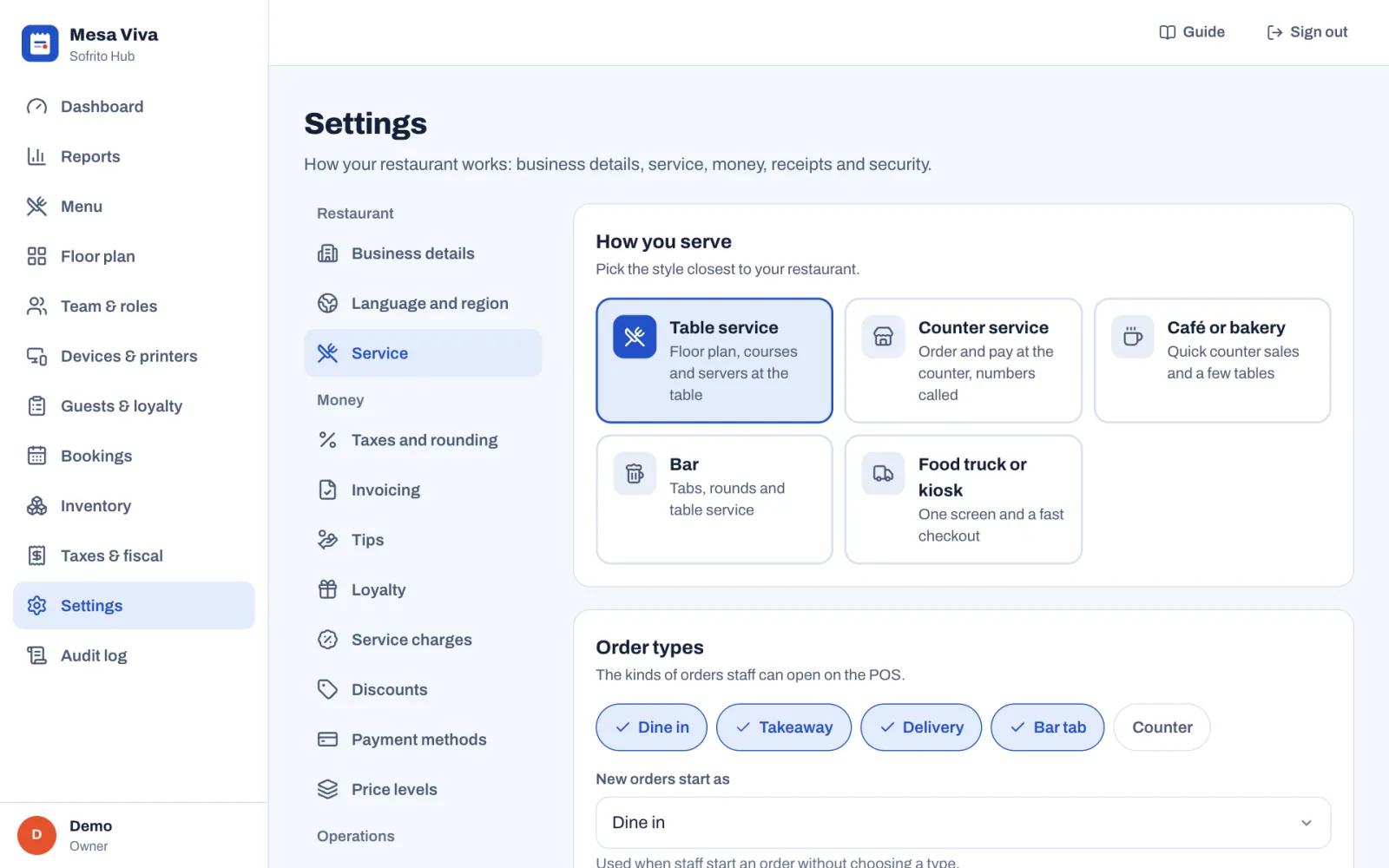
How staff take orders on the tills. The how-to for each part is in Table service and Counter, takeaway and pickup.
| Setting | What it changes |
|---|---|
| How you serve | Table service, Counter service, Café or bakery, Bar or Food truck or kiosk. When you choose a new style, Sofrito offers to set up the till for it: select Apply these settings to change the order types, the starting order type, guest count, seats, courses and Lock after each payment to suit that style. |
| Order types | The kinds of orders staff can open: Dine in, Takeaway, Delivery, Bar tab and Counter. At least one must be on. |
| New orders start as | The order type used when staff start an order without choosing one. |
| Ask for the guest's name on | The order types where the till asks for a name. It shows on kitchen tickets and is called out when the order is ready. |
| Ask how many guests | Staff enter the number of guests when they open a table. |
| Seat numbers | Staff can put each item on a seat, which makes splitting the bill easy. |
| Courses | Items are grouped by course on the order and on kitchen tickets. |
| Course names | The names of your courses, up to 10. Dishes keep their course number, so renaming is safe. Only the last course can be removed. Select Add course to add one. |
| Hold later courses | Shown when Courses is on, and off in a new restaurant. The first course (Drinks) always goes straight away. Send then sends the course being served, and later courses wait on the check until someone taps Fire. Only dine-in checks taken on the till are held: takeaway, delivery, counter and bar tab orders, and orders that come in through an API key, such as online orders, go to the kitchen at once. See Hold items and send them later. |
| Mark tables for clearing | Once the bill is paid, the table shows as needing to be cleared. |
| Send to the kitchen on payment | Items not sent yet go to the kitchen when the order is paid. |
| Restart order numbers every day | Order numbers go back to 1 at the start of each business day, and after each day close. |
| Show dish photos on the POS | Menu buttons show the dish's photo when it has one. |
| Put sold-out dishes back on sale each day | Closing the day puts every dish marked sold out back on sale. Dishes whose stock is counted keep their count. On by default. |
| Welcome message | Shown on the customer display between orders, up to 80 characters. |
Taxes and rounding
The how-to is in Taxes, receipts and legal documents and, for cash rounding, Payment methods, tips and service charge.
| Setting | What it changes |
|---|---|
| Prices and tax | Prices include tax: guests pay the price on the menu and tax is worked out from it. Tax is added at payment: menu prices are before tax and tax is added to the bill. The example under each choice uses your own tax rate. Changing it changes what every price on your menu means. |
| Round tax | Once per receipt (once per rate on each receipt, as most tax offices expect) or On every line. |
| Tax rates | Not set here. Select Open Taxes & fiscal to manage rates, tax groups and fiscal documents. |
| Round cash payments to | No rounding, or the nearest coin you still use, such as The nearest £0.05. Card payments are never rounded. The example shows what a bill is paid as in cash. |
Only people with Taxes and fiscal settings can change Prices and tax and Round tax.
Invoicing
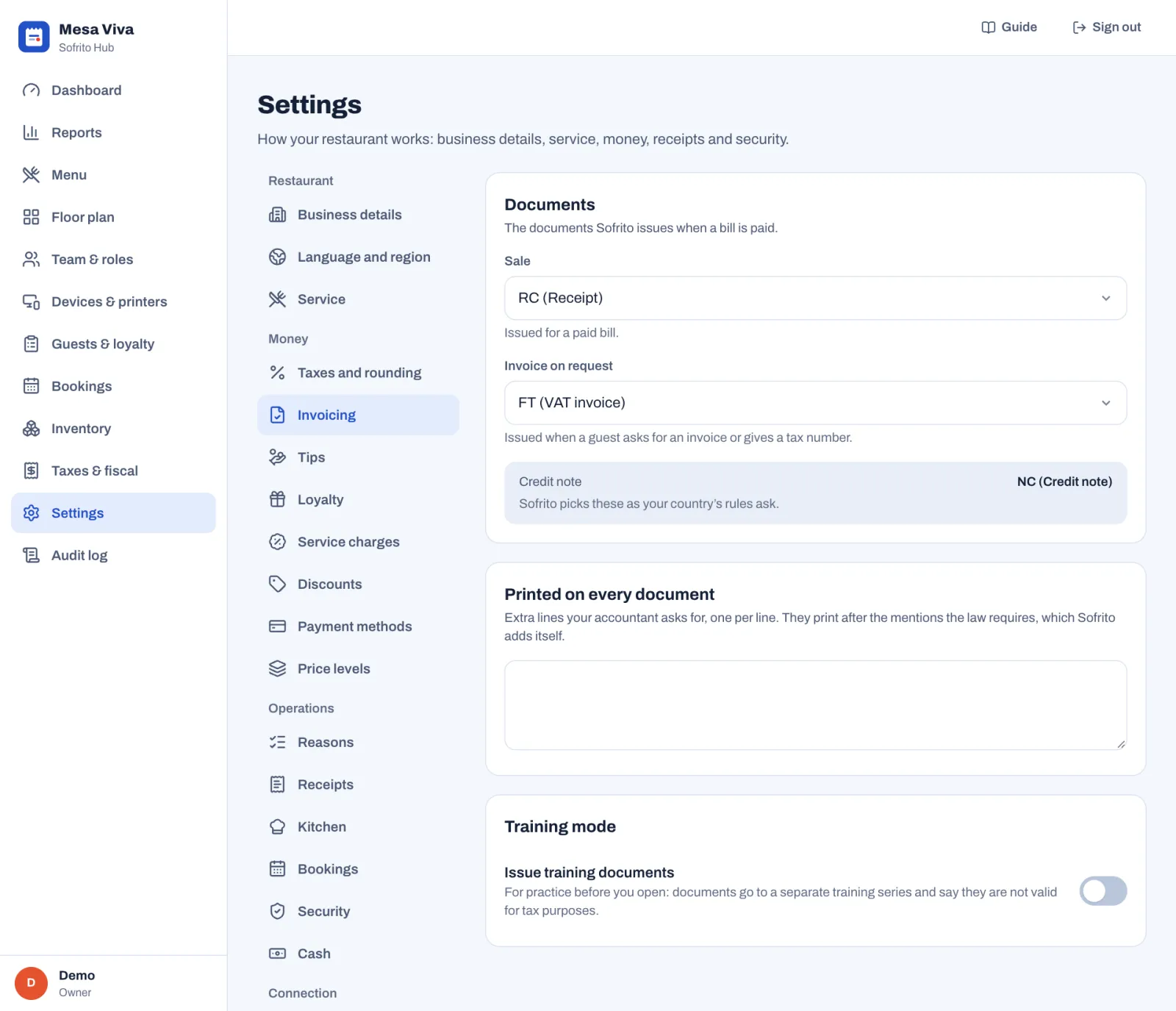
The documents Sofrito issues and what your tax authority gave you. The section shows only what applies in your country, and only people with Taxes and fiscal settings can change it. The how-to is in Choose your documents and invoicing details and, country by country, Country notes.
| Setting | What it changes |
|---|---|
| Sale | The document issued for a paid bill, chosen from the types your country allows. |
| Invoice on request | The document issued when a guest asks for an invoice or gives a tax number, or issued by itself above an amount, where your country has that rule. Shown only where it applies. |
| Credit note and Table check | Shown for information. Sofrito picks these as your country's rules ask. |
| DAF authorisation | In Mozambique: the reference of the authorisation your Direcção de Área Fiscal gave for computer-processed invoices. It is printed on every document. |
| Software certificate | In Portugal and Angola: the certificate number of the software. When it is set on the server, it is shown here and can't be changed. |
| Tax region | In Portugal: Mainland Portugal (PT), Madeira (PT-MA) or Azores (PT-AC). Printed in the QR code and written in the SAF-T file. When you change it, Sofrito reminds you to change your tax rates too. |
| Printed on every document | Extra lines your accountant asks for, one per line. They print after the mentions the law requires, which Sofrito adds itself. |
| Issue training documents | Under Training mode. For practice before you open: documents go to a separate training series and say they are not valid for tax purposes. Once saved, every till issues training documents until you turn it off. |
Tips
The how-to is in Payment methods, tips and service charge.
| Setting | What it changes |
|---|---|
| Ask for a tip | Tip buttons appear on the payment screen, and staff are asked for their cash tips when they clock out. |
| Pool tips | Each day's tips are shared by the hours each person worked, instead of staying with whoever served the order. You pay them out in Team & roles › Tips. It works even when Ask for a tip is off, for service charges that count as a tip. Cash tips that staff declare stay with them and are not shared. |
| Tip options | Up to four percentages offered as one-tap buttons. Select Add option to add one, or the cross to remove one. |
| Work out tips on | Total before tax or Total with tax: the amount the percentage is taken from. |
| Allow other amounts | Staff can type any tip amount. |
Tip options, Work out tips on and Allow other amounts show only when Ask for a tip is on. Tips only appear for payment methods with Allow tips on. To pay tips out, see Pay out tips: From the cash drawer takes them out of an open drawer, and asks From which drawer when more than one is open.
Loyalty
The how-to is in Guests, loyalty and gift cards.
| Setting | What it changes |
|---|---|
| Give loyalty points | Guests on a paid order earn points, and staff can spend them as a discount. |
| One point for every | How much a guest spends to earn one point, in whole amounts of your currency. |
| Each point is worth | The discount one point gives when a guest spends it. |
| Spend from | The smallest number of points a guest can spend at once. |
Points are counted on the amount paid, after discounts. The sentence under the fields works out what your rules give back, for example "1% back".
Service charges
Extra charges added to the bill, such as a service charge for large groups. The how-to is in Payment methods, tips and service charge.
Each charge in the list shows its value, and badges for Automatic, Tip and Off. Select Add service charge, or select a charge to change it:
| Setting | What it changes |
|---|---|
| Name | Printed on the bill, for example "Service 10%". |
| Percentage or Fixed amount, and Value | How much the charge adds. |
| Tax | The tax group the charge is taxed with, or No tax. |
| Counts as a tip | The money goes to the team: reports show it with the tips, not with sales, and Team & roles › Tips counts it as owed to the team. |
| Add automatically | Adds the charge to matching orders without anyone tapping it. Fill in For groups of at least (a number of guests), Only for (order types), or both. Staff can still remove it. |
| Available on the POS | Staff can add the charge to orders. Turn it off to stop using it for a while. |
Deleting a service charge also takes it off the floor areas that added it: their orders then get no charge from the area.
Discounts
Ready-made discounts staff apply with one tap. For applying discounts and approvals during service, see Voids, discounts, refunds and approvals.
Each discount in the list shows its value, what it applies to, and badges for Manager PIN, its promo code and Off. Select Add discount, or select a discount to change it:
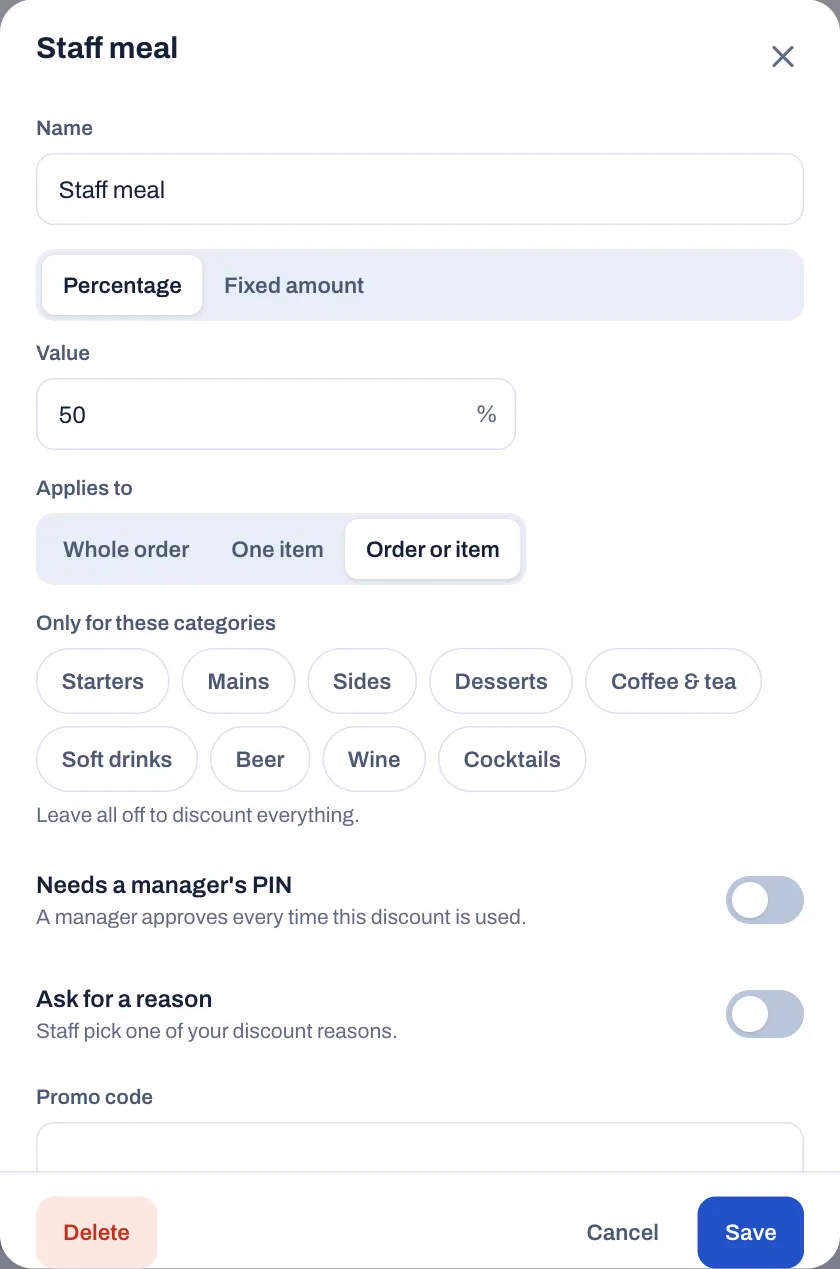
| Setting | What it changes |
|---|---|
| Name | The button staff tap, and the line on the bill. |
| Percentage or Fixed amount, and Value | How much it takes off. |
| Applies to | Whole order, One item, or Order or item. |
| Only for these categories | The discount only takes money off dishes in these categories. Leave all off to discount everything. |
| Needs a manager's PIN | Staff whose role doesn't have Discount above the limit need a manager's PIN every time they use it. |
| Ask for a reason | Staff pick one of your discount reasons (see Reasons). |
| Promo code | Optional. Staff type the code in the order's Discount window, under Promo code, and tap Add. Codes match in capitals or small letters. The Promo code box shows on the till only when a discount has a code. |
| Colour | Makes the button easy to spot on the POS. |
| Available on the POS | Staff can apply it to orders. |
Any discount bigger than Discounts up to in Security also needs Discount above the limit or a manager's PIN.
Payment methods
The buttons on the payment screen. The how-to, with a table of the payment types, is in Payment methods, tips and service charge.
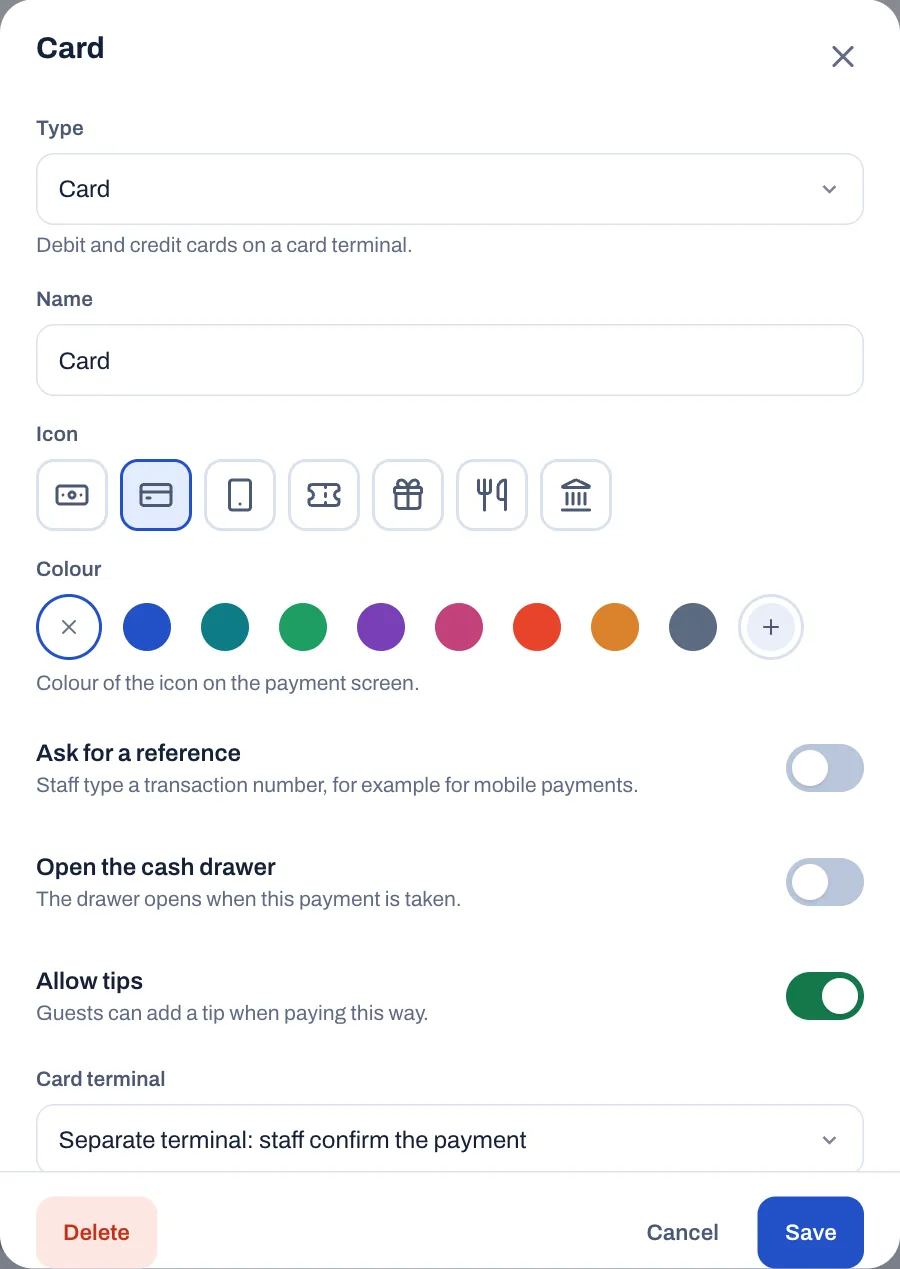
| Setting | What it changes |
|---|---|
| Type | Cash, Card, Mobile money, Voucher, Gift card, House account or Other. A new method starts with the usual settings for its type. |
| Name | The name on the button and on the receipt. |
| Icon and Colour | How the button looks on the payment screen. |
| Ask for a reference | Staff must type a transaction number, for example for mobile payments. |
| Open the cash drawer | The drawer opens when this payment is taken. |
| Allow tips | Guests can add a tip when paying this way. |
| Give change | Cash only. Staff can take more than the bill and hand back the difference. |
| Card terminal | Card and mobile money only. Separate terminal: staff confirm the payment, or Demo: payments are approved automatically, for training only. |
| Fiscal payment code | The code this method has in your tax files, such as NU for cash in Portugal. Leave it as it is if you are not sure. |
| Available on the POS | Shown on the payment screen. Turn it off to hide the method. It stays in your reports. |
Price levels
Different prices for the same dish, for example on the terrace or during happy hour. The how-to is in Build your menu.
Each level in the list shows how many dishes have a price at that level, its order types, and Set times when it applies at certain times. Select Add price level, or select a level to change it:
| Setting | What it changes |
|---|---|
| Name | Shown at the top of the order while the level applies. |
| Colour | Helps tell levels apart. |
| Order types | The order types the level is for. Leave all off for every order type. |
| Times | Select Add times, then choose the days and the From and To times. Leave the days off for every day. Select Remove these times to delete a time slot. |
A level with order types or times applies by itself when they match, for example every takeaway order, or weekdays from 17:00 to 19:00. A level with neither applies only to the floor areas that use it as their price level. You give each dish its price at a level in the menu, and choose an area's price level in the floor plan. Deleting a price level also takes it off the floor areas that used it: their tables go back to standard prices.
Reasons
The choices staff see when they must say why. Short and clear works best. Reports and the audit log show the reason with each action.
There is one list for each kind:
| List | Used when staff |
|---|---|
| Voids | Remove items already sent to the kitchen. |
| Items on the house | Give an item for free. |
| Refunds | Give money back on a paid order, or void a payment. |
| Reopening orders | Reopen a paid order to change it. Its receipt is cancelled and a new one is issued. |
| Discounts | Apply a discount that asks for a reason. |
| Pay-outs | Take cash out of the drawer, for example to pay a supplier. |
| Pay-ins | Put extra cash into the drawer. |
| Opening the drawer | Open the cash drawer without a sale. |
To add one, select Add reason under the list, check Used for, type the Reason and select Add reason. Select a reason to change or delete it. When a list is empty, staff type the reason themselves. A cash drop asks for no reason.
Whether staff must give a reason for voids, free items and refunds is set in Security.
Receipts
What your receipts say and when they print. The how-to is in Taxes, receipts and legal documents.
| Setting | What it changes |
|---|---|
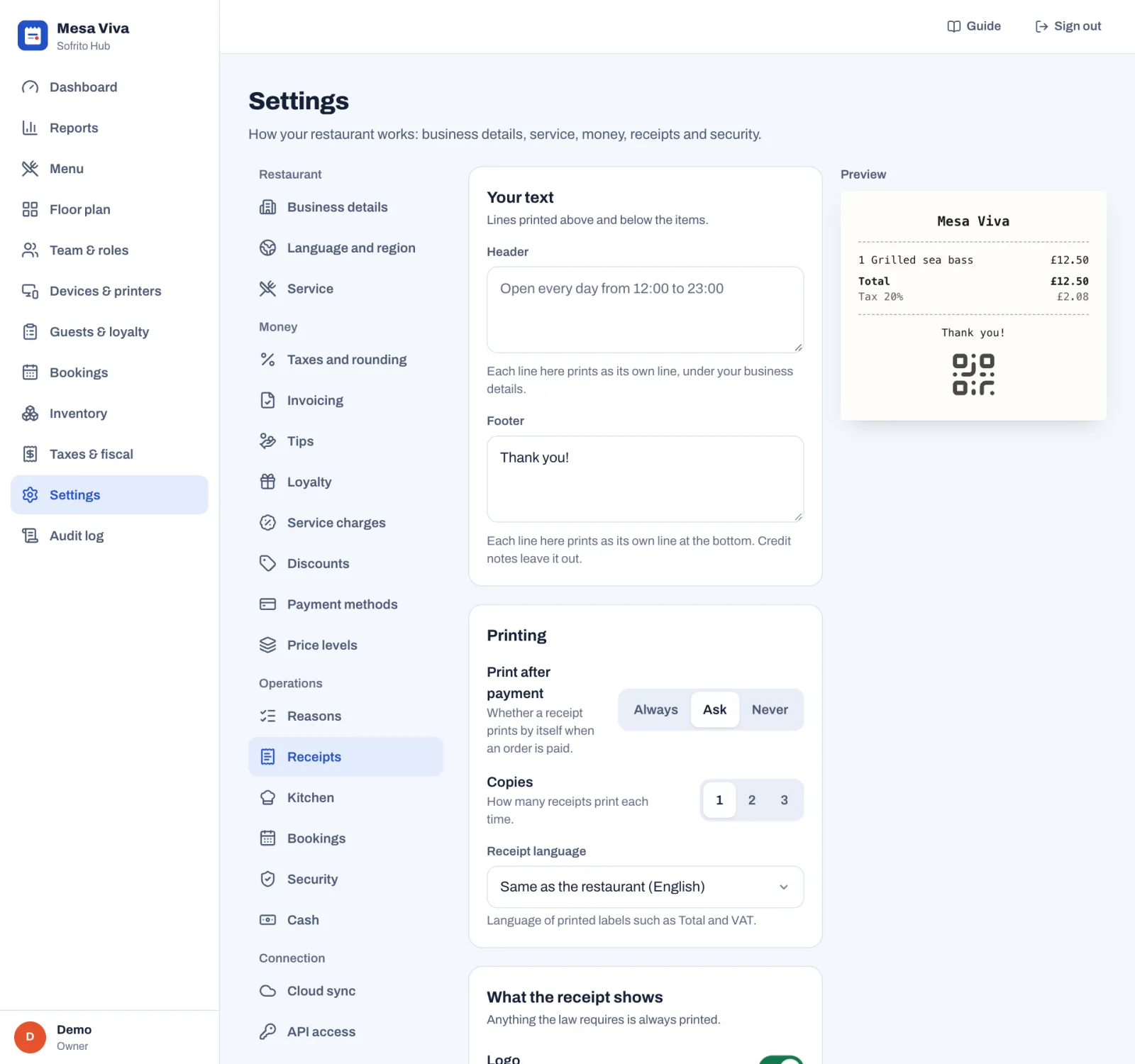
| Header | Lines printed under your business details, such as your opening hours. Each line prints as its own line. |
| Footer | Lines printed at the bottom, such as "Thank you!". Credit notes leave the footer out. |
| Print after payment | Always prints a receipt by itself when an order is paid. Ask shows "Print a receipt?" with No receipt and Print. Never shows only Done: print it later from the order with Reprint receipt. A receipt that never printed comes out as the original the first time. |
| Copies | 1, 2 or 3 receipts each time. With more than one, the first is marked as the original and the others as copies. If the receipt printer's own Copies setting is higher, that number prints: the two don't multiply. A reprint is always one copy. |
| Receipt language | The language of printed labels such as Total and VAT, and of titles such as Receipt where the law doesn't set them. Same as the restaurant, or English, Português, Español, Français, Deutsch, Italiano or Nederlands. |
| QR code | A code guests can scan to check the document. Where the law requires a QR code on every document, it can't be turned off: "Required here: every document carries the fiscal QR code." |
| Logo, Tax summary, Order number, Table, Server, Prices of extras | Turn each one on or off. Anything the law requires is always printed. |
The Preview on the right shows where your header and footer go.
Kitchen
How the kitchen displays and kitchen printers behave. The how-to is in The kitchen display.
| Setting | What it changes |
|---|---|
| Warn after | After this many minutes, tickets are highlighted in yellow. |
| Late after | After this many minutes, tickets turn red and count as late. It must be more than Warn after. |
| Group identical dishes | Identical dishes sent together show as one line, like "2 Burger". On in a new restaurant. |
| Keep bumped tickets in Recall for | How long cooks can bring a bumped ticket back to the kitchen screen. 30 minutes in a new restaurant. |
| Sound for new tickets | Kitchen screens beep when a ticket arrives. |
| Tell the server when food is ready | A notification appears on the server's devices. |
| Print kitchen tickets | Stations with a printer get a paper ticket as well as the screen. With it off, a station that no kitchen screen shows gets no ticket at all: Devices & printers › Stations marks it Tickets go nowhere. |
A new restaurant starts with 10 and 20 minutes. The dashboard and Reports › Kitchen use the same times. See Dashboard and reports.
Bookings
How the till takes bookings. The how-to is in Bookings and the waitlist.
| Setting | What it changes |
|---|---|
| Take bookings | Shows Bookings on the till. When it is off, the till hides it, and the floor plan shows no reserved tables and no bookings; the back office still lists bookings. |
| Booking times | The periods the till offers times in, each with a From and a To time. Select Add a period to add one. A period can run past midnight. |
| Offer a time every | The gap between the times the till offers, from 10 to 60 minutes. The line under it lists them, for example "The POS offers 12:00, 12:30…". |
| Largest party | The till offers party sizes up to this. |
| Table time | How long a booking keeps its table. The back office can change it for one booking. |
| Hold the table | How long before a booking the floor plan shows its table as reserved. |
Security
How the tills lock and when staff need a manager. The how-to is in Your team, roles and PINs.
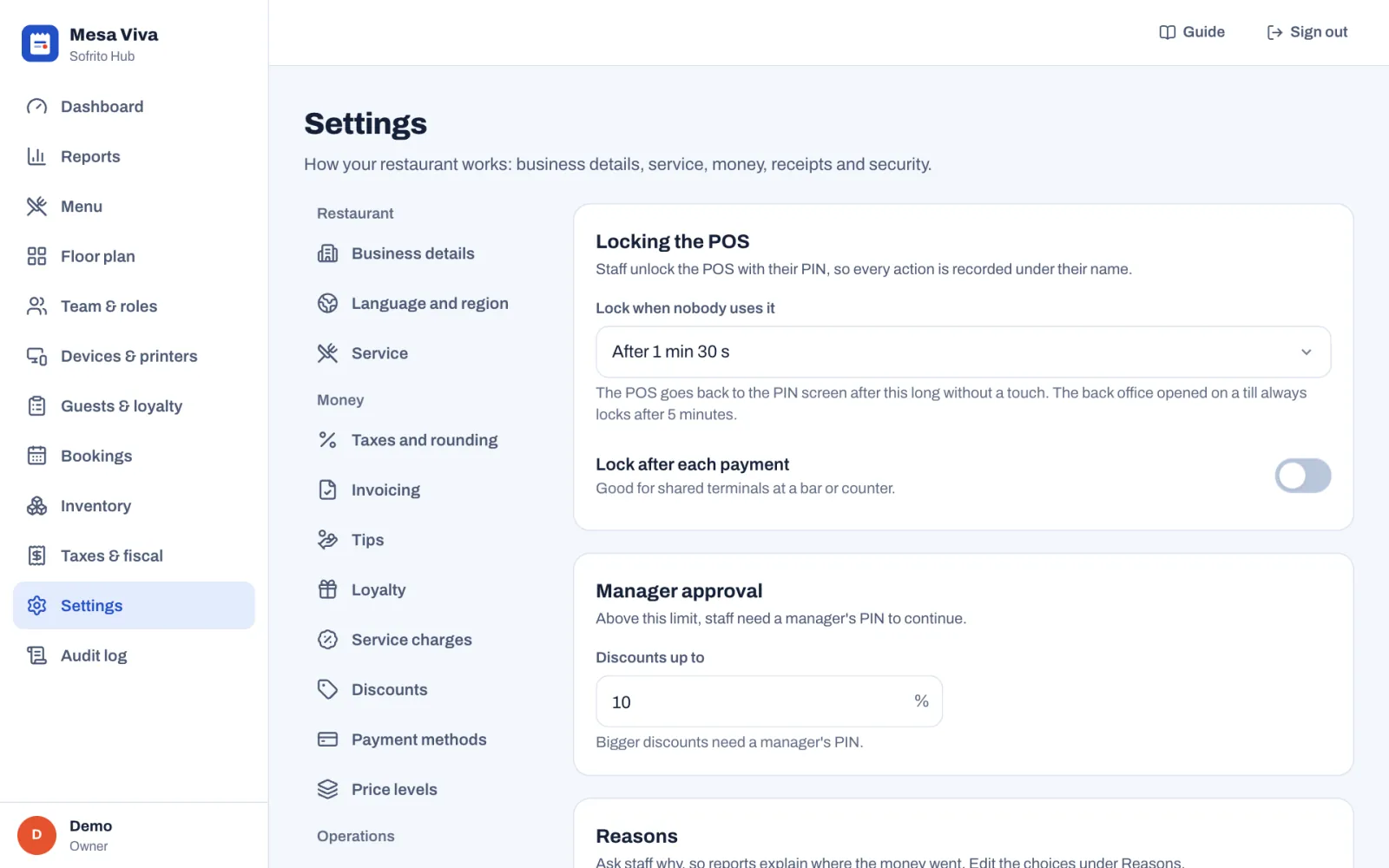
| Setting | What it changes |
|---|---|
| Lock when nobody uses it | The till goes back to the PIN screen after this long without a touch: from 30 seconds to 30 minutes, or Never. The back office opened on a till always locks after 5 minutes, whatever you choose here. |
| Lock after each payment | The till locks after every payment. Good for shared terminals at a bar or counter. |
| Discounts up to | The biggest discount, in per cent, staff may give on their own. Bigger discounts need Discount above the limit or a manager's PIN. |
| Ask why an item is voided | Staff choose a reason when they remove items already sent to the kitchen. |
| Ask why an item is free | Staff choose a reason when they give an item on the house or type their own discount. |
| Ask why money is refunded | Staff choose a reason when they refund a paid order. |
Cash
How cash is counted in and out of the drawer. The how-to is in Open for service and Close the day.
| Setting | What it changes |
|---|---|
| Open the drawer before taking cash | Cash payments, cash refunds and gift cards sold for cash need an open drawer. If none is open, the till shows Starting cash first: staff count the float, tap Open drawer, and the payment goes on. |
| Starting float | The amount suggested when someone opens the drawer. |
| Count without seeing the expected amount | When closing the drawer, staff count the cash before Sofrito shows what it should be. |
Cloud sync
Only on Sofrito Hub. It links your hub to Sofrito Cloud, so sales are backed up and you can manage the restaurant from anywhere while the hub keeps working without internet.
- When the hub is not linked, the section shows Link to Sofrito Cloud: type the Cloud address and a Pairing code created in Sofrito Cloud with Pair a new device, then Sofrito Hub. Then select Link this hub.
- When it is linked, the section shows Linked to Sofrito Cloud, the Last sync, how many changes are Waiting to upload, Sync now and Unlink. Unlinking stops syncing. Nothing is deleted on the hub or in the cloud.
The full steps are in Sofrito Hub and working offline.
API access
Keys for your own tools, such as accounting, an online shop or a delivery service. See Security, the audit log and your data.
Account
Your data, and on Sofrito Cloud the restaurant's account.
- Everything, as CSV files, on Sofrito Cloud and on Sofrito Hub, downloads one ZIP file with the menu, orders, payments, team, time cards, guests, gift cards and stock. It needs Export data.
- On Sofrito Cloud, Before you close also links to the reports, the fiscal files and the guest list, and the owner closes the restaurant's account under Close the account.
- On Sofrito Hub, the section explains that the data stays on the restaurant's own computer, and how to delete it there.
See Security, the audit log and your data.
Good practice
- Go through every section once before you open, in the order of this chapter.
- Decide Prices and tax, the Business day ends at hour and the Time zone before your first sale. Changing them later changes how your history reads.
- Give staff the reasons they really need, in their own words, so reports explain where the money went.
- After a change that affects service, such as order types or courses, check it on a till before the next shift.