Chapters
Guide › Manage the business
Security, the audit log and your data
Sofrito records who did what, on which device, and who approved it. This chapter shows how to keep sign-ins and devices safe, how to read the audit log, how to give your own tools limited access with API keys, how to take your data out, and how an owner closes a Sofrito Cloud account. It is for owners and managers.
Before you start
- The audit log needs View the audit log. API keys need Restaurant settings. Exports need the permission of the page they come from (see Export your data). Closing the account needs the Owner role. See Your team, roles and PINs.
Know what owners and managers can do
A new restaurant has two roles that run the business:
| Owner | Manager | |
|---|---|---|
| Permissions | Every permission. The owner role can't be changed, so nobody can lock the restaurant out. | Everything except Manage roles and permissions and Subscription and billing. |
| Change an owner's details, PIN or password | Yes | No |
| Make someone an owner | Yes | No |
| Close or keep the Sofrito Cloud account | Yes | No |
The restaurant always keeps at least one owner. Nobody can change their own role or turn off their own sign-in.
Keep sign-ins safe
In the back office, people sign in with their email and a password of at least 8 characters, from any browser. Only roles with Open the back office can sign in. If the same email and password open more than one Sofrito Cloud restaurant, Sofrito asks which one to open (Choose a restaurant). A sign-in lasts 30 days on that browser, so on a shared computer select Sign out at the top right when you finish.
The back office on a till or handheld never stays signed in. Back office on the lock screen asks for the PIN of someone whose role has Open the back office, or their email and password (Use email and password instead). Any other PIN gets "Your role can't open the back office." The back office locks again when the till locks, and after 5 minutes without a touch, whatever the till's own lock time. Sign out locks the till. To stay signed in, use your own computer, not a till.
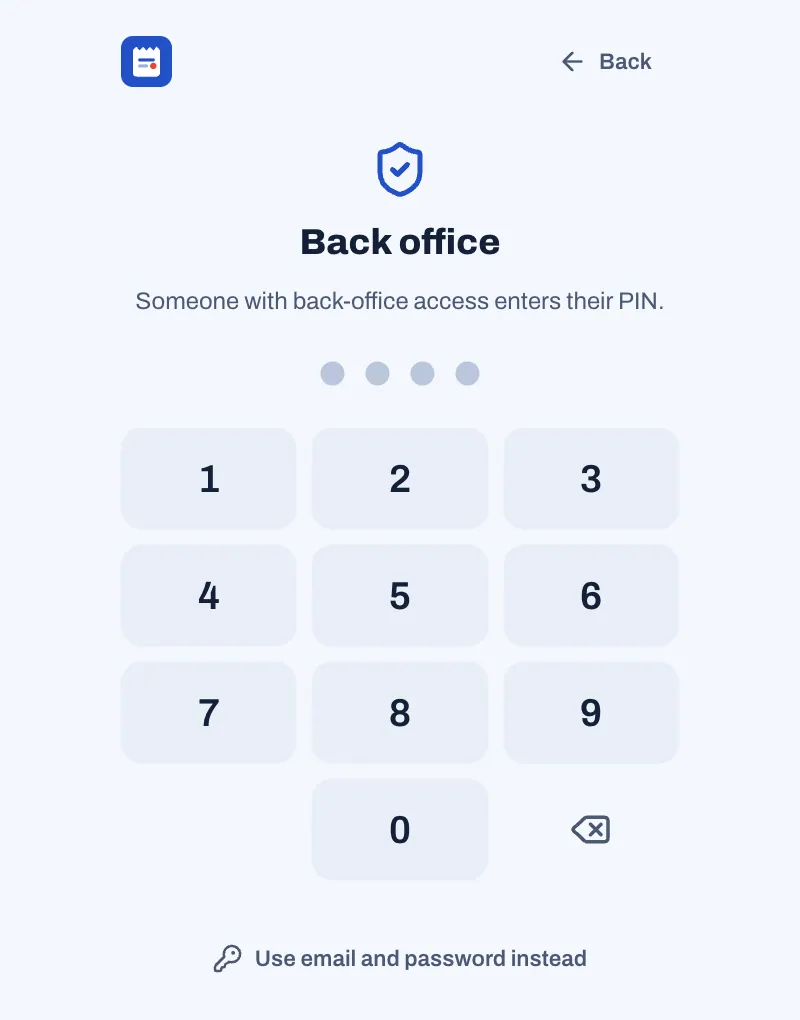
On tills and handhelds, everyone unlocks with their own PIN:
- Everyone needs a different 4-digit PIN. Sofrito never shows a PIN once it is saved, and stores it so that a copy of the database alone doesn't reveal it.
- A PIN signs in only where its role may work: tills and handhelds need Use the POS, so a kitchen PIN is refused there ("Kitchen can't sign in on this device."). The audit log records it as "PIN refused on this device".
- After five wrong PINs in a row, the device stops accepting PINs for 15 seconds, then longer with each wrong PIN, up to 5 minutes. Each wrong PIN is recorded in the audit log as "Wrong PIN entered".
- A PIN sign-in on a device lasts up to 16 hours. The till also locks by itself when nobody touches it, and after each payment if you choose. See Settings, section by section.
- When a manager approves an action with their PIN, Sofrito records both names: who asked and who approved.
If you forget your password
Sofrito has no password-reset email. Instead:
- Sign in on a till with your PIN.
- Tap More, then Back office. The back office opens as you.
- Select Team & roles, then your name.
- Select Change password, type a new one and select Save.
An owner can also set a new password for anyone else. Only an owner can change an owner's password.
Revoke a device
Do this straight away when a till, handheld or kitchen screen is lost, stolen or replaced.
- In the back office, select Devices & printers › Devices.
- Select the device.
- Select Revoke access, then Tap again to revoke.
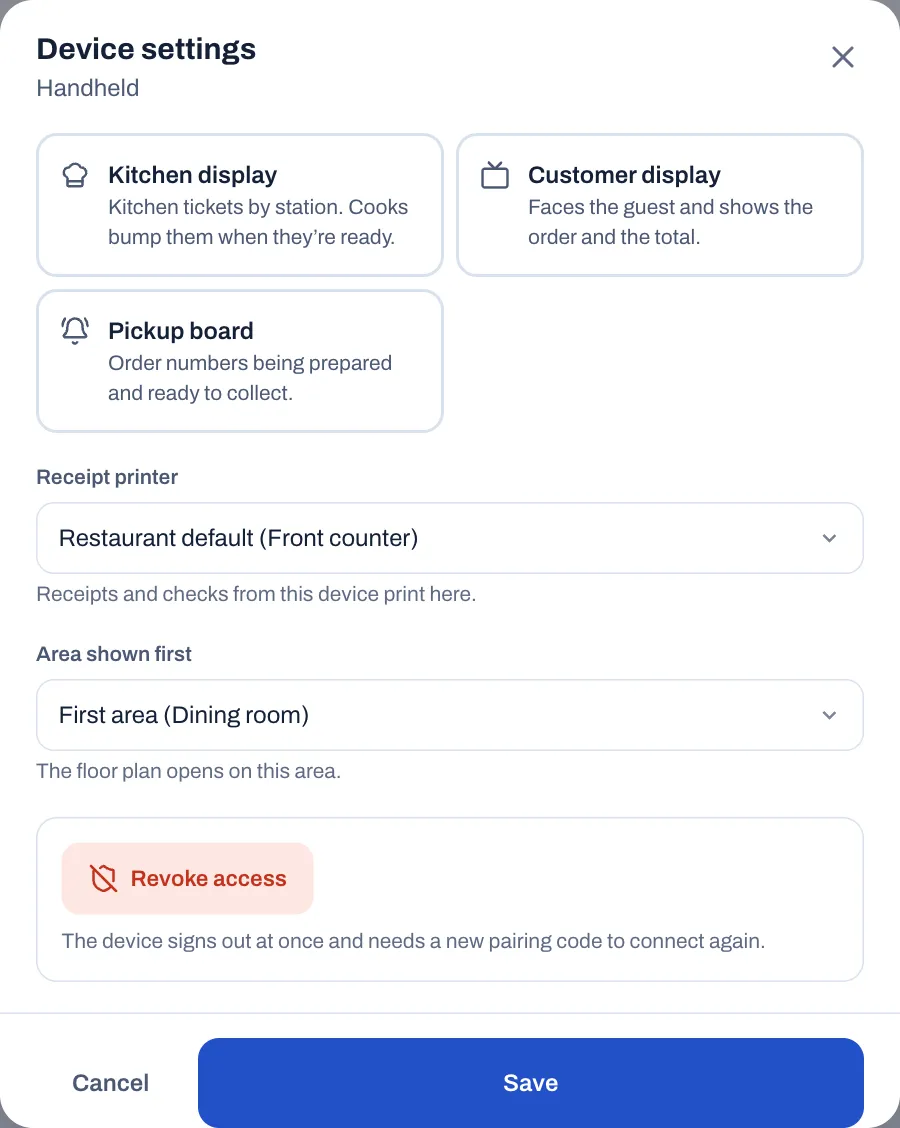
The device signs out at once, everyone signed in on it is signed out, and it needs a new pairing code to connect again. The audit log records it as "Device removed". On the device itself, someone with Manage devices and printers can do the same with More › Unpair this device. See Devices, printers and stations.
When someone leaves
- Archive them in Team & roles, the same day. Sofrito deletes their PIN and signs them out everywhere, in the back office too. See Your team, roles and PINs.
- If they set up API keys for a tool they managed, check the keys in Settings › API access and revoke the ones you no longer need.
- If they had a device of their own, such as a phone paired as a handheld, revoke it.
Their orders, shifts and audit entries stay, under their name.
Read the audit log
The audit log lists everything that changed money, records or settings: who did it, who approved it, when, and on which device.
- In the back office, select Audit log.
- Choose the dates: Today, Yesterday, Last 7 days, Last 30 days, This month, or your own dates in the two date boxes. It opens on the last 7 days.
- Optional: under Activity, choose an area or a single action.
- Optional: under Employee, choose a person. You see what they did and what they approved.
- Optional: under Search, type an item, a reason, a document number or a person.
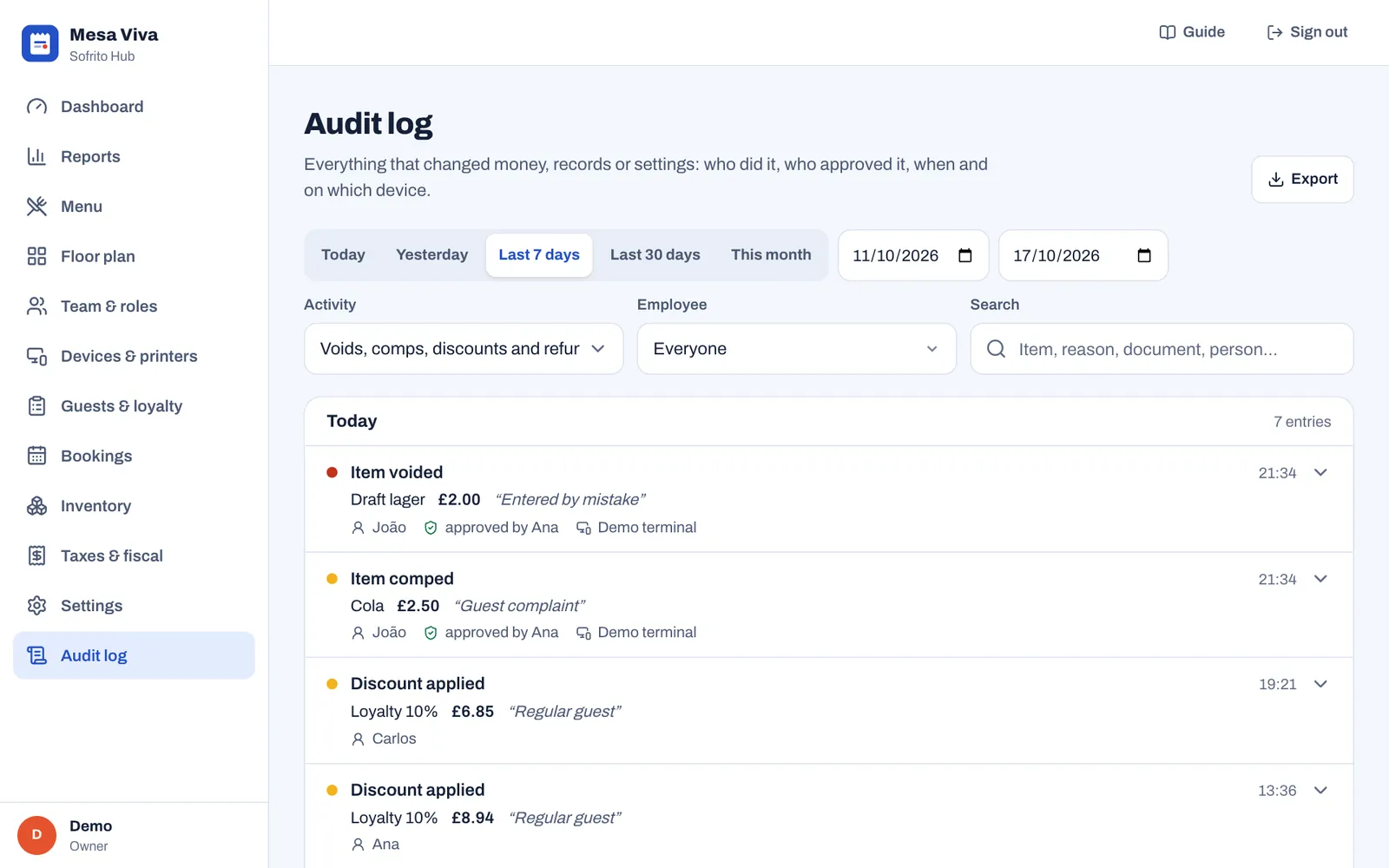
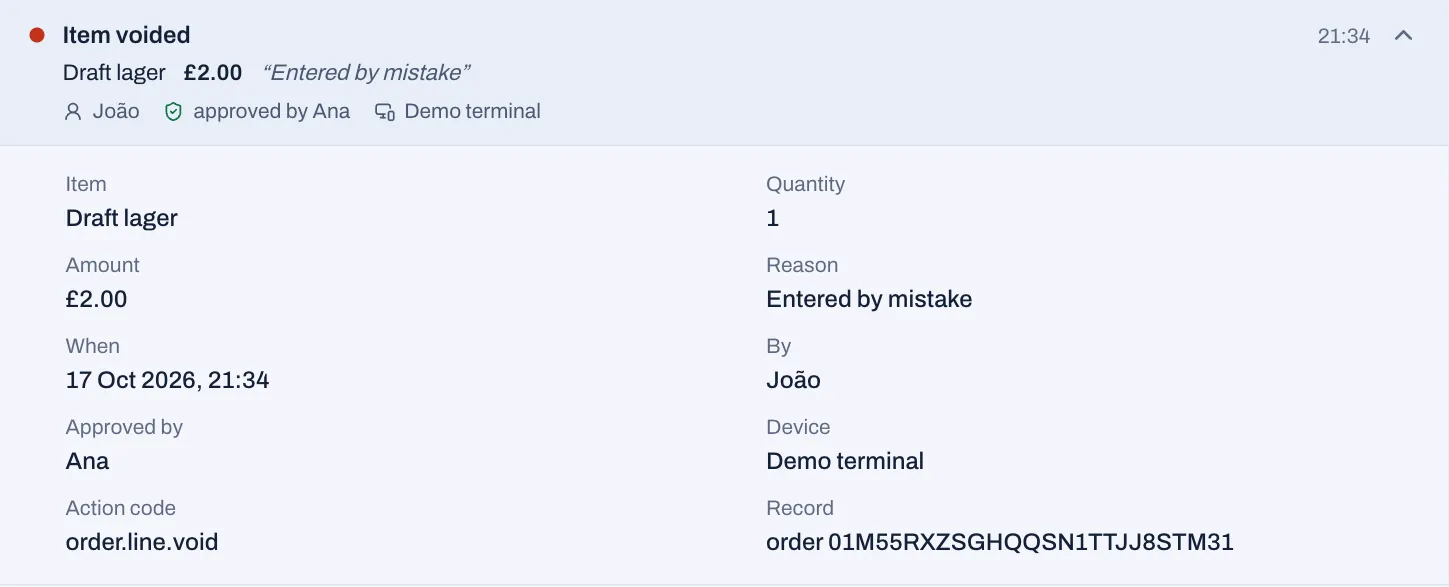
Entries are grouped by business day, newest first, with how many there are. Each entry shows what happened and when, the key facts (the item, the amount, the reason in quotes), who did it, who approved it and on which device. Sofrito (automatic) means nobody did it by hand. Select Load more at the bottom to go further back.
Select an entry to see everything recorded about it.
The areas under Activity are:
| Area | What it covers |
|---|---|
| Voids, comps, discounts and refunds | Items voided and comped, prices changed on a check, discounts, refunds, orders voided and reopened, payments voided, the drawer opened without a sale, cash paid out. |
| Orders and payments | Everything that happened to orders and payments. |
| Cash drawer and day close | Drawers opened and closed, pay-ins, pay-outs and drops, tips paid out of the drawer, day closes. |
| Fiscal documents | Documents issued and cancelled with a credit note, validation codes added to series, and day closes. |
| Menu, prices and taxes | Dishes, prices, sold-out dishes, categories, modifiers, tax rates, stations, discounts, service charges, price levels, reasons and payment methods. |
| Team and time cards | Team members, roles, clocking in and out, cash tips declared, tips paid, and corrected time cards. |
| Devices, printers and sign-in | Wrong and refused PINs, pairing codes, devices paired and removed, API keys, and printers. |
| Guests and gift cards | Guests added, changed, imported and erased, loyalty points changed by hand, house accounts, and gift cards issued, sold, topped up and corrected. |
| Stock and suppliers | Stock items, suppliers, recipes and purchase orders, and stock movements entered by hand, such as waste and counts. |
| Settings and floor plan | Settings, business details, the floor plan, closing or keeping the Sofrito Cloud account, and full exports of your data. |
Stock taken by sales and deliveries against a purchase order is not in the audit log: it is listed in Inventory › Movements (see Stock, recipes and suppliers).
The back office has no way to change or delete an entry.
To keep a copy, select Export. The file holds every entry that matches your filters, up to 10,000: the date and time, the activity, its details, who did it, who approved it, the device, the action code and the record. If there are more, Sofrito exports the latest 10,000 and asks you to pick fewer days.
Connect your own tools with API keys
An API key lets one of your own tools talk to Sofrito: an accounting sheet that reads the day's sales, a website that shows your menu, an online shop that sends orders to the kitchen. Each key can only do what you choose.
- In the back office, select Settings › API access.
- Select Create a key.
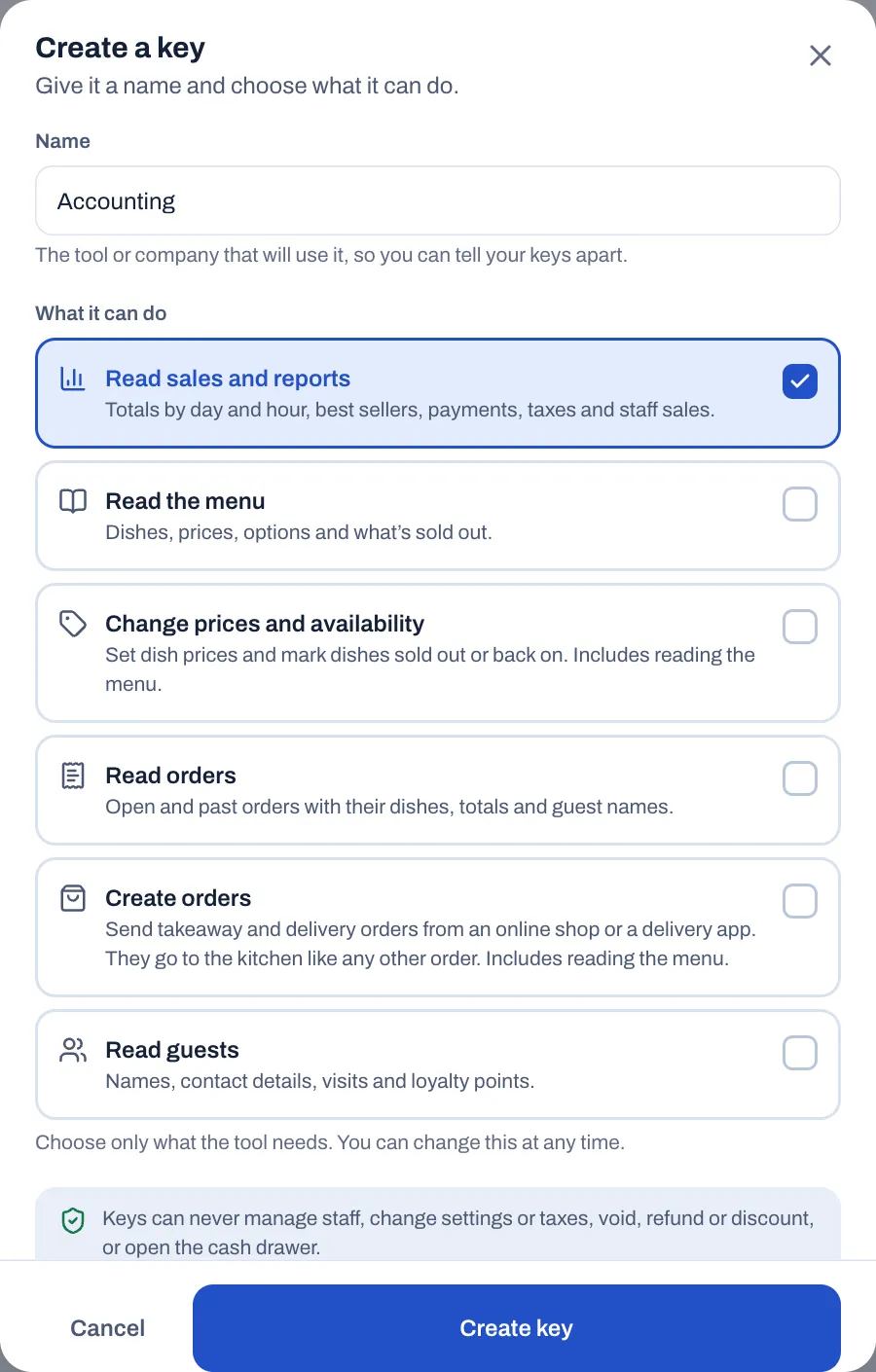
- Under Name, type the tool or company that will use it, such as "Accounting".
- Under What it can do, choose only what the tool needs.
- Select Create key.
- Select Copy key and give the key to whoever builds the connection, safely. It is shown only once.
- Select Done.
| Choice | What the tool can do |
|---|---|
| Read sales and reports | Totals by day and hour, best sellers, payments, taxes and staff sales. |
| Read the menu | Dishes, prices, options and what's sold out. |
| Change prices and availability | Set dish prices and mark dishes sold out or back on. Includes reading the menu. |
| Read orders | Open and past orders with their dishes, totals and guest names. |
| Create orders | Send takeaway and delivery orders from an online shop or a delivery app. They go to the kitchen like any other order. Includes reading the menu. |
| Read guests | Names, contact details, visits and loyalty points. |
Whatever you choose, a key can never manage staff, change settings or taxes, void, refund or discount, take payments, open the cash drawer, close the day, export fiscal files, read the audit log or use a manager's PIN. You can only give a key what your own role may do.
The API keys list shows each key with what it can do, when it was created and when it was last used.
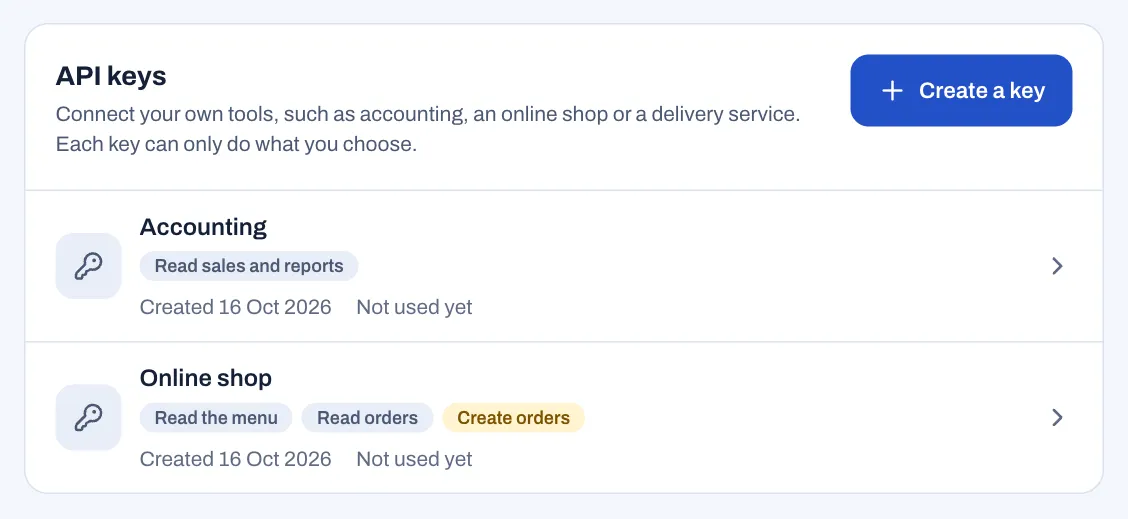
- Change a key: select it, change its Name or what it can do, and select Save. The change applies to the tool's next request.
- Revoke a key: select it, then Revoke key and Tap again to revoke. Anything using the key stops working straight away. This can't be undone.
Good to know:
- Each key works for one location: the one you are in when you create it. A business with several locations creates one key per location.
- A key works on the server where it was made. Keys made in Sofrito Cloud work with Sofrito Cloud. Keys made on a hub work with that hub only, on the restaurant's network.
- A key can make 120 requests a minute.
- Price and sold-out changes made with a key appear in the audit log under the key's name, and the audit log records when keys are created, changed and revoked.
- Under API guide, the Address is where tools send their requests, ready to copy. Select Read the API guide for the full guide with examples, and share it with your developer.
Export your data
Your data is yours. Everything below downloads as a file you keep:
| What | Where | Who can |
|---|---|---|
| Everything: the menu and its prices and options, orders and their dishes, payments, refunds, the team and roles, time cards, guests, gift cards, stock items, stock levels and suppliers | Settings › Account › Everything, as CSV files, one ZIP file | Export data |
| Sales, payments, dishes, staff and kitchen figures | Reports, the Export button on each table | View reports |
| Fiscal documents (CSV) and the SAF-T file, where your country has one | Taxes & fiscal › Exports | Export data |
| Guests and loyalty points | Guests & loyalty › Export CSV | Manage guests and loyalty |
| A guest's house account statement | Guests & loyalty, the guest, House account › Statement › Download | Manage guests and loyalty |
| Hours, labour cost and tips per shift | Team & roles › Timesheets › Export CSV | Manage the team |
| The audit log | Audit log › Export | View the audit log |
Everything except the SAF-T file comes as CSV files that open in Excel, Numbers or Google Sheets. Everything, as CSV files is on Sofrito Cloud and on Sofrito Hub, and the audit log records each one as "Everything exported". Fiscal documents have their own export in Taxes & fiscal. See Dashboard and reports, Taxes, receipts and legal documents, Guests, loyalty and gift cards and Your team, roles and PINs.
On Sofrito Hub, all your data lives in the hub's data folder on the restaurant's computer. Every day at 04:00, the hub copies its database into the backups folder inside the data folder, and keeps the last 30 copies. Copy that folder somewhere else from time to time, so a broken disk doesn't take your data with it. See Sofrito Hub and working offline.
Close your Sofrito Cloud account
Only an owner can do this, and only on Sofrito Cloud. Everything keeps working for 30 days, and you can change your mind until then. After that, Sofrito Cloud deletes the restaurant, its team, guests, menu and orders for good.
- In the back office, select Settings › Account.
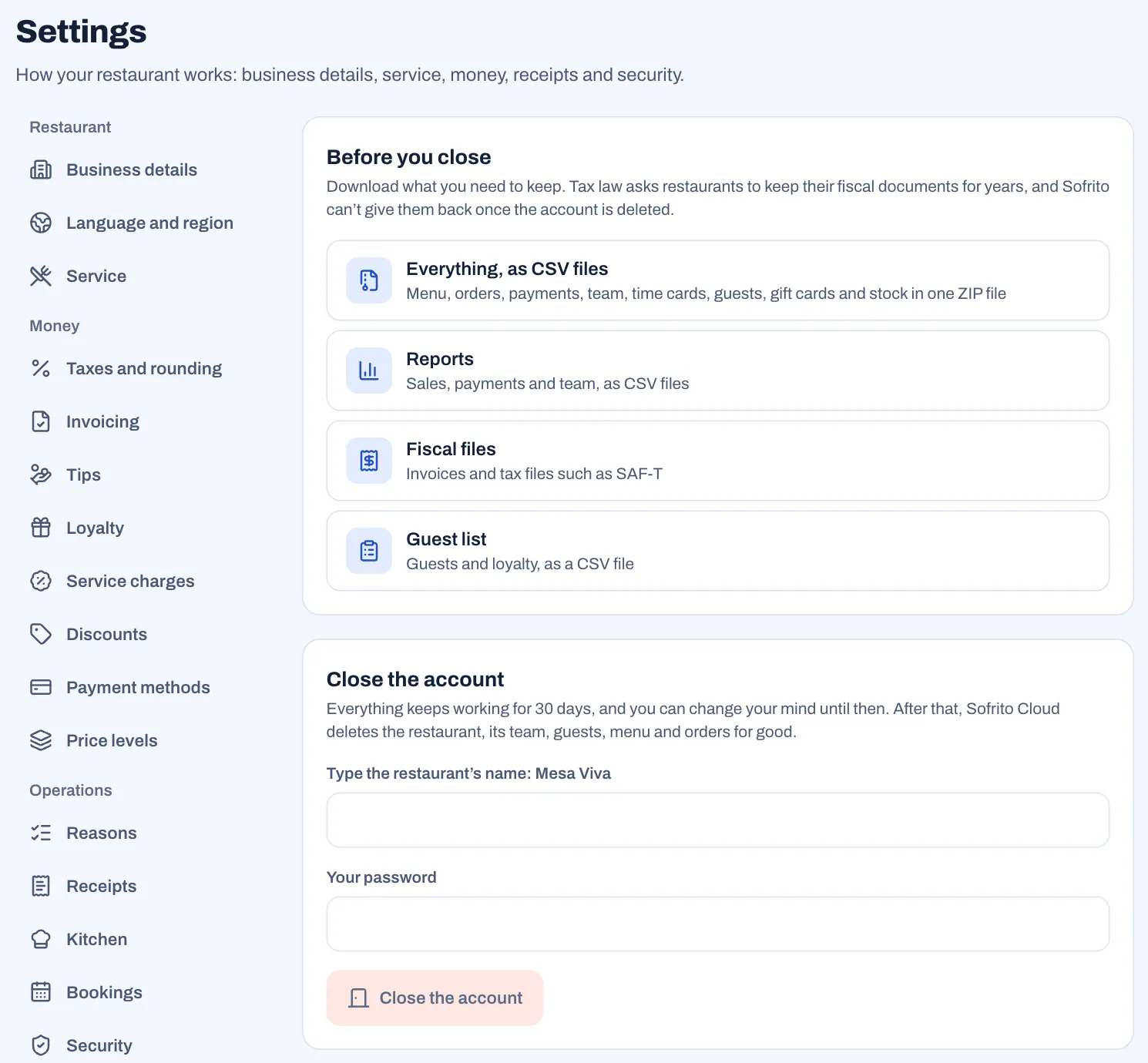
- Under Before you close, download what you need to keep. Everything, as CSV files downloads one ZIP file at once. Reports, Fiscal files and Guest list open the page with that export.
- Under Close the account, type the restaurant's name exactly as shown above the box. It is the Business name from Settings › Business details.
- Type Your password.
- Select Close the account.
From then on, every back-office page shows "This Sofrito Cloud account closes on {date}. Its data will then be deleted." with a See details link. Tills and handhelds keep working until that date.
To change your mind before the date:
- Select See details, or Settings › Account.
- Select Keep the account.
The account stays open, and the message goes away. The audit log records both closing and keeping the account.
On Sofrito Hub there is no account to close. Settings › Account says "Your data stays on this computer" and offers Everything, as CSV files. To delete the data, export what you need to keep, uninstall Sofrito Hub and delete its data folder on that computer.
Good practice
- Give everyone their own PIN, and back-office passwords only to the people who need the back office.
- Read Reports › Exceptions every morning and look at the audit log when something doesn't add up.
- Revoke lost or replaced devices the same day.
- Create one API key per tool, with only what it needs, and revoke keys you no longer use.
- Download your fiscal files and reports every month, and keep a copy of Everything, as CSV files.