Chapters
Guide › Appendices
Troubleshooting and questions
This chapter lists the problems restaurants meet most often, grouped by area. Each problem starts with what you see, quoting the message exactly as Sofrito shows it, then explains why it happens and how to fix it. Staff on shift can fix most of them. Some need a manager, and a few need the person who installed Sofrito. The last section answers questions that owners often ask. In the back office, Guide at the top of every page opens the chapter of this guide about that page.
Can't connect or pair
"That code is invalid or expired."
Why: a pairing code works once and only for 15 minutes. The code was already used, has expired or was typed wrongly.
Fix:
- In Back office › Devices & printers, select Pair a new device.
- Choose what the device will be and select Create pairing code.
- On the new device, type the 6-character code within the time shown under it ("Expires in …"), or scan the QR code. If the back office says "This code has expired.", select Create a new code.
"No Sofrito server answered at that address."
You see this in the Sofrito app on a phone, tablet or computer, after typing the server address. The full message adds: "Check that this device is on the restaurant Wi-Fi and the hub is running."
Why: the device cannot reach Sofrito Hub (or Sofrito Cloud) at that address.
Fix:
- Check the device is on the restaurant's staff Wi-Fi, not the guest Wi-Fi or mobile data.
- Check the hub computer is on and Sofrito Hub is running. It shows its addresses when it starts, for
example
http://192.168.1.20:7420. - Type the address again. If you type only the numbers (
192.168.1.20), Sofrito adds the port 7420 for you. - For Sofrito Cloud, tap Use Sofrito Cloud instead of typing an address.
The QR code opens the browser, not the Sofrito app
Why: on a phone or tablet, the QR code opens the pairing page in the browser first.
Fix: tap Open in the Sofrito app on that page. If the app doesn't open, it isn't installed (or is out of date) on that device: install or update it, or tap Connect to use the browser instead.
The browser cannot open the hub's address
Why: the device and the hub are on different networks, the router blocks devices from talking to each other, or the hub's address has changed.
Fix:
- Put the device on the same network as the hub.
- In the router, turn off "client isolation" (sometimes called "AP isolation") on the staff Wi-Fi.
- Give the hub computer a fixed address in the router (a DHCP reservation), so it keeps the same address after a restart.
- If you route between networks, devices must reach the hub on TCP port 7420.
A screen shows "Can’t reach the server. Check the Wi-Fi." when it opens
The screen also shows Try again and Connect to another server.
Why: the device is paired, but it cannot reach its server.
Fix:
- Check the Wi-Fi and that the hub is running, then tap Try again.
- Only if the hub moved to a new address or was replaced, tap Connect to another server and tap again to confirm ("Tap again: this device will need pairing again"). Then pair the device again.
A till or handheld went back to the Welcome screen
Why: the server no longer recognises the device. A manager revoked it in the back office, someone tapped Unpair this device or Leave the demo under More on it, or the device was connected to a different hub.
Fix: pair it again with a new pairing code (see the first problem above). Staff then sign in with their PIN as usual.
A device opens as the wrong screen
Why: it was paired, or later switched, as another kind of device.
Fix: in Back office › Devices & printers › Devices, select the device and change Use this device as (POS terminal, Handheld, Kitchen display, Customer display or Pickup board). The screen switches over as soon as you save. On the device itself:
- On a kitchen display, press and hold the logo for 2 seconds, then tap Switch to point of sale. Or tap the settings button (top right), Use this screen as a point of sale, then Switch to point of sale.
- On a pickup board, press and hold the logo for 2 seconds.
- On a customer display, press and hold the restaurant's logo for 2 seconds, then tap Use this screen as a point of sale.
The customer display shows the wrong orders, or none
Why: the display shows only the order open on the till it faces. It faces another till, or it hasn't been told which one yet ("Which till does this screen face?").
Fix: on the display, tap the right till. To change it, press and hold the restaurant's logo for 2 seconds and tap Choose another till, or change Faces the till in the display's settings in Back office › Devices & printers › Devices.
Working offline
Sofrito Hub: the internet is down
What happens: nothing changes for service. Tills, handhelds, kitchen displays and network printers talk to the hub over the restaurant network, not over the internet. If the hub is linked to Sofrito Cloud, changes wait on the hub (Back office › Settings › Cloud sync shows them under Waiting to upload) and go up by themselves when the internet is back. Your card terminal needs its own connection to approve cards.
A device shows "Offline — reconnecting…"
The lock screen shows "Offline — reconnecting…" in red. Elsewhere, a red, crossed-out Wi-Fi symbol appears in the left-hand bar of the till, at the top of a phone, or next to the clock on the kitchen display.
Why: that device has lost its connection to the hub (or to Sofrito Cloud).
What happens: the device keeps trying by itself, every few seconds. When it reconnects it shows "Back online" and reloads the open orders. Until then, anything you try to send, pay or print fails after a while with "Can’t reach the server. Check the Wi-Fi." Dishes you tapped but did not send stay on the order on that device.
Fix:
- Check the device's Wi-Fi. Walk closer to the router if the signal is weak.
- Check the other devices. If they are all offline, the problem is the hub or the network: see below.
- Carry on from another device that is online. Send the waiting dishes as soon as the device reconnects.
Sofrito Cloud: the internet is down
What happens: every device goes offline. Sofrito cannot send orders to the kitchen or take payments until the internet is back. Dishes tapped but not sent stay on each device's open order.
Fix: reconnect the router, or switch the restaurant's devices to a backup connection such as a mobile data hotspot. If your internet often fails, run Sofrito Hub in the restaurant instead: see Sofrito Hub and working offline.
The hub computer is off or restarting
What happens: every device shows "Offline — reconnecting…" until the hub is back, then reconnects by itself.
Fix: switch the hub on and wait a minute. Never switch it off during service. Put the hub, the router and the network switch on a small UPS (a battery backup), so a short power cut does not stop service. When the desktop app runs the hub, quitting it while other devices are connected asks "Quit Sofrito?": choose Keep Sofrito open.
Printing
When a printer stops working, every till and handheld shows a yellow warning in its own language, for example "Kitchen is offline" with the reason. The device that sent a job that didn't print also shows it in red, for example "Kitchen #12 didn’t print on Kitchen", with Reprint. In the back office, the problem shows under the printer's name in Devices & printers › Printers.
More › Printers on a till or handheld lists the printers with their status and the last print jobs (Print queue: Queued, Sending, Printed, Failed or Cancelled). A failed job shows why it didn't print, with Reprint. Tap a job to see what it printed, and Refresh to update the list.
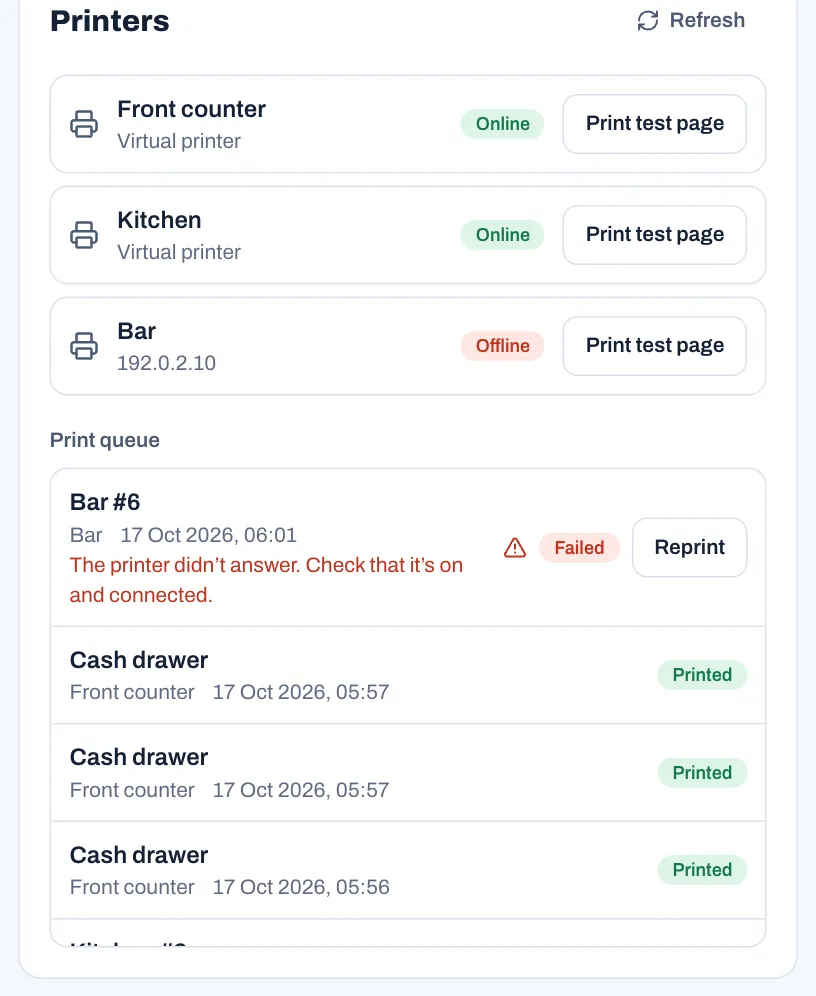
A printer shows Offline
Under Offline you see the reason, for example "The printer didn’t answer. Check that it’s on and connected.", "The printer refused the connection. Check its address and port." or, from a Star printer, "Out of paper.", "Paper jam." or "The cover is open."
Why: Sofrito could not deliver a job. It tries each job three times, then marks the job Failed and the printer Offline. If the printer has a Backup printer, the job goes to the backup at once instead.
Fix:
- Check the printer is on, has paper, and that its lid is closed.
- Check its cable or Wi-Fi. Kitchen printers are more reliable on a cable.
- Check its IP address: print the printer's own self-test page (on most printers, hold the feed button while you switch it on) and compare it with IP address in the printer's settings.
- Select Print test page. As soon as a job prints, the printer shows Online again.
Jobs go to the backup printer
Why: while a printer is Offline, its new jobs go to its Backup printer, so nothing is lost.
What happens: a minute later, Sofrito sends the next job to the printer itself again. As soon as one prints, the printer shows Online and gets its jobs back. To check it at once after you fix it, select Print test page: test pages always go to the printer itself.
A ticket or receipt did not print
The till that sent it shows, for example, "Bar #6 didn’t print on Bar", with the reason and Reprint.
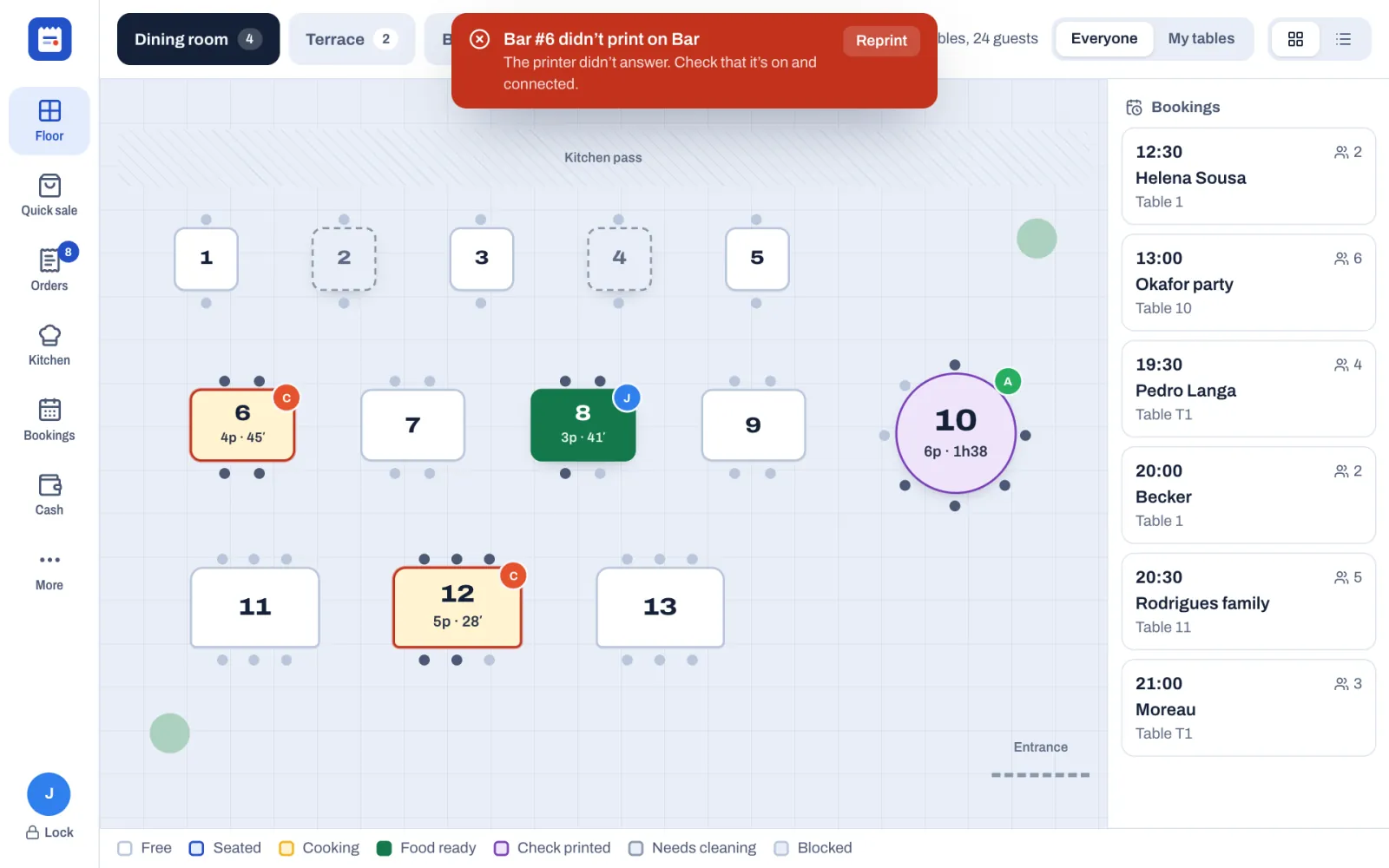
Why: the printer was off or unreachable, and Sofrito's three tries failed.
Fix:
- Fix the printer (see A printer shows Offline).
- Tap Reprint on the message, or find the job under More › Printers › Print queue and tap Reprint. The till shows "Sent to the printer again", and the failed job then shows Cancelled.
- If the printer can't be fixed during service, read the order to the kitchen from the till, or show it on a kitchen display.
- Set a Backup printer for each kitchen printer, so the next tickets have somewhere to go.
"Not printed: the device or computer that prints it was off for too long."
Why: the job was for a printer built into a handheld, or for a printer that a computer prints to (a print bridge), and that device was off or out of range. A job that waited more than 15 minutes is not printed late.
Fix: switch the device or computer on, then tap Reprint on the job if it is still needed. To reprint a receipt, open the order under Orders › Closed and tap Reprint receipt.
Print bridge problems
On the computer that prints for the restaurant, the Print bridge screen lists its Problems. You may see:
- "A print bridge needs the Sofrito desktop app": the computer is paired in a plain browser, which can't send to printers. Install the Sofrito desktop app, pair it as a print bridge with a new code, and tap Stop using this browser as a print bridge in the browser.
- "The desktop app can’t print from this page": update the Sofrito desktop app. If it is up to date, choose Sofrito › Connect to a different server… in its menu and connect to the restaurant's server again.
- "Not connected to the server. Print jobs wait until the connection is back.": check the computer's internet or network connection.
- On Sofrito Cloud, a job fails with "No print bridge picked it up." when no print bridge collected it within an hour. Check that the computer is on and Sofrito is open on it.
Tickets only appear on the screen
The till shows a message such as "Sent to Kitchen", but nothing prints.
Why: the printer's connection is Virtual. A new restaurant starts with virtual printers, so you can use Sofrito before the printers arrive.
Fix: open the printer in Back office › Devices & printers › Printers, change How it connects (for example to Network with its IP address), save, then select Print test page.
Accents or the euro sign print wrong
Fix: open the printer and change Character set. Try Western European with euro sign (CP858) or, for Portuguese, Portuguese (CP860). Save and print a test page after each change.
The cash drawer does not open
Fix:
- Plug the drawer into the receipt printer's drawer port (marked DK).
- Open the receipt printer's settings and change Cash drawer connector from Pin 2 to Pin 5, or back.
- In Back office › Devices & printers › Cash drawers, check the drawer is opened by The terminal’s receipt printer and that this till's receipt printer is a real printer, not a virtual one. The drawer always opens from its own printer, never from a backup.
Staff without permission need a manager's PIN to open the drawer with No sale.
Receipts from a handheld print in the wrong place, or not at all
Fix:
- In Back office › Devices & printers › Devices, select the handheld and check its Receipt printer. Restaurant default uses the main receipt printer.
- For a handheld with a printer inside (Senraise, Sunmi, or a paired Bluetooth printer), add that printer: Printers › Add printer, How it connects: Built into a device, then choose the Device. Leave How it prints on Find it automatically (recommended).
- To check that printer from the handheld itself, open the Sofrito app on it and tap More. Under Printers, Printer in this device says what Sofrito found ("No printer was found in this device." if nothing). Tap Print a test here. If it says, for example, "Receipts from this device print on Front counter.", a manager taps Use it for this device’s receipts.
Taking orders
"Already sent to the kitchen — void it instead."
Why: once an item is sent, you can no longer change its quantity or options.
Fix: tap the item, tap Void, choose a reason, and add the corrected item. Voiding a sent item needs a manager's PIN unless your role allows it.
"A manager needs to approve this." on a colleague's table
Why: the check was opened by someone else, and your role doesn't have Change other people’s orders. Adding items, voids, discounts, moving, splitting and merging someone else's check need it. A check with nothing on it yet, such as one a host opened when seating the guests, doesn't: it becomes yours when you add its first items.
Fix: a manager types their PIN and taps Approve. If the table is yours from now on, ask the manager to hand it over to you: ••• › Hand over to…. Sending, printing the check and taking payment never need approval.
A dish shows "Sold out", or "… is sold out."
Why: someone marked it sold out, on this device or another one. With stock tracking, a dish also shows Sold out when its stock reaches zero, and "Only 2 left." when you try to add more than there is.
Fix: press and hold the dish. Its details show whether it is on sale, and let you put it back on sale or, for a dish whose stock is counted, type how many are left. This needs the "Mark dishes as sold out" permission. Closing the day puts sold-out dishes back on sale by itself, unless the restaurant turned that off.
"This order is already closed."
Why: someone paid or voided the order on another device.
Fix: go back to Floor or Orders. The closed order is under Orders › Closed.
"Choose a reason."
Why: voids, comps and refunds ask for a reason. A manager can switch the questions off in Back office › Settings › Security.
Fix: tap one of the reasons, or type your own under Other reason and tap Confirm.
Payments and cash differences
"Open the cash drawer before taking cash."
Why: the restaurant asks for an open drawer before cash payments, and none can be opened from this device. The setting is Open the drawer before taking cash, in Back office › Settings › Cash. Usually, taking cash with no drawer open, or selling a gift card for cash, brings up the Starting cash window instead: count the drawer, type the amount and tap Open drawer, and the payment goes ahead. You see this message when the restaurant has no cash drawer set up. If the person taking cash cannot open drawers, they see "You don’t have permission to do this." when they tap Open drawer.
Fix: a manager or cashier taps Cash › Open drawer. If there is no drawer, add one in Back office › Devices & printers › Cash drawers › Add cash drawer.
"Open the cash drawer before paying cash out."
Why: cash is going out of the drawer, for a cash refund or for tips paid From the cash drawer in Back office › Team & roles › Tips, and no drawer is open. On the till, a cash refund with no drawer open usually brings up the Starting cash window instead: "Count the cash in the drawer before the refund is paid out of it." You see this message when the restaurant has no cash drawer set up, or in the back office.
Fix: a manager or cashier taps Cash › Open drawer on a till, then pays the refund or the tips again. For tips, you can also choose With wages, which leaves the drawer alone.
"Cash received is less than the amount."
Fix: type the amount the guest handed over, or tap Exact. If your restaurant rounds cash, the amount due includes a Cash rounding line.
"That’s more than the … still to pay."
Why: a card or other non-cash payment cannot be more than the balance.
Fix: charge the balance. Put a tip under Tip, and use Other amount for part of the bill.
"Enter the … reference."
Why: payment methods such as mobile money ask for the transaction number. The message names the method.
Fix: type the transaction ID from the guest's phone in Reference. A manager decides which methods ask for it in Back office › Settings › Payment methods (Ask for a reference).
The card terminal declined the card
Sofrito does not talk to your card terminal. After Charge, it shows "Waiting for the card terminal…" and "Confirm once the terminal shows “Approved”."
Fix: if the terminal declines, do not tap Approved. Close the payment sheet or choose another payment method.
A payment was recorded with the wrong method
Why: for example, a card payment was recorded as cash.
Fix: while the order is still open, tap Pay. Under Payments taken, tap Change method on the payment: Sofrito cancels it and sets the same amount up again, to take with the right method. A manager approves if your role can't void payments. If the order is already closed, a manager reopens it first (Orders › Closed › Reopen, reason "Wrong payment method"), changes the method, then taps Close order.
A tax number or buyer name is refused
You may see:
- "That tax number is not valid." In Portugal, Sofrito checks the NIF's check digit. Check the number with the guest.
- "This invoice needs the customer’s tax number." In Spain, a bill above €3,000 needs a full invoice with the buyer's NIF.
- "Above … the receipt needs the customer’s name and address." In Portugal, above €1,000 before VAT, Invoice with NIF is switched on and can't be turned off.
Fix: turn on Invoice with NIF (the button uses your country's tax-number name) and fill in the tax number, Name / company, Address, Postcode and Town or city. See Country notes.
Gift card messages
"Scan or type the gift card code.", "No gift card has this code." and "This gift card has only … left." come from the gift card itself. Check the code with the guest, or take the rest with another payment method. See Guests, loyalty and gift cards.
The drawer is over or short
After Close drawer, Sofrito shows Expected, Counted and Over / short.
Why: the usual causes are:
- cash taken out of the drawer without a Pay out, for example to pay a supplier
- tips handed to staff from the drawer, instead of paid out in Back office › Team & roles › Tips
- a Cash drop made without recording it
- wrong change given
- a payment recorded with the wrong method (see above)
- cash collected on handhelds that was not handed in: Sofrito counts it in the open drawer
Fix:
- On Cash, read the drawer's Movements: Opening float, Cash sale, Refund, Pay in, Pay out, Cash drop, Tips paid out, No sale and the reasons given.
- Compare the card total under Today with your card terminal's report.
- Look at Back office › Reports › Exceptions and the Audit log for refunds, voids and drawers opened without a sale.
PINs and access
Wrong PIN, or "Too many wrong PINs. Try again in a moment."
On the lock screen, a wrong PIN makes the dots shake. After five wrong PINs in a row, that device stops taking PINs for 15 seconds, then longer after each further wrong PIN, up to 5 minutes. Other devices are not affected. Every wrong PIN is recorded in the audit log as "Wrong PIN entered".
Fix: wait, then try again slowly. If you have forgotten your PIN, a manager sets a new one in Back office › Team & roles: select your name and Reset PIN.
"Kitchen can’t sign in on this device."
Why: a PIN only opens devices its role works on. The Kitchen role works on the kitchen display, which needs no PIN, so a Kitchen PIN doesn't open a till or a handheld. The message names the role.
Fix: kitchen staff can still clock in and out on the till with Clock in / out. If someone needs the till, an owner gives their role Use the POS or gives them another role.
"Someone else already uses this PIN. Choose another one."
Why: PINs identify people, so each one must be different.
Fix: choose another 4-digit PIN.
"A manager needs to approve this."
The till opens Manager approval.
Fix: a manager types their PIN and taps Approve. If the pad then shows "Wrong PIN.", the PIN was wrong. If it shows, for example, "João can’t approve this.", that person's role does not have the permission: ask a manager or owner. The pad closes after three wrong tries. Wrong manager PINs pause approvals on that device in the same way as wrong PINs on the lock screen.
"You don’t have permission to do this."
Why: your role does not allow this action, and it is not one a manager can approve on the spot.
Fix: ask someone whose role allows it. An owner can change roles in Back office › Team & roles › Roles and permissions. See Quick cards for every role.
"You are not assigned to this location."
Why: your profile only lets you sign in at some of the group's restaurants.
Fix: a manager adds this restaurant under Locations in your profile in Team & roles.
"Your role can’t open the back office."
On a till, Back office asks for "Someone with back-office access enters their PIN." This message means the PIN belongs to someone whose role doesn't have Open the back office.
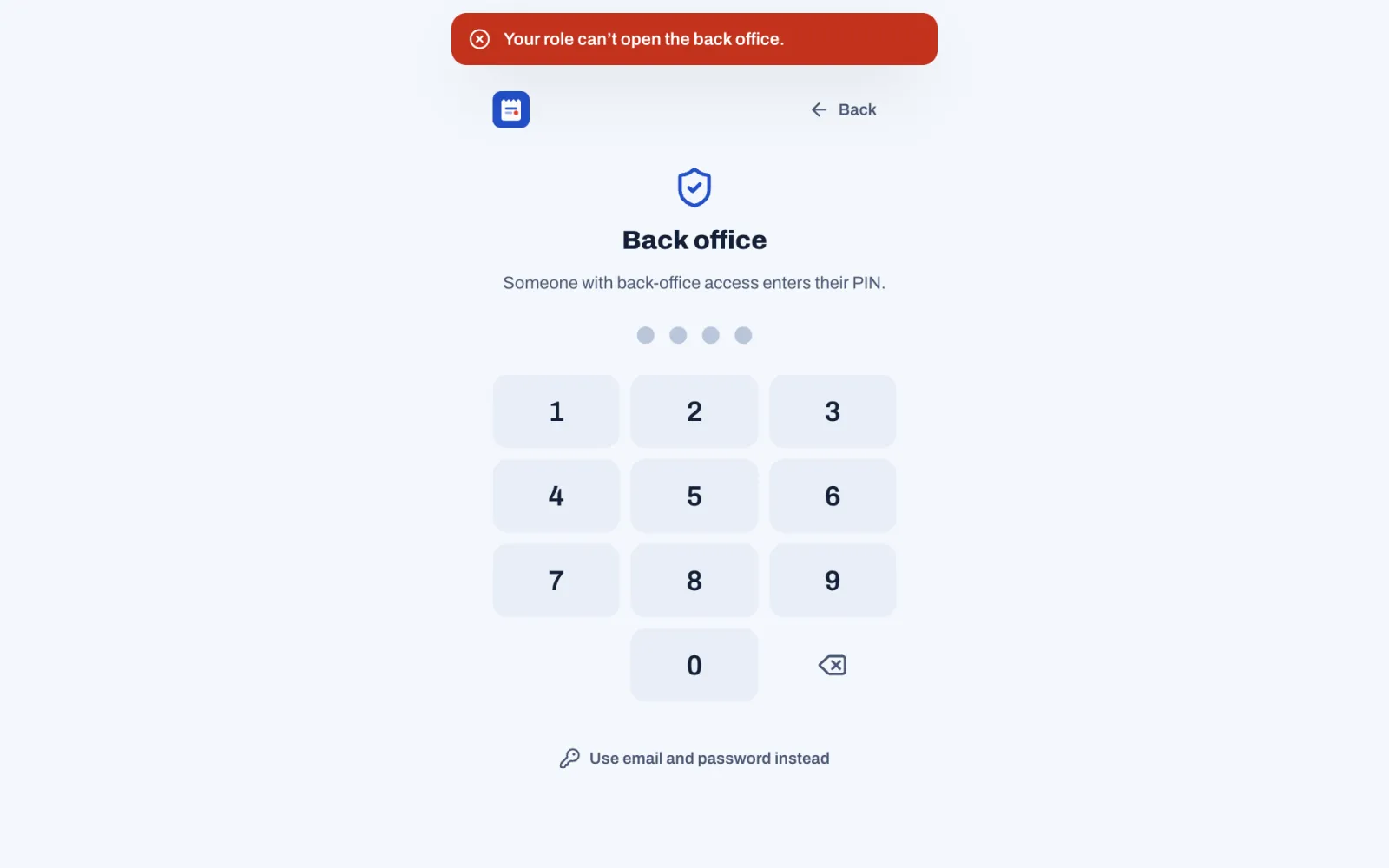
Fix: a manager or owner types their PIN, or taps Use email and password instead. You see the same message when you sign in with an email and password whose role can't open the back office.
Back office sign-in problems
- "Email or password is incorrect." Check both. Sofrito has no password-reset email.
- The back office on a till asks for a PIN again: it locks after 5 minutes without a touch, when the till locks, and when someone selects Sign out. To stay signed in, use Sign in to the back office in a browser that isn't paired as a till.
Fix for a forgotten password:
- Sign in on a till with your PIN.
- Tap More › Back office. The back office opens as you.
- Open Team & roles, select your name, then Change password, and save.
An owner can also set a new password for a manager. Only an owner can change an owner's details.
"Please sign in again."
Why: your session ended. It expired, or a manager revoked the device or turned off your sign-in.
Fix: tap Lock and sign in with your PIN again. In the back office, sign in again with your email and password.
Changes to the team are refused
- "Only an owner can do this." Managers cannot change an owner's details or make someone an owner.
- "The restaurant needs at least one owner." Make someone else an owner first.
- "You cannot change your own role or switch off your own access." Ask another owner.
Kitchen display
A dish never reaches the kitchen
Why: one of these:
- The dish has no station. In Back office › Menu, the dish says "With no station selected, this dish is never sent to the kitchen."
- Its station has no printer and no kitchen screen shows it ("Tickets go nowhere").
- Print kitchen tickets is off in Settings › Kitchen, and no kitchen screen shows the station ("Tickets go nowhere" too).
- The kitchen display that shows the station is switched off. Its tickets wait on it all the same: after a day, Devices & printers marks the display Tickets wait on it and the station Screen not in use.
- The kitchen display shows other stations only.
- The server held the dish back (the hourglass) and has not sent or fired it yet.
Fix:
- In Back office › Menu, open the dish and choose its Stations, or Use the category’s stations.
- In Back office › Devices & printers › Stations, check Tickets print on and Show on kitchen screens. The list shows No screen shows it when no paired kitchen display shows the station.
- Switch the kitchen display on. If it is no longer used, revoke it in Devices & printers › Devices: the station's next tickets then go to its printers.
- On the kitchen display, tap All stations, or the station's button.
- Ask the server to tap Send or Fire on the order.
Dishes show Served as soon as they are sent
Why: their station only prints. A station's tickets wait on a kitchen screen only when Show on kitchen screens is on and a paired kitchen display shows that station. Otherwise the ticket prints and closes at once, so nothing waits on the kitchen screen and nothing counts as late.
Fix: if the station should be on a screen, turn on Show on kitchen screens for it and choose it under Stations on this screen on a kitchen display. Orders sent after that wait on the screen.
The kitchen display shows the wrong tickets
Fix: tap All stations, or tap each station this screen should show. The settings button (top right) also has Stations on this screen. A manager can set the same in Back office › Devices & printers › Devices.
The kitchen display does not beep
Fix:
- Tap the screen once. A kitchen display that has just started stays silent until someone touches it.
- Check the device's volume.
- Check Back office › Settings › Kitchen › Sound for new tickets is on.
- The display only beeps for the stations it shows.
A ticket disappeared
Why: someone bumped it, or it belongs to an earlier business day. Kitchen screens show only the current business day, and Close the day (Z) clears every ticket still open from that day.
Fix: tap Recall, find it under Recently bumped, and tap Recall next to it. With a bump bar, press R to recall the last ticket. Tickets that the day close cleared don't come back.
The server is not told when food is ready
Fix: check Back office › Settings › Kitchen › Tell the server when food is ready is on. The chime and the message ("Table 6 is ready") go to the server who owns the order, on a device where they are signed in. Servers can also watch Kitchen on the till.
The app won't start
"Sofrito cannot start on this device"
This screen has a Try again button and, in small print, the technical reason.
If it says "Its browser engine (Android System WebView …) is too old":
- Open Google Play and update Android System WebView and Google Chrome.
- Restart the device and open Sofrito again.
Sofrito needs Android System WebView 111 or newer. You can see the version in the device's settings, under Apps, Android System WebView. A device too old to update cannot run Sofrito: see Plan your setup for the devices that work.
If it says "Something stopped it while it was starting":
- Close Sofrito and open it again.
- If it keeps happening, send a photo of the screen to whoever installed Sofrito. The small print tells them what went wrong.
If the small print says "The app did not start within 15 seconds.", the device is probably slow to reach the server. Check the Wi-Fi and tap Try again.
"This screen stopped working"
Why: Sofrito hit a problem on that screen. "Nothing you entered before is lost."
Fix: tap Try again. If it happens again, tap Back to the start and tell your manager what you were doing.
Sofrito Hub and backups
Where the backups are
Sofrito Hub saves a copy of the restaurant every day at 04:00, restaurant time, in the backups folder inside
its data folder, as sofrito-YYYY-MM-DD.db. If the computer was off at 04:00, it saves the copy later that day,
once no order is open. It keeps the last 30 copies. When Sofrito Hub runs inside the desktop app, the data
folder is:
| Computer | Folder |
|---|---|
| Windows | %APPDATA%\com.lefamtech.mise.desktop\hub |
| Mac | ~/Library/Application Support/com.lefamtech.mise.desktop/hub |
| Linux | ~/.local/share/com.lefamtech.mise.desktop/hub |
A hub installed on its own uses the folder its installer chose. See For partners and installers.
The backups sit on the same computer as the hub. Copy them somewhere else regularly, or link the hub to Sofrito Cloud in Back office › Settings › Cloud sync.
Restoring a backup
Restoring takes the restaurant back to the day of the copy: orders, payments and receipts made after it are lost, and receipt numbers after that point would be issued again. Do it only when the hub's database is lost or damaged, and talk to your Sofrito partner and your accountant first. The steps are in Restore a backup.
Cloud sync shows "Needs attention"
Back office › Settings › Cloud sync shows "The last sync did not finish", with the reason, and adds "Sofrito tries again every few seconds."
Fix:
- Check the hub computer has internet, then select Sync now.
- If it keeps failing, the link may have been removed in Sofrito Cloud. Select Unlink (tap again to confirm) and link the hub again. Unlinking deletes nothing, on the hub or in the cloud.
Linking the hub to Sofrito Cloud fails
Fix:
- Sign in to Sofrito Cloud, open Devices & printers and create a pairing code for a Sofrito Hub.
- On the hub's back office, in Settings › Cloud sync, type the Cloud address and that Pairing code, then select Link this hub within 15 minutes.
- If you see "That code is invalid or expired." or "Sofrito Cloud did not accept this code.", create a new code. If you see "Can’t reach …" or "… is not a Sofrito Cloud address.", check the cloud address and the hub's internet connection.
Updating Sofrito Hub
Replace the program and its web folder with the new version, or update the desktop app, then restart the
hub. The database updates itself when the hub starts. Update outside service hours.
Questions
What happens if the internet goes down?
With Sofrito Hub, service carries on: orders, the kitchen, payments and printing all work over the restaurant network. With Sofrito Cloud, devices need the internet and go offline until it is back. See Working offline.
What happens in a power cut?
Devices with batteries keep going, but the hub, the router and the printers stop. Put the hub, the router and the switch on a UPS. When the power comes back, devices reconnect by themselves.
Can servers change each other's tables?
Not on their own. Anyone who can open orders can open any check, but a server who adds to, voids, discounts, moves or splits a check someone else opened needs a manager's PIN. A check with nothing on it yet, such as one a host opened, is the exception: whoever adds its first items takes it over. To let servers change each other's checks, an owner gives their role Change other people’s orders. Taking payment never needs it. On Floor, My tables shows only your own. Everything people change is recorded under their name.
Who can see the day's takings?
In the back office, people whose role has "View reports" (managers and owners). On the till, the Cash screen shows today's totals to every role with "Print shift reports (X)", which includes servers, bartenders and cashiers. To hide them, an owner removes that permission from the role.
How do I stop free drinks and big discounts?
Comps, voids of sent items and discounts above the limit need a manager's PIN, and Sofrito asks for a reason. Set the limit in Back office › Settings › Security › Discounts up to, and mark discounts that always need a manager with Needs a manager's PIN in Settings › Discounts. Read Reports › Exceptions each week.
A member of staff has left. What do I do?
In Back office › Team & roles, select the person and select Archive (tap again to confirm). Their PIN stops working at once and their history stays in the reports. To block someone for a while instead, turn off Can sign in.
A phone or handheld was lost or stolen.
In Back office › Devices & printers › Devices, select it and select Revoke access (tap again to confirm). It signs out at once and needs a new pairing code to connect again.
Can I change or delete a receipt?
No. Sofrito never changes or deletes a legal document. To correct a sale, a manager refunds it (Sofrito issues a credit note) or reopens the order (Sofrito cancels the original with a credit note and issues a new document when it is paid again). See Voids, discounts, refunds and approvals.
Why do sales after midnight count for the day before?
The business day ends at 04:00, so a late service belongs to the evening it started. Change the time in Back office › Settings › Language and region › Business day ends at.
What happens to orders still open when I close the day?
Close the day (Z) lists the Checks still open on this day. Tap one to pay or void it. Or tap Close the day, move the open checks: the day closes, and the open checks move to the next business day, where they are reported when they are paid.
I forgot to close the day yesterday. What now?
Tap Cash › Close the day (Z). The till says "Business day … was never closed. Close it before today’s." Close that day first, then close today when service ends.
Which order does the customer display show?
Only the order open on the till it faces, chosen under Faces the till in its settings or on the display itself. After a payment it shows "Thank you!" for a few seconds, and between orders the welcome message.
How do I leave the demo restaurant?
Sign in on a till as the demo's owner (PIN 1234), tap More, then under This is the demo restaurant tap Leave the demo and Tap again to leave. On a Sofrito Hub, this erases the demo, and the hub goes back to Set up a restaurant. On Sofrito Cloud, the device leaves the demo and is signed out of it. See Try the demo restaurant.
Does Sofrito work with my card terminal?
Sofrito records card payments taken on any card terminal. You charge the amount on the terminal and tap Approved in Sofrito. The terminal itself is not connected to Sofrito.
Is my data backed up?
On Sofrito Cloud, your data is stored and replicated by Cloudflare. On Sofrito Hub, the hub keeps 30 daily copies on its own computer: copy them elsewhere, or link the hub to Sofrito Cloud for a continuous copy off site.
How do I get my data out?
Every report exports to a spreadsheet. Taxes & fiscal › Exports downloads your fiscal documents as CSV and, where your country has one, the SAF-T file. Guests & loyalty has Export CSV. To take everything at once, select Settings › Account › Everything, as CSV files: one ZIP file with the menu, orders, payments, team, time cards, guests, gift cards and stock. You need Export data for it.
Is Sofrito approved by the tax authority in my country?
It depends on the country. Back office › Taxes & fiscal › Compliance shows what Sofrito does in yours and what is still missing. See Country notes.
Can I use the tablets and printers I already have?
Usually, yes. Sofrito runs on Windows, Mac and Linux computers, iPads, iPhones and Android devices, and prints on almost any thermal receipt printer on the network, or built into a Sunmi or Senraise handheld. See Plan your setup and Devices, printers and stations.