Chapters
Guide › Run service
Taking payment
This chapter is for everyone who takes payment, at the till or at the table with a handheld. It covers the payment screen, each way of paying, selling gift cards, tips, splitting the bill, part payments and correcting them, invoices with the customer's tax number, receipts, and what a paid order shows afterwards. Refunds are in Voids, discounts, refunds and approvals.
Before you start
- Your payment methods, tips and service charge are set up: see Payment methods, tips and service charge.
- Your receipts are set up: see Taxes, receipts and legal documents.
- The cash drawer is open: see Open for service. If it isn't, the till asks for the starting cash at the first cash payment.
Open the payment screen
- Open the check: tap the table, or the order in Orders.
- Tap Pay. The button shows what is still to pay.
Items that have not been sent yet, held ones included, are saved, and go to the kitchen when the bill is paid in full.
The Payment window shows the table and order number at the top, for example "Table 6 (#2)". Anyone whose role can take payments can settle any check, whoever opened it.
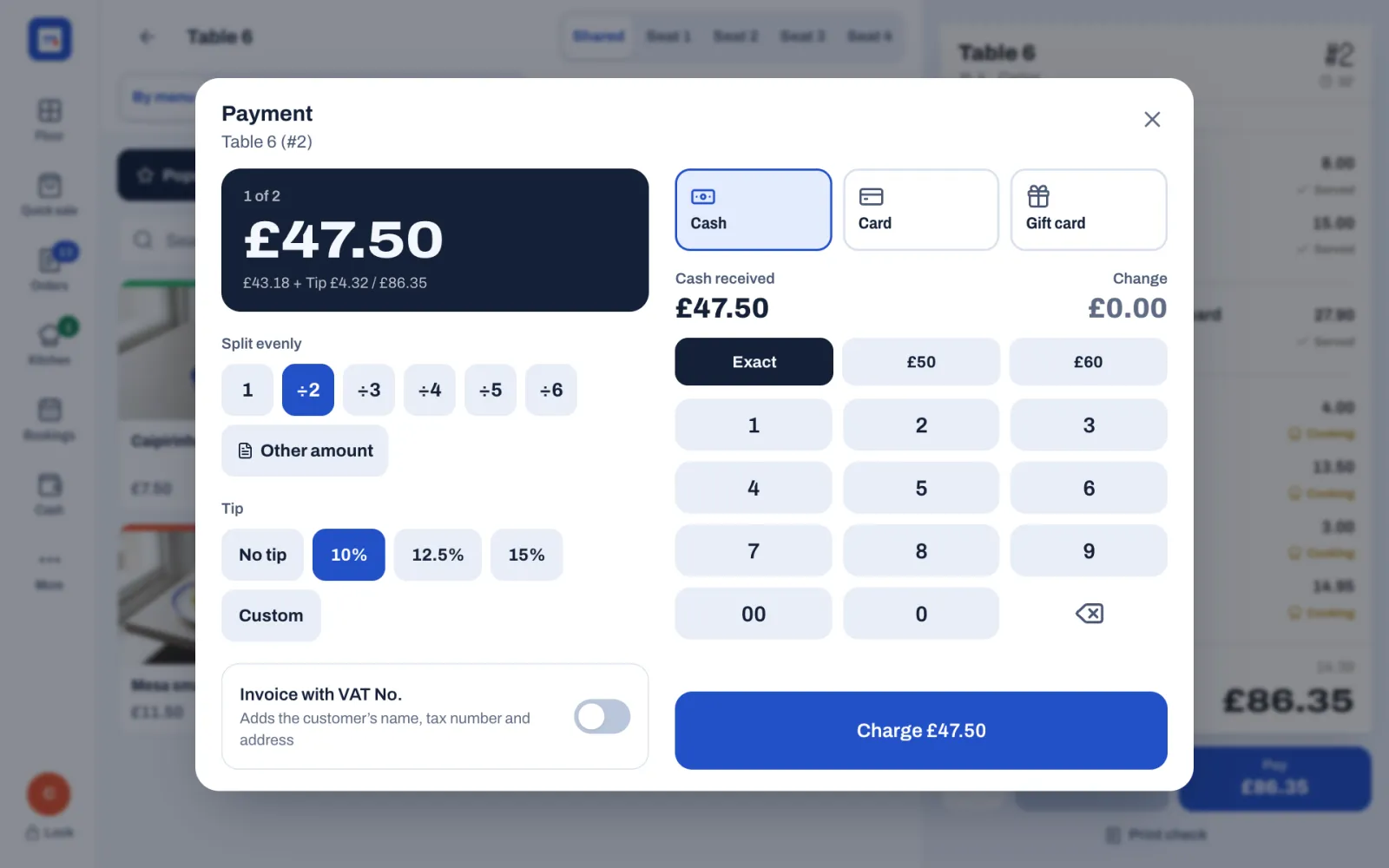
- On the left: the amount box (To pay, or for example 1 of 2 when you split), Payments taken once part of the bill is paid, Split evenly, Other amount, Tip and the invoice switch.
- On the right: one button for each payment method, for example Cash, Card and Gift card, and under it what that method needs.
- At the bottom right: the button that takes the payment, for example Charge £47.50.
To go back without paying, close the window with ×.
Take cash
- Tap Cash.
- Tap the amount the guest gives you: Exact, or a note such as £50 or £60. For any other amount, type it on the number pad; the last two digits are pence.
- Check Change.
- Tap the button. It says, for example, Give £1.83 change, or Charge £47.50 when there is no change.
If no cash drawer is open, the Starting cash window opens first: "Count the cash in the drawer before the first sale." Count the cash, type the amount if it differs from the one shown, and tap Open drawer. The payment then goes through. To open a drawer, your role needs Open and close the cash drawer.
The cash drawer opens. When this payment completes the bill, Payment complete shows the change in large figures. Give the change, then print the receipt or skip it: see Print or skip the receipt.
Take a card payment on your terminal
Sofrito does not talk to the card terminal. You type the amount on the terminal, then confirm the payment in Sofrito.
- Tap Card.
- Tap Charge with the amount, for example Charge £47.50. Sofrito shows "Waiting for the card terminal…" and asks you to confirm once the terminal shows the payment approved.
- Type the same amount, tip included, on the card terminal and let the guest pay.
- When the terminal shows that the payment is approved, tap Approved.
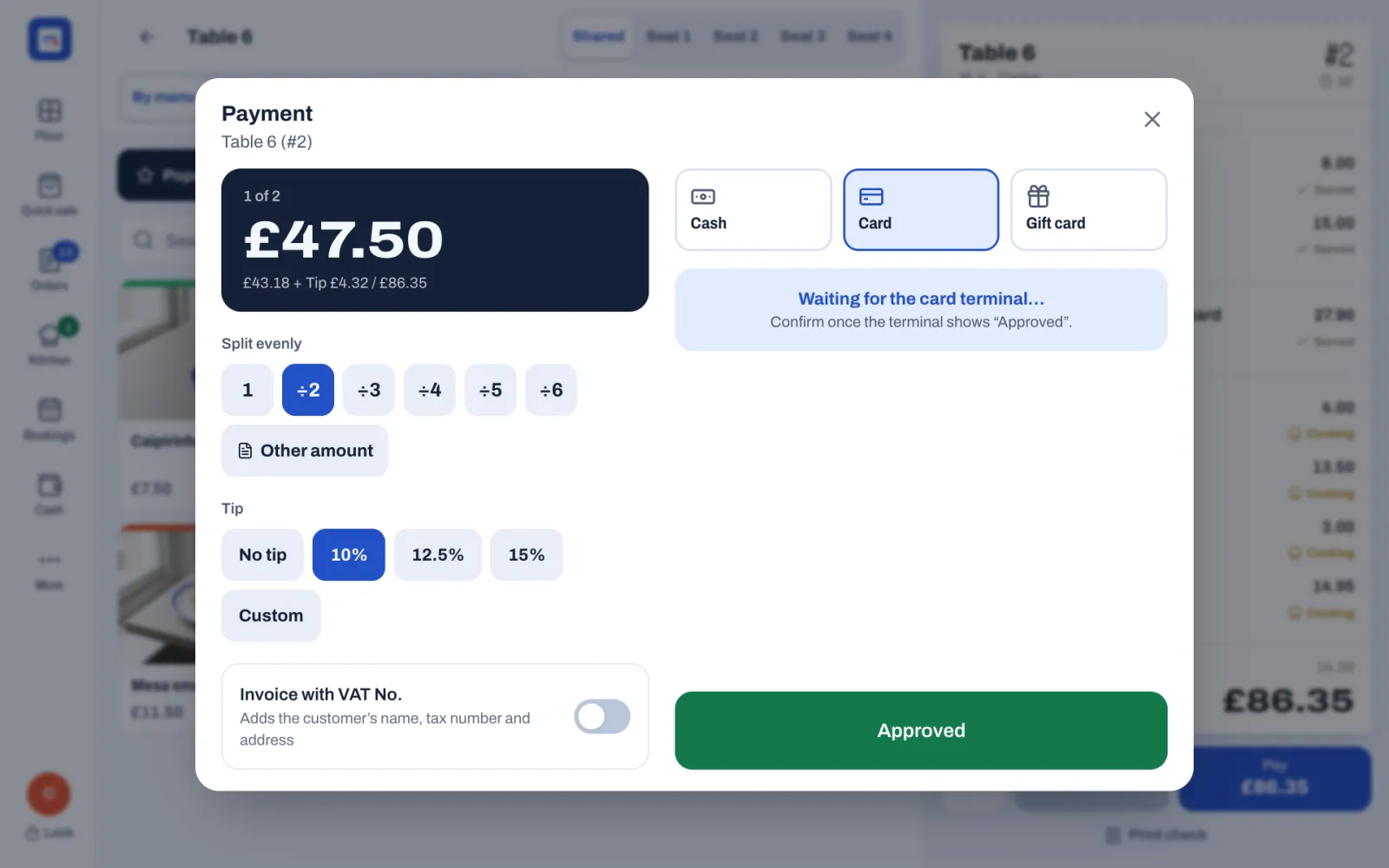
If the terminal declines the card, don't tap Approved. Choose another method, or close the window: nothing is recorded until you tap Approved.
A card method can also be set to Demo: payments are approved automatically in Back office › Settings › Payment methods. Sofrito then approves the payment as soon as you tap Charge, without a terminal. Use it only for training.
Take mobile money
Mobile money methods ask for a reference, the transaction number the guest's phone shows after paying.
- Tap the method, for example M-Pesa.
- Ask the guest to pay from their phone and show you the confirmation.
- Type the transaction number in Reference ("Transaction ID from the phone").
- Tap Charge with the amount.
The Charge button stays grey until there is a reference. Any method with Ask for a reference turned on works this way: see Payment methods, tips and service charge.
Take a gift card
- Tap Gift card.
- Type or scan the code in Gift card code.
- Tap Charge with the amount.
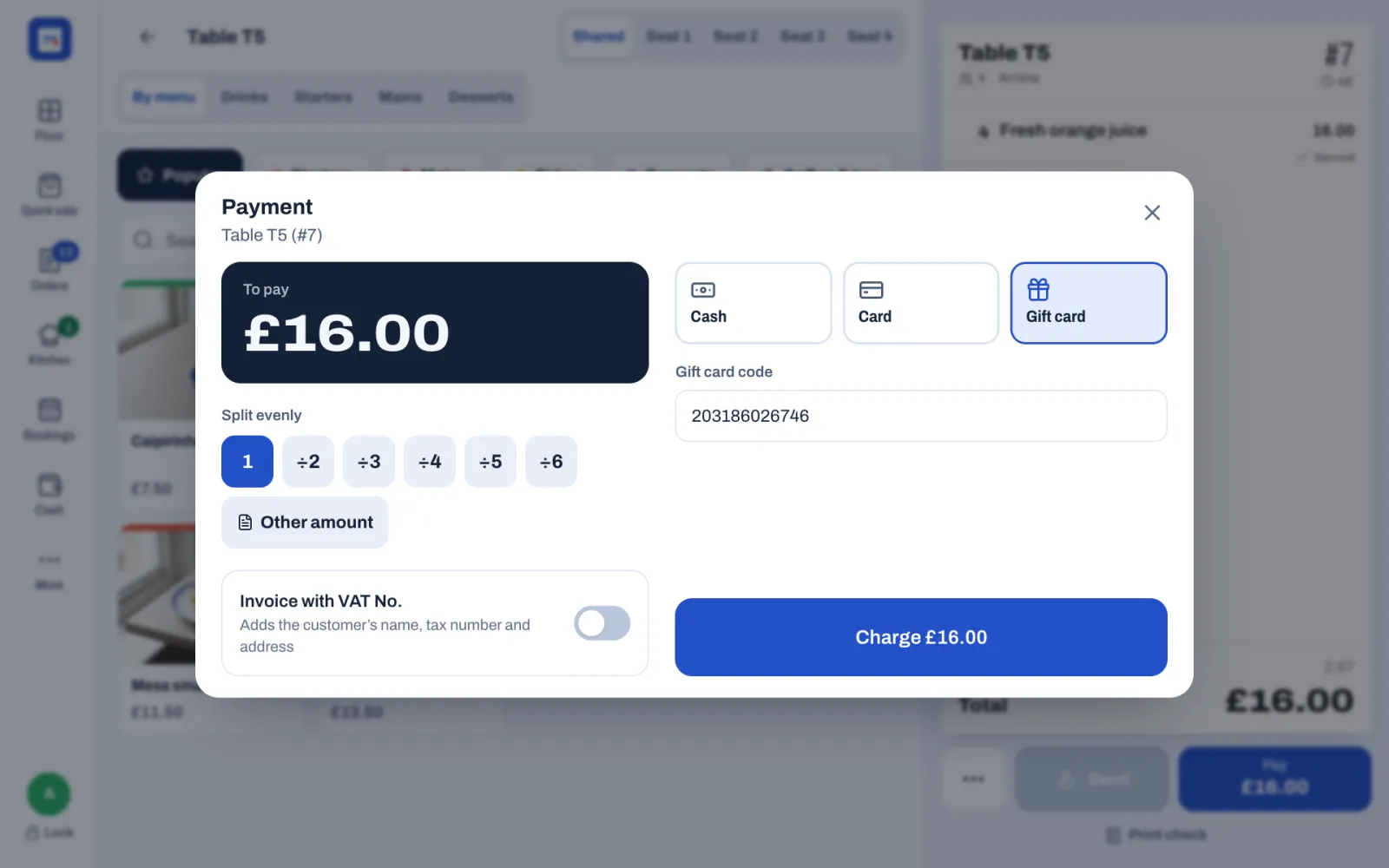
Sofrito takes the amount from the card's balance. If the card doesn't hold enough, it says how much is left, for example "This gift card has only £12.50 left.", and takes nothing: take that much on the card with Other amount, and the rest with another method. Tips can't be paid with a gift card. For the other gift card messages, see Troubleshooting and questions.
Sell a gift card or check its balance
Anyone whose role can take payments sells gift cards on the till. Selling one is not a sale: tax is charged on the order the card later pays for.
- Tap More.
- Under Gift cards, tap Sell or check.
- On Sell or top up, type or scan the code printed on the card under Gift card code. Leave it empty to give the card a new code. For a card already sold, the box says how much is left on it, and the amount is added to it.
- Tap an amount, such as £50, or type it on the number pad.
- Under Paid with, tap how the guest pays, for example Cash. For cash, tap the notes the guest gives you.
- Tap Sell for £50.00, or Top up £50.00 for a card already sold.
Sofrito shows Gift card sold (or Gift card topped up), the card's code and its balance. For a new code, it says "Write this code on the card, or give the guest a copy." Tap Done. Cash goes into the cash drawer. If no drawer is open, the Starting cash window opens first, as for a cash payment: count the cash, tap Open drawer, and the sale goes on. A gift card or a house account can't pay for a gift card.
To see what is left on a card, tap Check a balance, type or scan the code and tap Check. Sofrito shows the balance, the date the card was issued and its latest movements, such as Issued, Spent and Refunded. Top up this card takes you back to Sell or top up with the code filled in. For gift cards given away or corrected in the back office, see Guests, loyalty and gift cards.
Charge a guest's house account
If your restaurant uses house accounts (see Charge orders to a house account), a guest with an account can put the bill on it and pay later.
- On the check, tap ••• › Add guest and choose the guest. Their card shows what they owe and what is left, for example "House account: £0.00 owed, £200.00 left".
- Tap Pay.
- Tap the house account method, for example House account.
- Tap Charge with the amount.
Sofrito adds the amount to what the guest owes. Without a guest on the check, it says "Choose the guest whose house account is charged." If the amount would take the guest over their limit, it says how much is left and takes nothing. Guests pay off their account in the back office.
Add a tip
- Under Tip, tap a percentage, for example 10%, 12.5% or 15%.
- Or tap Custom and type the tip.
The amount box shows the bill and the tip, for example "£43.18 + Tip £4.32". The tip is worked out on the amount being paid now, so each guest who pays a share tips on their share. On the receipt, the tip shows under the payment.
The Tip row appears when Ask for a tip is on in Back office › Settings › Tips and the chosen method accepts tips. Cash, card and mobile money do in a new restaurant; gift cards don't. In reports, tips are kept apart from sales.
Split the bill
Evenly
- Under Split evenly, tap ÷2, ÷3 and so on up to ÷6. The amount box shows 1 of 2 and one share.
- Take the first payment. Sofrito shows, for example, "£43.17 left to pay", and the window stays open.
- Take the next payment. Sofrito counts down: after the first of three shares, it shows 1 of 2.
Each guest can pay their share with a different method and their own tip. After each payment, Tip goes back to No tip, so each guest chooses their own.
By an amount
- Tap Other amount. Sofrito suggests half of what is due.
- Tap the delete key until the amount is empty, then type the amount. The last two digits are pence.
- Choose the method and take the payment.
By item, on separate checks
Do this before anyone pays.
- On the check, tap ••• › Split check.
- Each item has a row of buttons. · keeps it on this check; 1 moves it to the first new check, 2 to the second, and so on. Tap + for another check, up to six. The totals of each check show at the top.
- Tap Split check.
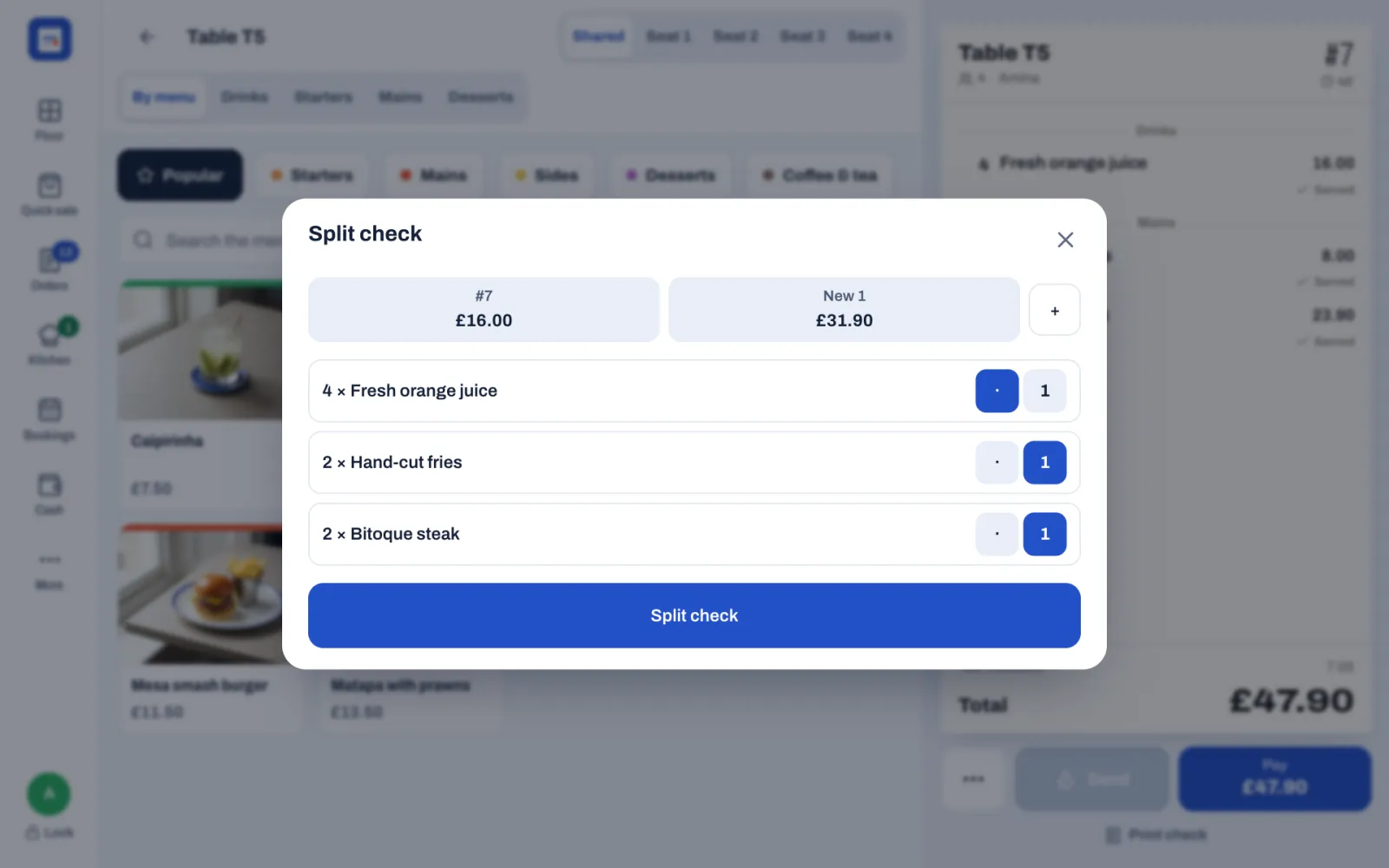
Sofrito opens the first new check. Each check has its own number and is paid on its own. When you tap the table, Sofrito lists its checks: tap the one to pay.
Items move as whole lines. To share one item, such as a bottle of wine, between guests, first tap it on the check and tap Split item ÷4 (the number is the number of guests, up to six). The item becomes equal parts on the same check, which you can then move to different checks. This button appears on sent and held items, on checks with more than one guest.
Once part of the bill is paid, Split check is no longer offered: split the payment evenly or by amount instead.
Take part of the bill now
Any payment smaller than what is due leaves the order open. Sofrito shows, for example, "£43.17 left to pay".
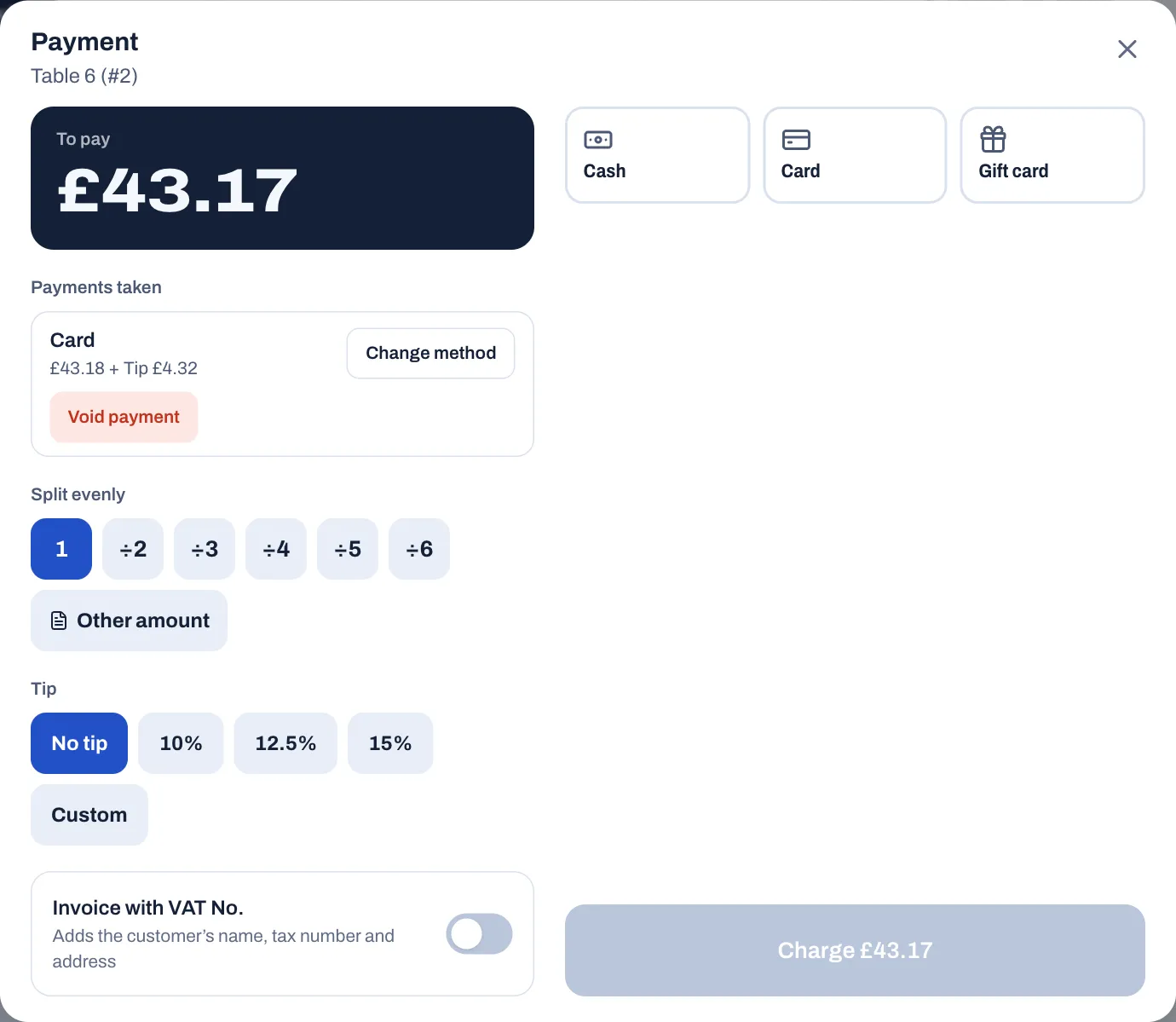
- The Payment window lists what was paid under Payments taken, and the amount box shows what is left.
- The check shows Paid and Due, and Pay shows what is left.
- The order's card in Orders shows Paid with the amount paid so far.
- The table stays busy on the floor until the rest is paid.
Come back to the check later and tap Pay to take the rest. The order closes, and the receipt is issued, when nothing is left to pay.
Correct a payment
While the bill is still open, each payment under Payments taken has two buttons:
- Change method: for a payment taken with the wrong method, for example card that was really cash. Sofrito voids the payment and sets the same amount and tip up again. Tap the right method and take it.
- Void payment: takes the payment off the bill. Tap the reason, for example Charged in error.
Both need Void payments, or a manager's PIN. A voided cash payment comes out of the cash the drawer should hold. A voided gift card payment goes back on the card, and a voided house account payment comes off what the guest owes. A card payment is only voided in Sofrito: give the money back on the card terminal yourself.
If the total goes down after a payment, for example because an item was voided, the window says how much more was paid than the order now costs. Void a payment, then take it again for the right amount.
Once the order is paid in full and closed, its payments can't be voided: refund it instead. See Refund a paid order.
Give an invoice with the customer's tax number
When a business customer needs their name and tax number on the document:
- On the payment that pays the bill in full, turn on Invoice with VAT No. ("Adds the customer's name, tax number and address"). The name of the number follows your country, for example Invoice with NIF in Portugal or Invoice with NUIT in Mozambique.
- Type the customer's tax number under VAT No. and their name or company under Name / company.
- If the customer wants their address on it, fill in Address, Postcode and Town or city.
- Take the payment as usual.
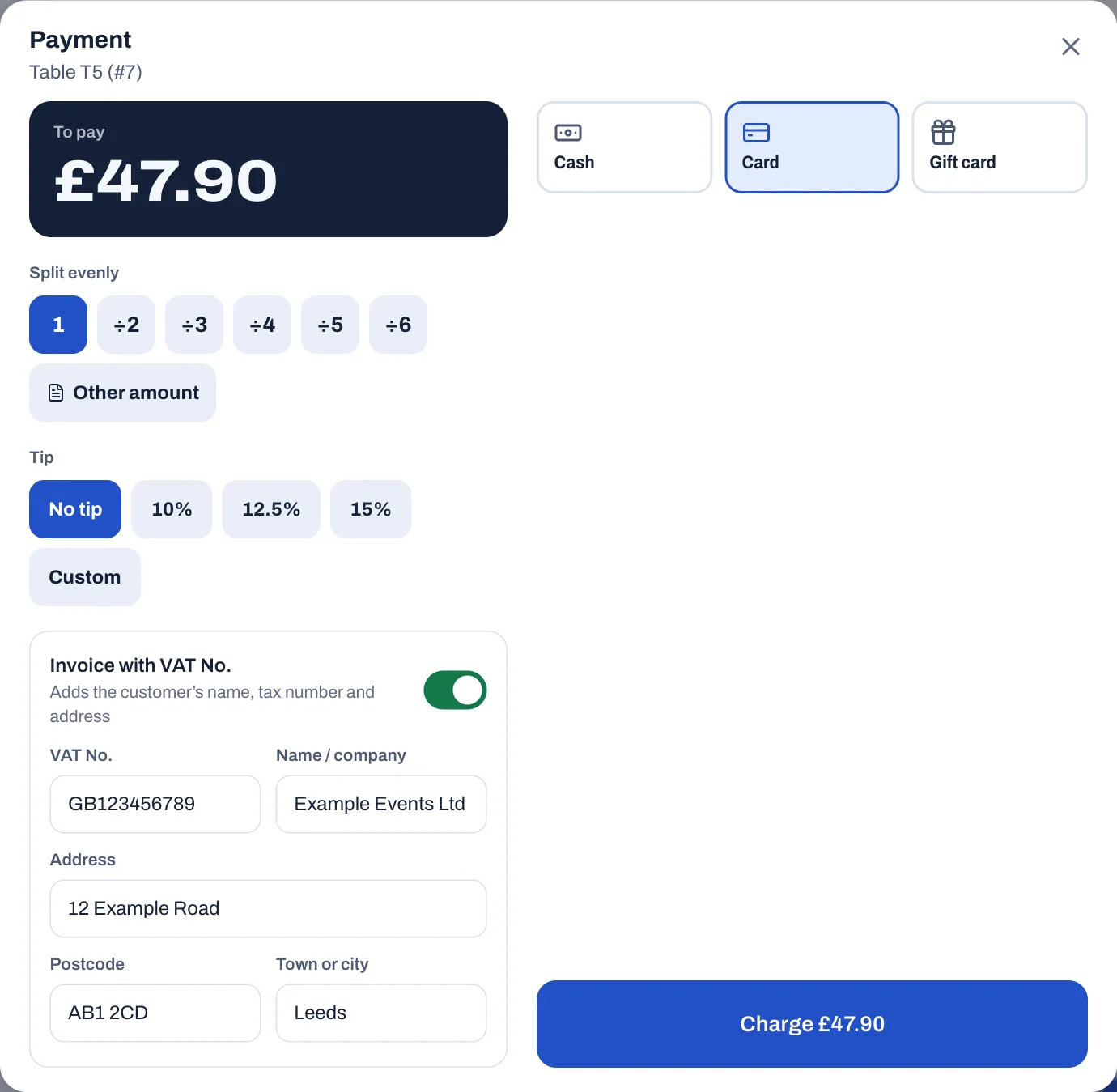
The document shows the customer's name, tax number and address. In the United Kingdom, the guest gets a VAT invoice instead of a receipt, with each item's price before VAT and its rate. If the tax number is not valid for your country, Sofrito shows "That tax number is not valid." and takes no payment: check the number with the guest and try again.
If the check has a guest profile with a tax number (see Guests, loyalty and gift cards), their name and number go on the document without the switch.
For each country's documents, see Taxes, receipts and legal documents and Country notes.
Print or skip the receipt
When the bill is paid in full, Payment complete shows the document number, for example RC A2026/1146, and for cash the change to give.
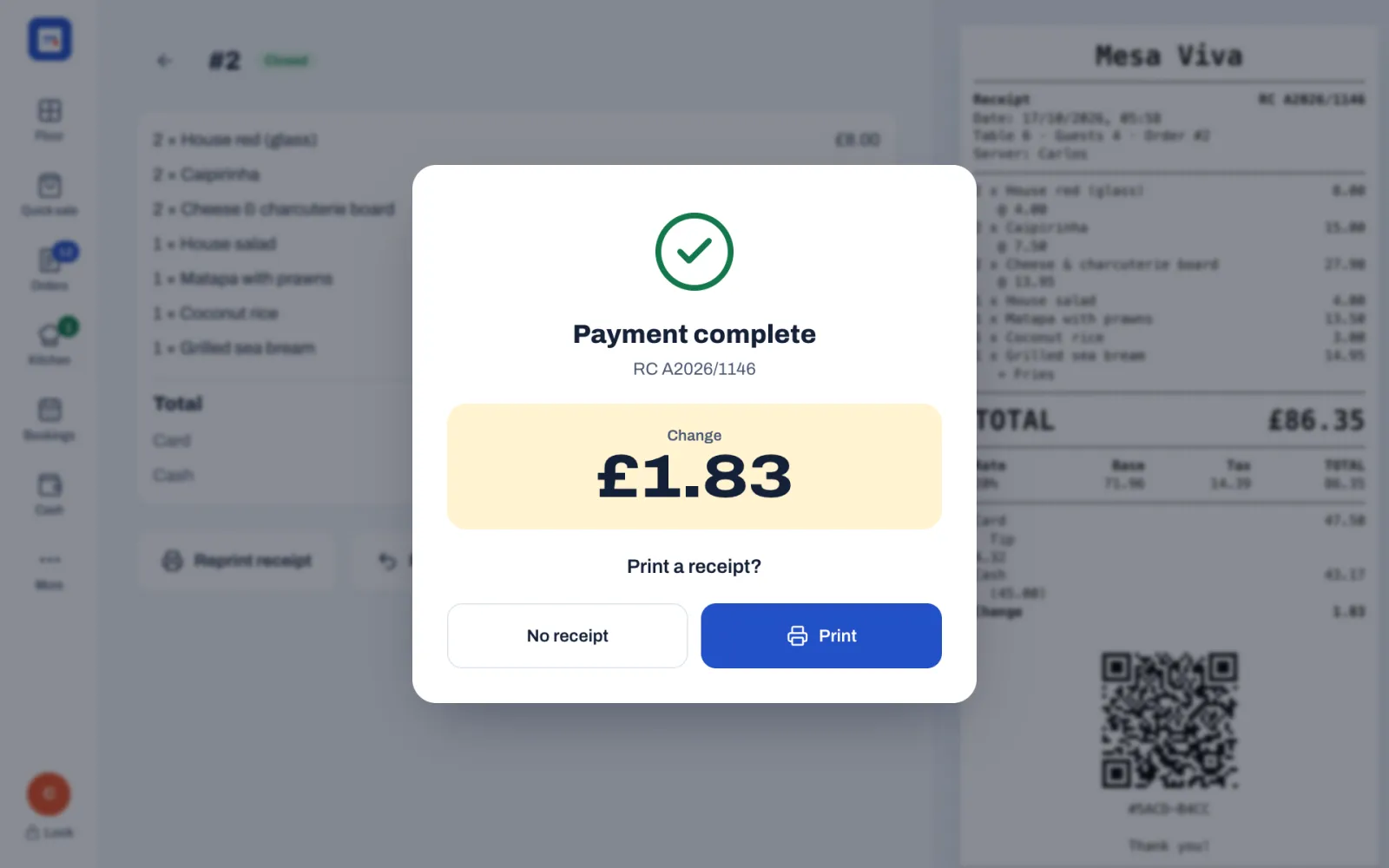
What you tap next depends on Print after payment in Back office › Settings › Receipts:
- Ask: the window asks "Print a receipt?". Tap Print to print it on this device's receipt printer, or No receipt. A new restaurant starts on Ask, except one set up for counter service, which starts on Always.
- Always: the receipt prints by itself. Tap Done.
- Never: nothing prints. Tap Done. If the guest wants a receipt later, use Reprint receipt on the order (see Reprint a receipt).
A table order then goes back to Floor, where the table shows Needs cleaning. A counter order opens a new, empty order. If Lock after each payment is on, the till locks.
If a receipt can't print, the till that sent it shows, for example, "RC A2026/1146 didn't print on Front counter", with the reason and a Reprint button. Fix the printer, for example add paper, and tap Reprint.
Copies, in the same settings, prints up to three receipts each time: the first is marked Original and the others Copy. If the receipt printer has its own Copies setting, the higher of the two counts.
Reprint a receipt
- Tap Orders.
- Tap Closed.
- Find the order: search by number, table or name.
- Tap the order.
- Tap Reprint receipt.
A reprint is one copy, marked Copy. If the receipt was never printed, for example because the guest said no, the first print is the original.
What a closed order shows
Tap a paid order in Orders › Closed to open it.
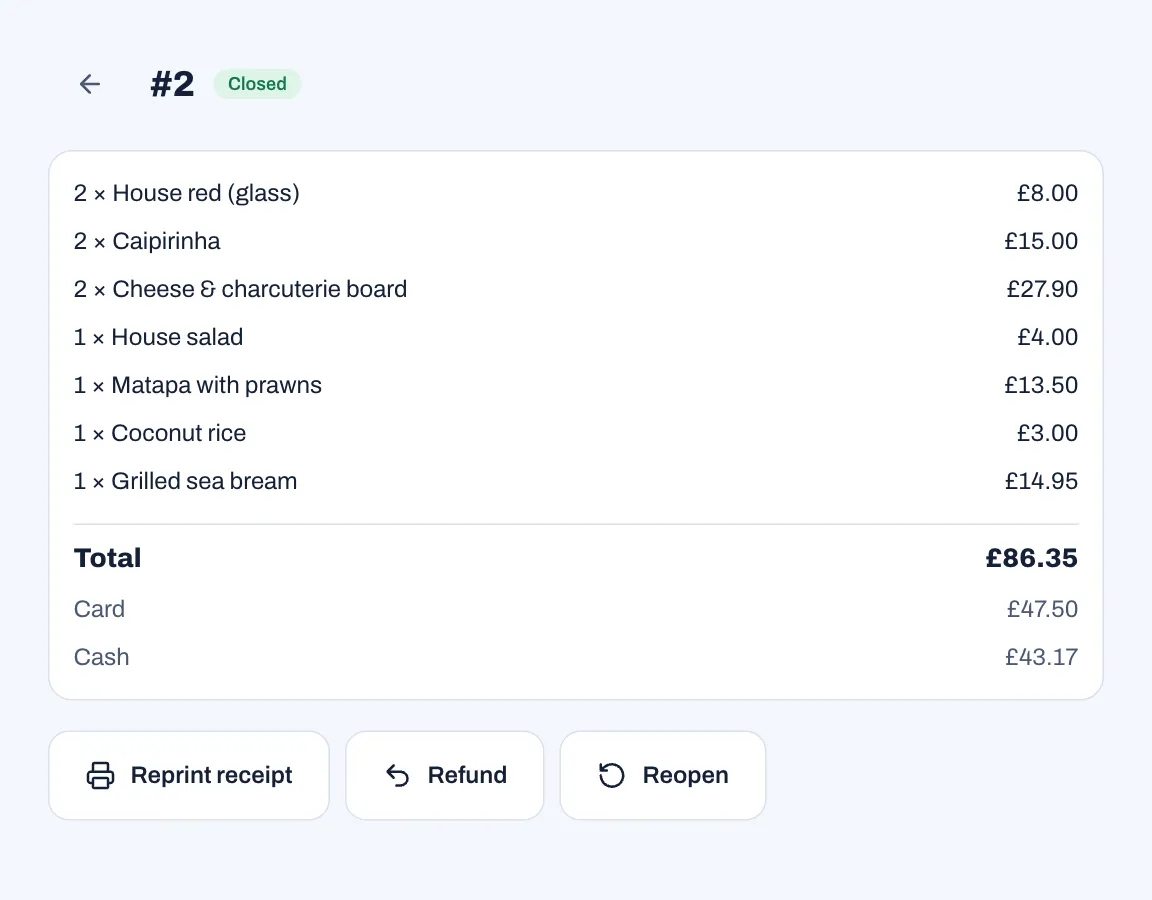
- The order number with Closed.
- Each item with its quantity and price. Refunded items carry a badge, for example −1.
- Total, then each payment with its method and amount, tip included. Card payments show the last four digits of the card when Sofrito knows them.
- Refund with the amount, if anything was refunded.
- The buttons Reprint receipt, Refund and Reopen. For Refund and Reopen, see Voids, discounts, refunds and approvals.
- On the right, a preview of the receipt or invoice of the sale. After a refund, it still shows the sale, not the credit note.
Before you charge
- Check the table and order number at the top of the Payment window before you take money.
- Ask about an invoice before the last payment, not after.
- For a card, wait until the terminal shows the payment approved before you tap Approved.
- Count the change on the counter, in front of the guest.
- If a payment went on the wrong method, fix it with Change method before the bill is closed.
- Give every guest who wants one a receipt.